Italiano
 English
Configuration
Contents
After purchasing the Whitelabel plan, the Whitelabel Settings tab will be unlocked within your account. In this section, you can enter all the necessary visual and configuration details to customize your dedicated portal.
To activate the Whitelabel platform correctly, all required fields in this tab must be filled out. You can update the appearance of the platform at any time by revisiting this section.
Once configuration is complete, the Supportfast team will activate your portal within 2 business days. You’ll receive a confirmation email once the portal is live.
Below are all the Whitelabel configuration options explained.
Portal Name
Assign an identifiable name to your AI chatbot portal. This name will be used:
- As the header title within your platform
- As the page title in the browser (navigation bar)
You can choose whether or not to display the name in the interface, depending on the type of logo you upload.

Portal Logo
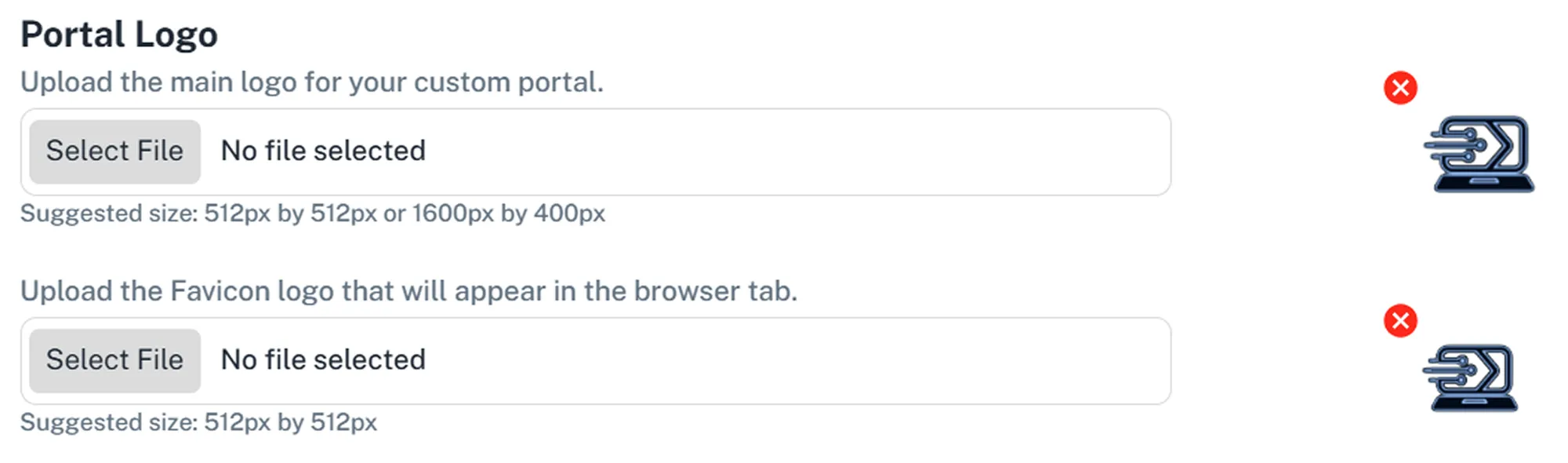
You can upload your platform’s logo in two different ways:
- A square logo, with the option to also display a text-based title
- A horizontal logo that already includes the application name within the image
Recommended dimensions:
- Square logo: 512 × 512 px
- Horizontal logo: 1600 × 400 px
You can also upload a separate logo to be used as the browser favicon. For best clarity, a square format (512 × 512 px) is also recommended here. Non-square favicons may appear pixelated.
Portal Colors
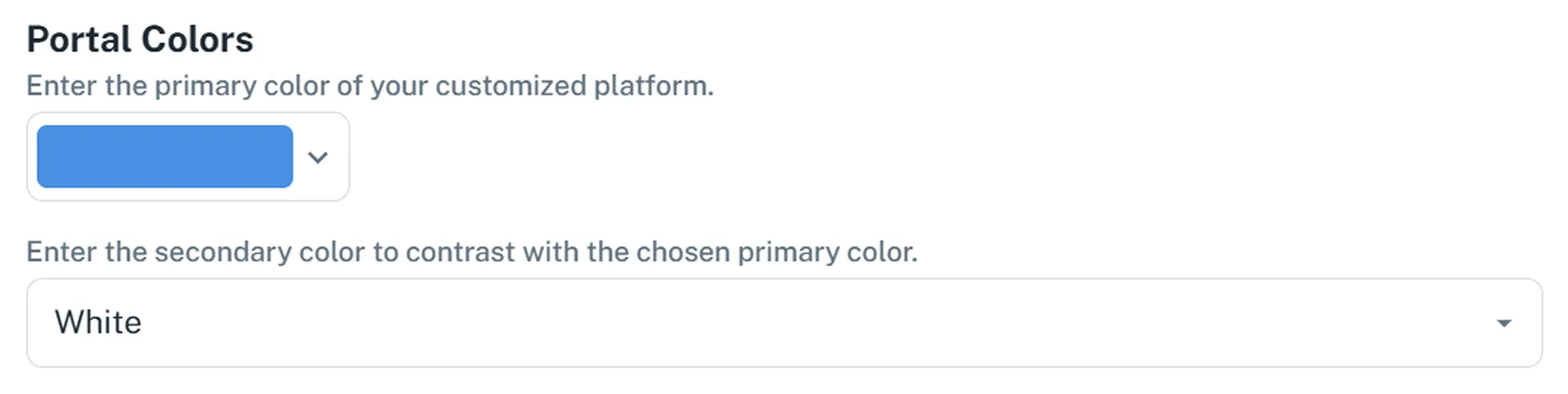
Choose the primary color of your platform using the integrated color picker.
You can select the color by hexadecimal code, RGB value, or manually via the interface.
Next, select a contrast color (white or black), which will be applied to text and elements over the primary color. We recommend using white if your primary color is dark, or black if your primary color is light.
Portal Domain
Enter the subdomain where you want to host your Whitelabel portal. You will need to follow the provided instructions to correctly configure your domain’s DNS. A third-level domain is required for the Whitelabel platform.
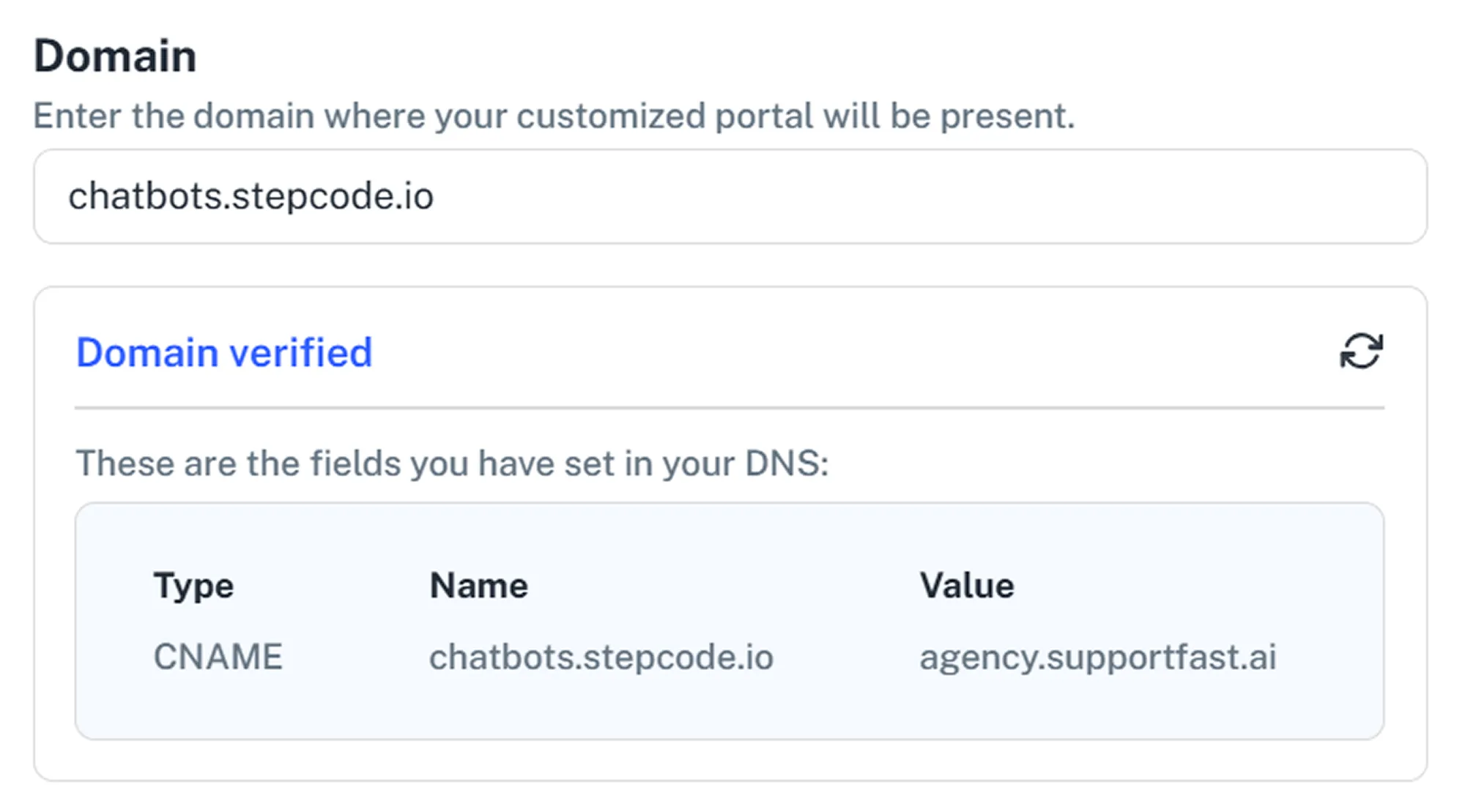
Once configuration is complete, the system will automatically verify the domain status and indicate whether it has been successfully validated.
Example 1) You already have a website on agency.com. You can use ai.agency.com or chatbot.agency.com as a third-level domain for your Whitelabel platform.
Example 2) You’re launching a new brand. You purchase the domain mybrand.com for your promotional website. You can use app.mybrand.com or any other third-level subdomain for the Whitelabel portal.
Having trouble with this step? Watch the full domain configuration walkthrough in this video tutorial.
Portal Email
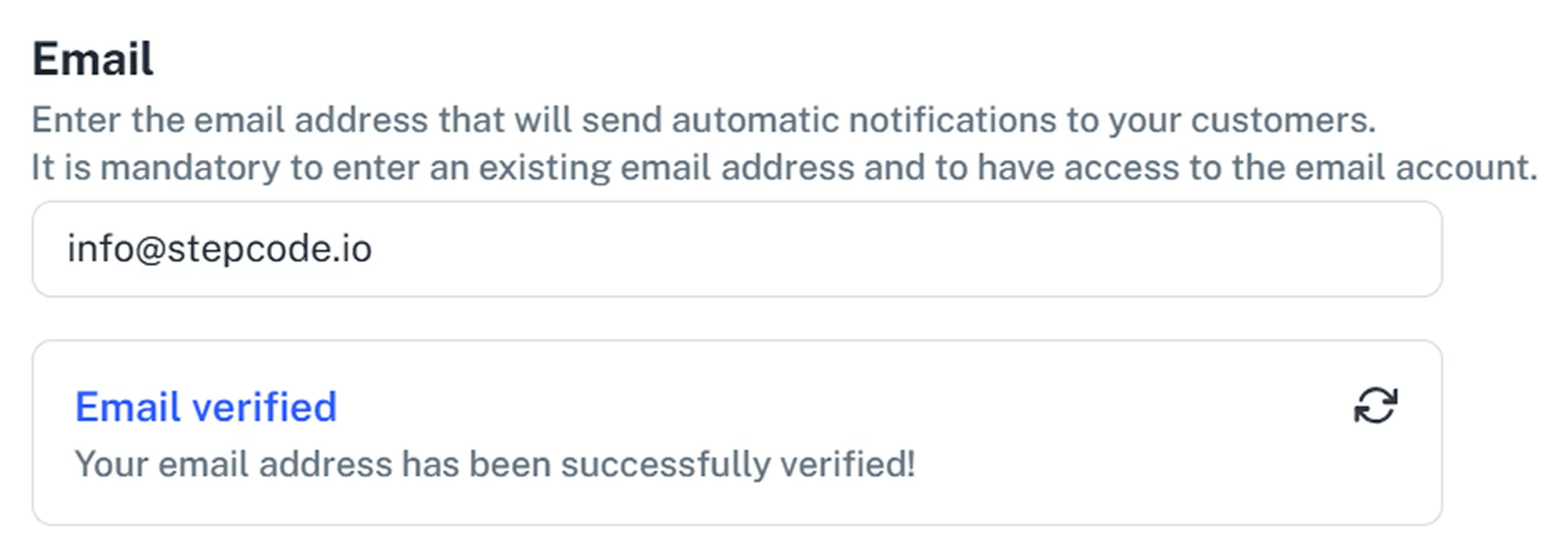
Enter the sender email address that will be used to send automatic communications from your Whitelabel platform, such as:
- New conversation notifications
- Requests for human agent support
- Other system-generated messages
After entering the address, you’ll receive a verification email. Click the link in the message to confirm the address. Once verified, the email status will automatically update in the settings interface.