Italiano
 English
Messenger Integration Guide
Contents
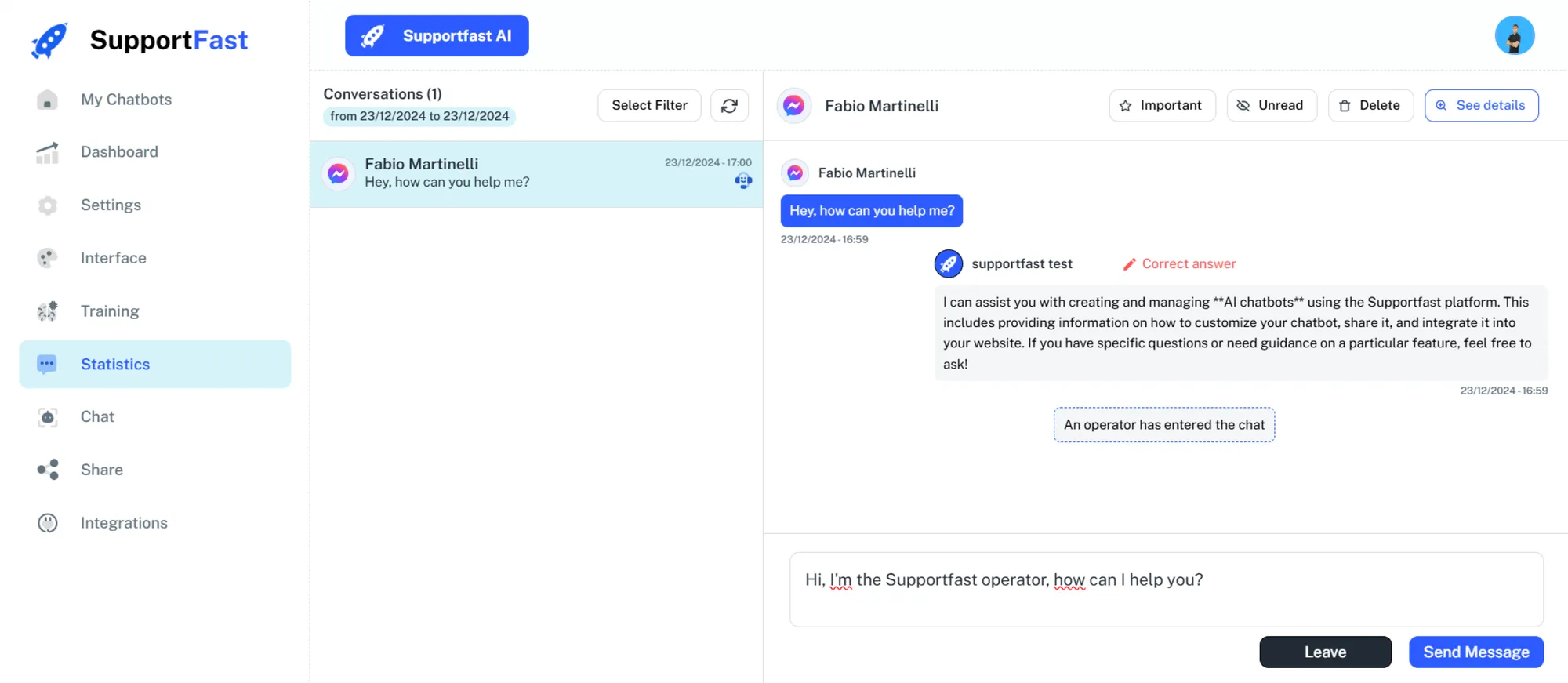
Integrating Messenger with Supportfast allows your chatbot to independently respond to messages received from your Facebook Page. You will be able to see all conversations and individual messages from your chatbot’s “Stats.” You will also have the ability to intervene in the conversation as a human operator to respond to Messenger messages directly from Supportfast. This guide will explain the steps needed to connect your chatbot to Messenger, ensuring smooth and effective interactions with customers.
Requirements Needed:
You will need the following:
- A Professional Instagram Account.
- A Facebook Page linked to that account.
White Label Case
Even for Whitelabel plans, Facebook configuration must be done within Supportfast, by an administrator-level user. The Facebook page will be connected to Supportfast’s Meta app, but the setup phase is the only time our brand will be visible.
You will need Facebook access to manage your client’s page, and you can get it in two ways:
- Ask the client for credentials (email and password) to log in
- use your own Facebook account and get invited onto the client’s Business Manager
Messenger Connection
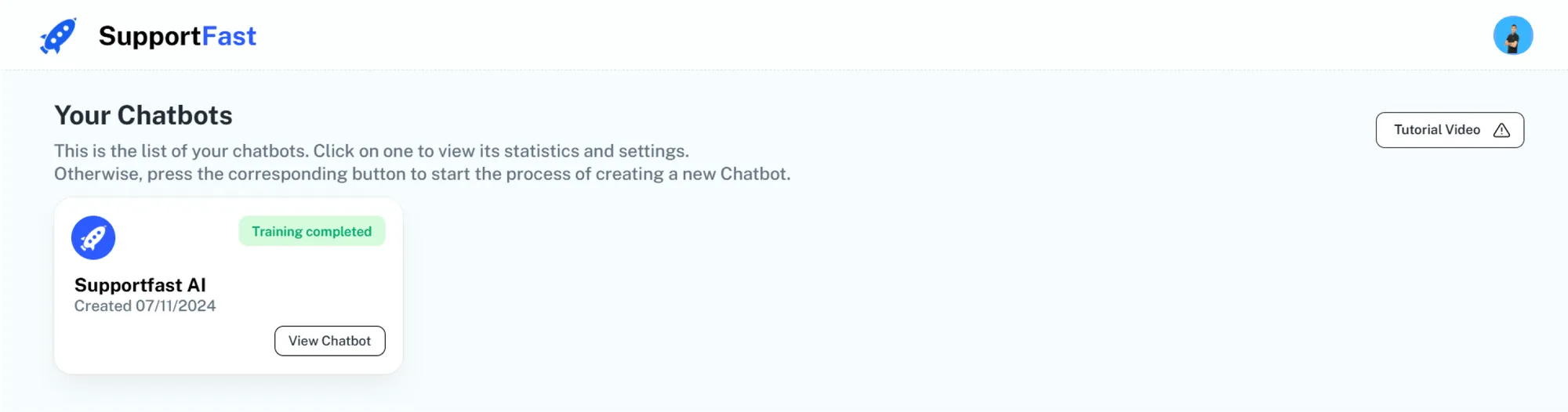
1: Open your dashboard on Supportfast and select a chatbot.
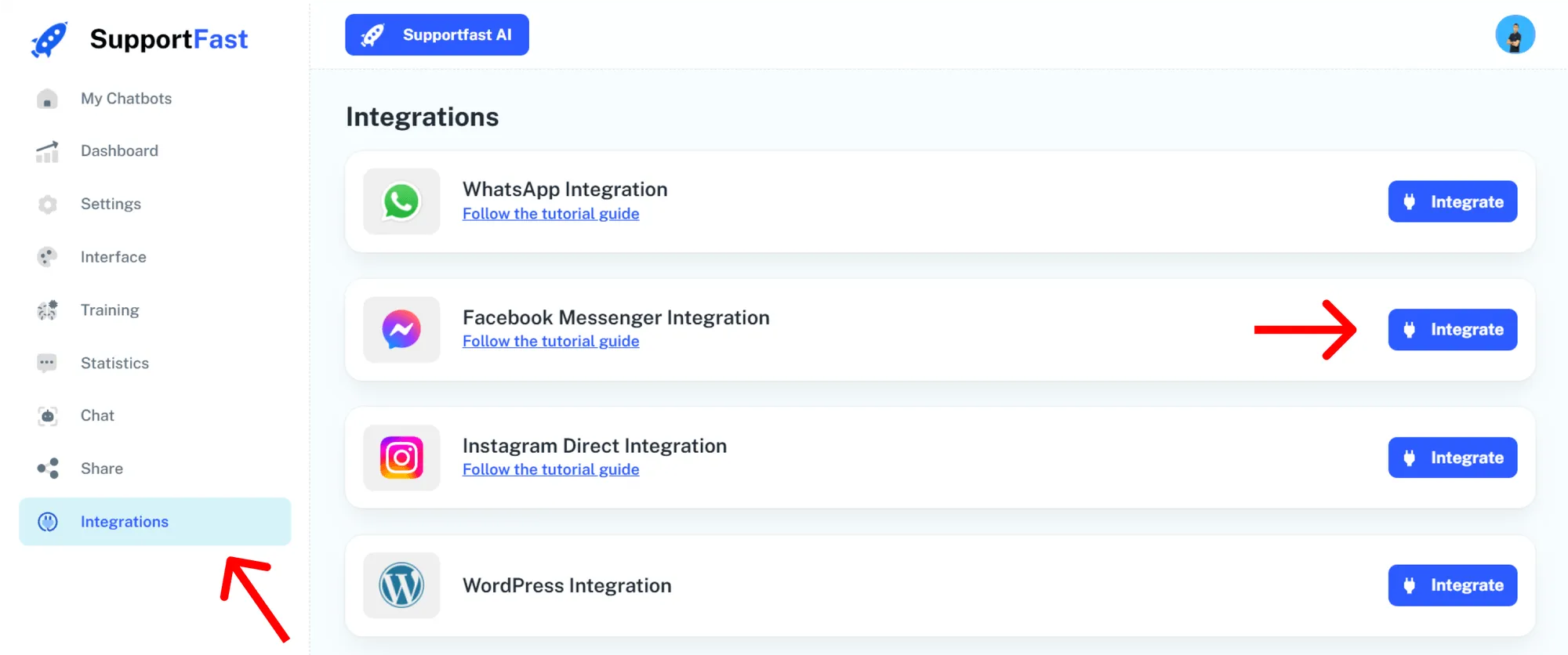
2: Navigate to the Integrations tab and click on Integrate.
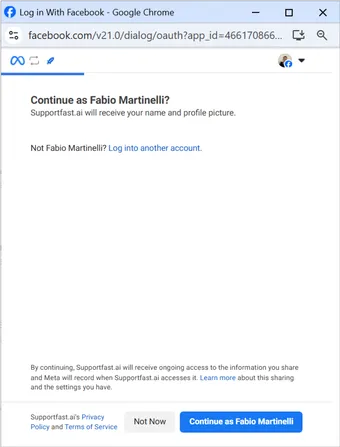
3: Log in with the Facebook account that controls the Facebook Page and the Business Manager you wish to link.
4: Choose the Facebook Page linked to your Business Manager that you wish to integrate.
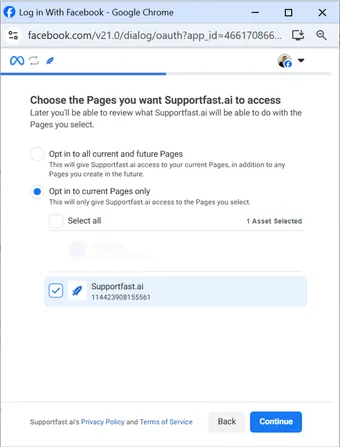
5: Select the Business Manager associated with your Facebook Page.
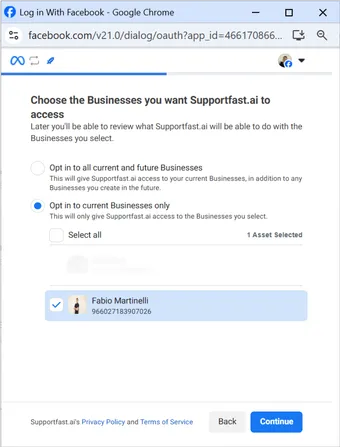
6: Click Save and wait a few seconds for the integration to complete.
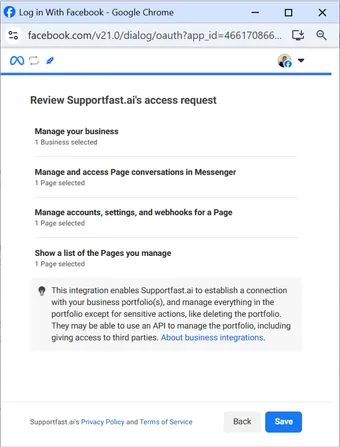
7: Your integration will be completed successfully.
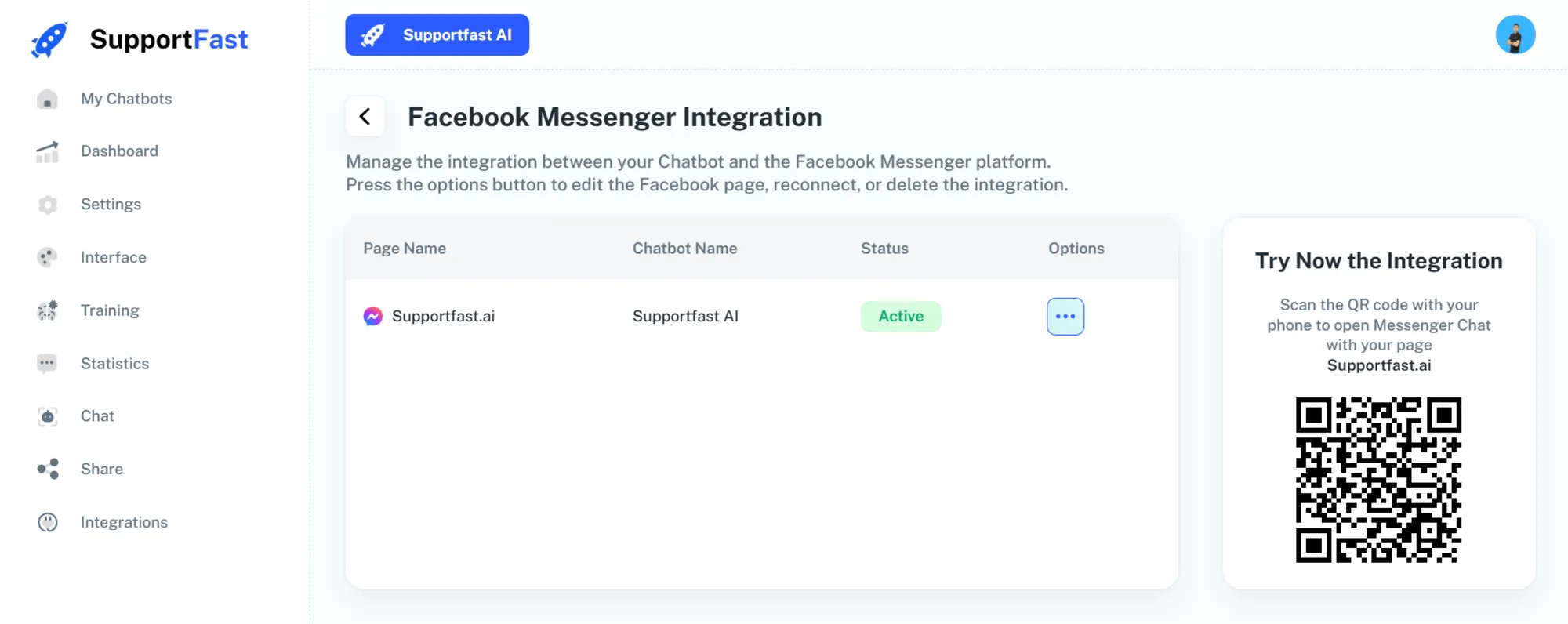
8: Now when a user posts to your Facebook Page your AI Chatbot will respond in your place and you will be able to view all posts within the Statistics tab.
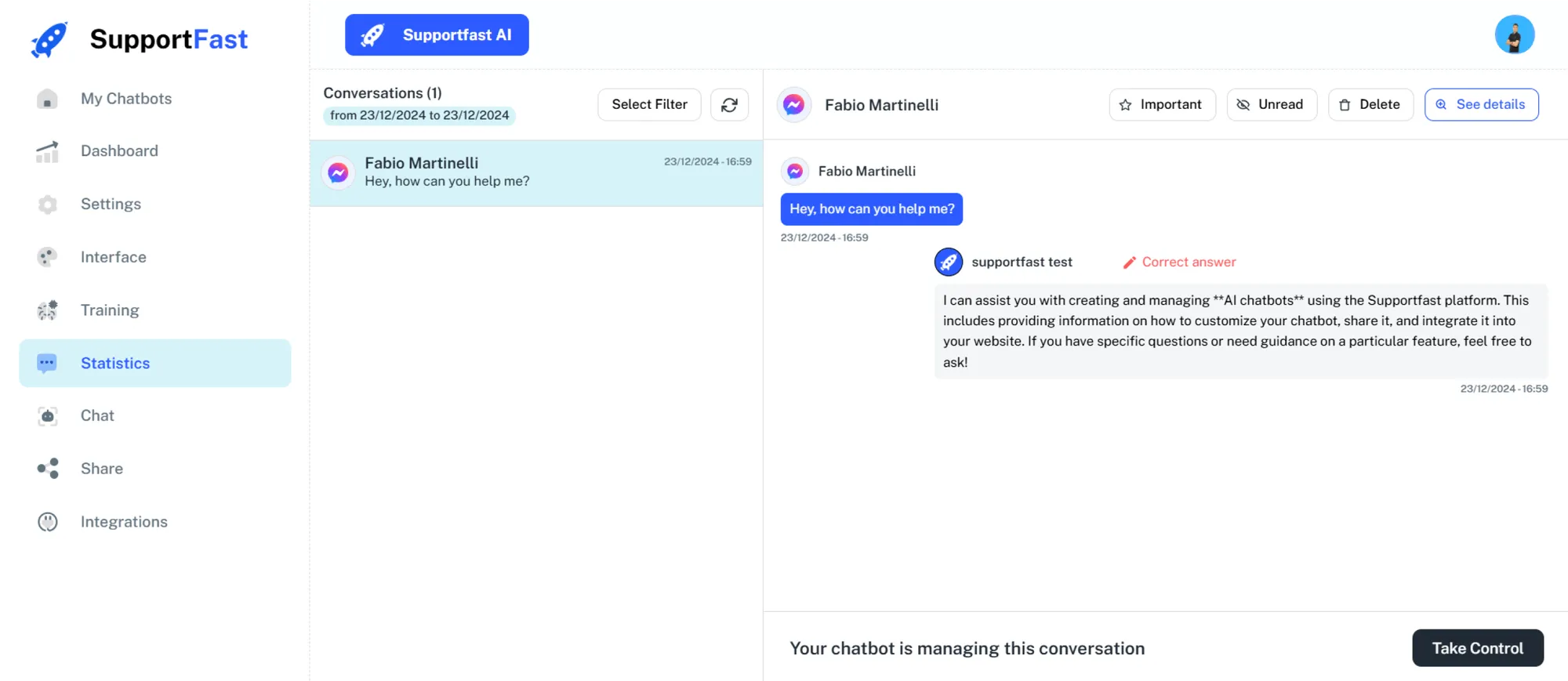
Human-operated management:
This feature allows you to take control of conversations at any time to stop chatbot responses and allow a human operator to send messages manually.
- 1: Go to the Statistics section via the side navigation bar.
- 2: Select a chat you wish to take manual control of.
- 3: In the lower right corner, click Take Control to manually manage this chat. You will be able to send messages and receive replies from users. Once you are done, simply click Quit to leave the next interactions to the chatbot.