Italiano
 English
Whatsapp Integration Guide
Contents
Integrating WhatsApp with Supportfast allows your chatbot to autonomously respond to messages received from your WhatsApp phone number. You will be able to see all conversations and individual messages from your chatbot’s “Statistics.” You will also have the ability to intervene in the conversation as a human operator to respond to WhatsApp messages directly from Supportfast. This guide will explain the steps necessary to connect your chatbot to WhatsApp, ensuring smooth and effective interactions with customers.
Phone Number
A phone number that is not already associated with an existing WhatsApp account is required. Due to rules imposed by WhatsApp, a phone number used for third-party services cannot be used simultaneously with the WhatsApp application. All conversations and messages will be visible only from the Stats tab of your chatbot on Supportfast.
You can obtain the phone number in these ways:
- Delete your WhatsApp account to free up a phone number. Log in to WhatsApp, then go to Settings -> Account -> Delete my account. Next, delete the Whatsapp application from your device.
- Get a new SIM or a virtual SIM (eSIM). We recommend the one from Iliad available at a one-time cost of €15.
- Use a landline number.
Costs
The use of the Whatsapp API involves a cost applied by Meta. The cost of the WhatsApp API is calculated based on consumption, that is, the number of conversations that are initiated each day with different users. The number of messages sent by each individual user does not matter, only the total number of daily conversations. If the same user writes messages on WhatsApp on different days, these will be counted by Meta as different conversations. You have 1,000 free conversations each month offered by Meta, while subsequent conversations will cost about €0.03 for each (cost varies depending on the phone number’s state of origin). A business credit card to be associated with the WhatsApp operator is required and mandatory to cover the above costs, should they apply, even if you plan to handle fewer than 1,000 conversations. Without hooking up a valid payment method, WhatsApp’s API for your number will not be able to work.
Requirements Needed
- A phone number as explained above.
- The ability to receive messages or calls on that phone number, to verify ownership.
- Access to a Facebook Business Manager with administrator level, as you will need it to establish a connection between WhatsApp (Meta/Facebook ownership) and Supportfast.
Whitelabel case
Even for Whitelabel plans, WhatsApp configuration must be done within Supportfast, by an administrator-level user. The WhatsApp phone number will be connected to Supportfast’s Meta app, but the configuration phase is the only time our brand will be visible.
You will need access to your client’s Business Manager, and you can get it in two ways:
- Ask the client for credentials (email and password) for access.
- Use your own Facebook account and get invited to the client’s Business Manager.
WhatsApp connection
1: Open your dashboard on Supportfast and select a chatbot.
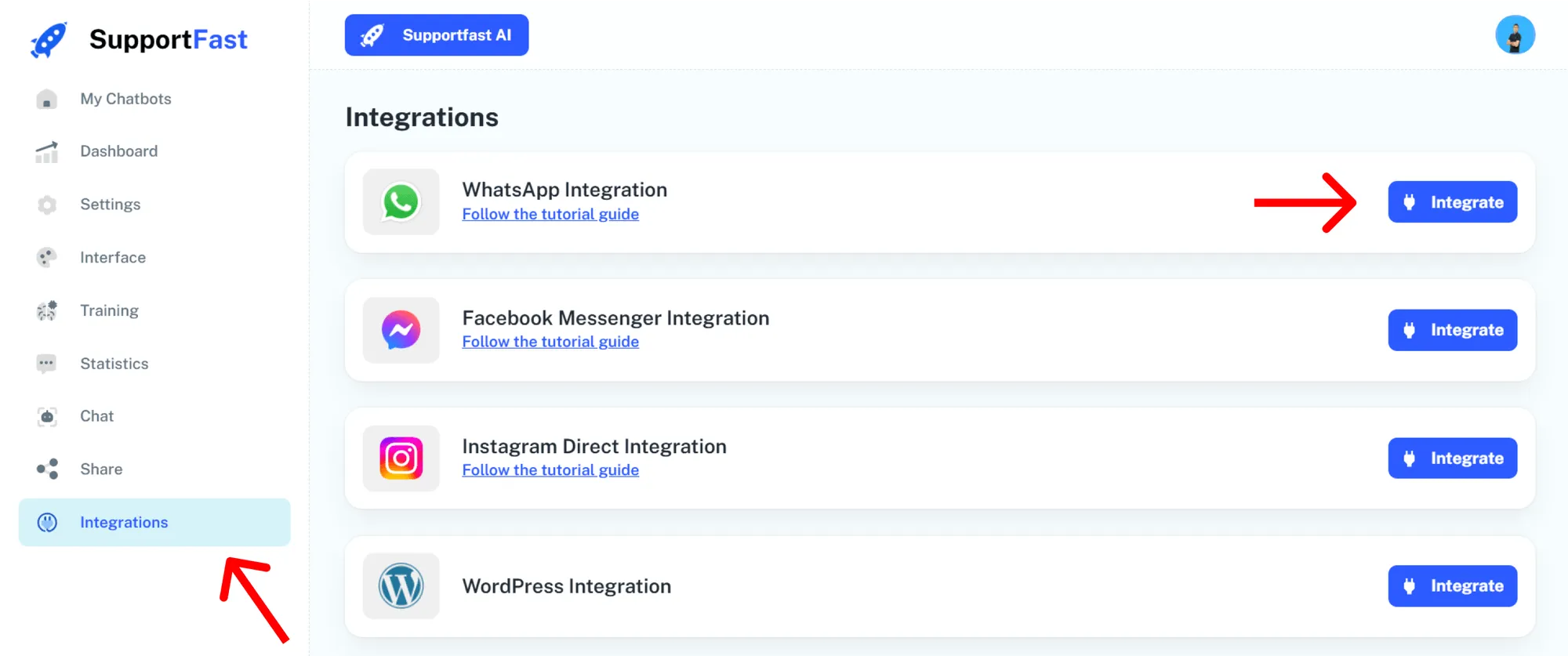
2: Navigate to the Integrations tab and click on Integrate.
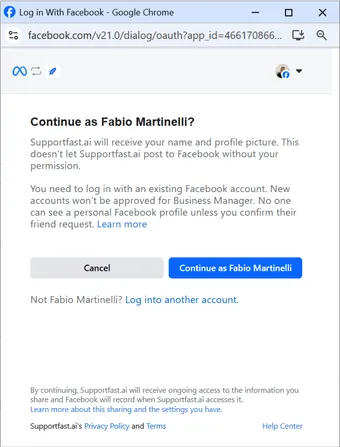
3: Login with your Facebook account.
4: Click on “Get Started.”
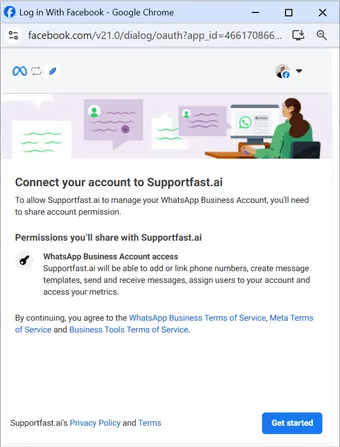
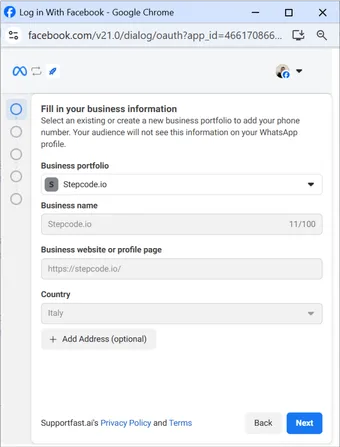
5: Select or create a Business Profile.
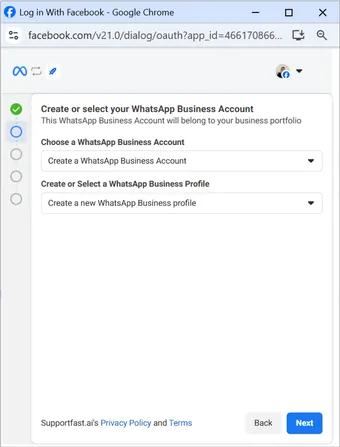
6: Create a WhatsApp Business profile or select an existing one.
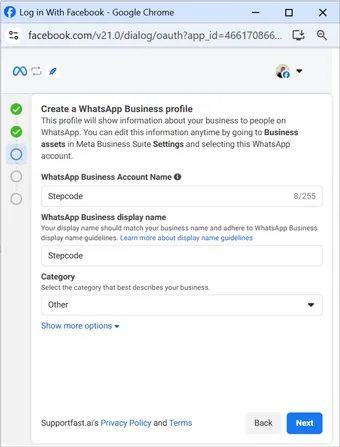
7: Fill in the information for the business profile.
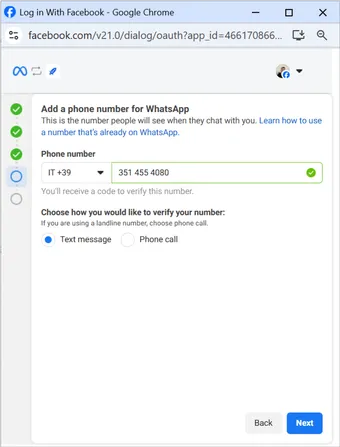
8: Add the phone number to be registered and select the validation method from “Text Message” or “Call”. In case you want to use a fixed number, it is mandatory to select “Call”.
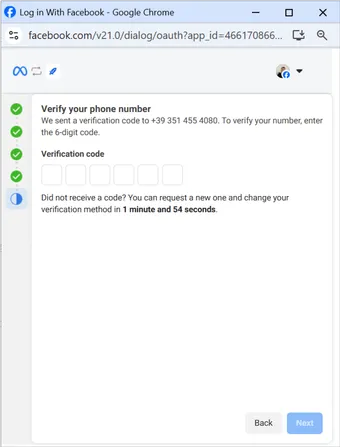
9: Enter the verification code received by text message or Call. If you call, an automatic voice will dictate the verification code.
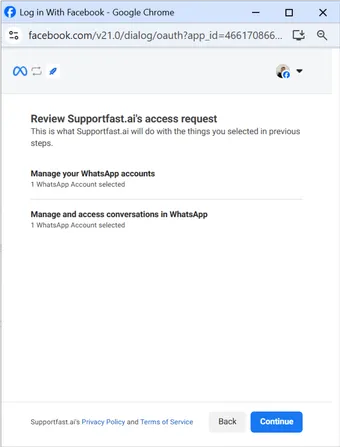
10: Click on “Continue” and wait for a few seconds for it to load.
11: Click “Finish” and wait for the integration to complete.
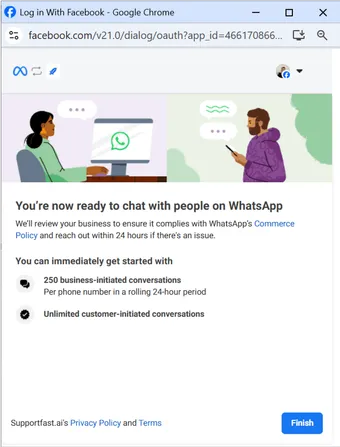
12: Your integration will be completed successfully.
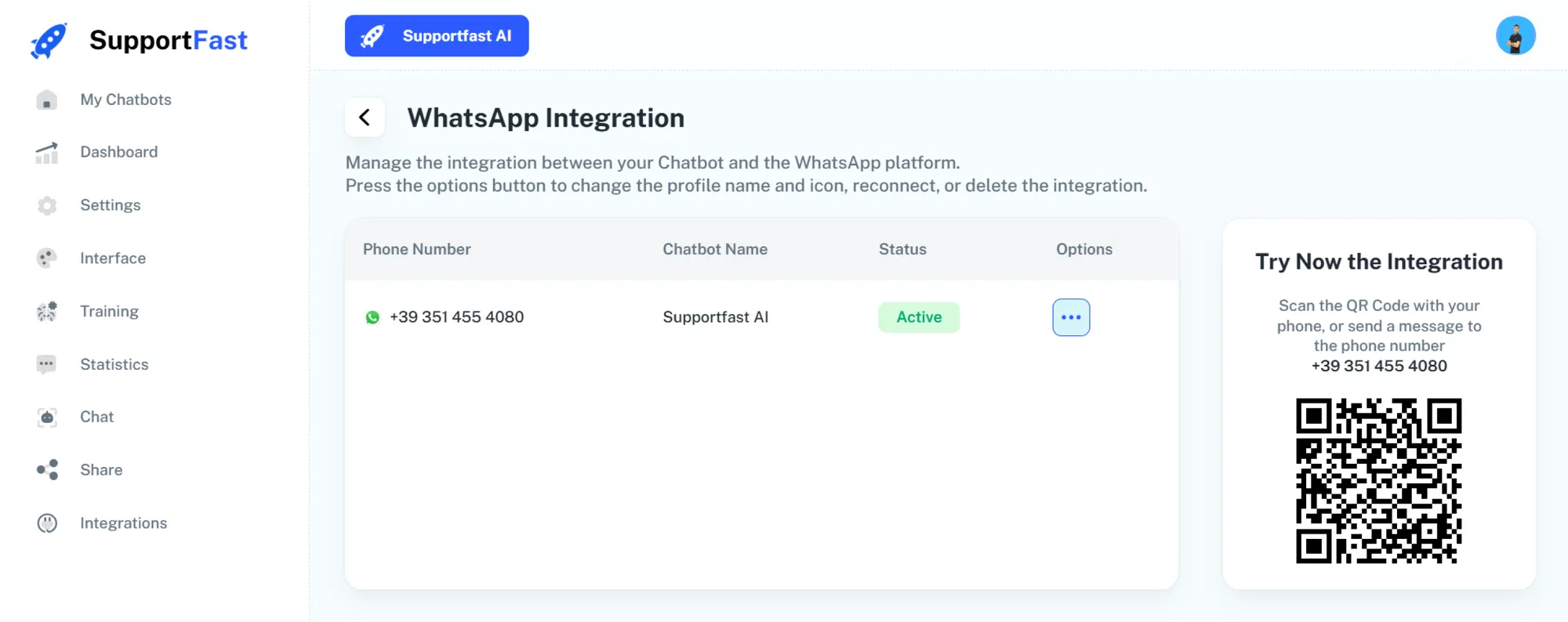
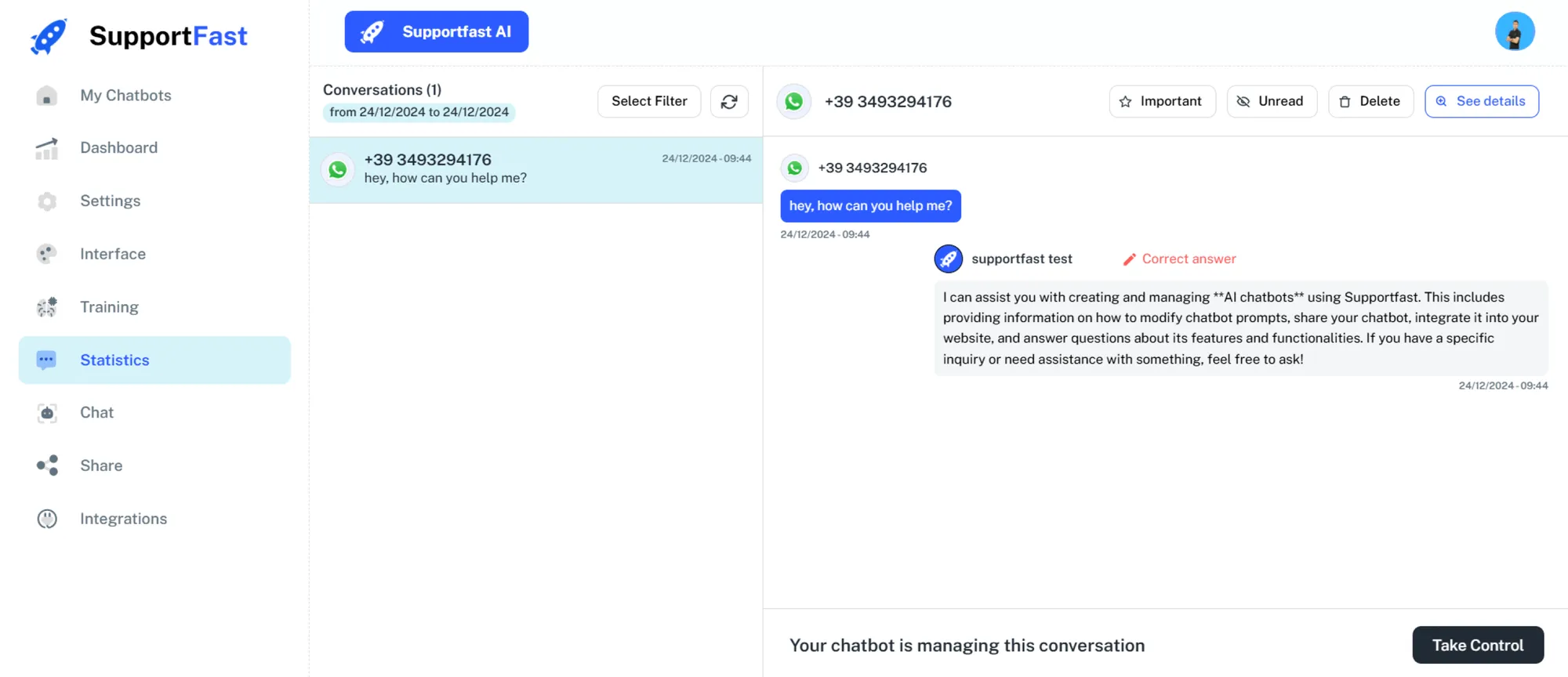
13: Now when a user writes to your WhatsApp number your AI Chatbot will respond in your place and you will be able to view all messages within the Stats tab.
14: (OPTIONAL) You can change the style of your WhatsApp profile. To do so, navigate to the WhatsApp integration page, click on the button with the 3 dots and then click on “Edit Profile.” You will be sent back to the Meta configuration panel, where you can customize the name and profile photo for your WhatsApp account.
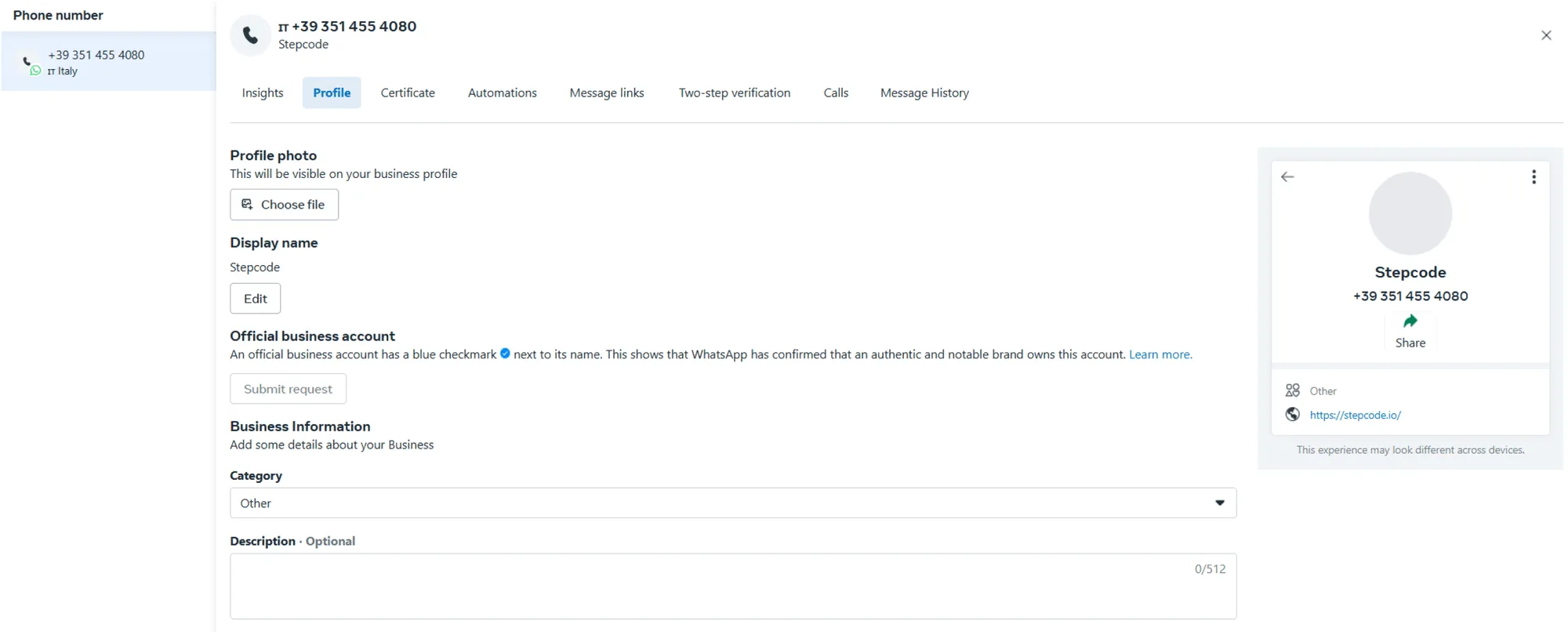
Now that the integration is active, you can send 1,000 free messages per month. Be sure to add a payment method in Meta’s billing settings to be able to send more than 1000 messages per month.
Human-operated management:
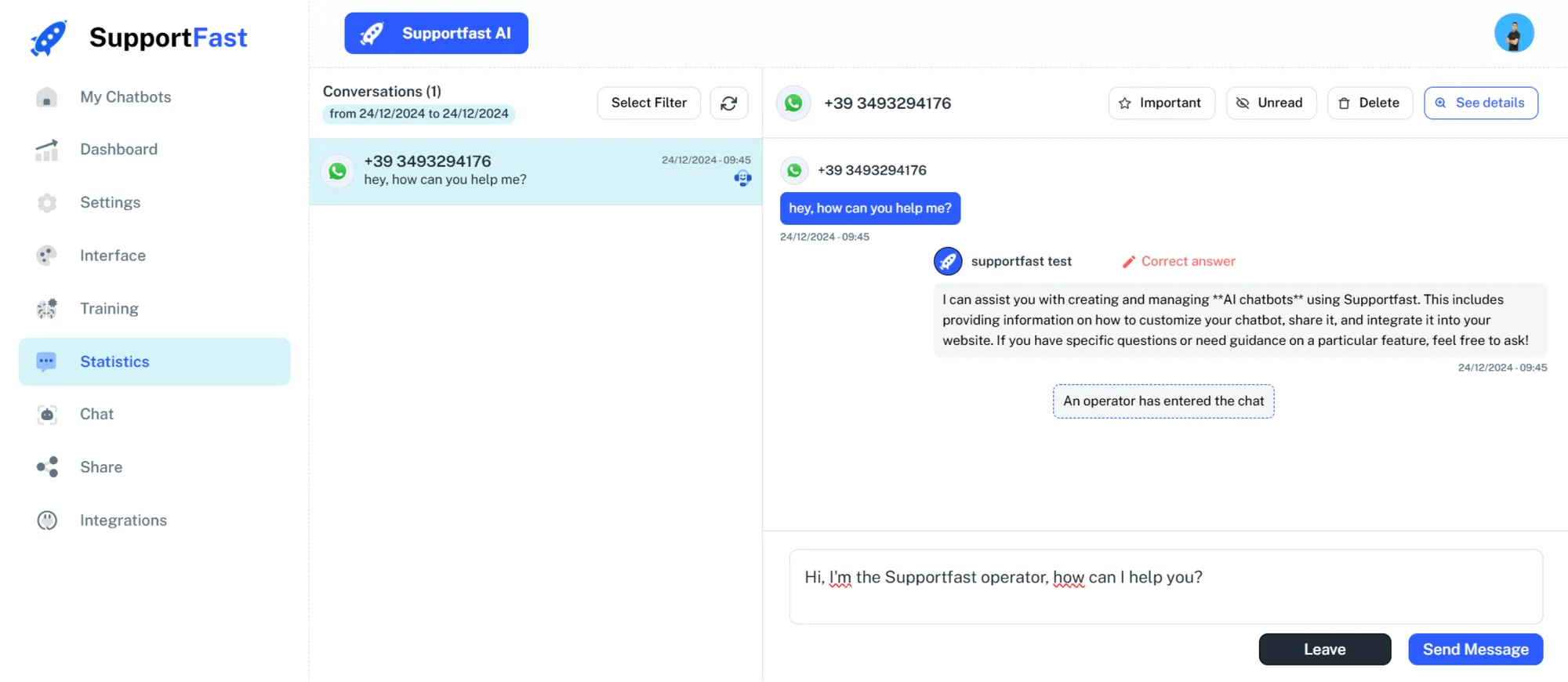
This feature allows you to take control of conversations at any time to stop chatbot responses and allow a human operator to send messages manually.
- 1: Go to the Statistics section of your chatbot.
- 2: Select a chat you wish to take manual control of.
- 3: In the lower right corner, click Take Control to manually manage this chat. You will be able to send messages and receive responses from users. Once you are done, simply click Quit to let the chatbot handle the next interactions.