Italiano
 English
Statistics
Contents
https://app.supportfast.ai/statistics/
The Statistics page of your chatbot is the section where all conversations, along with their respective messages, between the chatbot and users are displayed. Various filters and options are available, allowing you to monitor the chatbot’s performance, check collected contacts, manage conversations as a human operator, and much more.
Statistics are updated in real time, based on events occurring on your chatbot, such as a new message sent or a contact collected. User conversations are also updated in real time, instantly showing responses from either the chatbot or the human operator.
With each new interaction, if you leave the Supportfast page open with the chatbot selected, the platform will emit a sound notification to alert you, enabling you to intervene promptly if needed. Email notifications can also be enabled from the chatbot’s Settings tab.
Page Overview
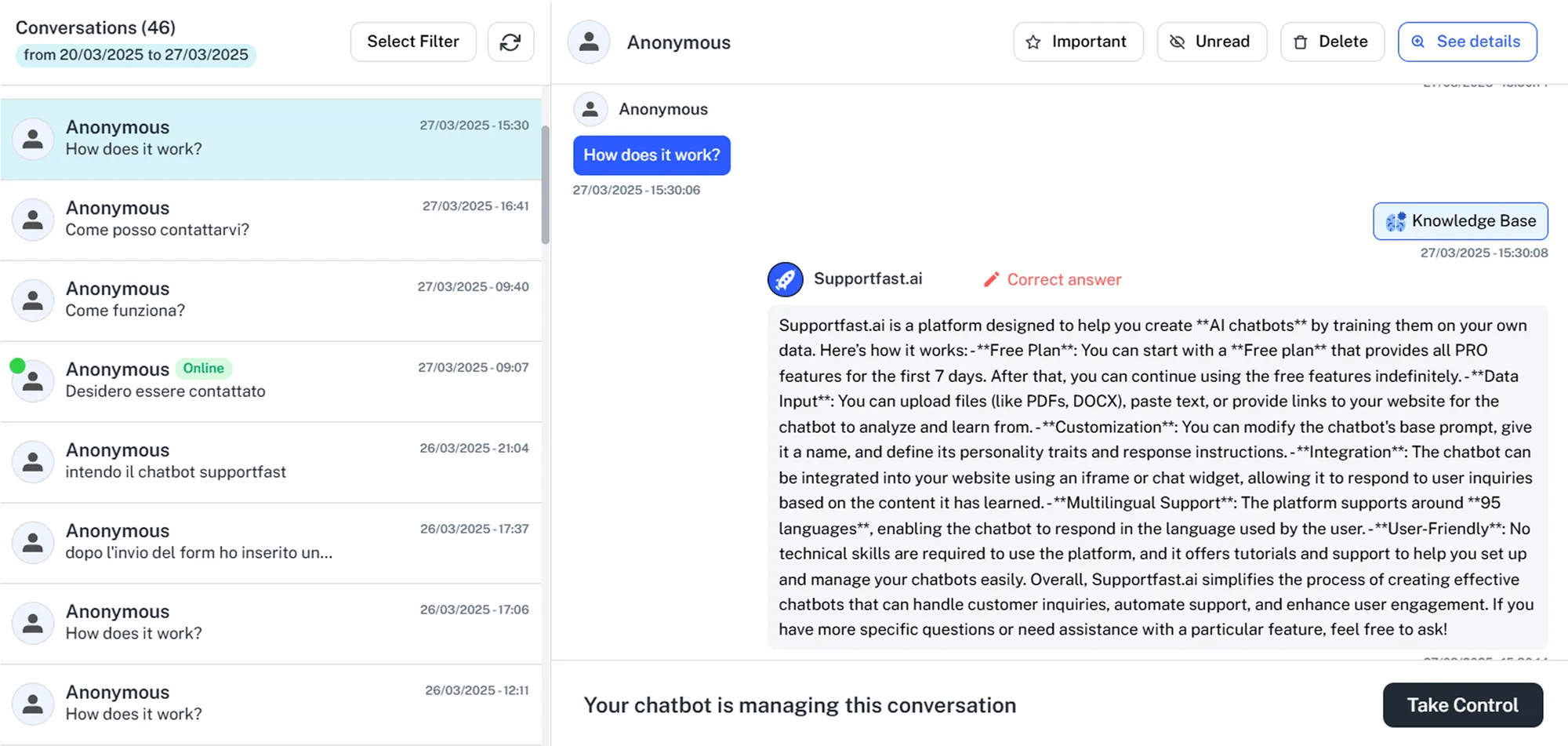
The Statistics page is divided into two horizontal sections:
- Conversation List, on the left, which displays all conversations within the selected dates and any applied filters.
- Selected Conversation, on the right, which shows the details of the conversation selected on the left.
Conversation List
On the left side, you can scroll through all the conversations of your chatbot, based on the selected dates and applied filters. A header is displayed showing:
- The total number of conversations
- The selected date range
- The currently applied filters
You can click the “Filters” button to choose from the available filters, or click the gear icon to refresh the conversation list. Scroll through the conversations and select one to view its details.
Selected Conversation
Click on a conversation from the list to open or close its details. On the right side, you can:
- Scroll through all the exchanged messages in the conversation
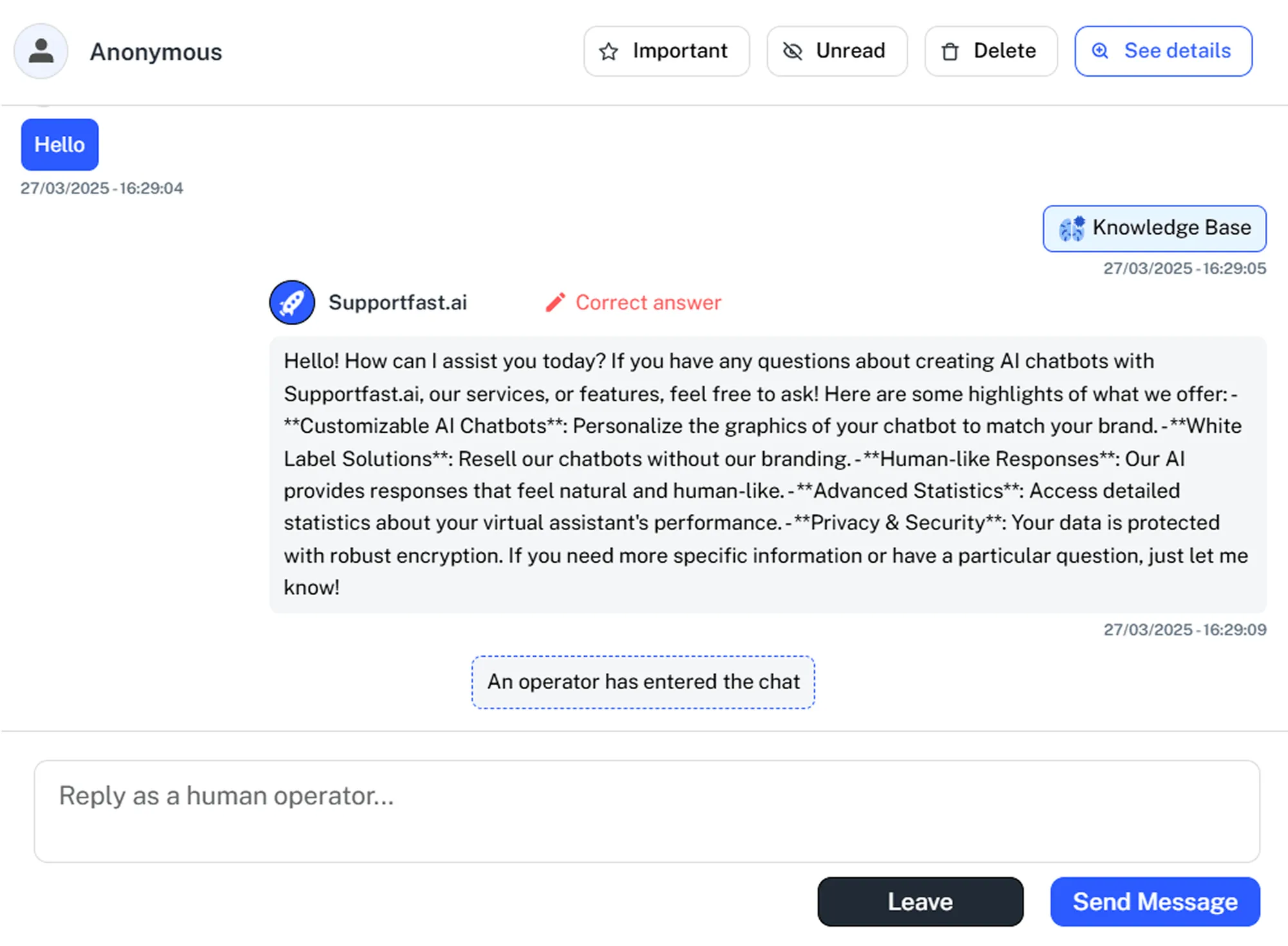
- Intervene as a human operator by manually replying to the user
- View user and conversation details
- Apply useful management filters (e.g., Important, Unread)
Conversation Source
Each conversation is associated with a source, which is the channel through which the interaction between the user and the chatbot occurred. Conversations on Supportfast can take place through one of the following sources:
- Website, including chatbots integrated via iframe, direct link, or chat bubble.
- Social Networks, such as WhatsApp, Instagram, and Facebook.
Conversations from the website are marked with a generic user icon, while those from social networks display the icon of the respective channel (e.g., WhatsApp, Facebook, Instagram logo).
Conversation User
Each conversation is associated with a user, which refers to the set of information identifying the person interacting with the chatbot. User data can be collected in three ways:
- When the user fills out a Contact Form within the chatbot
- Through external scripts that pass information from your website or software
- Automatically, when the conversation happens through a Social platform
If a user accesses the chatbot via the web and does not provide any data, they are identified as “Anonymous.” In the case of social media, the user’s profile name is displayed, and for WhatsApp, their phone number is also shown.
You can view the details of the user associated with a conversation by clicking the “View Details” button in the selected conversation. From there, you’ll see all the information collected for that user.
The Conversation User data can be used as Variables in the Playground to create personalized flows within the chatbot.
Note: It is not possible to view the email address of users coming from Instagram and Facebook, as this data is not provided by Meta
Online User
If the user currently interacting with the chatbot is still active on your website, the conversation will be marked with a green “online” label. This indication is useful for knowing in real time whether the user is still present and available to continue the interaction.
Note: The “online” label is only visible for users accessing the chatbot via the website.

Unread Messages / New Messages
In the Conversation List, you may see a blue dot next to some conversations, with a number inside: this indicates the number of messages that have not yet been viewed in that conversation. If the blue dot is not present, it means that all messages in the conversation have already been read
When you click on a conversation with unread messages:
- The Conversation Details will open, and it will automatically be marked as “Read”, making the blue dot disappear.
- You will be able to view the message list, with a line separating “New Messages” from the ones already read. If all messages are new, the new messages label will not be shown.
You can also view messages without losing the “Unread” status. To do so, first apply the “Unread” filter and then open the conversations you are interested in: in this case, the system will not automatically mark them as read.
You can also manually mark a conversation as “Unread”, for example, to have another team member review it. To do this, select the desired conversation and click the “Unread” button. The conversation will be marked as unread and closed at that moment, preventing it from being automatically updated.

Filters
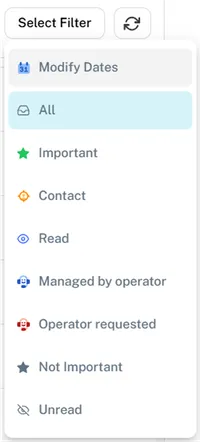
Supportfast Statistics include a set of filters that allow you to easily analyze and organize conversations. Filters can be accessed by clicking the “Select Filter” button in the header of the conversation list. When a filter is active, the button displays its name. To deactivate all filters and return to the full view, click on the “All” filter.
Here is the list of available filters:
- Date Range: displays conversations within a specific time period.
- All: removes all active filters, showing all conversations within the selected date range.
- Important: shows conversations marked as important (you can apply the flag from the selected conversation).
- Contact: shows conversations where the user has filled out a contact form.
- Read: shows only conversations where all messages have been read.
- Managed by Operator: shows conversations that have also been managed by a human operator.
- Operator Requested: shows conversations where a human operator is currently required.
- Not Important: shows conversations that have not been marked as important.
- Unread: shows conversations that still contain messages to be viewed.
Conversation Dates
The conversations displayed on the Statistics page refer to the selected date range. By default, the system shows the last month.
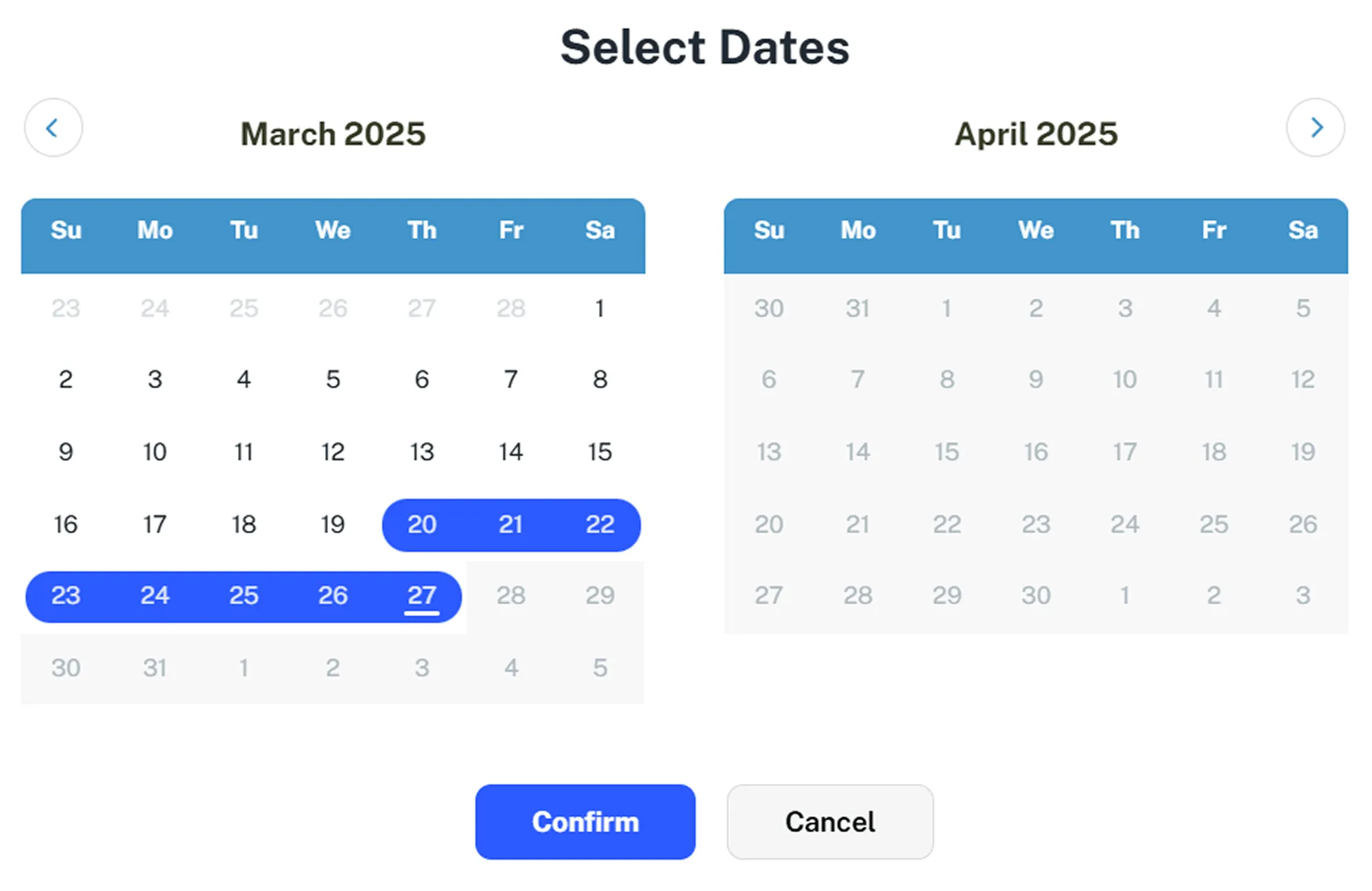
The active period is indicated in the header of the conversation list. You can modify it by clicking on the date field or the corresponding filter. The selectable period is always limited up to the current date.
Once the selection window is open, you can:
- Choose one of the predefined time ranges.
- Manually select dates from the calendar.
- To select a single day, double-click the desired date and then click Confirm.
Freemium Statistics
Accounts using the Freemium plan have some limitations in the use of the Statistics section. To access all advanced features, you must upgrade to one of the available paid plans on Supportfast.
Limitations for the Freemium plan include:
- Viewing conversations is limited to the last 7 days, with no option to modify the date range.
- Other filters are disabled and cannot be used with this plan.
Delete Conversation
You can delete test or irrelevant conversations so they no longer appear in the chatbot’s Statistics. To do this, follow these steps:
- Select the conversation you want to delete from the list.
- Click the “Delete” button.
- Confirm or cancel the operation in the confirmation window that appears.
Once confirmed, the conversation will be immediately removed from the Statistics.
Playground Label
Conversations carried out internally on the Supportfast platform are marked with the “Playground” label, visible in the conversation list. This label helps distinguish real user conversations from those performed internally by your team for testing or configuration purposes.
Live Chat with Operator
Supportfast allows you to manually intervene in conversations as a human operator, taking over from the chatbot in real time.
The end user can request human intervention in two ways:
- By clicking the dedicated request button, if enabled in the settings.
- By writing a direct request, if the chatbot has been trained in the Playground to recognize this intent.
Alternatively, the operator can also decide to take control of a conversation at any time from the Statistics section.
The live chat handling process follows these steps:
- The user sends a Live Chat request. Until the request is accepted, the chatbot will continue responding normally.
- A notification email is sent (if enabled in the settings), and a sound alert will play from the browser tab where Supportfast is open.
- A specific icon will appear in the conversation list, indicating that operator intervention has been requested.
- The human operator can then accept or decline the request.
- If the request is accepted, the human operator can exchange real-time messages with the user.
- When the operator is done, they can release control back to the chatbot by clicking the “Leave Chat” button, or leave the live chat open for future interactions.