

Before you start
- An active White Label plan.
- A domain of your own and access to the panel where you manage its DNS.
#Choose the subdomain
Use a subdomain dedicated to the portal, for example portale.esempio.it, ai.esempio.it or app.esempio.it. Don't use the root domain or www: they usually host your website. If you're launching a new brand, register its domain first.
#Connect the domain
-
Open the panel
On the SupportFast console, go to AccountWhite label, Custom domain panel.
-
Enter the domain and save
In the Domain field, enter the subdomain, without
http://and withoutwww: for exampleportale.esempio.it. Press Save domain. You see “Domain saved. Now create the DNS record and then press Verify”. -
Copy the record
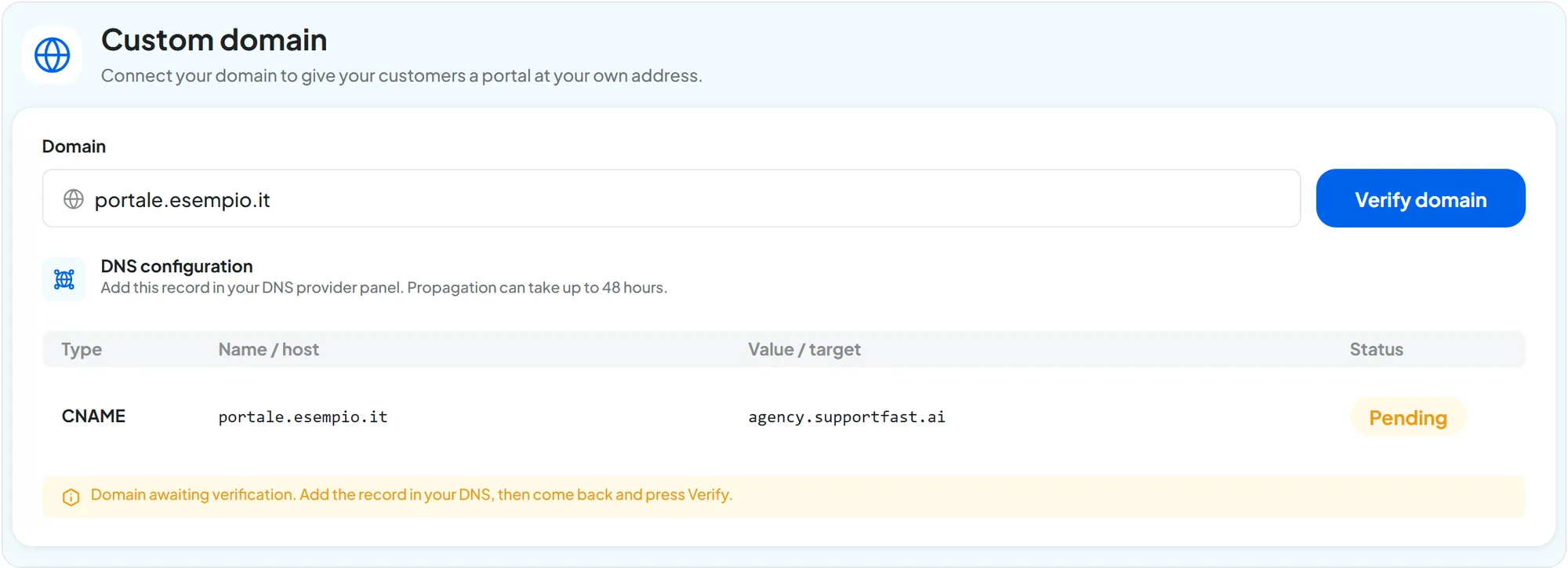
Below, under “DNS configuration”, the console shows the record to create, with the status “Pending”:
Type Name / host Value / target CNAMEportale.esempio.itagency.supportfast.ai -
Create the record in your DNS
In your provider's panel, add a CNAME record with that name and value. If you're not sure how, follow Adding the CNAME at your provider.
-
Verify
Go back to AccountWhite label and press Verify domain. If the record is there, you see “Domain verified”.
A DNS record can take up to 48 hours to propagate. If the record doesn't show up yet, you don't need to press the button again: while the domain is “Pending”, we check it every 5 minutes, and when you reload the page you see the updated status.
#The security certificate
Once the domain is verified, the status becomes “Active” and we prepare the SSL certificate, the one that makes the portal open over https with the padlock. The certificate is ready in a few minutes.
#How to check
- In AccountWhite label the status is “Active” and the certificate is no longer being prepared.
- When you open
https://portale.esempio.itin a private window, you see the sign-in page with your logo and the padlock, with no security warnings.
The CNAME record must stay. If you remove or change it, your clients can no longer reach the portal. The console doesn't flag it right away: we recheck an “Active” domain once a night, and only then, if the record is gone, does the status go back to “Pending”. When you put the right record back, the check every 5 minutes sets it back to “Active” on its own.
#Adding the CNAME at your provider
In the panel of the provider that manages the domain's DNS, look for an item such as DNS Management, DNS Zone or DNS Records. The record fields may have different names:
| Field | What it may be called | What to enter |
|---|---|---|
| Type | Type, Record type | CNAME |
| Name | Name, Host, Alias | Usually only the part before your domain: portale. Some panels want the full name: portale.esempio.it. |
| Value | Value, Target, Destination, Points to | agency.supportfast.ai, without https:// and without slashes. Some panels want a trailing dot: agency.supportfast.ai. |
| TTL | TTL, Time to live | Leave the suggested value. |
After saving, read the record back in the list. If the panel added the domain a second time, for example portale.esempio.it.esempio.it, fix the name by entering only portale.
#Changing the domain
To move the portal to another address, enter the new domain in the Domain field and press Save domain. If the current domain was verified, the “Change domain” window opens: the current domain stops responding immediately, and the new one responds after the CNAME record and the verification. To avoid leaving your clients without a portal, create the new domain's CNAME first and tell them the new address; then press Confirm and change domain and repeat the verification.
What changes after you change the domain.
- The old address no longer opens the portal: your clients sign in from the new one, with the same credentials.
- The Chat button installed on your clients' websites keeps working: it doesn't depend on the portal's domain.
- Direct chat links and iframes copied from Share contain the old address and stop working. Copy them again from the portal, on the new domain, and replace them wherever you published them: see Chat agent and widget.
- In automatic emails already sent, the links still lead to the old address.
#Common problems
#“Write a valid domain…”
You also typed https://, www or a trailing slash, or the domain is incomplete. Enter only the name, for example portale.esempio.it.
#“The CNAME record is not there yet”
- Propagation isn't finished. It can take up to 48 hours: while the domain is “Pending”, we check it every 5 minutes; reload the page to see the status.
- The value isn't exact. Compare it with the table in Adding the CNAME at your provider.
- There's another record on the same name. A name with a CNAME can't have other records: remove any A, AAAA or TXT records for
portale.esempio.it. - The record goes through a proxy. Some services, such as Cloudflare, hide the CNAME when the proxy is on. Set the record to DNS only.
- You edited the wrong panel. Check which provider actually manages the domain's DNS: it may be different from the one where you bought it.
#The certificate is still “being prepared”
It usually takes a few minutes. If the status doesn't change for a long time, write to info@supportfast.ai and include the domain.
#Frequently asked questions
Can I have more than one domain for the same portal?
No. The portal has a single domain.