

Do the checks in order, because each group builds on the previous one. For the tests, use a test user set up exactly like the client's: see Supporting your clients.
Video: Launching the portal AP-10The checklist before you give the portal to your clients.
#Plan and brand
- In AccountSubscription the White Label plan is active, or “On trial” with an end date you know.
- In AccountWhite label the brand name, logo, icon, colors and tab title are saved.
- You've decided on the signature. If you want it, Show "Powered by" is on, with name and link; in the agents where you don't want it, you've turned it off in Chat agentAgent profileInterface, Footer panel: see The signature in your agents.
#Domain and email
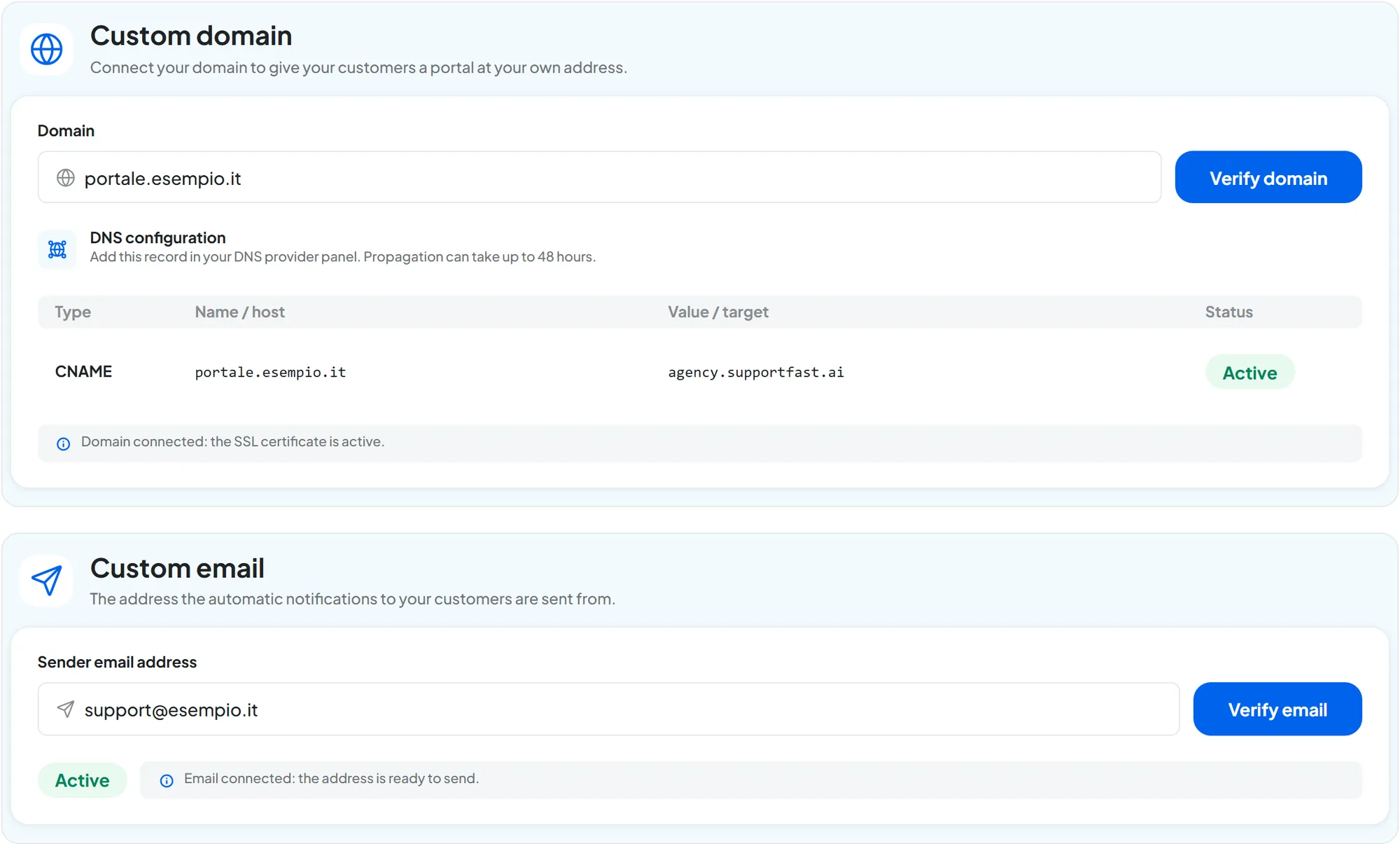
- The domain is “Active” and you read “Domain connected: the SSL certificate is active.”
- The portal's address, opened in a private window, shows the sign-in page with your logo, with no security warnings.
- The sender email is “Active” and you read “Email connected: the address is ready to send.”
- With Forgot your password? on the portal, the code arrives from your address, with your logo, in inboxes at different providers too, and not in spam: see How the emails are sent.
#Workspaces, agents and users
- The client has their own workspace, with languages, time zone and opening hours set.
- The client's agents have passed the checks in Before going live.
- When you sign in to the portal with the client's user, or an identical test user, you see only their workspace and agents, with your brand. The user has a suitable role and no permissions from the Account group: see Your clients.
- The plan's quotas are enough for this client too, including users and concurrent calls, which belong to the whole account: check them in AccountSubscription.
#The client's website and channels
- The Chat button code is copied from the portal and installed on every page of the client's website.
- On the website, the bottom of the chat shows the right signature, or no signature.
- The channels and calendars the client needs are connected from the SupportFast console, with the right agent.
- Every voice agent of the client has a number connected.
- The agents' Email Notifications reach the right addresses, from your sender.
#Handover
- You've sent the client the portal's address, the email and the password, with the password on a separate channel.
- You've asked the client to change the password the first time they sign in.
- The client knows to write to you about any problem.
#Frequently asked questions
Can I try the portal before connecting the domain?
The portal responds only on your domain. Before connecting it, you can check the brand in the Preview in AccountWhite label and prepare workspaces and agents from the SupportFast console.