

#They connect only from the SupportFast console
On the portal, in WorkspaceIntegrations, nobody sees the button to connect: instead of Connect, each person sees a different command. The reason is that the Meta and Google authorization windows carry the SupportFast name, and at the end they lead back to the SupportFast console.
| Who | What they see instead of Connect |
|---|---|
| You, the account owner | Connect from the Supportfast console |
| Other users with the “Integrations and Channels (Workspace)” permission: your clients, and also your teammates, Admins included | Ask your administrator |
| Users without that permission | No command: the page is read-only |
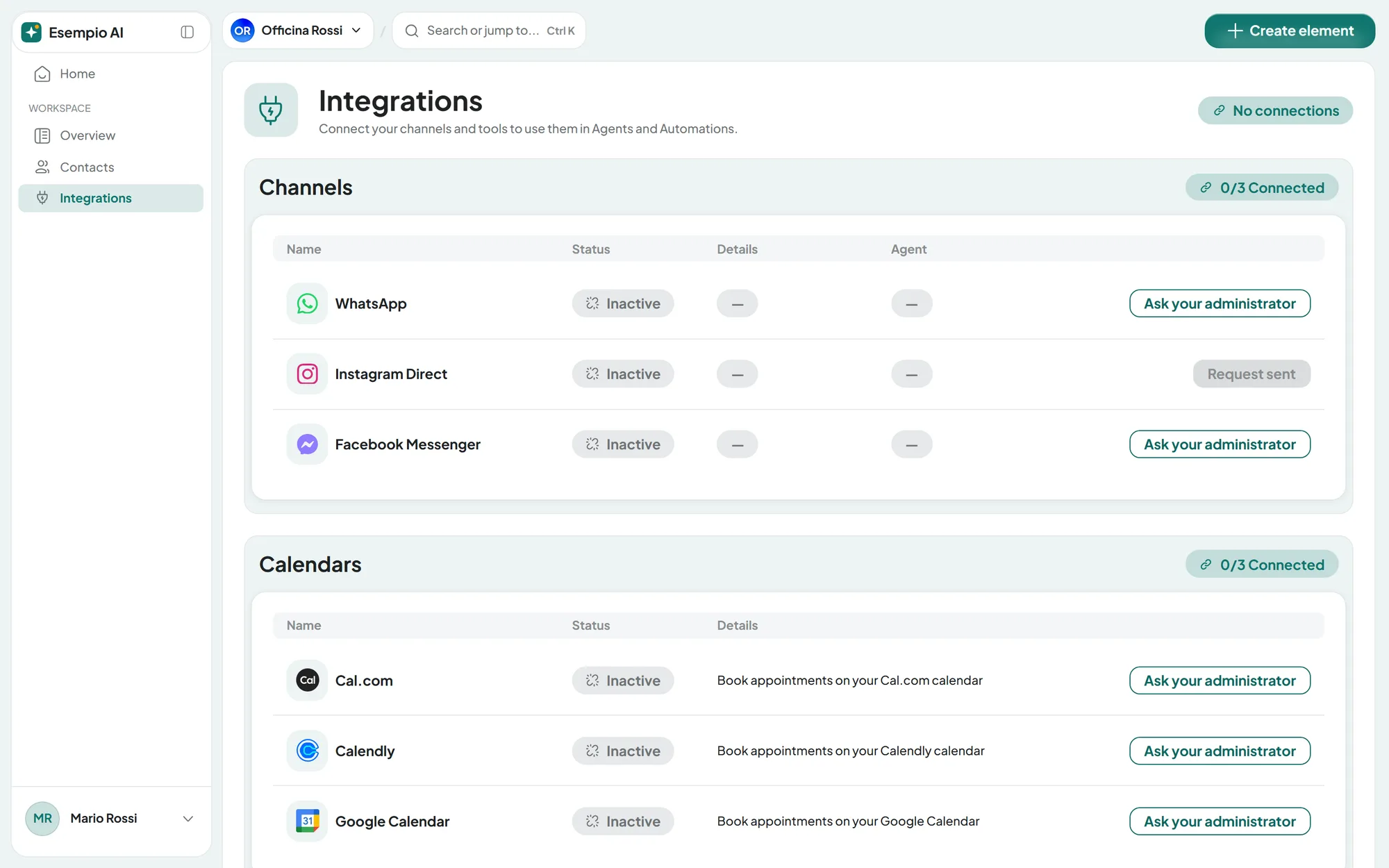
#When a client requests a connection
The client presses Ask your administrator and the button becomes Request sent. You, the account owner, receive an email with the subject “Integration connection request”: it goes only to you, not to your teammates. It says who asked, for which integration and in which workspace. The email is sent from the portal's sender, so only if the sender is verified: see Custom email.
#Connecting a channel for the client
Before you start
- Access to the client's assets in their Meta business portfolio, the Business Manager: see below.
-
Open the client's workspace
Sign in to app.supportfast.ai, choose the client's workspace and open WorkspaceIntegrations.
-
Connect the channel
Press Connect on the channel and complete the Meta window with your Facebook account. Choose the client's assets: their business portfolio, the number or the Page.
-
Choose the agent
Select which of the client's agents replies on that channel.
-
Test
Use Test channel and write from your phone: the message must arrive in the agent's Conversations.
Result
The integration shows as “Active” in the client's workspace, and the client finds it on the portal, in WorkspaceIntegrations.
Each channel's requirements and steps are described in WhatsApp: connecting your number, Instagram and Facebook Messenger.
#Access to the client's business portfolio
Meta now calls “business portfolio” what used to be the Business Manager. To connect a channel, your personal Facebook account must have access to the client's assets: the WhatsApp Business account with the number, or the Facebook Page and the Instagram profile.
-
Ask for access
The client can give it to you in two ways, with full access to the assets to connect:
- as a person: they invite you into their business portfolio with your email;
- as a partner: they add your agency's portfolio as a partner, using its ID, and share the assets. Then, in your agency's portfolio, you assign those assets to your account.
-
Accept
Accept the invitation or the share and sign in with your Facebook account. Then connect the channel as described above.
“Send me your Facebook email and password, and I'll connect it for you.”
“Give me full access to the assets to connect in your business portfolio: I'll accept and connect them with my own account.”
The connection stays tied to whoever made it. Meta ties the channel to the Facebook account it was connected with. If that person loses access to the client's assets, for example because they leave the agency and are removed from the portfolio, the channel may stop working. Connect channels with an account that stays with the agency. If it happens, reconnect the channel with another account that has access.
Up-to-date instructions for giving access to a person or a partner are in the Meta Business Help Center.
#After connecting
A connected channel can also be managed from the portal, by anyone with the “Integrations and Channels (Workspace)” permission. The client can choose which agent replies, change the channel's settings and create WhatsApp templates.
- If the client deletes the integration from the portal, you make the new connection.
- If the channel breaks, the client sees the status “Error” in the list of integrations. When they open the channel, they read “Connection broken” and “The channel is not receiving messages any more. Ask your administrator to reconnect it.” You reconnect it from the SupportFast console: open the channel and, in the ⋮ menu, choose Reconnect. This item isn't on the portal.
WhatsApp fees are charged by Meta. To send template messages, the client's WhatsApp Business account needs a payment method: without it, templates aren't sent. The rules are in Meta rules: 24 hours, costs, limits.
#Calendars
Cal.com, Calendly and Google Calendar also connect from the SupportFast console, in WorkspaceIntegrations of the client's workspace. For Cal.com, the client creates an API key and passes it to you securely.
For Calendly and Google Calendar, after Connect the Calendly or Google window opens and asks to sign in to the client's account. Don't ask the client for their password: set up the connection together, in person or on a video call where you give them control of your screen, so that they type their own credentials. Warn them first: the window asks them to authorize SupportFast, not your brand, and after the connection SupportFast may appear among the authorized apps in their account. The steps are in Cal.com, Calendly and Google Calendar.
After the connection, the calendar is managed from the portal like a channel. If the authorization expires, the client sees the status “Reconnect” and the title “Access expired”: you reconnect it from the SupportFast console, again with the client signing in to their account.
#Your clients' phone numbers
Phone numbers belong to the account, not to the workspace. You manage them in AccountTelephony and assign them to your clients' voice agents: see Assigning and managing numbers.
- A platform number. You buy it from the SupportFast console; for the documents, you can create a holder for each client. See Buying a number and Documents for numbers.
- The client's line. You connect the PBX or the phone carrier the client already uses, with a SIP line. See Connecting your PBX (SIP).
- The client's existing number. The client can forward calls from their number to the agent's number, if their phone carrier and their plan allow it. See Forwarding calls from your number.
Beyond the numbers included in the plan, you can add the Extra phone number add-on.
The same outbound number can serve agents of different clients, but the person receiving the call sees that number: give each client a number of their own.
#Frequently asked questions
Do I have to connect channels to each of the client's agents?
A channel is connected once per workspace. Then you choose which agent in the workspace replies on that channel.