

Before you start
- At least one number or SIP line: see Buying a number and Connecting your PBX (SIP).
#The “Phone numbers” panel
In AccountTelephony the panel lists all the account's numbers, including those whose order is still in progress and those that are deactivated. At the top there are Add number, the Search by number or assistant search box and three filters: direction, type and status.
Assistants and agents are the same thing. On the Telephony page the console calls voice agents “assistants”: the Assistant column, the Disconnect assistants command, the Routing to the assistant row. In this guide we always say “agent”.
Each row shows the number, the type (“Purchased” or “SIP line”), the status and the actions menu. Three columns need explaining:
- Usage
What the number can do, not what it's linked to: “Inbound”, “Outbound” or “Inbound and outbound”.
- Assistant
The linked voice agents, on two lines: “Inbound” shows the inbound agent, “Outbound” the first outbound agent, with “+N” if there are more. “None assigned” means the slot is free, “not available” means the number isn't used in that direction.
- Actions
The row's menu. For a SIP line: Edit SIP line, Check configuration, Disconnect assistants, Delete number. For a purchased number: Disconnect assistants, Deactivate or Put back in service, Delete number; with “Action required” there is also Fix the documents.
#Number statuses
| Status | What it means | What to do |
|---|---|---|
| Active | The number is ready. | Link it to an agent. |
| Configuring · Documents to complete · Under carrier review · Action required · Late · Rejected · Cancelled | The number is being prepared, or there is an order with the phone carrier, which the statuses simply call “carrier”. | See After the order: statuses and timing. |
| Error | The configuration on the platform failed. | For a SIP line: Check configuration and Realign. Otherwise, write to support. |
| Deactivated | A purchased number you switched off yourself with Deactivate. | Put back in service, if your plan has a free slot. See Deactivating and putting back in service. |
| Deactivated · returned on … | A purchased number stopped by your plan. After that date it's no longer yours. | Before the date, go back to a plan that covers it, or free up a slot for it and press Put back in service. See Numbers stopped by your plan. |
| Paused | A SIP line stopped by your plan. | See Numbers stopped by your plan. |
| Being released | A purchased number you deleted, or one stopped by your plan and past its return date: in a few days it will no longer be yours. | Nothing: the actions are disabled. |
#One number, several agents
Each number can have one inbound agent and, for outbound calls, one or more agents. So the same number can answer with the “Reception” agent and call with the “Callbacks” and “Reminders” agents.
- An inbound agent can answer on several numbers. Calls to any of its numbers reach it. But each number has only one inbound agent.
- An outbound agent uses a single number, which it can share with other outbound agents. It's the number the person receiving the call sees. If the customer calls that number back, the number's inbound agent answers, if there is one.
- “Inbound calls only” numbers and SIP lines without outbound calls work for inbound calls only.
#Linking a number to an agent
The window depends on the agent's function: “Manage numbers” for an inbound agent, “Assign number” or “Change number” for an outbound agent. In both cases the link takes effect right away, without going through Save changes.
#Inbound agent: “Manage numbers”
-
Open “Manage numbers”
Open the voice agent and press the number in the top bar, or Assign number if it doesn't have one. From the General step of Agent profileEdit Profile you get there with Add number.
-
Add the number
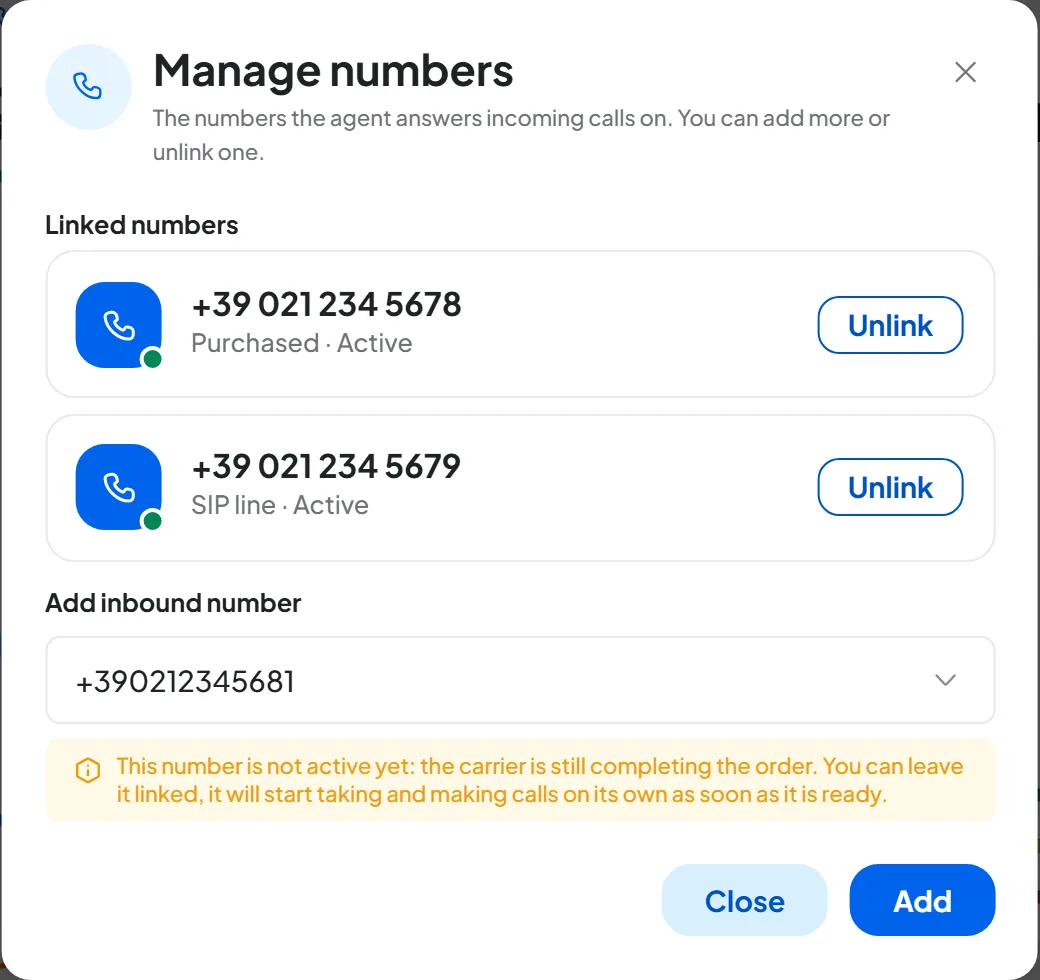
In Add inbound number choose the number and press Add. The list shows the numbers that receive calls, don't already have an inbound agent and aren't deactivated, including those whose order is still in progress. “Number added” appears and the number moves to “Linked numbers”.
-
Add more or close
The window stays open: repeat the step for the other numbers, then press Close.
Result
In the top bar you see the first number and, if there are others, “+N”; in Telephony the agent appears on the “Inbound” line of each of its numbers. Call one of the numbers from your mobile: the agent should answer.
If there are no free numbers, you see “There are no other numbers free for inbound calls” and instead of Add you find Go to Telephony.
#Outbound agent: “Assign number” and “Change number”
-
Open the window
Open the voice agent and press Assign number in the top bar. If the agent already has a number, press the number: “Change number” opens. From the General step you get there with Assign number or Change number.
-
Choose the number
Choose the number in Outbound number, or in Replace with if the agent already had one. The list shows the numbers that aren't deactivated and can make calls, including those already used by other outbound agents, with the note “in use by 1 agent” or “in use by 2 agents”. If you choose one, under “Number shared with:” you see the other agents that use it.
-
Confirm
Press Assign, or Replace. “Number updated” appears.
When you replace a number, the old number stays with the other agents that use it: it's only removed from this one. If no number can make calls, you see “There are no numbers that can make calls” and you find Go to Telephony. Which numbers can make calls is explained in Which numbers you can buy.
In both windows you can link a number with an order in progress anyway: it starts working on its own as soon as it's ready.
#Unlinking or moving a number
To unlink a number from an agent, open Agent profileEdit Profile, General step, press Unlink on the number's card and confirm in “Unlink the number”. For an inbound agent there's also Unlink in “Manage numbers”.
- Inbound agent with other numbers: it stops answering on that number only and keeps answering on the others.
- Last number, or outbound agent: the agent stops receiving, or making, calls until you assign it another number.
In Telephony, Disconnect assistants in the row's menu disconnects the inbound agent and all outbound agents from the number.
To move a number to another inbound agent, unlink it from the first one and add it to the new one in “Manage numbers”. For outbound calls you don't need to move it: you can assign the same number to the new agent as well. To change an inbound agent's number, add the new one and unlink the old one; for an outbound agent, use Change number.
#Deactivating and putting back in service
Only purchased numbers can be deactivated. With Deactivate the number stops answering right away and its slot in your plan is freed. The row becomes “Deactivated”.
To turn it back on, press Put back in service: it takes up a slot again, so your plan must have a free one. The number answers again with the same agents, unless you unlinked them in the meantime. Calls to a number you deactivated are rejected and don't appear in Calls.
Don't leave it off for long. When you deactivate a number, the console warns you: “Unless you put it back in service within 30 days it goes back to the carrier.” To keep the number, put it back in service within 30 days.
#Deleting a number
- SIP line: Delete number and confirm. It's deleted right away.
- Purchased number: Delete number, type
DELETEand press Delete permanently. The number stays “Being released” for 7 days, unreachable, then goes back to the phone carrier. - In the first 10 days after purchase a purchased number can't be deleted: the button is disabled.
- An order that was never delivered, for example a cancelled one, is deleted right away, with no release period.
In every case, linked agents are disconnected and the call history stays. You can't get a deleted number back: to stop a number for a while, use Deactivate.
#Numbers stopped by your plan
If your plan no longer covers all your numbers, for example after a plan change or when the subscription ends, some of them stop on their own, the most recent first. They turn back on by themselves when you return to a suitable plan: see The forced pause.
- Purchased number: the row becomes “Deactivated · returned on …”, with the date. The number stays yours for 30 days from when it stopped.
- SIP line: the row becomes “Paused”. The line stays yours, because the number belongs to your contract with your phone carrier.
After the date, the purchased number is no longer yours. If by the date on the row you don't go back to a plan that covers it, and don't put it back in service, the number spends 7 days “Being released”. Then it's no longer yours. Don't expect a warning email before it's returned: the date to keep an eye on is the one on the Telephony page.