

#How to write them
A variable is written between double curly braces: {{user.firstName}}. When the automation starts, the real value takes its place, for example “Mario”.
- Levels are separated by a dot:
{{call.appointment.startsAt}}. For webhook or API data see The data format. - Write names exactly as the Variables panel suggests them, capitals included:
{{Analisi.interesse}}and{{analisi.interesse}}are not the same variable.
#How to insert them
- In single-line fields, the Insert variable icon at the end of the field.
- In text areas and in JSON, the Add variable button below the field.
- In the email, the Variable button in the editor toolbar and the icon inside the recipient fields.
The variable goes where the cursor is. You can also type it by hand.
The Variables button, at the top left of the canvas, opens the same list. There, clicking a variable copies it to the clipboard: then you paste it where you need it.
#The Variables panel
The panel splits the variables into three tabs, with a search at the top.
| Tab | What it contains |
|---|---|
| Global | System data: today's date, the workspace time zone and, if the event carries a conversation, the message history. |
| Input | The data carried by the event, in sections: Contact data, Call data, Data received by the webhook, Tool variables. |
| Nodes | The results of the nodes in the flow, under each node's name. |
#Global variables
{{today}}Today's date.
{{timezone}}The workspace time zone, for example
Europe/Rome.{{history}}Only with Conversations and Telephony eventsThe conversation between customer and agent, as text, one message per line.
#Contact data
The {{user.*}} variables carry the data of the run's contact. These are the standard ones:
| Variable | What it contains |
|---|---|
{{user.email}} | The contact's email address. |
{{user.phone}} | The contact's phone number, used for calls and WhatsApp. |
{{user.firstName}} | The contact's first name. |
{{user.lastName}} | The contact's last name. |
{{user.fullName}} | The contact's first and last name, read together. |
{{user.company}} | The company the contact works for. |
{{user.language}} | The language the contact prefers to be served in. |
There are also the custom contact variables, that is the fields you create in the workspace, with their technical name: for example {{user.license_plate}}. You create them as explained in Variables and automatic profiling.
These variables are filled in only if the run has a contact. It has one in four cases:
- with contact events;
- with Conversations and Telephony events that have a contact;
- after a Contact Management node that finds or creates it;
- after a WhatsApp Template node, if an agent is linked to the WhatsApp number: the run takes the contact of the number the template was sent to.
So with the Webhook trigger, put a Contact Management node with “Update contact” first, using the email or phone received, for example {{webhook.email}}.
“Update contact” creates the contact if it doesn't find it. The node looks for the contact with the email or phone you give it; if there isn't one, it adds it to the contact book. Every request with a new address therefore creates a new contact, even a test request or one with a wrong address. See Contact Management.
#Call data
With Telephony events the run receives the {{call.*}} variables. These are the ones for messages and conditions:
| Variable | What it contains |
|---|---|
{{call.customerNumber}} | The customer's number, with the country code: the caller on inbound calls, the recipient on outbound calls. Empty if the number is anonymous. |
{{call.agentNumber}} | The agent's number, that is your line. |
{{call.direction}} | The direction: inbound or outbound. |
{{call.startedAt}} · {{call.endedAt}} | Start and end date and time, in the workspace time zone. |
{{call.duration}} | The duration in readable form, for example “3 min 5 s”. It counts from the answer, without the ringing; it's empty if nobody answered. |
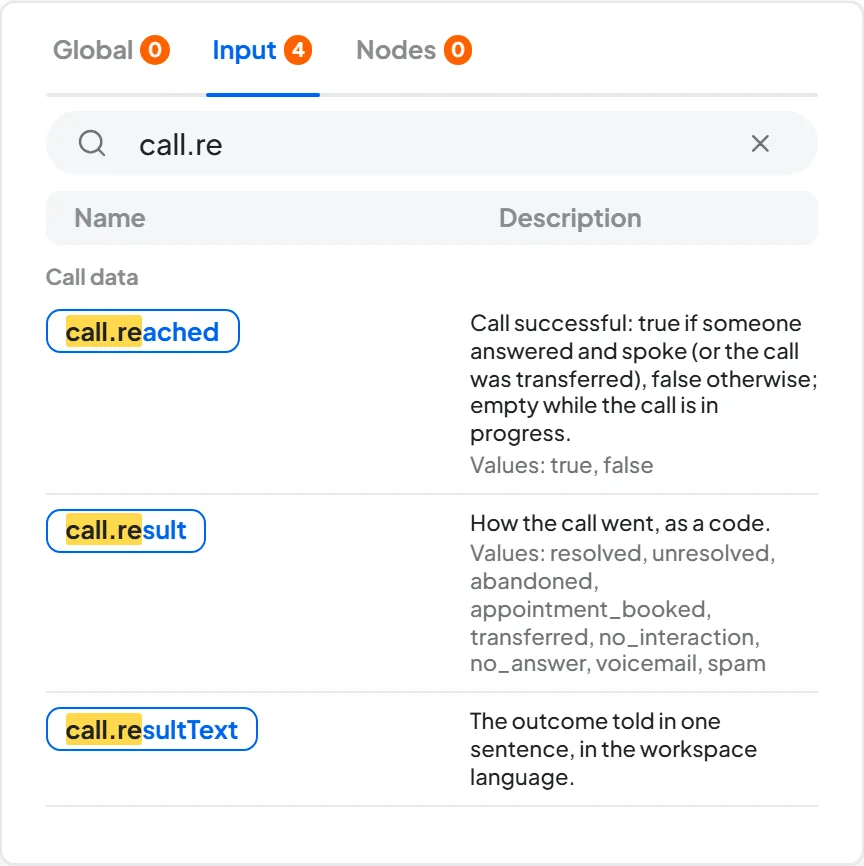
{{call.reached}} | true if the call was successful, otherwise false. In a Condition use the Is true operator. |
{{call.result}} | The call outcome, to use in Conditions: the Variables panel shows the possible values. In messages use {{call.resultText}}. |
{{call.resultText}} | The outcome described in a sentence, in the workspace language. |
{{call.sentiment}} | The customer's tone, positive, neutral or negative: the Variables panel shows the possible values. |
{{call.summary}} | The call summary in a few lines. |
{{call.transcript}} | The full transcript. |
{{call.variables.*}} | The data extracted from the call, with the name chosen in Data Extraction and Variables, for example {{call.variables.license_plate}}. |
{{call.transferName}} | The transfer destination: the name, or the number if there is no name. |
{{call.recordingUrl}} | The link to the recording. It's empty if nobody answered or if the recording isn't available yet. |
{{call.appointment.startsAt}} | Date and time of the booked appointment, in the workspace time zone. |
{{call.appointment.startsAtIso}} | The same date in the format that systems read. |
{{call.appointment.calendarName}} | The calendar it was booked on. |
In the Wait node use {{call.appointment.startsAtIso}}. It's the date in a format the node can read. In messages to the customer use {{call.appointment.startsAt}}.
There are also technical variables for integrations, such as the IDs and the end reason in {{call.endReason}}. They are the same as in the End-of-call webhook.
#Webhook data
With the Webhook trigger, the data received becomes {{webhook.*}} variables, for example {{webhook.email}}. The panel suggests the fields of the test request received with Start listening: run the test with the same fields the external service will actually send. How to read nested fields, parameters and headers is explained in The data format.
#Node results
Prompt, API and Make Call produce a result that the following nodes read with the node name in front. Always write the node name: {{interesse}} on its own arrives empty. If you rename the node, update the variables in the following nodes: the console flags the ones with the old name.
| Node | Variables |
|---|---|
| API | {{CRM}} for the whole response, or a field, such as {{CRM.customer.email}}. |
| Prompt with Text response | {{Analisi}}. |
| Prompt with Tool response | One variable per parameter: {{Analisi.interesse}}. |
| Make Call | The same call data, for the last attempt: {{Callback.reached}}, {{Callback.summary}}, {{Callback.endReason}}. |
A result only exists after its node. Use it in the nodes that come after. After a Condition, the result of a node inside a branch is there only if the run went through that branch.
#When a variable doesn't exist
A variable that doesn't exist, or has no value, becomes empty text, and the automation doesn't stop. A variable that no node or event produces is flagged with a warning, which doesn't block publishing: see Saving, publishing, fixing.
“Dear {{user.firstName}}, we look forward to seeing you.” If the name is missing, the customer reads “Dear , we look forward to seeing you.”.
A Condition with {{user.firstName}} “Exists”: in the “Yes” branch the message with the name, in “Otherwise” a message without it.
#Frequently asked questions
A variable arrives empty. What should I check?
Check the source: does the event really carry that data? See Contact data and Webhook data.