

#The writing field
At the bottom of the conversation, the bar changes depending on who has the chat:
- Before you take the chat, you only find the Internal notes button, which opens the yellow field for conversation notes, and, with the live chat (the Operator Chat tab) on, Take control. You can't write to the customer yet.
- After Take control, or when the chat has moved to operators on its own, the field has two tabs: Conversation, to write to the customer, and Internal notes, for the team. In the Conversation tab, / opens quick replies and the Attach a file paperclip adds a file.
Enter sends; Shift + Enter or Ctrl + Enter start a new line. If sending fails, a notice tells you and the text stays in the field, ready for another try.
#Quick replies
Quick replies are the agent's ready-made texts: opening hours, the address, instructions for a return. You insert them in the field and send them like a normal message.
-
Open the menu
With the field empty, press /. If you've already typed something, / stays a normal character: click the Quick replies lightning bolt instead, which always works.
-
Search
Type a few letters in Search a quick reply: the search looks at the name and the text.
-
Choose
Move with the arrow keys and press Enter, or click the item. The text goes into the field: if you opened the menu with the lightning bolt after typing something, it's added at the end, with no space. Edit it if needed and send it.
Quick replies are created in the Templates tab of Chat agentAgent profileConversations, with Add template: fill in Template name and Content. If the agent has none, the menu says “No quick replies configured”. See Agent profile: Conversations.
They aren't WhatsApp templates, which Meta approves and which you use to write first or after 24 hours. Watch out for the names: quick replies are created in the “Templates” tab, while in the WhatsApp template windows the “Message Template” section is the WhatsApp template. They are two different things.
#Conversation notes
A conversation note is a note for your teammates inside the conversation, for example “Promised a callback tomorrow”. It appears in yellow among the messages and the customer never sees it, on any channel. In the console, the button and the tab are called Internal notes, like the section of the contact note in the contact form: they are two different things.
- You can always write one: without taking the chat, with the live chat off, on any plan, even if the contact is blocked. Before taking the chat, press the Internal notes button; after, use the Internal notes tab. Type in the field “Write an internal note, visible to your team only...” and press Add note.
- It's text only: you can't attach files.
For a note that applies to all of the person's conversations, use the contact note.
#Sending an attachment
After Take control you can send images and documents in WhatsApp, Instagram, Messenger and widget conversations.
The paperclip isn't there in full-page chat conversations or in internal ones. On WhatsApp, Instagram and Messenger it turns off after 24 hours: see Resuming a chat after 24 hours.
-
Choose the file
Press the Attach a file paperclip and choose the file. You send one at a time.
-
Check
The file appears above the field with its name, size and limit, for example “photo.jpg · 2 MB / 5 MB”. The X Remove attachment removes it.
-
Add a caption
Optional: the text you type in the field goes with the file. On WhatsApp it becomes the file's caption; on Instagram and Messenger it arrives as a second message.
-
Send
Press Send.
| Channel | Images (up to 5 MB) | Documents (up to 25 MB) |
|---|---|---|
| JPG, PNG | PDF, DOCX, XLSX, PPTX, TXT | |
| Messenger | JPG, PNG, GIF | PDF, DOCX, XLSX, PPTX, TXT, CSV |
| JPG, PNG | PDF only | |
| Widget | JPG, PNG, WEBP, GIF | PDF, DOCX, XLSX, PPTX, TXT, CSV |
If the file is too large or in a format the channel doesn't accept, a notice tells you: make it smaller, or save it as a PDF.
#Customers' attachments and voice messages
Files sent by the customer can appear among the messages:
- images, with Preview and Download;
- documents, with name, size and Download;
- voice notes, with the player (Play, Pause) and, below, the transcript when there is one.
Receiving files is off until you turn it on. On WhatsApp, Instagram and Messenger, with receiving off, photos, documents and voice notes don't even enter the conversation. For the website, the setting is in Chat agentAgent profileInterface, Files and Audio Sending panel. For the other channels it's in the channel's page, in WorkspaceIntegrations, Files and Audio panel. You need the “Files and audio in chat” plan feature.
You open the files yourself. The agent confirms it received images and documents and replies to the text sent with them. It understands voice notes from their transcript.
#Summarizing a conversation
Open Chat optionsSummarise. The “Conversation summary” opens: a summary of the whole conversation written by the AI, in your profile's language. If the conversation has moved on, press Regenerate. The summary also appears in the contact card's activity.
#Translating a message
Below the customer's messages and the agent's replies there's Translate. The message is translated into your profile's language (AccountProfile, Preferred language). Then you switch between the translated text and the original with Show original and Show translation. Operators' messages can't be translated.
#Resuming a chat after 24 hours
On WhatsApp, Instagram and Messenger, 24 hours after the customer's last message, Send and the paperclip turn off and the notice “24 hours have passed since the customer's last message…” appears. The rule is Meta's and is explained in Meta rules: 24 hours, costs, limits.
| Channel | How to resume |
|---|---|
| With a template approved by Meta: Chat optionsSend template. | |
| Instagram, Messenger | Templates don't exist here: you can't write again until the customer writes to you. |
#Sending a template on WhatsApp
-
Open the menu
In a WhatsApp conversation, open Chat optionsSend template. The item is there if the agent is the one connected to the WhatsApp number and you have at least one approved template.
-
Choose the template
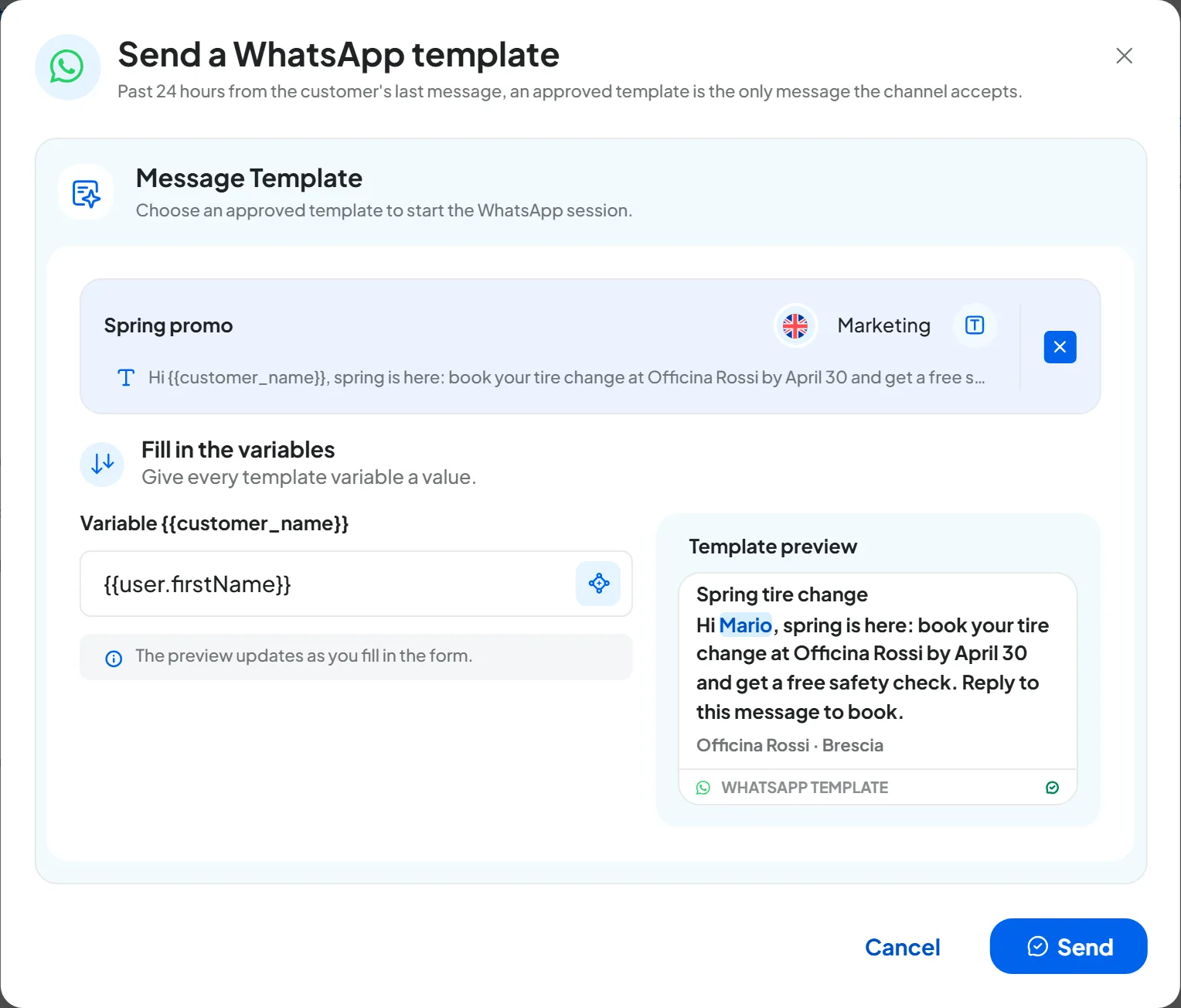
In Available templates, each template shows its name, language, category and header type. Tick the one you need; Change template takes you back to the list.
-
Fill in the variables
If the template has variables, in Fill in the variables you find a field for each one, plus one for each button with a parameter. Type a text or use the variables button to insert a contact detail, for example the name.
-
Check the preview
Template preview shows the message as it will arrive, with the contact's details already filled in. A detail the contact doesn't have stays highlighted in yellow: an empty detail stops the send, as explained in If the contact doesn't have that detail. Type a text in its place.
-
Send
Press Send. If you left a field empty, you see “Fill in every template field before sending”.
Result
You see “Template sent” and the template appears among the messages in a box, with its delivery status. When the customer replies, the 24 hours start again and you can write to them as usual.
The delivery status becomes Delivered when the template reaches the customer's phone and Read when they open it. With Not delivered the template didn't arrive: hover over the icon to see why.
Templates are created in the WhatsApp channel's page and Meta approves them: see WhatsApp templates. Meta charges for templates separately, at its own rates: see What it costs and who pays.
#Writing first on WhatsApp
With New conversation you send a template to a contact who hasn't written to you yet, or with whom you want to open a new conversation. It only works on WhatsApp.
Consent first. On WhatsApp you can write first only to people who gave you their number and agreed to receive messages from your business. For promotions you also need the consent required by law. See Consent and rules.
-
Open the window
In the left column of the inbox, press New conversation, next to Refresh, then Select WhatsApp.
-
Choose the recipient
In Recipient, search for the contact by name, phone or email: only contacts with a phone number appear. If the contact isn't there, create it first in Contacts.
-
Choose the template
In Message Template, choose the WhatsApp template and fill in the variables, as above. Here “Template” means the WhatsApp template, not a quick reply.
-
Start
Press Start Conversation. You see “Conversation created” and the new conversation opens in the inbox.
You can't write to a blocked contact: in the list it carries the label “Blocked” and the window doesn't send the template.