

A block stops all communication with a person. Use it for spam, for abuse, or when someone no longer wants to be contacted in any way. It applies to all the workspace channels, and you can remove it at any time.
#What a block stops
| Where | What happens with a blocked contact |
|---|---|
| Website chat | Their messages are refused and not saved. In the widget, the text box is locked and “You can no longer write in this conversation.” appears. |
| WhatsApp, Instagram, Messenger | Their messages arrive and you see them in the console, but the agent doesn't reply and the chat isn't handed over to operators. |
| Operators | Nobody can send them messages, attachments or templates. A red bar appears in the conversation. Notes and changes to the card are still possible. |
| Inbound calls | They aren't handled: they appear among the “Unsuccessful” calls, with the detail “Blocked contact”. |
| Outbound calls | They don't start. |
| Campaigns | The contact is excluded (“Blocked contact: skipped.”). If they were already in a running campaign, their turn is skipped. |
| Automations | Steps that write to or call the contact stop, for example “Email not sent: the contact is blocked.”. The other steps, such as updating fields or lists, carry on. |
#Blocking a contact
-
Choose the contact
You can start from three places:
- in the contact list, the row menu, then Block contact;
- on the card, More actionsBlock contact;
- in a conversation, Contact card, then Block contact.
-
Choose the reason
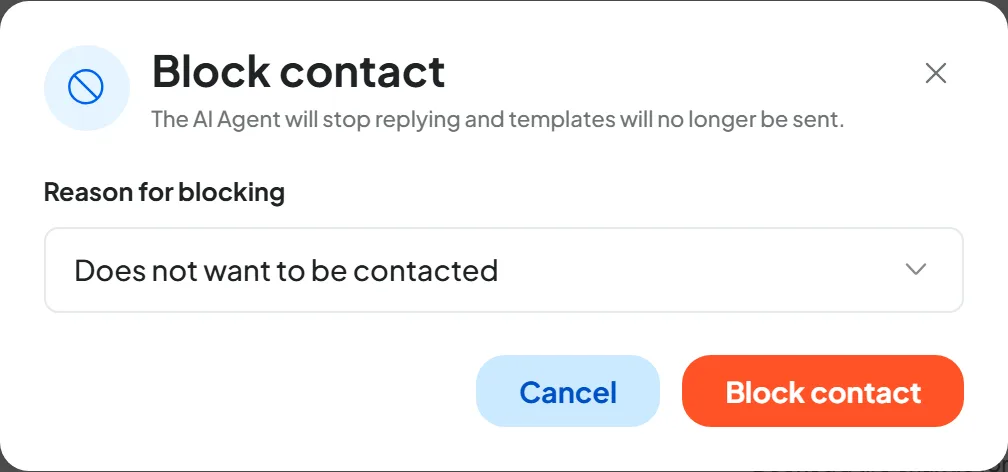
The window warns you: “The AI Agent will stop replying and templates will no longer be sent.”. In Reason for blocking, choose Does not want to be contacted, Spam or Other. With “Other”, write the reason in Describe the reason, up to 500 characters.
-
Confirm
Press Block contact.
Result
You read “Contact blocked”. The card shows “Blocked” and a red bar with who blocked the contact, when and why. In the list, the row is dimmed, with a red icon, and the BlockedBlocked only filter shows all blocked contacts.
#Unblocking
Use the same places (Unblock contact or Unblock), or, inside the conversation, the Unblock link in the red bar. The “Unblock contact” window reminds you of the reason, who blocked the contact and when; press Unblock. No reason is needed. A block doesn't expire on its own.
After unblocking, everything resumes from the next message or call. However:
- messages that weren't sent during the block won't be sent later;
- campaigns that excluded the contact won't contact them again, even if you pause and reactivate them: to reach them, you need a new campaign;
- on WhatsApp, the 24-hour window applies: see Meta rules.
#What a block doesn't do
A block applies to the contact, not to the person. It stops the contact details on the blocked card. Someone who writes to you from a number or email that doesn't belong to that contact isn't blocked: on the website, for example, someone who leaves a different email can write again. If a number is shared, such as a switchboard number, the block applies to everyone who uses it.
#Blocking or removing from a list
When someone asks not to be contacted any more, act on it right away. In SupportFast you have two options:
- Someone who no longer wants to be contacted in any way: block them with the reason “Does not want to be contacted”. They will no longer receive replies, campaigns, automations or calls.
- Someone who only wants to stop receiving promotions but is still your customer: don't block them, remove them from the list used for promotional campaigns. This only works if your campaigns use a list: with All workspace contacts, the only way to exclude them is to block them.
Removing a contact from the list doesn't stop a campaign that has already started. New campaigns with that list won't reach them. But if a campaign with that list has already been launched, whether it's running or paused, the send to that contact is already queued and goes out anyway. To stop it, block the contact, then unblock them once their row in the campaign Dashboard shows as Excluded. See Contacts removed from the list after launch.
SupportFast doesn't block anyone or remove anyone from lists on its own: your team takes care of it, as explained in When someone asks not to be contacted again.
Consent and campaign rules are explained in Consent and rules.
#Frequently asked questions
Can I block a number that isn't in the contact book?
Blocking applies to contacts in the contact book: a number that doesn't belong to any contact can't be blocked. Create a contact with that number, written with the international prefix, then block the contact.