

Before you start
- A free slot in your plan: see How many agents you can have.
#Where to create it
On a workspace page, press Create element in the top bar. In the “What do you want to create?” window, choose Textual Agent › Create agent. The other ways are in Creating an element.
#Create the agent
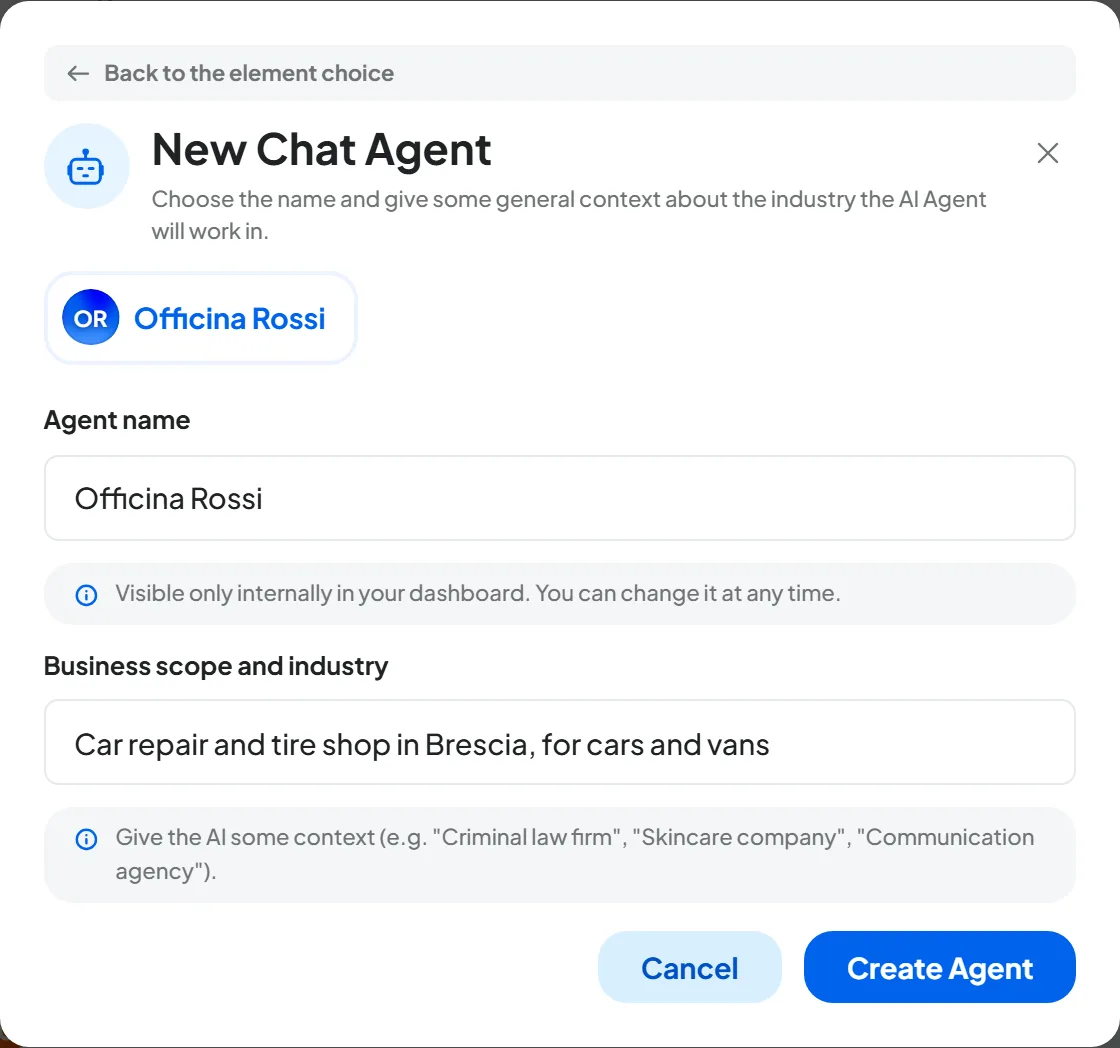
The “New Chat Agent” window opens, in the workspace you are in.
-
Type the name
Fill in Agent name, for example
Officina Rossi. You use the name to recognize the agent in the console. At creation it also becomes the chat name that customers read: choose one that suits them too, such as your business name. -
Describe the business
Fill in Business scope and industry with one or two sentences: what the business does, for whom and where.
-
Create
Press Create Agent. “Agent created” appears.
Result
The agent appears in the workspace Overview and the “"Officina Rossi" is ready. Where do you want to start?” window opens. It suggests the same three steps as the guide in the Dashboard: “Train the knowledge”, marked “Recommended”, with Train; “Customize the interface”, with Customize, which opens the Interface tab; “Test it”, with Open the Playground. Choose one or close with Go to the Dashboard. The recommended order, including the instructions, is in The recommended path.
#How to write the scope
The scope tells the agent who it works for and what it can talk about. Keep it short: one or two sentences.
At creation, the console puts the agent's name in front of the scope, with a comma. With the name “Officina Rossi” and the scope below, the saved scope is “Officina Rossi, a car repair and tire shop in Brescia…”. The instructions insert it wherever they find {{scope}}: “You are the virtual assistant of {{scope}}.” becomes “You are the virtual assistant of Officina Rossi, a car repair and tire shop in Brescia…”. So write the scope as what follows “of…”: what the business does, for whom and where, without “We are” or “We”.
“Test”
“Service company”
“a car repair and tire shop in Brescia, for cars and vans. Servicing, inspections, tires and repairs.”
You can change the name and scope later. The agent's name in General, in the Internal Name field; the name customers read in Interface, in the Chat name field; the scope in the Playground.
#What is already set up
These are the values the agent starts with.
| Where | Starting value |
|---|---|
| Status | “Active” |
| Playground | Starting instructions already written and, as the scope, the agent's name followed by what you wrote, already published; the agent answers by looking up the knowledge base |
| Interface | Chat name same as the agent's name, the workspace color, a welcome message already written |
| Live chat (the Operator Chat tab), contact form, files and voice messages | Off |
| Training | Empty |
#Managing the agent from the Overview
In the workspace Overview, each agent has its own card in the “Chat Agents” panel, with its status, channels and the Chats and Manage buttons: see Agents in the Overview. The ⋮ Agent options menu contains Move, Duplicate and Delete. You can also delete the agent from Agent profileGeneral: the window and the consequences are in Delete Chat Agent.
#Duplicating
Duplicate creates a copy in the same workspace, without training, conversations and channels, with its own link and its own widget code. The copy starts out “Active” but with no published version: until you press Publish in its Playground it doesn't answer, and anyone who writes to it reads an error message. What it carries over is in Duplicating an element.
Complete the copy before using it. Train it and check the Agent profile tabs. Then open its Playground: if the draft doesn't show “Published”, press Publish.
#Moving to another workspace
Move takes the agent, with its training and conversations, to another workspace in your account. The conversations lose the link to their contacts, which don't move. In the old workspace, the channels and automations that used it are left without an agent, and campaigns with this agent are paused. Connect another agent to the channels left without one from Agent profileIntegrations. The steps are in Moving an element to another workspace.
#How many agents you can have
You can create several agents for the same business, with different jobs: for example one for customers on the website and one for technical support. Each one has its own knowledge base and its own instructions.
Your plan sets how many chat agents you can have. Your account's quotas are in AccountSubscription; how they are counted is explained in Plans, quotas and usage.
Each agent takes up a slot, even when it is Paused: pausing doesn't free up slots. When you have used them all, the Textual Agent choice shows a padlock with “You have reached the Chat agents limit”: to create a new one, delete an agent you don't use.