

Before you start
- The address of the website or the sitemap. The system reads only public pages, with no login.
#Create the training
-
Open the website page
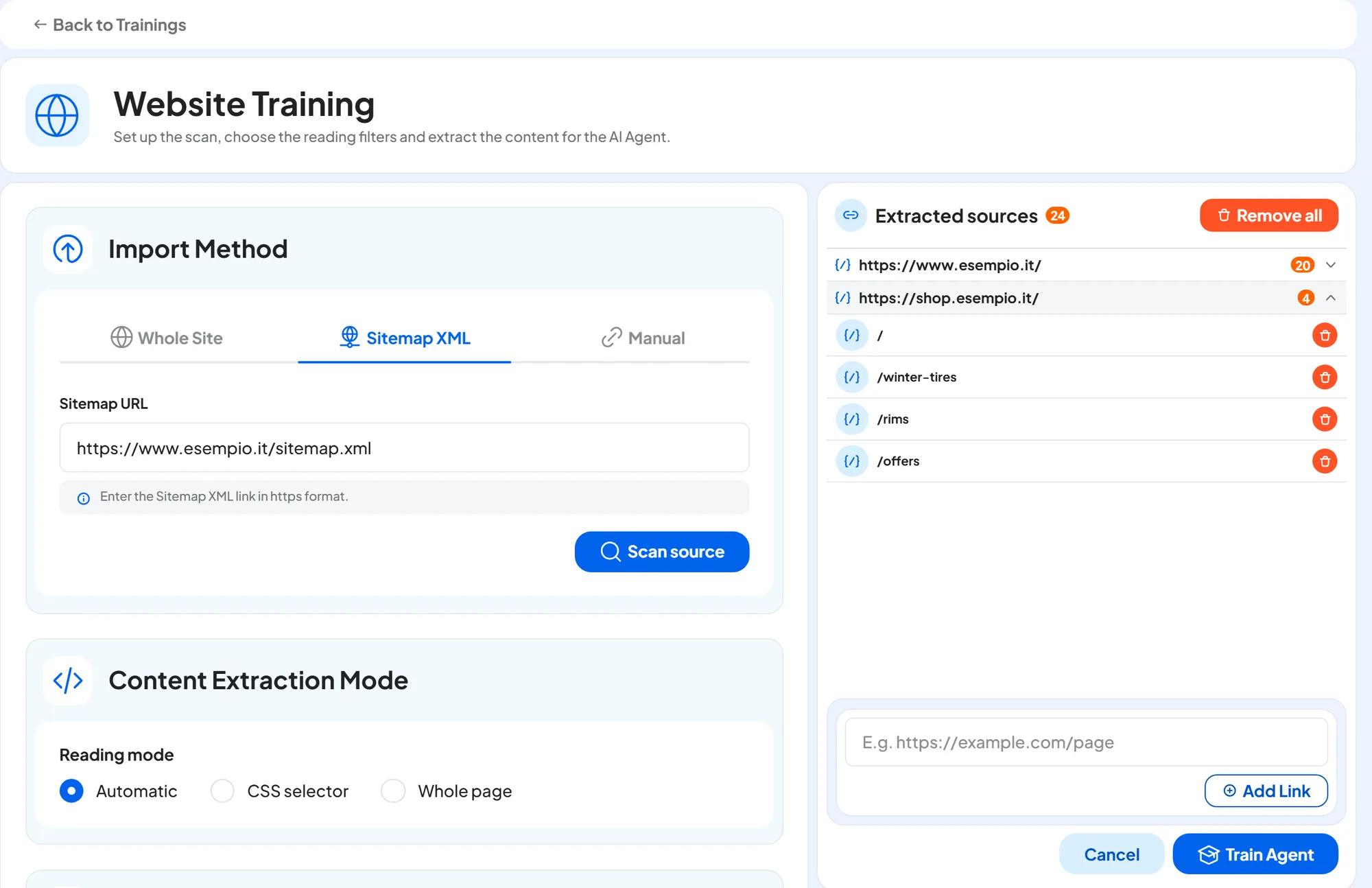
In Chat agentTraining, press New training, then Select Website. “Website Training” opens.
-
Choose the method
In “Import Method”, choose a tab, paste the address and press the button. The three methods are explained below.
-
Wait for the page search
“Scanning in progress” appears, then the number of pages found, for example “24 pages found”. The pages found go into the “Extracted sources” column, with no duplicates: you can combine several methods.
-
Choose the pages
In “Extracted sources”, pages are grouped by domain. Remove the ones you don't need with the Remove from the list trash can. For a missing page, use Add Link, in the same column: it adds an address to the list you already have. It is different from Add link, the button on the Manual tab.
-
Train
Press Train Agent. “The training will run in the background” appears, meaning it carries on by itself while you do other things, and you go back to the list.
Result
The website appears in the list as “In progress”, with the bar of pages read. At the end the status becomes “Completed”.
#How to check
From the website's ⋮ menu, choose Edit training, select a few pages and read the text on the right: it is what the agent knows. Then, in the Test Chat, ask the agent a question whose answer is on one of those pages.
#The three methods
| Tab | What you type | Button | When to use it |
|---|---|---|---|
| Whole Site | Website URL | Scan source | Small websites, or websites without a sitemap. |
| Sitemap XML | Sitemap URL | Scan source | Medium and large websites: it is the most complete method. |
| Manual | Enter URL | Add link | A few pages chosen one by one. |
The sitemap is the list of pages that many websites publish, often at the address /sitemap.xml. With Whole Site, the system uses it if it finds one. Otherwise it follows the links on the page you entered and on the pages they lead to, only on the same domain. The farthest pages are left out: for a large website, use the Sitemap XML tab.
With Whole Site, both when it uses the sitemap and when it follows links, and with Sitemap XML, the system discards links to PDFs and images, and privacy policy, cookie policy and terms and conditions pages.
#Messages during the search
| Message | What to do |
|---|---|
| “Enter a valid link, in https format.” | Type the full address, with https://. |
| “Something went wrong, the URL could not be reached.” | Check the address and press Retry. |
| “No page found. Check the link or try the sitemap.” | Try the Sitemap XML tab, or add the pages with Manual. |
If you need to redo the list, Remove all empties “Extracted sources” after a confirmation.
#Reading modes
In “Content Extraction Mode”, you decide which part of each page to read, with Reading mode.
- Automatic Default
The system finds the main content of the page. It works for most websites.
- CSS selector
An option for whoever built your website: leave it to them.
- Whole page
Reads everything, including menus and footers. Use it when automatic mode leaves out useful parts.
#Pages with problems
When some pages can't be read, a yellow triangle with “N pages with problems” appears in the list next to the website name. To see them, open Edit training and press the N pages with problems filter. When you select a page, the reason appears on the right. The most common cases:
| Reason | What it means | What to do |
|---|---|---|
| Access blocked | The website refuses automated visits. | Try again later. If it keeps happening, ask whoever manages the website to let the reads through. |
| Page not found | The page no longer exists. | Remove it from the list. |
| Empty content | There is no text to read on the page. | Try the Whole page mode. Otherwise, copy the text into a Textual training. |
| Page too heavy | The page is over 5 MB. | Copy the useful text into a Textual training. |
For other reasons, try again later; if the reason concerns the website, for example its security certificate, have whoever manages it fix it. Then retry the pages with Re-run training, or remove them: in Edit training, with the filter on, press Remove pages with problems and then Train Agent.
#Automatic sync
Sync rereads the website at regular intervals and updates the knowledge when the pages change. You open it from the calendar icon on the website's row, when the training isn't in progress.
- Last Run
How many pages the last run found “Changed”, “New” and “Removed”, with the date of the “Last check”. With Run now you start a run right away, without waiting for the frequency: “Update started: the training is queued” appears. After a run started by hand, you have to wait about two hours before starting another one for the same training. If you try earlier, “You started an update a short while ago. Try again later.” appears.
- Enable automatic sync Yes / No
Turns on automatic runs. If your plan doesn't include it, “Your plan does not include automatic website sync.” appears.
- Source Sitemap · Site scan (crawl)
Where the system gets the list of pages at each run: the sitemap, or the website's links. “Crawl” is the name for the reading that follows links from one page to the next, as Whole Site does. Choose Sitemap when the website has one.
- Frequency Daily (24h) · Every 36 hours · Weekly · Monthly
How often to reread the website. Frequencies your plan doesn't include show a padlock.
- Sync rules
Automatically add newly found pages: new pages go into the knowledge base, at most 50 per run and only if there is room in your plan.
Remove pages no longer present: removes the pages that have disappeared from the website. It works only with the Sitemap source. Both rules start out on.
Press Save settings: “Settings saved” appears and the date of the next run appears on the website's row.
At each run, the website's text replaces your corrections. Correct the page on the website, or add an FAQ.
#Which pages to exclude
The general rules are in Good-quality sources. For a website, also remove from the list:
- search results, tag or category archives, numbered pages of lists;
- the same pages in other languages, if the content is identical: the agent answers in the customer's language anyway.
#Frequently asked questions
The “Train Agent” button is grayed out.
The selected pages exceed your plan's page cap: the “Total links used” panel appears, telling you how many more pages your plan allows. Remove the extra ones and the button turns back on.