

SupportFast agents answer the people who write to you or call you. With a campaign, you start the conversation. Choose a group of contacts and SupportFast writes to or calls each one, at the pace you set and in the time slots you decide.
#Two channels
When you create a campaign, you choose the channel: WhatsApp Message or AI Voice Call, which in this guide we call a voice campaign. In the campaign list, the type is WhatsApp or Phone. The channel can't be changed after the campaign is created.
| WhatsApp Message | AI Voice Call | |
|---|---|---|
| What goes out | A WhatsApp template approved by Meta, with the variables filled in from each contact's details. | A call from your outbound voice agent, from its number. |
| Pace | From 1 to 60 sends per minute, your choice. | One call at a time. |
| Retries | Not configurable: one send per contact. | Up to 5 attempts in total, first call included, with the interval you choose. |
| Who answers | The chat agent connected to the WhatsApp channel. The team can step in from Conversations. | The voice agent, during the call, with the instructions you gave it. |
#Use cases
- Reminders. A WhatsApp message to customers who have an appointment next week, with their name in the text.
- Offers. An end-of-season promotion to customers who agreed to receive offers on WhatsApp.
- Quote follow-ups. The voice agent calls people who asked for a quote on your website and finds out whether they're still interested. If you make an offer during the call, it may count as a promotional call.
- Confirmations. The voice agent calls the next day's customers to confirm their appointment.
Consent before promotion. For promotional messages and calls you need the consent of the people you contact. We explain it in Consent and rules.
#What you need first
- For a WhatsApp campaign, the WhatsApp number connected to the workspace and at least one template approved by Meta, in the Marketing or Utility category. Also connect a chat agent to the channel, in the Assigned Agent panel of the channel's page (WorkspaceIntegrations, WhatsApp): it's the agent that answers people who reply. Without one, the campaign starts anyway, because the Summary doesn't check for it, but customers' replies aren't saved and you don't see them in the console. In the campaign's Overview, you can tell from Replying agent: None. The details are in WhatsApp: connecting your number and WhatsApp templates.
- For a voice campaign, an outbound voice agent, active and with a number: see Outbound calls.
- For both, the contacts to reach, with their phone number, gathered in a list. Without a list, the campaign targets all the contacts in the workspace.
- For promotional messages and calls, the consent of the people on the list: see Consent and rules.
“All contacts” means the whole contact book. The contact book fills up on its own: it includes people who wrote to you in chat, on WhatsApp, Instagram or Messenger, people who called you, people you imported and people who left their details during tests with Test Chat. If you also use the number in the WhatsApp Business app, the contacts from the app's address book are there too. For promotions, always choose a list of people who gave their consent. See The contact book.
#Campaign statuses
| Status | What it means | What you can do |
|---|---|---|
| Draft | The campaign exists but hasn't contacted anyone yet. | Edit everything and start it with Start. |
| Running | The campaign is contacting people, in the time slots you chose. | Follow it and stop it with Pause. The options are read-only. |
| Paused | No new contact is messaged or called. You stopped it, or it stopped on its own: the reason is shown next to the status. | Edit everything except the audience choice, and resume it with Resume. |
| Completed | The campaign is done with all its contacts: reached, failed or excluded. | View the results. To start again with the same configuration, duplicate it. |
#Where to find it
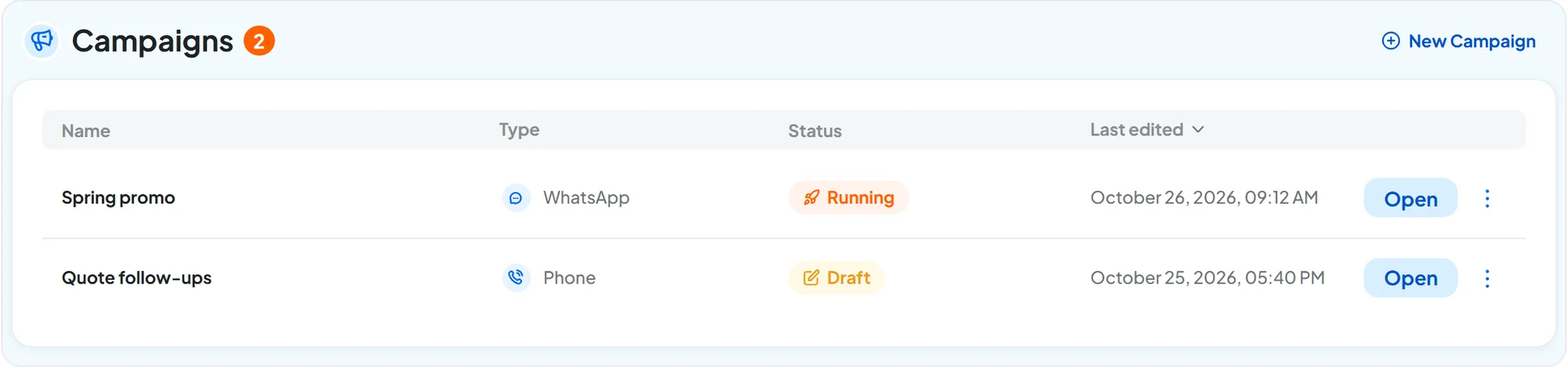
Campaigns are in the workspace's Overview, in the Campaigns panel. For each one you see its name, type, status and last edit. Press Open to go in.
Inside a campaign, the side menu has three items: the campaign's Overview, with status and numbers; the Dashboard, with results contact by contact; Campaign options, with the configuration. At the top you find the status and the command you need at that moment: Start, Pause or Resume.
#Permissions
- “Campaigns (Workspace)” at the View level: you open the campaigns' Overview and Dashboard, without commands.
- “Campaigns (Workspace)” at the Manage level: you create, configure, start, pause, duplicate, move and delete.
- To see sends contact by contact, you also need “Contacts (Workspace)”.
Without “Campaigns (Workspace)”, the panel doesn't appear in the Overview. Permissions are assigned in Team, roles and permissions: there they appear without the part in brackets, as “Campaigns” and “Contacts” in the Workspace group. Here we write them the way the console names them when a permission is missing.
Voice campaigns are available on plans with “Outbound calls”. The plan also sets how many campaigns you can have, how many can be running at the same time, and the month's sends and minutes: see Sends and minutes.