

Automations work behind the scenes, alongside the agents: they don't chat with customers, but they can write to them or call them. They react to an event, such as a call that has just ended or a contact added to a list. Then they do the work a person on your team would otherwise do by hand.
#What you can do
- A. WhatsApp confirmation and summary after the call: as soon as the voice agent ends the call, the customer gets the appointment confirmation on WhatsApp and the team gets an email with the summary.
- B. Welcome and call back for the contacts in a list: write to the contacts added to a list and call them back two days later with the voice agent.
- C. Leads from an external form, into your CRM: receive contacts from a form on your website, from Zapier or from Make, save them in the contact book and pass them to your management software.
- D. Chats classified by AI: the AI reads the chats to label them or move them to the right folder.
- E. Reminder the day before the appointment: a customer who booked an appointment over the phone gets a WhatsApp message the day before.
- F. Alert to the team when the customer asks for an operator: operators get an email when a customer asks to talk to a person.
Each one is built step by step, under the same letter, in Ready-made examples.
#How it works
- Trigger. The starting event. Each automation listens to one: an internal SupportFast event (a call that ended, a new contact, a message) or a webhook sent by another piece of software.
- Node. A block of the flow, which runs from top to bottom. There are 10 types. Five carry out an action on customers, contacts and conversations; five work on logic and data, like the Condition that splits the flow into branches.
- Variable. A value that changes every time the automation starts, such as the contact's name, written between double curly braces:
{{user.firstName}}. - Run. A single pass of the automation, started by an event. The Dashboard records it with its status (completed, failed, scheduled…) and the step-by-step story.
- Draft and published version. You work on a draft and put it into service with Publish: see Saving, publishing, fixing.
#Where to find them in the console
- Workspace Overview. The Automations panel lists the automations in the workspace. From here you create and open them; the other actions are in the Options menu: see Managing an automation.
- Dashboard. It opens first when you press Open on an automation: numbers, charts and the Run log.
- Playground. The canvas where you build the flow, set the trigger, save and publish.
With an automation open, both pages are in the side menu: AutomationsDashboard and AutomationsPlayground.
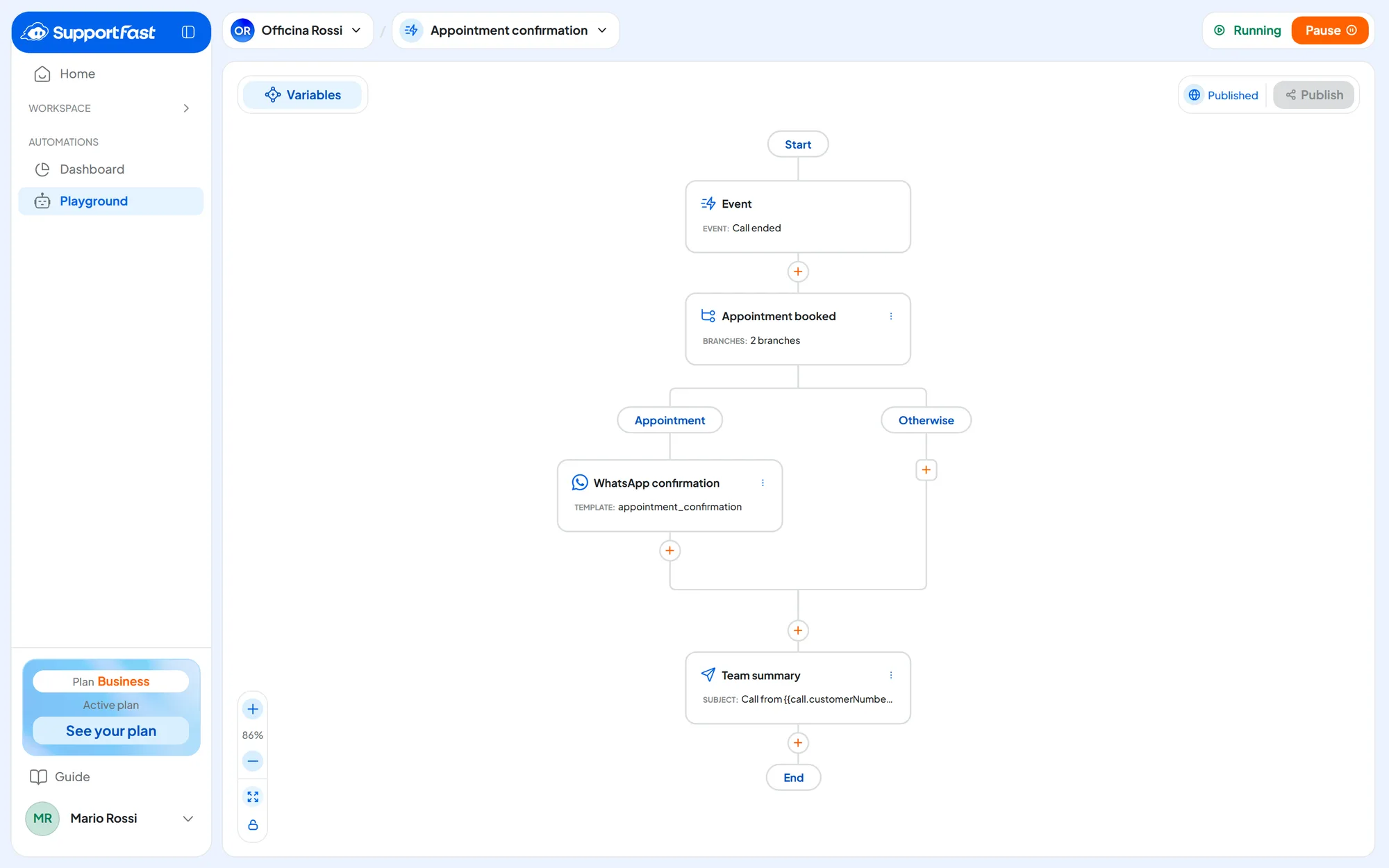
The automation Playground is not the chat agent Playground, where you decide how the agent answers: see Playground: instructions and flows.
#Who can use them
The account owner can do everything. In a team, the “Automations” permission in the Workspace group decides who sees and who edits automations: with “View” a teammate reads the Dashboard and the runs, with “Manage” they create, edit and publish. In refusal messages the console calls it “Automations (Workspace)”. See The 14 permissions.
Your plan sets how many automations you can have across the whole account, adding up all workspaces. The Free plan doesn't include automations. Every automation you create counts, even as a draft or paused: once you reach the number you can't create or duplicate any more, and to make room you have to delete one. Pausing it doesn't free up the slot.
After moving to a smaller plan you may have more automations than the new plan includes. The most recent ones go on forced pause, and you can keep at most as many running as the plan includes: publishing or resuming another one opens the plans window.
Your plan also sets how many runs you get each month and which node features are included: see Plans, quotas and usage.
#Frequently asked questions
Should I use an automation or a campaign?
It depends on what starts the work. An automation reacts to an event, one customer at a time: a call that ended, a new contact. A campaign writes to or calls many contacts in a list on the days and at the times you choose. Campaigns are explained in Campaigns.