

The number you buy is a platform number: it sits in your account and you link it to a voice agent. If you want to keep the number you already have, first look at the other options in Connecting your phone: the options.
Before you start
- A plan with “Platform numbers” and a free slot.
- For a number registered in your name, the holder's documents: see Documents for numbers.
#Which numbers you can buy
- Countries: Italy, United States, Germany, Austria, Switzerland, France, Spain, United Kingdom, Netherlands, Poland, Portugal and Brazil.
- Type: geographic numbers, that is, landline numbers with a city's area code. Italian numbers can't call emergency numbers.
- Italy: “Inbound calls only”, with no documents and ready within seconds when there are some available, but it can't make outbound calls; or “Inbound and outbound calls”, registered in your name after the documents are verified.
- United States: inbound and outbound, no documents, active within seconds.
- Other countries: inbound and outbound, only if you have an address and documents in that country, in your name.
#Buying the number
Prepare the documents before you buy. The number you choose isn't reserved until you confirm the purchase. If you leave the purchase halfway to fill in the documents, your choice of number is lost. The profile you created stays, but when you come back you start again from Add number, and the number you chose may no longer be there. For a number registered in your name, first create and confirm the profile with New profile, in the “Documents for numbers” panel: see Documents for numbers.
-
Open Telephony
Go to AccountTelephony and press Add number.
-
Choose “Buy a number”
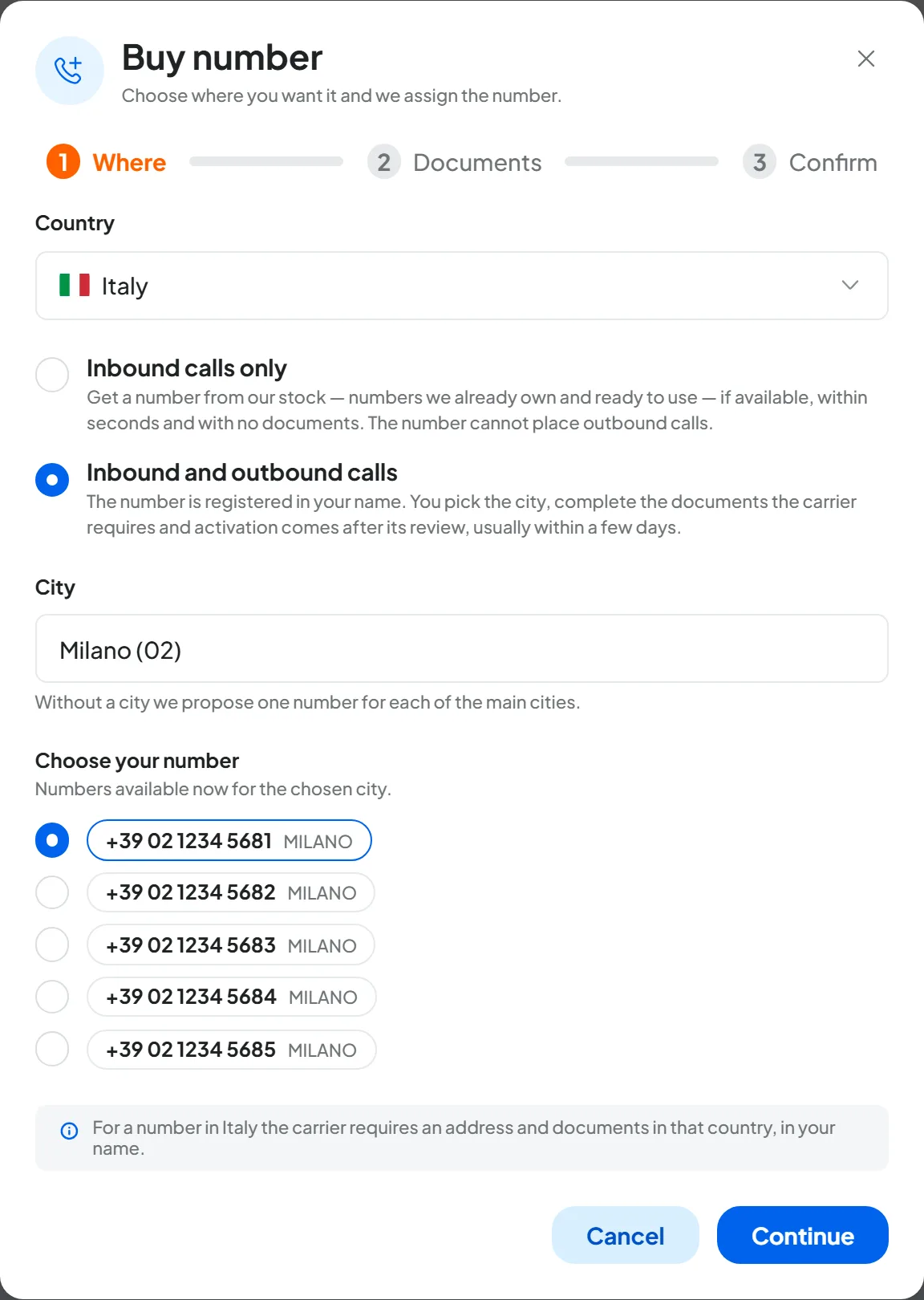
In the “Add number” window choose the Buy a number option and press Continue. The “Buy number” window opens, with the steps Where, Documents and Confirm. The Documents step only appears when documents are needed.
-
Choose the country
In the Country field choose where you want the number.
-
For Italy, choose the type
Choose Inbound calls only or Inbound and outbound calls: the difference is explained in Which numbers you can buy. A number registered in your name is activated after the phone carrier's review, usually within a few days.
-
Choose the number
Although the window says “we assign the number”, you choose the number yourself from the ones offered. The path depends on the type:
- “Inbound calls only”: you don't choose the city. Under “Choose your number” you find up to five “Numbers ready in our stock”, each with its city. If the stock is empty, the window says so and only the other type is left.
- “Inbound and outbound calls”, and other countries if the City field appears. Type the name of the city or the area code, for example
02, and pick from the suggestions. If you leave it empty, we offer numbers from the main cities. Then under “Choose your number” you find up to five numbers available right now.
The first number is already selected: choose the one you prefer and press Continue.
-
Name the holder
At the Documents step the window asks “Who is the number registered to?”: choose a holder you already have, or New holder. For a new holder, type the name or company name and press Create profile.
If the documents are already complete, they are reused as they are and Continue becomes active. If they aren't, press Fill in the documents: the profile page opens and the purchase window closes.
-
Confirm
Check the Summary: country, city, holder and the Cost line, which says “Included in your plan” or “Covered by your additional number”. Then press Confirm purchase.
Result
For a number that is already ready, or a US number, you see “Number assigned: it is already yours”: the number appears in the table and is “Active” within seconds. For a number registered in your name, the row shows the order status, and the account owner gets an email when the phone carrier responds.
If someone else took the number just before you confirmed, you see “The chosen number was just taken. Pick another one from the refreshed list.” The window goes back to the Where step with the updated list.
#After the order: statuses and timing
The order status updates on its own in the numbers table, about every 30 minutes. In the statuses the console calls the phone carrier simply “carrier”: “Under carrier review” means the phone carrier is examining the order.
| Status | What it means | What to do |
|---|---|---|
| Documents to complete | The order is waiting for details or documents. | Complete and confirm the holder's profile as soon as possible. |
| Under carrier review | The phone carrier is examining the order. | Nothing: wait for the outcome. |
| Late · still under review | The review is taking longer than expected. | Wait for the outcome: we are following it up. |
| Action required · Action required: N fields | The phone carrier declined one or more details of the order. | Press the label: see the section below. |
| Rejected | The phone carrier disputed the holder's documents. | Press the label: see the section below. |
| Cancelled | The order was cancelled, for example because the correction didn't arrive in time. | Place a new order. |
| Configuring | The platform is preparing the number. | Wait a few seconds. |
| Active | The number is ready. | Link it to an agent. |
Order emails go only to the account owner, not to the person who placed the order if that's someone else on the team. Two of them have the same subject: the heading inside the email tells them apart.
| Email subject | When it arrives |
|---|---|
| “Your phone number is active” | The number is “Active”. |
| “Your order needs a correction”, with the heading “Correction required” | “Action required”: the phone carrier declined some details of the order or left a note. |
| “Your order needs a correction”, with the heading “Order to complete” | “Rejected”: the phone carrier disputed the holder's documents. |
| “Your order has been cancelled” | “Cancelled”: the time to make the correction ran out. |
For “Documents to complete”, “Under carrier review” and “Late · still under review” no email is sent: follow the status in the table. An order in progress already takes up one of your plan's number slots; if it is cancelled, the slot is free again.
#If the order needs a correction
With “Action required” the phone carrier declined some details of the order; with “Rejected” it disputed the documents profile. In both cases press the label: the window shows the phone carrier's reason and the date by which you must make the correction. Correct the profile and confirm: the order resumes on its own. The steps are in Correcting after a rejection.
#How to check
When the row says “Active”, link the number to the agent, as explained in Assigning and managing numbers, then call it from your mobile: the agent should answer. See Testing the agent.
#Frequently asked questions
Can I have a number from a different city than my office?
Yes, in Italy. The holder's address doesn't have to match the city of the area code: from Verona you can have a Milan number.
How much does a number cost?
You can see how many numbers your plan includes in AccountSubscription: only purchased numbers count, not SIP lines. Prices are on the pricing page.