

Open Chat agentAgent profileInterface. On the left you find six panels, on the right the Chat Preview. These settings apply to the chat on your website: the widget (the button in a corner of the page that opens the chat window), the link and the iframe. On WhatsApp, Instagram and Messenger the customer writes from the channel's app and doesn't see them.
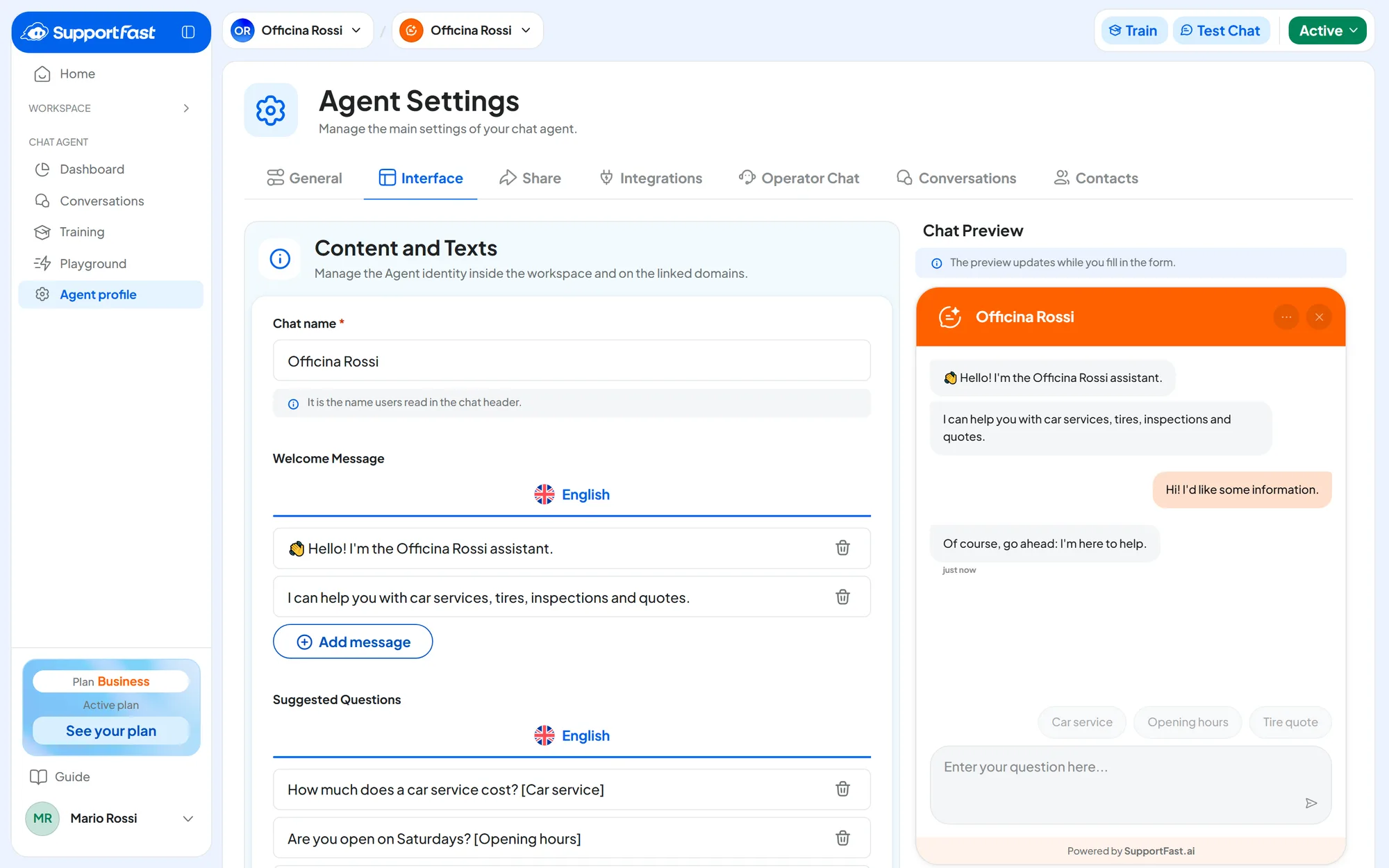
#Content and Texts
- Chat name Text · required
The name the customer reads at the top of the chat. It is also the title of the browser tab when the chat opens from the link.
- Welcome Message One or more messages · per language
The first messages of the chat, before the customer writes. They are also the texts of the bubble above the button, if you turn it on.
- Suggested Questions Lines · per language
Buttons above the text field. With one click the customer sends the question as their own message. They stay visible for the whole conversation. Keep them short: beyond 500 characters the question is cut off.
To show a shorter text on the button than the question, write the label in square brackets at the end:
| You write | The button shows | The customer sends |
|---|---|---|
What products do you have? [Products] | Products | What products do you have? |
How much is shipping? [Shipping] | Shipping | How much is shipping? |
#Style and Colors
Only the primary color is required. The other colors can stay on Automatic: the chat calculates them from the primary color and the theme. A color you pick by hand stays fixed; to go back to the calculated color, choose Automatic in the picker.
- Primary color Color
Colors the chat header, the button and the suggested questions on mouse hover.
- Text color on primary White · Black · Automatic
The color of texts and icons on top of the primary color. Automatic picks white or black, whichever is easier to read.
- Secondary color (buttons) Color · Automatic
The send button, filled buttons such as I agree and Start the Chat, and the links in messages. Automatic follows the primary color.
- Theme Light · Dark
The chat background.
- Button position Left · Right
The side of the screen for the button, the bubble and the window.
Four more colors set the message bubbles and their text: Agent message color, Agent text color, User message color and User text color.
#Branding and Interactions
- Button image JPG, PNG, GIF or SVG · max 5 MB
An image of yours, for example your logo, inside the button and in the chat header. It is also the browser tab icon when the chat opens from the link. Recommended size: 512×512 pixels.
- Default icon Six icons
Without an image, the button shows the icon you choose from the six on offer, in the primary color.
- Welcome Bubble on the Button Yes / No
After a few seconds, the welcome messages appear above the closed button. A click on a message opens the chat; the X hides the bubble. It works only with the widget, not with the link or the iframe.
- Timer in seconds Whole number · minimum 1
After how many seconds the bubble appears.
#Files and Audio Sending
Available in plans that include “Files and audio in chat”: see Plans, quotas and usage.
- Enable file sending Yes / No
A paperclip appears in the chat. The customer sends one file at a time, with an optional text that acts as a caption: images up to 5 MB, PDF, DOCX, XLSX, PPTX, TXT and CSV documents up to 25 MB. These limits apply to files customers send in the chat: Training documents have their own, in Training with documents. The agent reads only the text sent with the file: you open the file yourself, in the conversation.
- Enable voice messages Yes / No
A microphone appears in the chat. The customer records up to 30 seconds; the voice message is transcribed and the agent replies to the transcript as it would to a text.
Besides a plan with “Files and audio in chat”, voice messages require your own OpenAI key, on the agent, the workspace or the account. Without a key the switch doesn't turn on and “To enable voice messages you need a personal OpenAI key (agent, workspace or account).” appears. If you remove the key later, voice messages from the widget are rejected until you add one. See General › OpenAI Key and OpenAI key.
#Footer
- Privacy Disclaimer in the Footer Formatted text · per language · optional
A text at the bottom of the chat, for example a reference to your privacy policy. It can include bold, italics and links.
At the bottom of the chat the signature “Powered by SupportFast.ai” appears. The No «Powered by» add-on removes it: see Add-ons.
On a reseller's portal. The SupportFast signature doesn't appear. The reseller's signature appears instead, if they set one, and the reseller can turn it off on a single agent. The default icons don't include Supportfast mark. See What your clients see: chat agent and widget.
#Agent Reply Hours
- The agent replies Always · Only during opening hours · Only outside opening hours
When the agent replies on its own in the website chat. It follows the workspace's opening hours, in the workspace's time zone.
During the time slots when the agent stays silent, the conversation moves to the live chat (the Operator Chat tab) on its own. The customer's messages stay in Conversations, waiting for a teammate. At the end of the slot the live chat closes on its own and the agent starts replying again. See Stepping in as an operator.
Choose a silent slot only if someone will reply. The agent stays silent even if the live chat is off in Operator Chat. During those hours you need a teammate who follows Conversations, with a plan that includes the live chat: otherwise the customer gets no reply until the next slot.
If the workspace has no opening hours, the choice stays on Always: Set up the hours takes you to the Workspace settings.
Your team replies during office hours and the agent the rest of the time? Choose Only outside opening hours. On WhatsApp, Instagram and Messenger, instead, you choose the hours on each channel's page, in WorkspaceIntegrationsConfigure: see Availability and Reply, which works the same way on all three channels.
#Chat Preview
On the right you see the real chat, with the button. It changes as you type, even before you save, and it speaks the language of the last language tab you opened.
You can't type in the preview: to test the agent, use the Test Chat.
#How to save and check
Press Save changes in the bar at the bottom: “Interface saved” appears. To check, open the Test Chat, your website or the chat link.
#Frequently asked questions
I don't see the paperclip or the microphone in the chat.
Check the Files and Audio Sending switches and that your plan includes “Files and audio in chat”. For the microphone you also need your own OpenAI key, and a browser that can record audio.
The welcome appears in another language.
Write the texts in every workspace language. How the chat chooses the language: see Supported languages.