

Before you start
- Room in your plan's “Campaigns” quota and, for a voice campaign, the “Outbound calls” feature.
#Where to create it
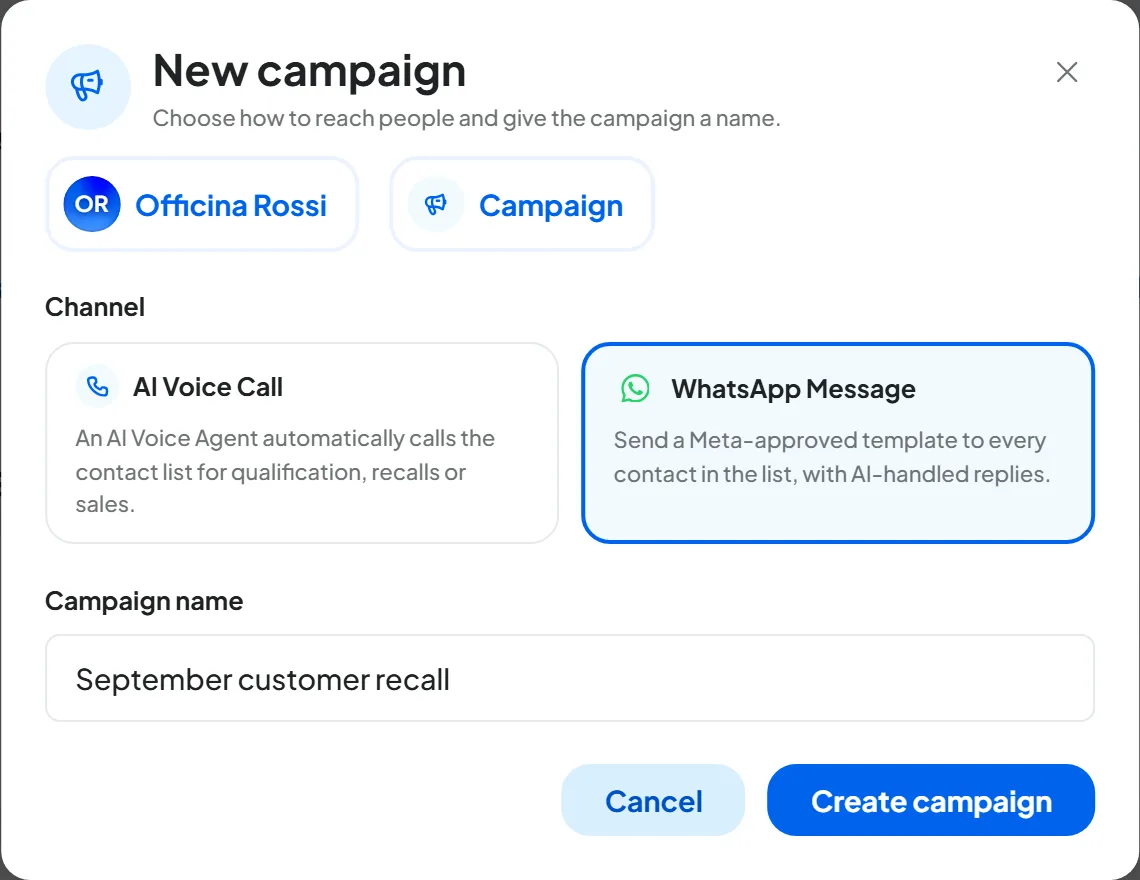
In the workspace's Overview, press New Campaign in the Campaigns panel, or Create element and then Campaign. The “New campaign” window opens.
#Create the campaign
-
Choose the channel
Under Channel, press one of the two boxes:
- AI Voice Call: a voice agent calls the contacts.
- WhatsApp Message: a WhatsApp template goes out to each contact.
The differences are explained in Campaigns.
The channel can't be changed later: if you pick the wrong one, delete the draft and create another campaign.
-
Give it a name
Type the Campaign name, up to 50 characters. For example, “September customer recall”.
-
Create
Press Create campaign: it becomes active once you've chosen the channel and typed the name. “Campaign created” appears and the Campaign options page opens.
Result
The campaign exists with the Draft status and appears in the Overview's Campaigns panel, with the type WhatsApp or Phone. Until you start it, it contacts no one. If the workspace has opening hours, the campaign already gets them as contact time slots: check them in Campaign options, where you configure everything else.
#Duplicating a campaign
Duplicating lets you start again from a completed campaign, or change the audience of a campaign that has already started. In the workspace's Overview, from the row's menu, press Duplicate and confirm. The copy starts as a Draft with the same configuration, without sends or statistics, and counts toward the “Campaigns” quota. The rules that apply to all elements are in Workspaces and Overview.
The copy starts from scratch with the same audience. It also copies the list, or “All workspace contacts”: if you start it as it is, it messages or calls everyone again, including the people the first campaign had already reached. Before starting it, choose a list in Campaign options with only the people you want to reach.
A campaign's results can't be exported to a file: if you want to keep them, note them down from the campaign's Overview and Dashboard before deleting it.
#Moving to another workspace
A running campaign can't be moved: pause it first. Then, from the row's menu, press Move, choose the Destination workspace and confirm.
The campaign arrives as a Draft, without agent or template, and with the audience reset to All workspace contacts of the destination workspace. Before starting it, choose the agent or template again in Campaign options and check the audience again. As it is, the campaign would go out to the whole contact book. Sends still waiting are cancelled. What stays in the original workspace is explained in Workspaces and Overview.
#Renaming
From the row's menu, press Rename. In the “Rename Campaign” window, type the new Name and press Save.
You can also change it from the Campaign name field in Campaign options, when the campaign is a draft or paused.
#Deleting
From the row's menu, press Delete, or, inside the campaign, the trash icon at the top (Delete campaign). Along with the campaign you lose its configuration, results and send history. If it's running, sends still waiting are cancelled, while calls and messages already under way finish.
To confirm, press Delete campaign. Deletion can't be undone and results can't be exported: if you only want to stop the campaign and keep its results, pause it.
#Frequently asked questions
Instead of the “New campaign” window, the plan limit window opens.
You already have all the campaigns your plan includes, completed ones included. To make room, delete a campaign you no longer need. Before that, if you want to keep its results, note them down: its history disappears along with the campaign.