

A list is a named group of contacts, for example “VIP customers” or “To call back”. Lists are used for three things:
- organizing the contact book: click the list and you see only those contacts;
- campaigns: a list can be a campaign's audience, instead of all the workspace contacts;
- automations: an automation can start when a contact joins a list.
A contact can be in several lists: adding a contact to one list doesn't remove it from the others.
#Creating a list
-
Open the window
In WorkspaceContacts, in the Contact lists column, press New list.
-
Enter the name
In List name, write a name that's clear to the team, for example “VIP customers”.
-
Write the description
In Description (optional), explain who belongs in the list: “The contact never sees it. AI Agents use it to understand when a contact belongs in this list.”. For example, for “To call back”: “Customers who ask to be called back about a quote and leave a phone number”.
The description decides whether the AI uses the list. With a description, automatic profiling can put contacts into the list on its own. Without one, the AI doesn't put anyone in it: leave it empty for lists you want to fill only yourself, such as the list of people who agreed to receive promotions.
-
Create
Press Create list: you read “List created” and the list appears in the column.
Two lists can't have the same name. A workspace can have up to 20 lists: beyond that, the New list button is disabled. You can also create a list while importing a file, with Create a new list…, and from a contact's lists, with Create new list.
#Renaming a list
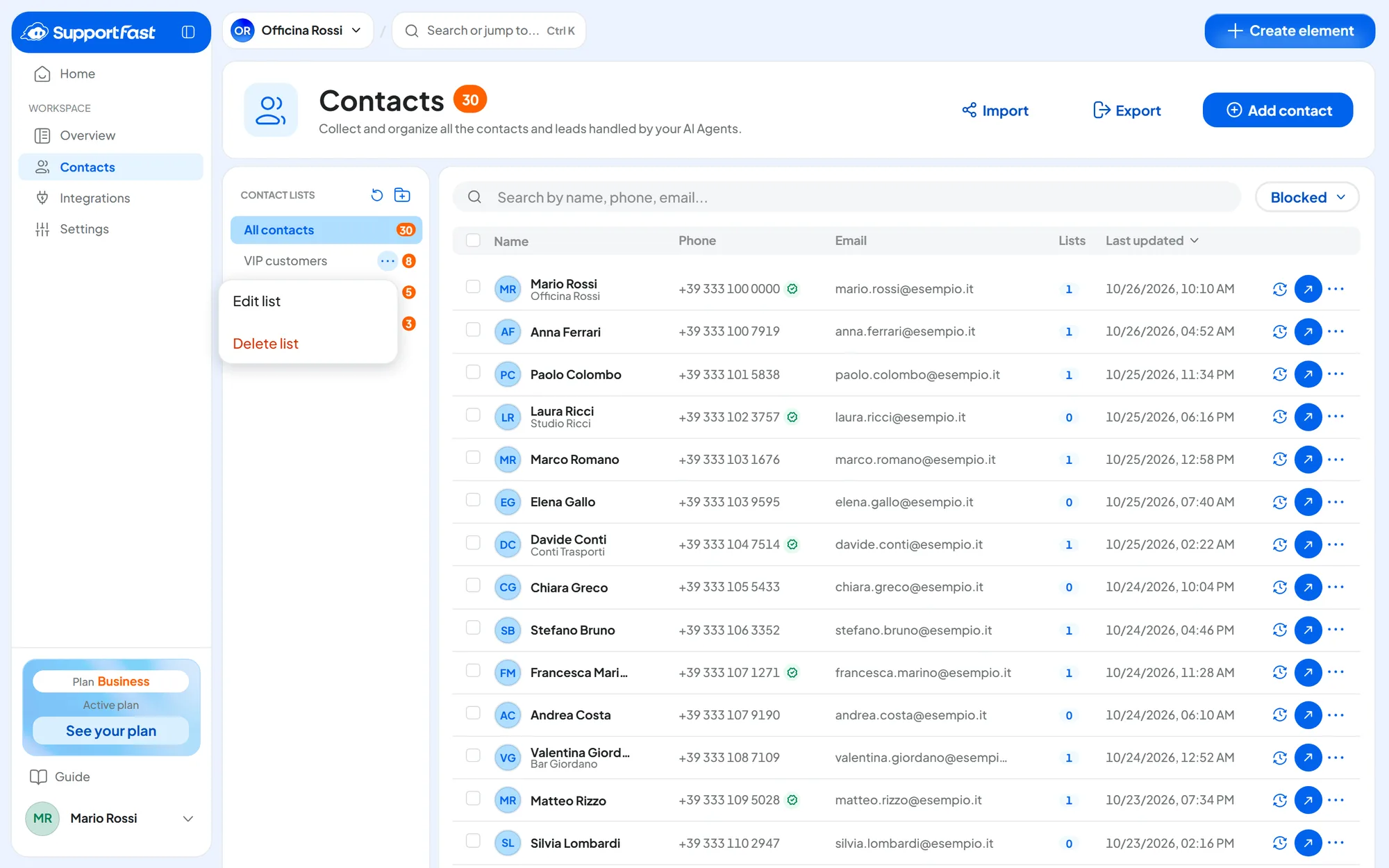
Hover over the list in the column, open the three dots (Options for list) and choose Edit list. Change the name or description and press Save changes.
#Adding and removing contacts
#One contact at a time
- From the contact list: click the number in the row's Lists column, or open the row menu, then Lists. Each tick adds or removes the contact right away: you read “Contact added to the list” or “Contact removed from the list”.
- From the contact card: in the Lists section, use Add to add, and the X next to the list name to remove.
#Many contacts at once
-
Select the contacts
Tick the rows. If you ticked the whole page and the filter contains more contacts, Select all … contacts in the filter appears.
-
Choose the list
Press Add to a list, choose the list in the List field and press Add to list.
You read “Contacts added to the list”.
#Other ways
- By importing a file: see Importing contacts.
- With the AI: automatic profiling can put contacts into lists and remove them when they no longer belong there. The AI doesn't create lists. See Variables and automatic profiling.
- With an automation: an automation can add the contact to a list. See Nodes: messages and actions.
#Lists, automations and campaigns
Joining a list starts automations. Every time a contact joins a list, the automations that have that list as their start event run. This applies however the contact joins: by hand, in bulk, from a file, or through the AI on an existing contact. The exception is a new contact that the AI creates directly inside the list: for that contact, the New Contact automations run, not the list ones. Leaving a list, on the other hand, starts nothing. For tests, use a list that no automation uses. See Start events (triggers).
If the list is the audience of a campaign that has already started, the contacts you add are reached after the campaign is next reactivated: see Contacts added after launch. The contacts you remove, however, are still reached if the campaign already had them queued: see Contacts removed from the list after launch.
#Deleting a list
-
Open the list menu
In the Contact lists column, open the list's three dots and choose Delete list.
-
Read and confirm
The window tells you how many contacts are in the list and that they'll stay in the contact book: “Its contacts won't be deleted, but they'll lose their link to this list.”. Press Delete list.
You can't undo the deletion. Deleting the list also stops any campaign sends and automation steps still pending for that list: before deleting it, check which campaigns and automations use it.
#Frequently asked questions
The AI doesn't put any contacts in this list.
Check three things: the list has a description, automatic profiling is on, and the “Automatic list assignment” switch is on in the workspace settings.
I need more than 20 lists.
To tell more groups apart in automations, use a single choice or multiple choice contact variable, and filter on it. This doesn't work for campaigns: their audience is a list or all the workspace contacts, and it can't be filtered by variable. Keep your lists for campaign audiences.