

Open Voice agentAgent profile. The General step has five panels: this page explains “Identity” and “Initial Greeting Message”. The other three are in Behavior and advanced and in Recording and consent.
How to read the Agent profile summary and how the four steps are saved is explained in The voice agent.
Before you start
- Languages and opening hours set in the Workspace settings.
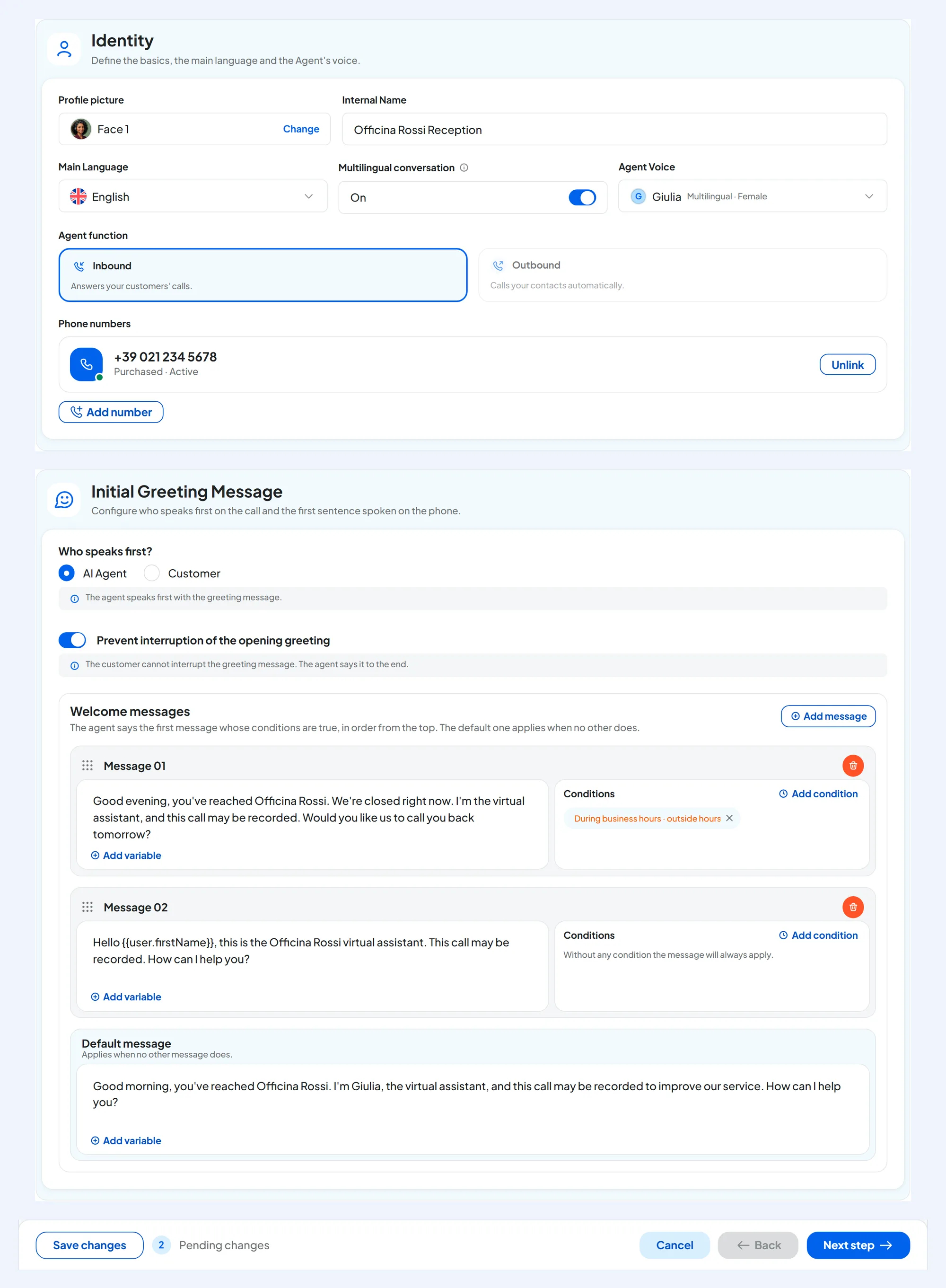
#Identity
- Profile picture Image
The face that represents the agent on the cards and lists in the console; callers don't see it. Press Change, choose a face and confirm with Use this picture.
- Internal Name Text · required · max 50 characters
The agent's name in the console: it is what you typed in Agent name when you created it. Callers don't hear it: you write the name the agent introduces itself with in the greeting and in the prompt.
- Main Language List · required
The language the agent answers in. The list shows only the workspace's languages: to get others, add them in the Workspace settings.
- Multilingual conversation Yes / No
“The agent continues in the caller's language when it differs from the main one.” Off, the agent always speaks only the main language. On, it greets in the main language and then follows the caller's language: in this case, choose a multilingual voice. Then make a test in every language you need.
- Agent Voice One of the 15 voices
The row shows the voice's name, language and gender. Click it to open “Select voice”: filter with All languages and All genders, choose the voice and press Save voice. The voice in use is marked “Current”. Then save with the bar at the bottom.
A voice in another language is marked “Different language”: you can use it, but “the pronunciation may not be ideal”. Changing the agent's language doesn't change the voice.
- Agent function Inbound / Outbound
Whether the agent answers, that is, it is inbound, or calls, that is, it is outbound. You can't change it while a number is linked: first unlink the number, or all the numbers. What changes between the two is in Creating the voice agent.
- Phone numbers · Phone number Information
The numbers linked to the agent, with the controls to add, change or unlink them: see Assigning and managing numbers.
#The voices
| Voices | Gender | Language |
|---|---|---|
| Laura, Silvia, Beatrice | Female | Italian |
| Alessandro, Riccardo, Stefano | Male | Italian |
| Giulia, Sofia, Chiara, Martina | Female | Multilingual |
| Marco, Matteo, Luca, Andrea, Adam | Male | Multilingual |
To hear a voice, save it and make a test Web Call.
Fields with the “Plan” label are available on plans that include the feature shown: see Plans, quotas and usage. If your plan doesn't include the feature, the field stays visible but turned off, with a padlock. Clicking it opens the limit window, which tells you which feature is missing.
- “Voice tuning”: choosing the voice, and adjusting silences and interruptions in Behaviour and Call Parameters.
- “Realistic voice”: making the greeting interruptible, DTMF tones and the background ambient sound.
#Initial Greeting Message
In this guide, the greeting is the first sentence the agent says as soon as it answers. In the console, you write it in the “Welcome messages”, inside this panel.
- Who speaks first? AI Agent / Customer
With AI Agent: “The agent speaks first with the greeting message.” With Customer: “The agent listens and says nothing until the customer speaks.” In this case the rest of the panel is turned off.
- Prevent interruption of the opening greeting Yes / No
“The customer cannot interrupt the greeting message. The agent says it to the end.” Keep it on if the greeting contains notices the customer must hear in full.
- Welcome messages Up to 20 messages · max 2,000 characters each
“The agent says the first message whose conditions are true, in order from the top. The default one applies when no other does.” With Add message you create “Message 01”, “Message 02” and so on. Each message has its text, the Add variable button to insert the contact's details, such as
{{user.firstName}}, and the “Conditions” box.- Default message Required with “AI Agent”
It is always the last one, has no conditions and can't be deleted: “Applies when no other message does.” When the agent is created, it contains the AI and recording notice: what it needs to say is explained in Recording and consent.
If the customer speaks first, the agent doesn't say the greeting, and with it the AI and recording notices. In that case, write in the prompt that it must give them in its first reply, and check this with a test.
#Conditions
Press Add condition under a message: “Execution Conditions” opens — “The message applies only when all conditions are true.” Each rule starts with When. Up to 10 conditions per message. Confirm with Save Conditions, then save with the bar at the bottom. A message without conditions “will always apply”.
| When | Choices | How it works |
|---|---|---|
| Time of day | “is after”, “is before”, “is within” + hours and minutes | Follows the workspace time. “is after 18:00” applies from 18:00 to midnight; “is before 12:00” from midnight to 11:59; “is within 12:00” from midnight up to and including 12:00. |
| During business hours | “within hours” / “outside hours” | Uses the opening hours and closing days in the Workspace settings: set them before you use this condition. |
| Call direction | “Inbound call” / “Outbound call” | Tells apart the calls the agent receives from the ones it makes. The test Web Call always counts as an inbound call. |
| Contact field | a field + “is”, “is not”, “contains”, “is set”, “is not set” | Reads the caller's contact card. If the number is hidden, the fields are empty. |
For an alternative (“or”), create another message.
#Example: a different greeting after hours
- Add a message
In the “Initial Greeting Message” panel, press Add message and type, for example: “Good evening, you've reached Officina Rossi. We're closed right now. I'm the virtual assistant, and this call may be recorded. I can take your details so someone can call you back, or I can book you an appointment.”
- Add the condition
Add condition → During business hours → outside hours → Save Conditions.
- Save
The “Default message” stays for opening hours. Press Save changes.
How to check. Call the agent after hours, or make a Web Call at that time: it must say the new message.
#Example: greeting people already in your contacts by name
Add a message with the condition Contact field, the first-name field, is set. In the text, use the variable: “Hello {{user.firstName}}, this is the Officina Rossi virtual assistant. This call may be recorded. How can I help you?”. People who aren't in your contacts hear the default message.