

Before you start
- The agent or the list the event will listen to, if the event asks for one.
#Where to create it
In the workspace Overview, in the Automations panel, press New Automation. You can also start from Create element, in the top bar, or from the “Your workspaces” page, in the “What do you want to create today?” panel: the same window opens, with the two steps Details and Trigger and the workspace the automation is created in.
The Free plan doesn't include automations, and every other plan has a maximum number. If you have reached the limit, the window doesn't open: instead you see “Automations limit reached”. What counts toward the limit is explained in Automations.
#Creating the automation step by step
-
Give it a name
Type the name in Automation name, up to 50 characters. Only you and your team see it, in the console. Choose a name that says what it does, for example “WhatsApp confirmation after the call”.
-
Press Create Automation
From this moment the automation already exists, in Draft status: even if you stop here, you'll find it in the Overview.
-
Choose the starting source
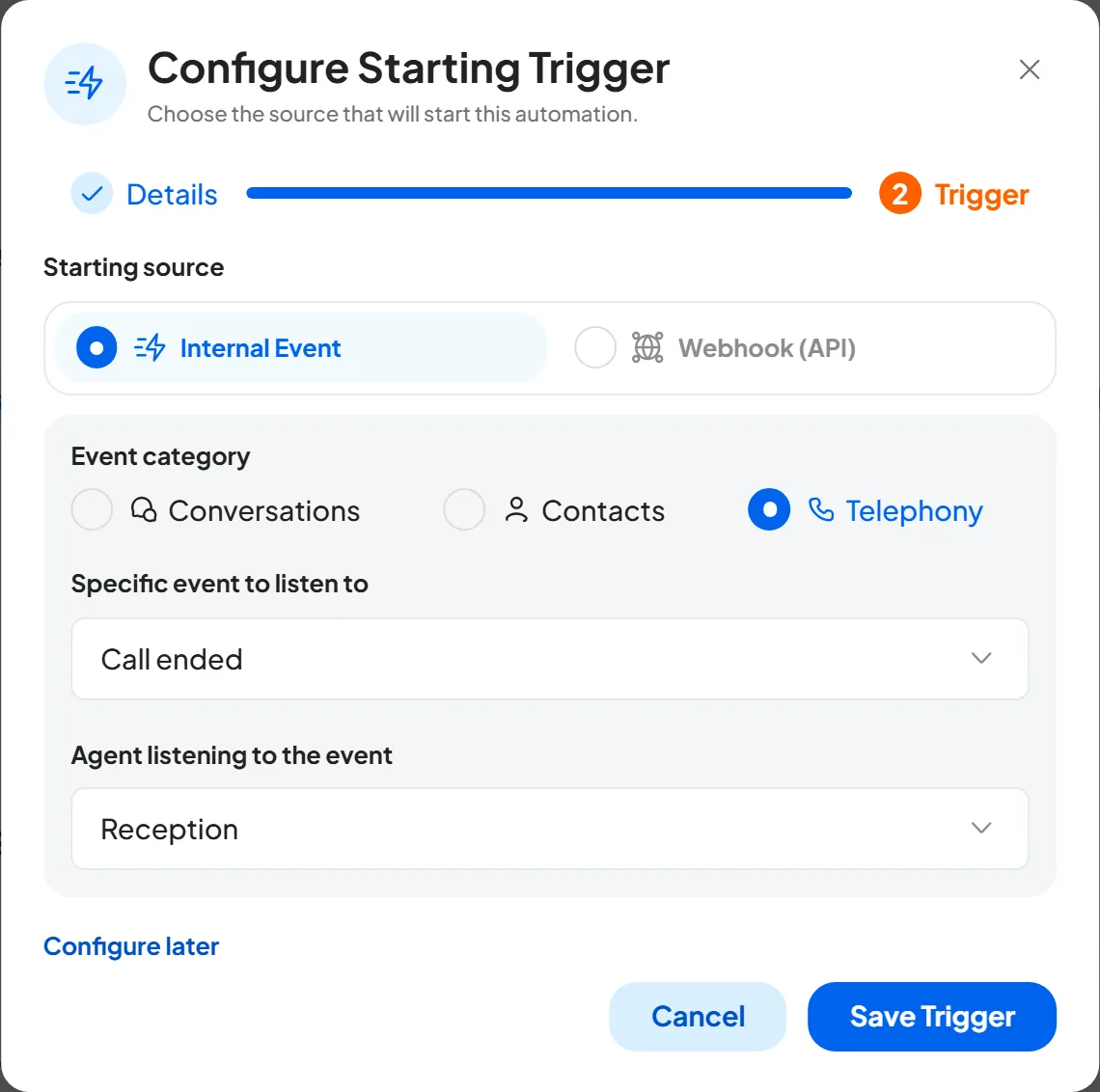
In the “Configure Starting Trigger” step, choose where the automation starts from. With Internal Event it starts from something that happens in SupportFast; with Webhook (API) another piece of software starts it.
-
Complete the event
With Internal Event, choose Event category and Specific event to listen to, then the fields the event asks for, such as the agent or the list: they are explained in Start events (triggers). With Webhook (API), press Generate address.
-
Press Save Trigger
The button turns on when the trigger is complete. “Automation created” appears and the automation's Playground opens. If you don't know yet which event to use, press Configure later: you land in the Playground without a trigger.
Result
In the Playground, the card at the top shows the event you chose, for example “EVENT: Call ended”. The automation will start only after you publish it.
#Building the flow
The flow runs from top to bottom, from the trigger to the “End” pill. To add a node, press the + between two blocks and choose the type; then press the node's card and fill in the panel that opens on the right. Each node has a name, with precise rules. Adding, naming and deleting nodes is explained in Adding a node; the fields of each node in Nodes: messages and actions and Nodes: logic and data.
#Managing an automation
Rename, Duplicate, Move and Delete are in the row's Options menu, in the Automations panel of the Overview.
#Renaming
Choose Rename, type the new name in Name and confirm: “Name updated” appears. The runs don't change.
#Duplicating and moving
Duplicate creates a copy in the same workspace, as a draft.
Move takes it to another workspace. An active automation can't be moved: the window says “It is running, pause it before moving it.”. Pause it yourself first, with Pause (see Pausing). A draft or an automation on forced pause moves right away.
After the move, the automation goes back to Draft and the published version is removed. Agents, lists and templates chosen in the trigger and in the nodes are cleared, because they belong to the original workspace; texts, conditions and variables stay. Waiting runs are cancelled and the run history stays in the original workspace. To put it back into service, choose agents, lists and templates again and publish. The rest is in Workspaces and Overview.
#Deleting
Choose Delete in the row menu, or press the Delete automation trash icon at the top of the Dashboard. Read the window and confirm with Delete automation. Deleting can't be undone: if you think you'll reuse the flow, pause or duplicate it first.
- If it's active, it stops starting right away, and waiting or running runs stop.
- The flow you built, the run history and the statistics can no longer be viewed.
- If it starts from a webhook, its address stops responding.
- A slot frees up among the automations in your plan.