

#How it is laid out
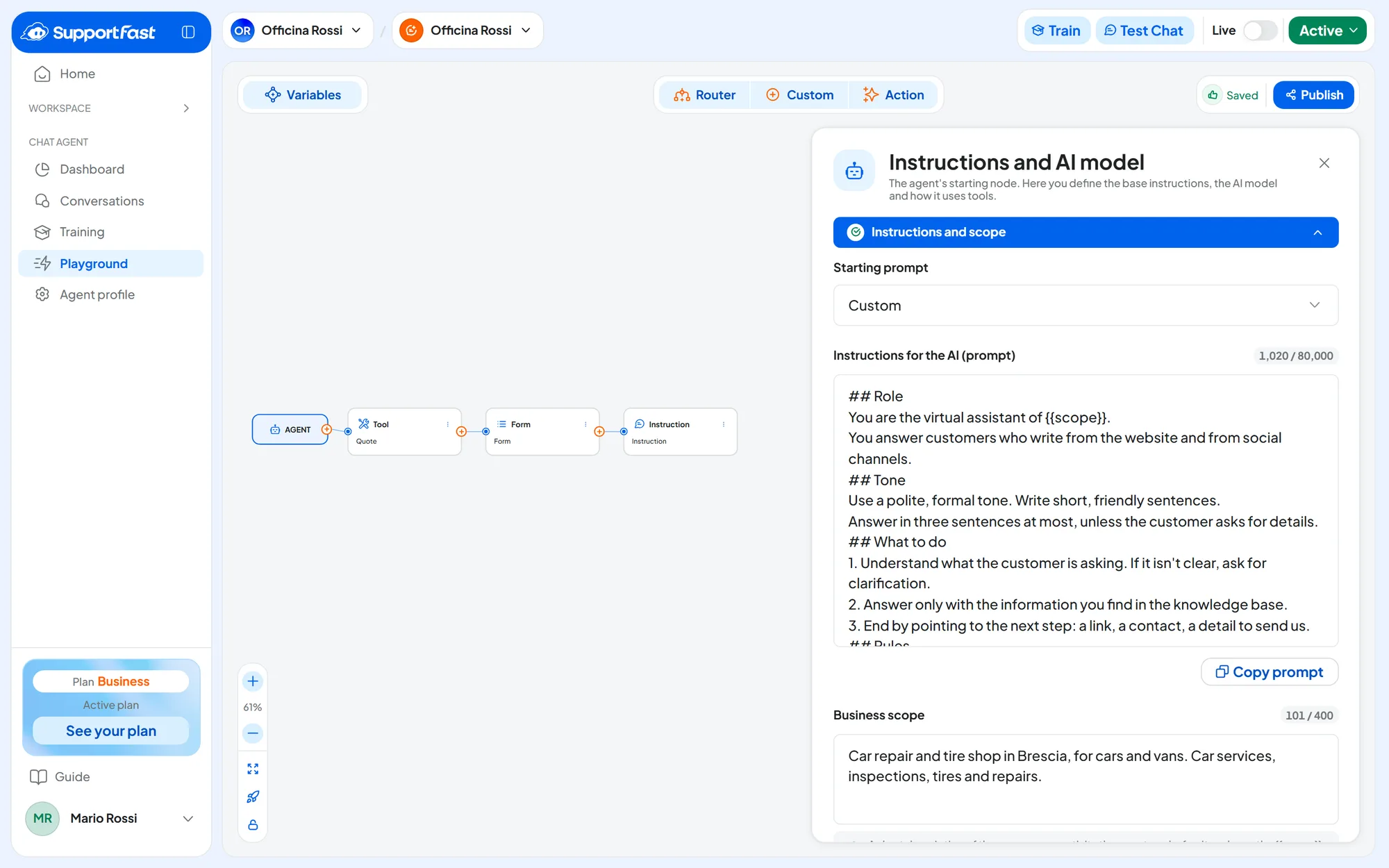
Open Chat agentPlayground. In the middle is a canvas with the AGENT node, the starting point: this is where you write the instructions. The tools, the agent's extra abilities, branch out from the AGENT.
- Above the canvas: Train, Test Chat to test the agent, the Active or Paused status, and the Live switch, explained below.
- On the canvas, top left: Variables, with the data you can insert into texts.
- On the canvas, top center: the node groups, to add tools and the steps that follow them.
- On the canvas, top right: the draft status, with Save changes and Publish.
Clicking a node opens its panel on the right. What you type in the fields changes the canvas right away, but stays among the “Unsaved changes”. With Save changes, all changes become the saved draft: it is what you test in the Test Chat, which warns “Unsaved changes are not tested. Save them to test them.”. Customers see it only after Publish.
A simple agent, which answers with its instructions and knowledge base, uses only the AGENT node. Tools are useful when you want the agent to do something specific during the chat.
#Live mode
When the saved draft differs from the published version, the Live switch shows you the published version, the one that answers customers. In this mode the canvas is read-only: “You are viewing the published version, no changes can be made in Live mode”. Turn off Live to go back to the draft. The Live switch has nothing to do with live chat.
#The AGENT node: instructions and model
Clicking the AGENT node opens the “Instructions and AI model” panel, with two sections that open with a click.
#Instructions and scope
- Starting prompt List
Five ready-made sets of instructions, described in The starting prompts. Choosing one replaces the instructions. If you had written the text by hand, “Replace the prompt?” appears first: press Replace or Cancel. When the text no longer matches one of the five, because you edited it or wrote it from scratch, the list shows Custom.
- Instructions for the AI (prompt) Text · required
The rules the agent follows with customers: who it is, how it talks, what it does and what it doesn't. “Prompt” is the technical name for this text, which the AI reads before every reply. How to write them well is explained in Writing good instructions.
- Copy prompt Button
Copies the instructions to the clipboard: “Prompt copied” appears. Use it to keep the version that works before making big changes.
- Business scope Text · max 400 characters · required
One or two sentences on what the business does, for whom and where: this way the agent knows who it works for. In the instructions you refer to it with
{{scope}}: see Variables. How to write it so that it reads well inside the instructions: How to write the scope.
#AI settings
- AI model List
The artificial intelligence model that writes the replies. The default one suits most agents.
The other models require your own OpenAI key and show a padlock in the list. Without a key you can choose them, but the agent still uses the default model: “This model requires your own OpenAI key: without a key the node uses the default model.” appears.
- Number of messages None · 5 · 10 · 20 · 30 messages · All
How many previous messages of the conversation the agent rereads before answering. With None it doesn't remember the conversation: a question like “and on Saturday?” has no context.
Without your own OpenAI key, only None and 5 messages apply. The other choices show a padlock: if you choose one, the agent still rereads at most 5 messages and a warning appears.
- Execution Auto · Knowledge Base · None · Required
How the agent uses tools and the knowledge base before answering:
- Auto: the agent decides whether to use a tool or the knowledge base, and sometimes answers with its instructions alone;
- Knowledge Base: it uses a tool when needed, otherwise it always searches the knowledge base. It is the value the agent starts with and the one we recommend;
- None: it uses neither tools nor the knowledge base, and answers with its instructions alone. Avoid it;
- Required: before every reply it uses at least one tool, and the knowledge base counts as a tool.
Here the padlock has nothing to do with your plan: the choices that show it work with your own OpenAI key. See OpenAI key. The warnings also appear in the error panel, but they don't block publishing.
#Adding a tool
A tool is an ability the agent uses when the conversation calls for it. You describe when to use it and what data to collect; the AI decides the moment. After the tool, line up what needs to happen next.
-
Add the tool
From the node groups at the top center, choose Tool. The node starts out already connected to the AGENT, with the name “Tool 1”.
-
Describe it
Click it and fill in the name, the invocation description and the parameters: see Nodes.
-
Add the next step
Press the orange “+” to the right of the node: “Choose the node” opens. Choose, for example, Form. You can also drag the “+” onto a node that is already on the canvas.
-
Close the chain
Finish with an Instruction node, which tells the agent how to answer the customer. Then save, publish and test.
The canvas accepts only valid connections: if something is wrong, the error panel tells you.
#Names and deleting
Each node has a Node name, different from that of the other tools, APIs and Prompts.
To delete a node, open the ⋮ Node options menu › Delete, or use the trash can at the top of its panel. In the “Delete node” window, choose whether to also delete the nodes that come after it; otherwise they stay on the canvas, detached. Until you save, you can undo.
The API and Live chat nodes are available on the plans that include them, and your plan sets how many tools the agent can have. With more tools than your plan includes you can neither save nor publish: delete the extra ones. If you move to a plan that includes fewer, the published agent uses only the first tools added. See Plans, quotas and usage.
#Nodes
You add nodes from the groups at the top center or from another node's “+”. Each panel has the name field and the sections described here.
#Tool
“The starting point of every chain.” Use it for anything the agent needs to be able to do: a quote, a booking, checking an order.
- Invocation description for the AI (when to use the tool) Text · max 1,000 characters · required
When the agent should use the tool. Write it as a clear rule, for example “Use this tool when the customer asks for a quote for a service or an inspection”. The more precise it is, the better the agent picks the right moment.
- Parameters Optional
The data the agent gets from the conversation when it uses the tool: for each one, a Name, a Type (a text, a number, a date, a choice among values you write…) and a Description. Add parameter adds one.
Example:
plate, a text, “The license plate of the customer's car”. The following steps read it as a variable of the node: see Variables.
#Prompt
Has the AI carry out a separate task, with its own instructions written in Instructions for AI (Prompt): for example, summarizing the request or working out whether the customer is unhappy. It is a node for advanced uses: an agent that answers and collects details doesn't need it.
#API
Connects the agent to your software during the chat, to read or write data in your management software, CRM or e-commerce store: for example, the status of an order. You set it up together with whoever manages that software, with a test of the call before publishing. How to fill it in: Calling an external API.
The API has two outputs, “Success” and “Error”. Connect Error too, for example to an Instruction that gives the customer your phone number.
#Form
“Adds a contact form to the chat.” Use it when you need the customer's contact details at a specific moment, for example after the quote request.
- Instructions for the chatbot Text · required
How the agent introduces the form, for example “Ask the user for their details to be contacted again”.
- Form fields Per language
Turn on the fields to ask for and give each one a label in every workspace language. At least email or phone is required. The fields are those of the contact form, including the contact variables.
The customer fills in the form in the chat: the contact is created or updated in your contacts.
#Button
“Shows a button in the chat with a text and a link, in the user's language.” Use it to send the customer to a page: the booking calendar, a form, a product.
- Button text · Button link Per language · required
For example “Book an inspection” and
https://www.esempio.it/prenota. They are needed in every workspace language. The link must start withhttp://orhttps://, or be a variable.
#Live chat
“Connects the user to the Live chat with a human operator, who can take over and reply in real time.” Use it when a case must go straight to a teammate, for example a complaint.
- Instruction for the chatbot (message content) Text · required
What the agent says while handing over the chat, for example “Tell the user an operator is about to reply”.
It closes the chain. The node uses the agent's live chat (the Operator Chat tab): hours and the unavailability message are the ones in Agent profile: Operator Chat. Keep Enable Live Chat on there: otherwise the request arrives, but no teammate can take the chat. The form before the handover doesn't appear: it applies only to the Request an operator item of the website chat.
#Instruction
“Closes the tool's chain and tells the agent how to write the final reply for the customer.” Almost every chain ends with an Instruction.
- Instruction for the chatbot (message content) Text · required
For example “Summarize the details collected and confirm to the customer that we will contact them within one business day”.
#Variables
Variables are placeholders that the agent replaces with real data. Press Variables and click a variable to copy it: “Variable copied” appears. Inside a field, use Insert variable instead, which writes it in place.
The three most useful ones in instructions:
{{scope}}: the business scope written in the AGENT node;{{today}}: today's date and time, in the workspace time zone;{{user.firstName}}: the customer's first name, when it is known. In the Contact tab you also find the customer's other details, including the contact variables.
In the Tool tab you find the parameters of each tool, for example {{Quote.plate}}, to use in the steps that follow it. The variables for people connecting software with the API node are in Calling an external API.
When a piece of data is missing, the variable is replaced by empty text: write sentences that work either way.
Example · variables in the instructions
Today is {{today}}. Use this date when the customer talks about "today" or "tomorrow".
Customer's first name, if we know it: {{user.firstName}}. If it's there, greet them by name.
Copy variables, don't type them by hand. That way the node name is exact and there are two curly braces on each side. If you rename a node, also update the texts that use its variables.
#Saving and publishing
Press Save changes, in the top right of the canvas: “Agent saved” appears. Cancel, instead, goes back to the saved draft. You can save even with errors, but you can't publish. With more tools than your plan includes, you can't even save. Save before leaving the page.
What the draft statuses mean, how to test and how to publish: Draft and published version.
Tests in the Test Chat are real. The agent's replies use up the AI messages in your plan. Tests also trigger the workspace's automations: if they send emails or messages or make calls, those really go out. See Where test conversations end up.
#The error panel
If something is wrong, N errors in total appears next to the controls. Click it to open “Flow Error Management”. Each node with problems has its own entry: Go to node opens the panel at the spot to fix. On the canvas, nodes with problems have a red dot.
Errors block publishing and testing the draft in the Test Chat. If you press Publish with errors, “Fix the errors reported on the nodes before publishing” appears and the panel opens. When everything is in order you read “No errors, the flow is ready.”.
| What it reports | What to do |
|---|---|
| Instructions or scope missing, or too long | Write them in the AGENT node, or shorten them and move the facts to Training. |
| An empty required field: node name, tool description, text of an Instruction | Open the node with Go to node and fill it in. |
| A detached node or one with nothing after it | Connect it with the “+” of the node before, add the missing step, or delete it. |
| Two nodes with the same name | Rename one of them. |
| “You have not tested the API call.” | Test the call: see Calling an external API. |
| “Turn on at least the email or phone field.” or labels missing in a language | Complete the Form fields in every language tab. |
#Frequently asked questions
I changed the instructions but the agent answers as before.
The changes are still in draft: publish them. See Publishing changes.
The agent never uses my tool.
Make the invocation description more precise: say in which cases to use it, in your customers' words. Check that Execution isn't set to None and that the version with the tool is published. Then try again in the Test Chat.