

Open the page from WorkspaceIntegrations. It has two panels, “Channels” and “Calendars”.
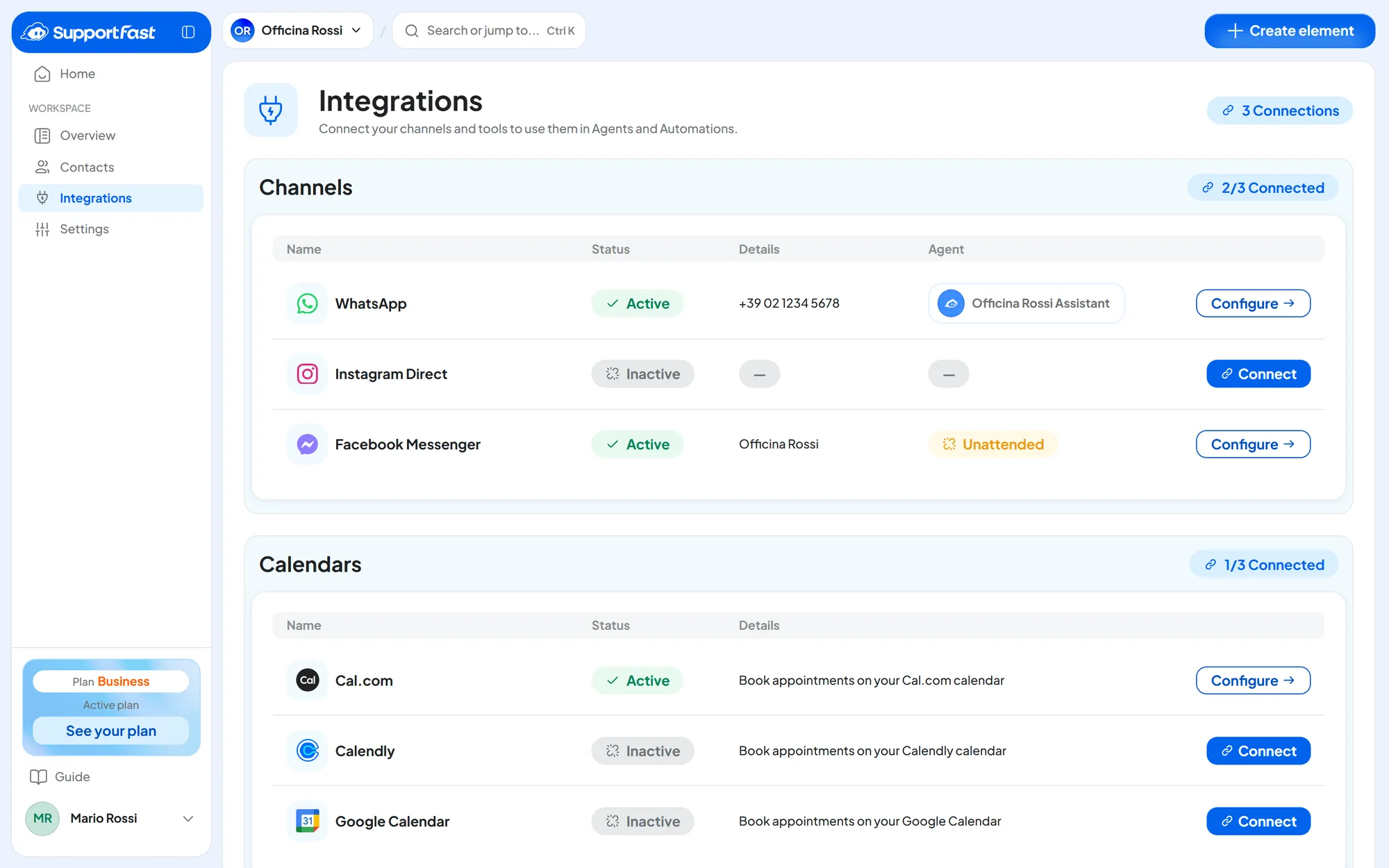
#What you can connect
| Panel | What it contains | Who uses it |
|---|---|---|
| Channels | WhatsApp, Instagram and Messenger. | The chat agent answers customer messages. WhatsApp is also used to send templates, campaigns and automations. |
| Calendars | Cal.com, Calendly and Google Calendar. | The voice agent checks free times and books appointments during the call. |
#How it works
- One channel, one agent. Only one agent answers on each channel. An agent, on the other hand, can answer on several channels.
- One integration per type. Each workspace connects one WhatsApp number, one Instagram profile, one Facebook Page and one account per calendar. For a second number or a second Page you need another workspace.
#The channels table
Under “Details” you find the number for WhatsApp, and the profile or Page name for Instagram and Messenger.
| What you see | Column | What it means |
|---|---|---|
| Inactive | Status | The channel isn't connected: here “Inactive” doesn't mean paused. To connect it, press Connect. |
| Active | Status | The channel is connected to Meta; the “Agent” column tells you who answers. To open it, press Configure. |
| Error | Status | The connection with Meta has broken and the channel isn't receiving messages. Open the channel and use Reconnect. |
| Forced pause | Status | Your plan no longer includes the channel: it's stopped, not deleted. See Forced pause. |
| The name of an agent | Agent | The agent that answers incoming messages. |
| Unattended | Agent | The channel is connected, but no agent answers. |
#The calendars table
The “Calendars” panel has three rows: “Cal.com”, “Calendly” and “Google Calendar”. The statuses are the same as for channels, plus Reconnect: access to the calendar has expired and must be renewed with Reconnect. How to connect each calendar, with all the details, is in Appointments: how they work.
#No agent, or the agent is paused
If the channel has no agent, or the agent that answers is Paused, customer messages don't reach SupportFast and nobody answers. When you link or reactivate the agent, it answers new messages; the ones that arrived in the meantime aren't recovered. The channel can still send outgoing messages: WhatsApp still sends the templates of campaigns and automations.
#Instagram and Messenger: connecting to Meta
Instagram and Messenger connect the same way, with the Facebook account that is an admin of your business Page. First, do the preparation described on the channel's page: Instagram or Facebook Messenger.
-
Press Connect
In WorkspaceIntegrations, on the “Instagram Direct” or “Facebook Messenger” row, press Connect.
-
Sign in to Meta and grant the permissions
Sign in with the Facebook account that is an admin of the Page. When Meta asks, select the Page, and for Instagram the profile too, and grant all the requested permissions. This is where you decide which Pages SupportFast can access: you can choose more than one.
-
Choose the Page
If you gave access to more than one Page, “Which page should I connect?” opens. Choose the one that should receive messages in this workspace and press Connect. You choose again because each workspace connects only one Page, while the permission you gave Meta can cover several Pages. With only one Page, this step doesn't appear.
-
Wait for the confirmation
Stay on the page: “Connecting, stay on this page” appears, then “Channel connected”.
-
Choose the agent right away
Press Configure. In the “Assigned Agent” panel, open Answering Agent, choose the chat agent and confirm with Connect Agent. Until you do, nobody answers your customers.
Result
The channel row shows “Active”, the profile or Page name, and the agent.
#What the agent receives
- Images, files and voice notes, only if you turn on their switches in the “Files and Audio” panel, which start off. With the switch off, the attachment doesn't arrive at all: the agent doesn't see it, and neither do you in the conversation.
- Meta's 24-hour window applies, and there are no templates: see The 24-hour customer service window.
- The customer's email doesn't come through: Meta doesn't pass it to SupportFast. If you need it, have the agent ask for it in the chat: with automatic profiling on, it ends up on the contact card.
The channel page has the same panels as WhatsApp, explained in WhatsApp: channel settings.
#Reconnecting, changing Page and disconnecting
- If the channel goes to “Error”, for example after a password change or a change of roles on the Page, the red “Connection broken” band appears on the channel page. Open the ⋮ menu, choose Reconnect and grant the same Page again in Meta's window: if you don't, “The connected page is no longer among the available ones” appears.
- If instead the “Connection interrupted” notice appears for a few seconds while you connect the channel for the first time, Meta's window closed before the end or you pressed Cancel: press Connect again and go all the way to the end.
- To connect a different profile or Page, delete the integration and connect the new one. Then choose the agent again.
- To disconnect the channel, choose Delete integration from the ⋮ menu and confirm. The agent stops answering on that channel; the Page, the profile and their conversations on Meta stay as they are.
#Who can manage integrations
People without the “Integrations and channels” permission open the page read-only: they see what is connected and who answers, but not the buttons, menus and switches. See Team, roles and permissions.
WhatsApp, Instagram, Messenger, calendars and receiving files and audio are available on the plans that include them; if yours doesn't, a padlock appears next to Connect. See Plans, quotas and usage.
You can also choose the channels starting from the agent: see Agent profile: Integrations.