

Before you start
- A Calendly account on a paid plan with active event types, and the “Calendar booking” feature in your plan.
#Connect Calendly
-
Open Integrations
Go to WorkspaceIntegrations. In the “Calendars” panel, on the “Calendly” row, press Connect. A Calendly window opens.
-
Authorize access
Sign in to Calendly and allow access. SupportFast asks to read your account, event types and availability, and to create appointments.
-
Wait for the confirmation
The window closes on its own and “Calendly connected” appears.
-
Check the event types
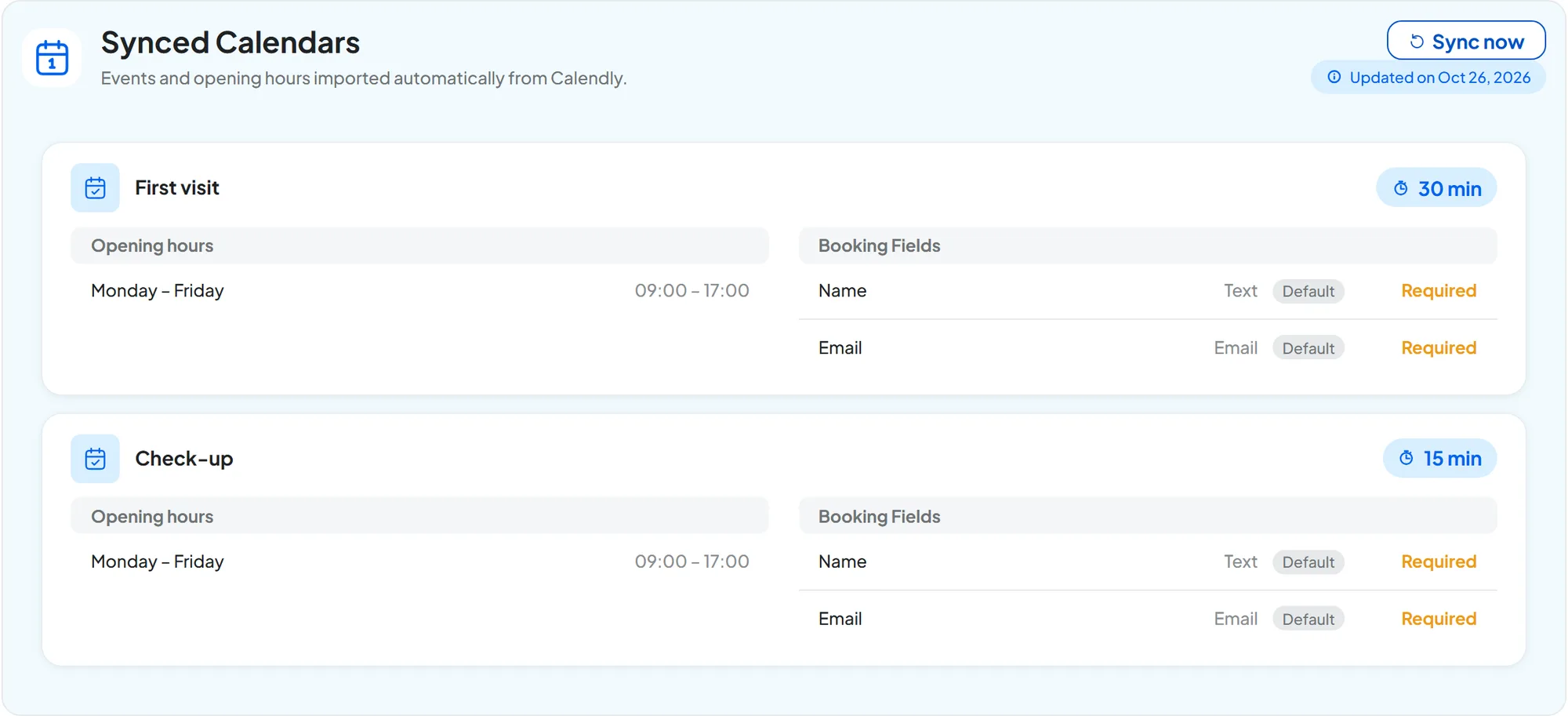
On the “Calendly” row, press Configure. In the “Synced Calendars” panel you find a card for each active event type of your Calendly user.
-
Give the event types to the voice agent
Choose which event types the agent can book: see In-call actions: appointments.
Result
The “Calendly” row is “Active”. The voice agent knows your event types and can book them during calls.
#How to check
- On the Calendly page in SupportFast, press Test Connection: “Connection successful” should appear.
- Make a test call to the voice agent and ask for an appointment.
- Check on Calendly that the booking is there, and in the call that the result is “Appointment booked”.
#The Calendly page
At the top you find the status, the Test Connection button and the ⋮ “Calendar actions” menu, with Reconnect and Delete integration. The “Synced Calendars” panel with the event types is explained in Event types.
On Calendly, the phone number is a question like any other: if you ask for it in the event type, the agent asks the customer for it during the call.
#Notices you may see
| Notice | What it means | What to do |
|---|---|---|
| The yellow notice about Calendly's free plan | With Calendly's free plan, the agent sees availability but can't book. | Upgrade to a paid Calendly plan, then press Sync now in the “Synced Calendars” panel. Test Connection tests the connection, but doesn't update the plan. |
| “Access expired”, with the status “Reconnect” | Calendly no longer recognizes the authorization. | ⋮ menu › Reconnect, then authorize again. |
#Disconnecting Calendly
From the ⋮ menu, choose Delete integration and confirm: SupportFast loses access to your Calendly account. What happens to agents and to appointments already booked is in Disconnecting a calendar.
#Frequently asked questions
Calendly is connected, but the agent doesn't book.
In the voice agent's “In-call” step, check that the event type is in the list and that the Enable booking switch is on: see In-call actions: appointments. If the Calendly page shows the notice about the free plan, the agent can't book: upgrade to a paid plan and press Sync now.
An authorization error appears while connecting.
For example “Calendly did not authorize access” or “The authorization session expired: try again”. Press Connect again, allow all the requested items and complete the sign-in without interruptions.