

#Which calendars you can connect
You can connect Cal.com, Calendly and Google Calendar, in WorkspaceIntegrations, in the “Calendars” panel.
| Cal.com | Calendly | Google Calendar | |
|---|---|---|---|
| What you need | An account on Cal.com's cloud service, not an installation on your own server. | A Calendly account on a paid plan. | A Google account with the calendar to write to. |
| How it connects | You paste a key created on Cal.com into the “Connect Cal.com” window. | You authorize access in Calendly's window. | You authorize access in Google's window. |
#Event types
The agent books an event type, for example “First visit, 30 minutes”.
- Cal.com and Calendly. You create event types on the calendar. SupportFast imports them and shows them read-only in the “Synced Calendars” panel of the calendar's page, with name, duration, “Opening hours” and “Booking Fields”, that is, the details the calendar asks for to make a booking. The hours are those of the event on the calendar: during the call, what counts is the availability at that moment. After a change on the calendar, press Sync now.
- Google Calendar. You create event types in SupportFast, in the “Event Types” panel: name, duration, destination calendar, hours, rules and the details to ask for. See Google Calendar event types.
#Giving the calendars to the voice agent
Only the voice agent uses calendars. Chat agents and automations don't check times and don't book.
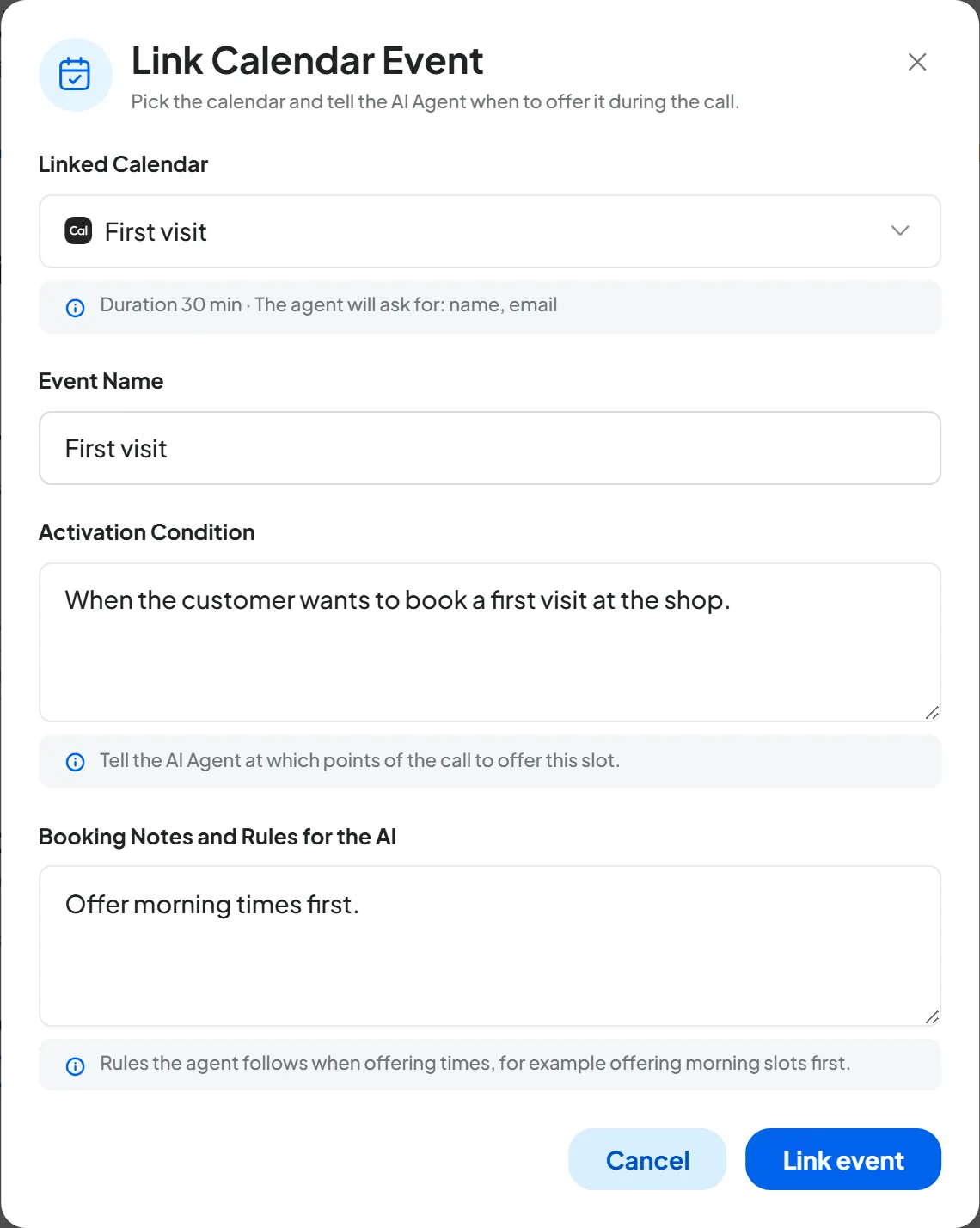
In the “In-call” step of the Agent profile, choose which event types the agent can book and when to offer them. How to do it, how the agent books during the call and how to test it are explained in In-call actions: appointments.
#Where you see the appointment
The appointment appears on the calendar as a normal Cal.com or Calendly booking; on Google Calendar it appears in the destination calendar and Google sends the invitation to the customer. In SupportFast you find it in the call, in Calls: list and details, and in the end-of-call data: see Post-call: data, email, webhook.
#Limits to know
- The agent books new appointments: it doesn't reschedule or cancel them.
- Times are calculated in the workspace's time zone, which you set in Workspace settings.
- The agent asks the customer for their name, email and the required fields you added to the event type: without them, the booking doesn't go through and the agent asks for them again. The agent knows about optional fields, but it may not ask for them. On Cal.com, SupportFast fills in “Phone” with the number the customer is calling from.
- On Cal.com, the agent doesn't fill in the other fields that Cal.com already provides, for example the location. If one of them is required, the event type card flags it with the notice “The provider requires fields that Agents do not fill in” (the “provider” is Cal.com). Make the field optional on Cal.com, otherwise the booking may be rejected.
#Disconnecting a calendar
You disconnect it from the ⋮ menu on its page, with Delete integration. That calendar's event types disappear from the voice agents that used them: an agent left without event types stops booking. Appointments already booked stay on the calendar. What else happens for each calendar is on its own page.
Available on the plans with the “Calendar booking” feature: see Plans, quotas and usage.
#Frequently asked questions
The agent says there are no free times, but the calendar is empty.
Check the event type's hours, the minimum notice and how far ahead it can be booked: for Cal.com and Calendly, in the event type settings on the calendar; for Google Calendar, in the event type's “Slot preview” in SupportFast. Also check the workspace's time zone: the agent works in that time zone.