

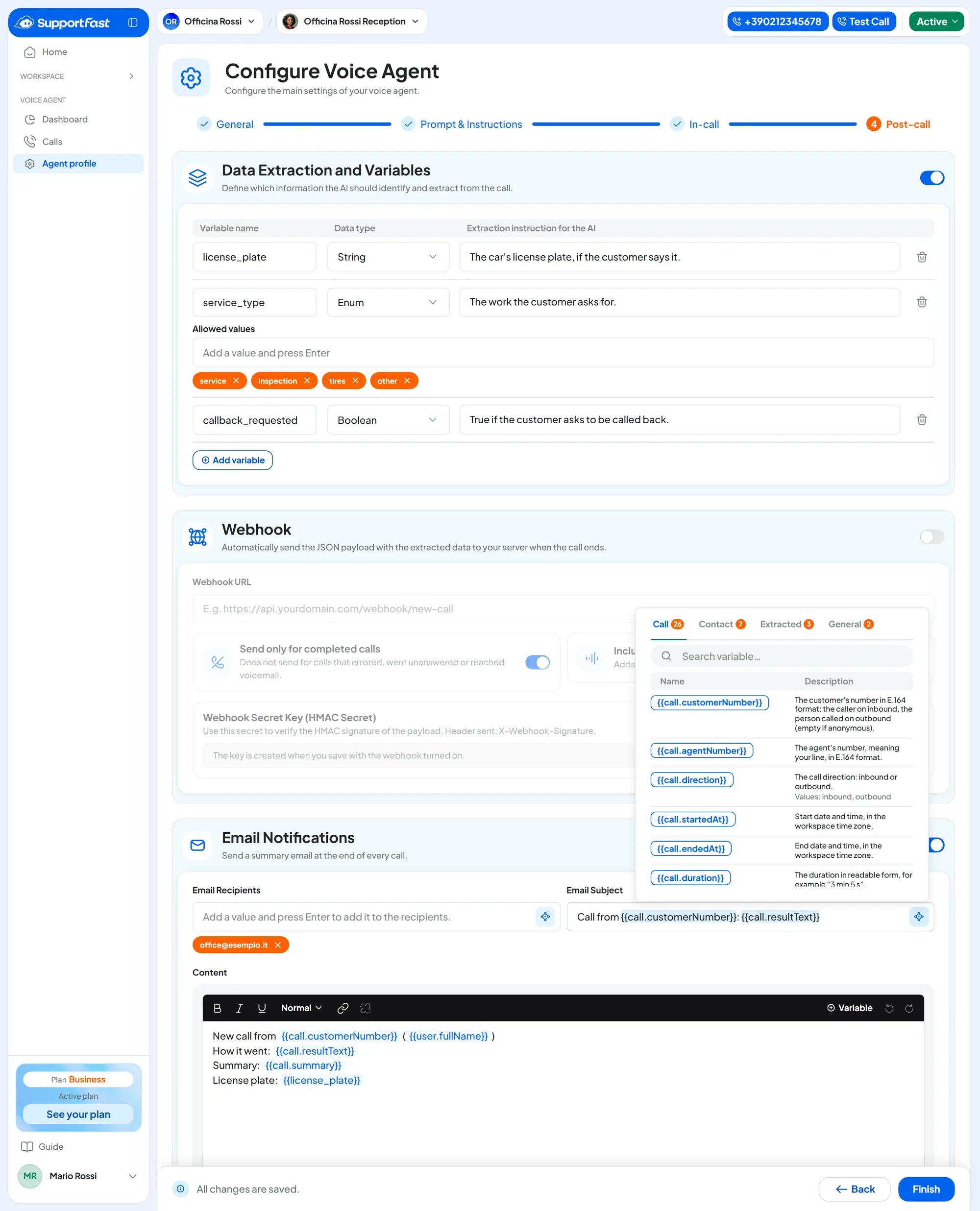
It's the fourth step of the Agent profile: Agent profileEdit ProfilePost-call. It has three panels: “Data Extraction and Variables”, “Webhook” and “Email Notifications”. You save them with Save changes.
At the end of the call, the AI gives the call an outcome, writes a summary and pulls out the data you ask for: the email and the webhook already include all of this.
Before you start
- For extraction and the webhook, a plan with “Post-call variables” and “Post-call webhook”.
#Data Extraction and Variables
Switch on Turn on variable extraction and press Add variable for each piece of data. At the end of the call, the AI reads the transcript and pulls out each one.
- Variable name Text · required · max 50 characters
Only letters, numbers and underscores, for example
license_plateorservice_type. It must be unique.- Data type Choice
Number, String (a text), Boolean (yes or no), Date, Enum (one of the values you list) or List (several items).
- Extraction instruction for the AI Text · max 500 characters
What the AI should look for, for example “The license plate of the customer's car, if they say it during the call.”
- Allowed values Enum only · each max 80 characters
The possible values, one tag per value: type and press Enter. You need at least one value.
- List description List only · max 500 characters
What each item in the list contains, for example “Each service the customer wants to book”.
Up to 20 variables.
| Variable name | Type | Instruction |
|---|---|---|
license_plate | String | The car's license plate, if the customer says it. |
service_type | Enum: service, inspection, tires, other | The work the customer asks for. |
callback_requested | Boolean | True if the customer asks to be called back. |
preferred_day | Date | The day the customer prefers to come in. |
Where the extracted data goes. Into the end-of-call email, when you write the variable name between double curly braces, like {{license_plate}}, and into the webhook.
#Email Notifications
Switch on Turn on email notifications. “The email is sent only for successful calls, not for those that failed, went unanswered or ended in voicemail.” See what a successful call is.
- Email Recipients Up to 20
Type an address and press Enter: it becomes a tag. You can also use a contact variable, such as
{{user.email}}. A wrong entry gives “Enter a valid email address or use a variable.”- Email Subject Text · max 500 characters
With variables, for example
Call from {{call.customerNumber}}: {{call.resultText}}.- Content Formatted text
The text of the email, with bold, italics, underline, links and headings. Insert the call data with Add variable.
Example content
New call from {{call.customerNumber}} ({{user.fullName}})
How it went: {{call.resultText}}
Duration: {{call.duration}}
Summary: {{call.summary}}
License plate: {{license_plate}}
Appointment: {{call.appointment.startsAt}}
Recording: {{call.recordingUrl}}
In the Add variable menu, each variable has its own description; the full list is in Call data.
#The test email
Send test email becomes available when recipients, subject and content are filled in. In the window, type the address in Send to and press Send test. “We send you the email as it is now on the page, including unsaved changes.” The subject starts with [TEST] and the variables have sample values.
Careful with {{user.email}} among the recipients. The email goes to the customer who called. Use it only with a text written for them, not with your internal summary.
#Webhook
The webhook sends the call data to your management software or CRM at the end of the call: outcome, summary, extracted data and contact. Switch on Turn on the webhook and type in Webhook URL the address you get from whoever manages your software; it must start with https://.
- Send only for completed calls, on by default: despite the name, it sends all successful calls, transferred ones included. When it's off, the webhook is sent for every call that ended, even those nobody answered; the data says whether the call was successful and why it ended.
- Include the audio recording URL adds the link to the recording. The link is empty if recording is off, if the customer declined it, or if the audio wasn't ready yet when the webhook was sent. Anyone with the link can listen to the call without logging in to the console: see Recording and consent.
Data format, verification key and retries are for whoever develops the connection: they're in End-of-call webhook.
#Frequently asked questions
The webhook doesn't arrive.
Check that the address is reachable from the Internet, and that Send only for completed calls isn't excluding the call you were expecting.
Can I trigger other actions at the end of the call, for example a WhatsApp message to the customer?
Yes, with an automation on the “Call ended” event, which also fires for unsuccessful calls. See Start events (triggers) and Ready-made examples.