

Before you start
- A plan with “Call transfer”.
- Your teammate's number or SIP address; to transfer only at certain times, the workspace's opening hours.
#How it works
#Turning on transfer
- Open the In-call step
In Agent profile, in the “In-call Actions” area, press Set up or Edit. This opens the third step, which the step bar calls “In-call”: “In-call Actions” is the name of its area in the summary. The first panel is the transfer panel.
- Turn on transfer
Turn on Enable transfer.
- Add a destination
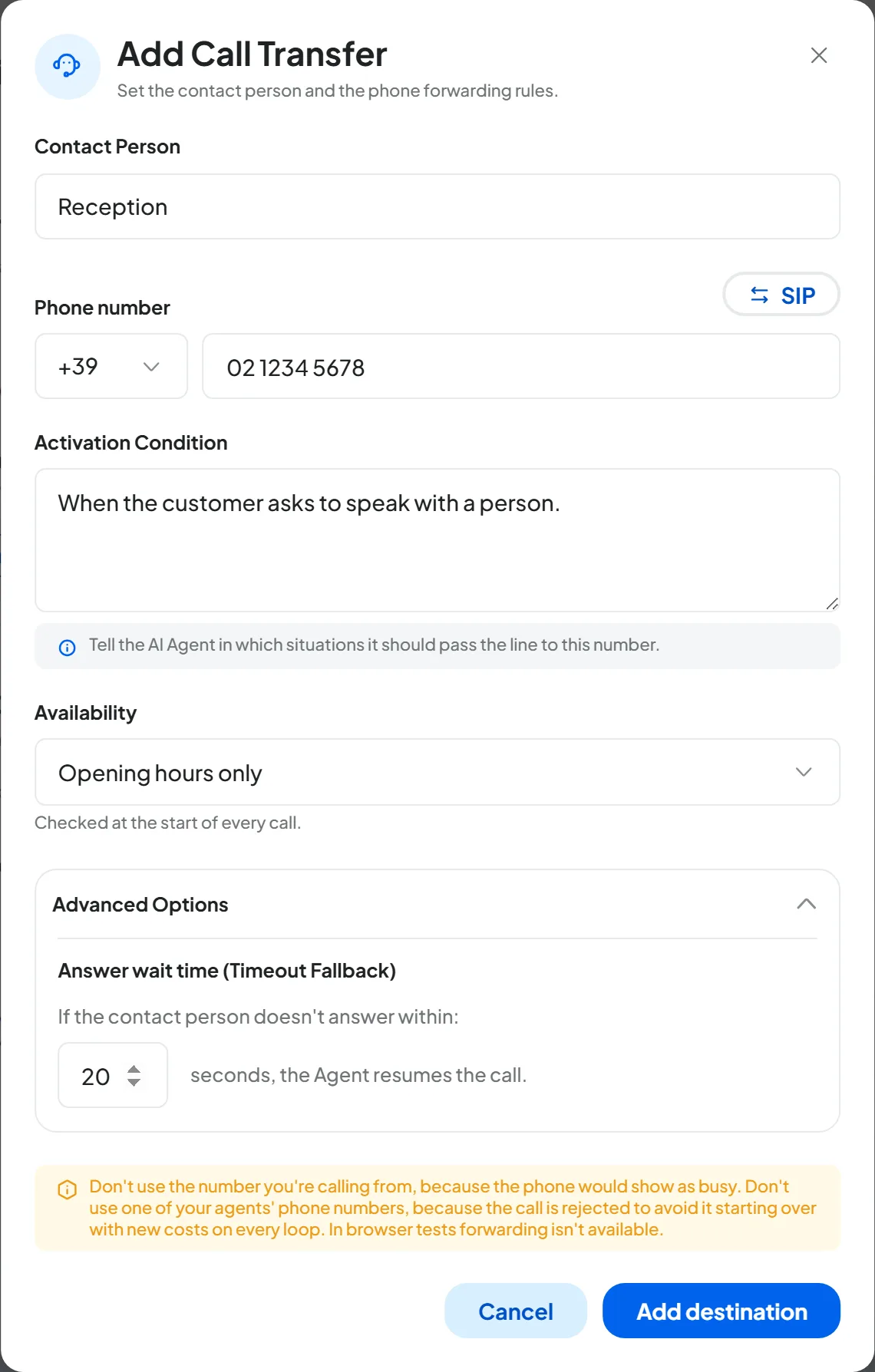
Press Add destination: the “Add Call Transfer” window opens.
- Fill in the fields
Name, number or SIP address, condition and hours, as explained in the next section.
- Confirm the destination
Press Add destination in the window. The row appears in “Transfer destinations”.
- Save
Press Save changes in the bar at the bottom. Until you do, the destination isn't active.
Result
In the Agent profile summary, the “Transfer to a human operator” row says, for example, “1 active destination”.
#The destination fields
- Contact Person Text · max 80 characters
Who receives the call, for example “Mario (Reception)”. You see it in the list of destinations and in the call details.
- Phone number Code + number · 6 to 15 digits
Choose the Code and type the number, for example +39 02 1234 5678. It can't be a number on your account, such as another agent's: use your teammate's direct number.
Don't use a number you've forwarded to the agent either: the transferred call would go back to the agent instead of reaching your teammate. See Forwarding calls from your number.
- SIP Yes / No · SIP address
When it's on, type the SIP address of an extension on your PBX instead of the number. The person who manages your PBX gives you the address.
- Activation Condition Text · required · max 500 characters
“Tell the AI Agent in which situations it should pass the line to this number.” Write it the way you'd explain it to a new teammate.
- Availability Choice
Always available (24/7), Opening hours only or Outside opening hours only. The console checks it at the start of each call, against the workspace's opening hours. Outside its availability, the destination doesn't exist for that call.
- Answer wait time 5 to 60 seconds · in Advanced Options
“If the contact person doesn't answer within” this many seconds, “the Agent resumes the call.” In the window, the field is called “Answer wait time (Timeout Fallback)”.
#Writing the condition
operator
When the customer asks to speak with a person, or when they ask for a quote for a repair.
#Several destinations: order matters
You can have up to 10 destinations. “Rules are evaluated in order from the top and the first matching condition runs.” So put specific cases at the top and the general one at the bottom.
| Order | Contact Person | Activation Condition | Availability |
|---|---|---|---|
| 1 | Parts | When the customer asks about the price or availability of a spare part. | Opening hours only |
| 2 | On call | When the customer's car has broken down on the road and they ask for roadside assistance. | Always available (24/7) |
| 3 | Reception | When the customer asks to speak with a person. | Opening hours only |
- Move a row with the Drag to change the order handle.
- Turn a destination off for a while with the Destination active switch, without deleting it.
- From the Destination options menu, choose Edit destination or Delete destination.
#If your teammate doesn't answer or declines
- If your teammate doesn't answer within the Answer wait time, or declines the call, the agent resumes the conversation with the customer.
- If you transfer to a mobile phone, keep the wait time shorter than its voicemail. If your teammate doesn't answer, their voicemail may pick up after a few rings. The agent tries to recognize it and, if it does, resumes the conversation; if it doesn't, the customer ends up in your teammate's voicemail. Ask your teammate after how many seconds their voicemail picks up and choose a shorter time.
- On your teammate's phone, the call comes from the agent's number, not the customer's: see Sending the customer's number to your teammate.
- Write in the prompt what to do if the transfer fails or isn't possible, for example at night, when no destination is available: “If your colleague doesn't answer, apologize, take the customer's name and number, and tell them someone will call them back.”
You can see how it went in the “Transfers” panel of the Dashboard and in the call details.
#Sending the customer's number to your teammate
Your teammate sees the agent's number. To send them the customer's number, use an automation on the “Call transferred” event: see Ready-made examples.
#How to test it
You can test transfer only with a real call, not with the Web Call.
- Get two phones ready
Your mobile to make the call, and another phone as the destination: not the phone you're calling from.
- Call the agent
For an inbound agent, call its number. For an outbound agent, use Test CallPhone Call and have the agent call you.
- Ask for the transfer
Use words that match the condition, for example “I'd like to speak with a person”.
- Answer on the other phone
Check that the call comes through. Then repeat the test without answering, to hear what the agent tells the customer.
How to check. In Calls you'll find the test with the “Transferred” status and the “Transfer” label.
#Frequently asked questions
The transfer doesn't happen.
Check that your plan includes “Call transfer”, that the switch and the destination are on and saved, and that the availability applies at that moment. Reread the condition: it must describe what the customer actually says.
Can the agent transfer to a number the customer gives?
No. The agent transfers only to the destinations you've set.