

#Draft and published version
In the Playground you work on a draft. Customers talk to the published version, which changes only when you press Publish: saving is not enough.
In the Playground, the draft status at the top right of the canvas tells you where you stand: “Unsaved changes”, “Saved” or “Published”.
Only the Playground gets published. Other changes take effect at a different moment:
| What you change | When customers see it |
|---|---|
| Instructions, scope, model, tools and nodes (Playground) | After Save changes and Publish |
| Training: website, documents, FAQs, texts | When the training is “Completed” |
| Agent profile: interface, limits, live chat, contact form | After Save changes in the tab |
#Testing with the Test Chat
The Test Chat is the agent's chat, opened inside the Playground. It lets you test the saved draft before you publish it: customers see nothing until you publish. Changes you haven't saved can't be tested.
-
Save your changes
In the Playground, press Save changes.
-
Open the Test Chat
Press Test Chat at the top, from any page of the agent. The Playground opens with the Test Chat on the right; at the top of the panel you read “You are testing the saved draft of the agent.” If the draft is the same as the published version, or if Live is on, you read “You are testing the published version, the one that answers your customers.” instead.
-
Write like a customer
Ask the test questions. If you added tools, the Playground's extra capabilities, also make the requests that should trigger them.
-
Fix and try again
Change the instructions or the nodes, save and write again: the conversation continues with the updated draft. To start over, choose New chat in the chat menu. Close the panel with the X.
When you're satisfied, publish. If the draft has errors, the errors panel opens instead of the chat: fix them and try again.
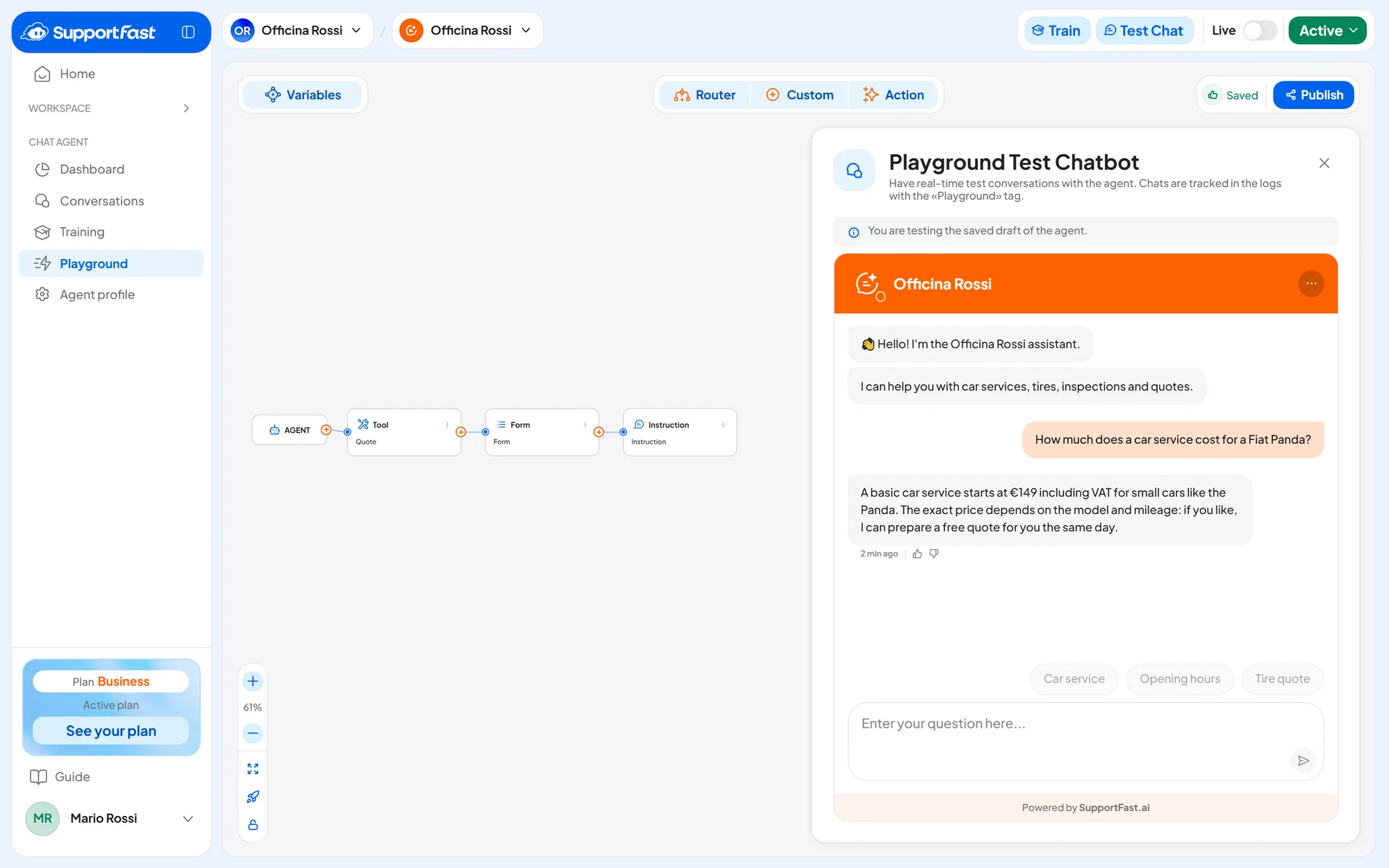
#What the Test Chat looks like
It looks like the chat on your website: colors, image, welcome, suggested questions, attachments and voice messages, if you turned them on. It doesn't show the privacy consent request or the initial contact form. The chat menu has New chat. It also has Request an operator, if in Operator Chat you turned on the live chat and its item in the chat menu.
#Where test conversations end up
- In Chat agentConversations, when you choose the “Internal” channel. The normal lists don't show them.
- They don't count in the Dashboard statistics and don't send notification emails.
- The agent's replies use up the plan's AI messages, like replies to customers.
- An operator request stays waiting: no emails or notification sounds go out.
- A submitted Form really creates or updates the contact in the contact book: test with made-up data, such as Mario Rossi.
Tests trigger automations. For the workspace's automations, a test counts as a customer's chat. They are triggered by the agent's messages, tools, Forms, operator requests and new contacts. If an automation sends emails or messages or makes calls, they really go out, and the execution counts toward the month's quota. Before testing, check which automations are active in the Automations panel of the Overview.
#Publishing your changes
Before you start
- No errors in the Playground: see The errors panel.
-
Save the draft
Press Save changes: “Agent saved” appears and the status becomes “Saved”.
-
Open the publish window
Press Publish: “Publish Agent” opens.
-
Confirm
Press Confirm and Publish.
Result
“Agent published” appears and the status becomes “Published”. On all channels, new conversations and those already open use the new version from the next message.
To look at the published version without touching the draft, use the Live switch: see Live mode.
#Testing from the chat link
The chat link shows you the agent as a customer sees it: with the published version, the privacy consent and the contact form. Use it after publishing, as a final check.
-
Check that the agent is active
The status button at the top must say “Active”: while the agent is paused, the link doesn't work. See Active and Paused.
-
Copy the link
In Chat agentAgent profileShare, “Link and Direct Sharing” panel, press Copy.
-
Open it in a private window
Paste the link into a private (incognito) browser window: the chat treats you as a new customer.
-
Ask the test questions
Then read the conversation again in Chat agentConversations.
Chats opened from the link are real conversations: they appear in Conversations and in the Dashboard like those from your website, and they use up the plan's messages. You can delete them after testing: see Exporting and deleting.
#The test questions
Before opening the agent to customers, test it with 20 real questions: the list with examples is in The test with 20 real questions.
Ask the same questions again after every major change. If you added tools, add the requests that should trigger them.
#When an answer is wrong
Facts are fixed in the knowledge base, behavior in the instructions and tools. How to find out where an answer comes from, the typical cases and the quick fix with Correct answer are in Why the agent answered that way. Below are the cases you fix in the Playground.
| What you notice | Where you fix it |
|---|---|
| Made-up information | In the instructions: ask it to use only the knowledge base. Execution must be set to Knowledge Base. |
| Off-topic answers | In the instructions, under “What not to do”, and in the business scope. |
| It doesn't remember what the customer said earlier | Number of messages must not be None. |
After the fix, ask the same question again.