

#Exporting
-
Choose what you want to see
In WorkspaceContacts, if you only need part of the contact book, choose a list, run a search or use a filter.
-
Open the window
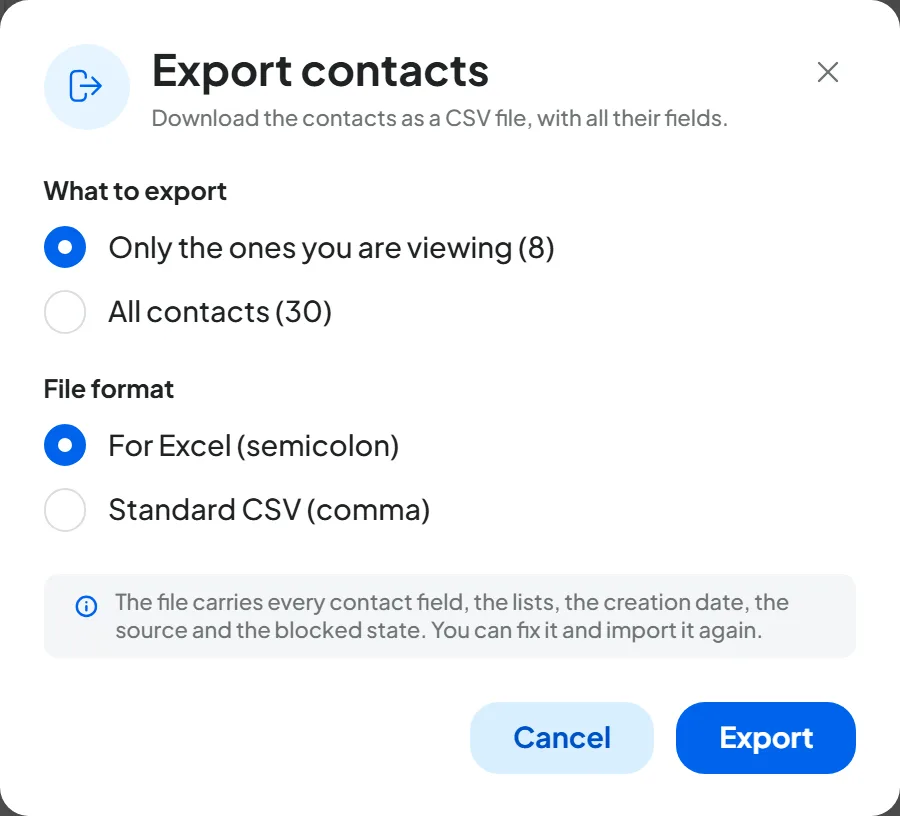
Press Export at the top. “Export contacts” opens.
-
Choose what to export
With a list, a search or a filter active, in What to export choose between Only the ones you are viewing and All contacts. The number of contacts is shown in brackets. Without filters, the window tells you how many workspace contacts will be exported.
-
Choose the format
In File format, the English console preselects Standard CSV (comma): commas separate the columns, which is what Excel expects in English-speaking countries. For Excel (semicolon) is for Excel set up for countries that write decimals with a comma, such as Italy: there it opens with a double click, with the right columns and accented characters.
-
Export
Press Export.
Result
You read, for example, “128 contacts exported”, and the browser downloads a CSV file named after the workspace and the date.
#What the file contains
One row per contact, with the columns in this order and the headers in the console language:
| Column | Content |
|---|---|
| Full name, First name, Last name, Company | The personal details. |
| All the addresses, separated by semicolons. The first is the primary one. | |
| Phone | All the numbers in international format, separated by semicolons. The first is the primary one. |
| Language | The language code, for example “it”. |
| Notes | The contact note, that is, the team's internal notes. |
| Instagram, Facebook | The social accounts. |
| Contact variables | One column per variable, with its display name. |
| Lists | The names of the contact's lists, separated by semicolons. |
| Created on | The creation date, YYYY-MM-DD. |
| Source | Where the contact came from. |
| Blocked | Whether the contact is blocked. |
The block reason, the Change history and the conversations aren't included.
The file also contains the team's notes. The “Notes” column carries each contact's note, which the customer never sees. Before giving the file to anyone outside the team, check that column or remove it.
Fixing many contacts at once. Export, fix the file in Excel, save it and import it with Import: the columns are recognized automatically and the contacts are updated, not duplicated. “Lists”, “Created on”, “Source” and “Blocked” aren't imported back. See Importing contacts.
Watch out for phone numbers: Excel tends to drop the “+” and turn long numbers into figures like 3.93E+11. In the file, numbers come out with an apostrophe in front ('+39…) precisely to prevent this: if you see it, leave it, because it's removed automatically on import. If you add new numbers, set the column to Text first. To change a contact's number, use their card, not the file: contacts are also recognized by their number, and a different number in the file, without an email already in the contact book, would create another contact.
#Limits
You can export up to 50,000 contacts at a time. Beyond that, the button is disabled and you read “You can export up to 50,000 contacts at a time: narrow it down with a list or a filter.”.
#Frequently asked questions
In Excel, the whole file opens in one column.
The file's separator isn't the one your Excel expects. Export again with the other format: Standard CSV (comma) if your Excel uses commas, as is usual in English-speaking countries, or For Excel (semicolon) if it uses semicolons, as in Italy.
Can I also export the contacts' conversations?
Conversations are exported separately, one agent at a time: see Exporting and deleting.