

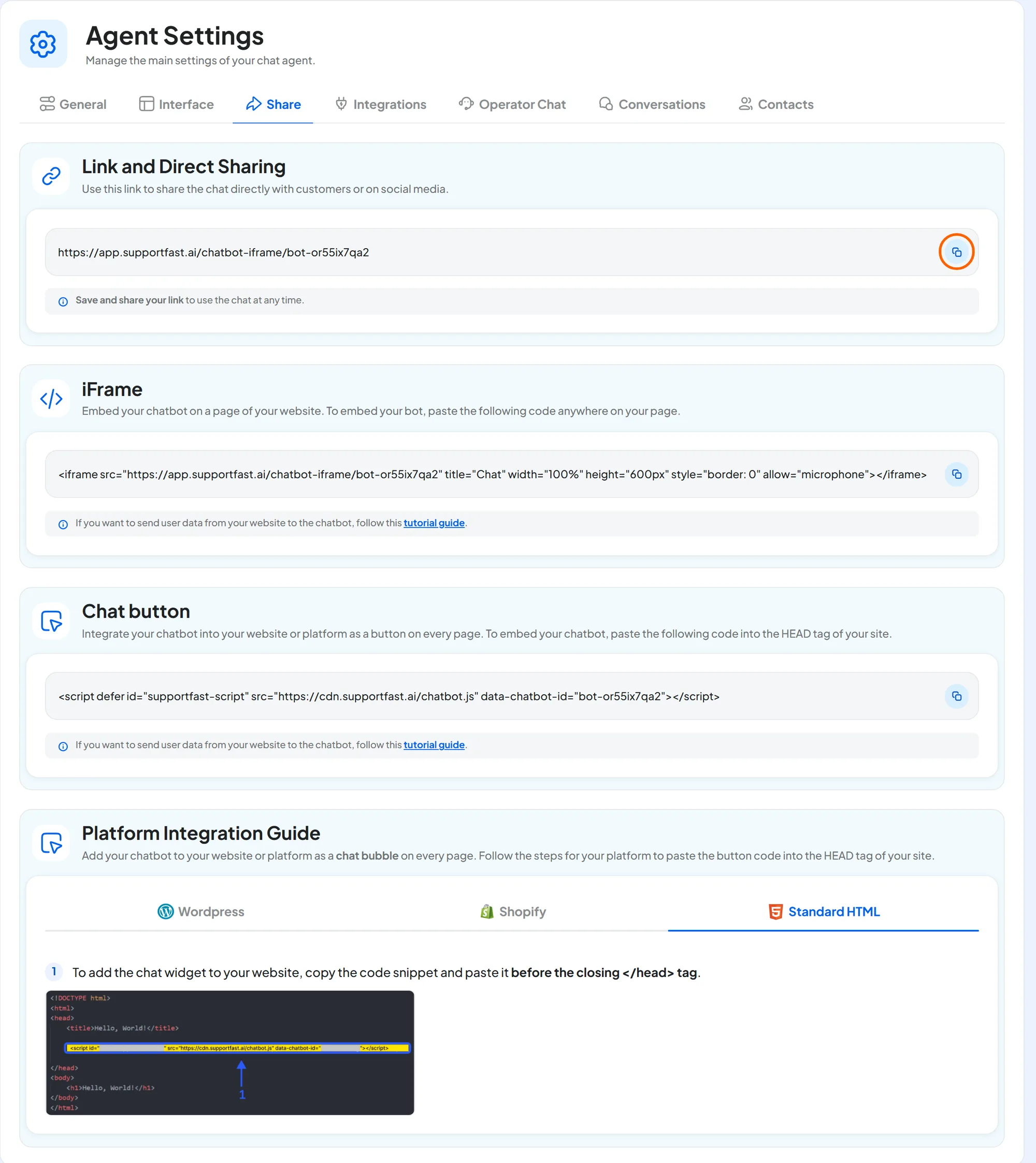
Open Chat agentAgent profileShare. Each panel has its own code and the Copy button. There is nothing to save here, and the codes stay the same when you change texts and colors.
Before you start
- The agent set to Active: see Active and Paused.
#What's in the tab
- Link and Direct Sharing: the address of the full-page chat.
- iFrame: the chat in a frame inside one of your pages.
- Chat button: the widget, that is, the button in a corner of every page that opens the chat window. This is the recommended way.
- Platform Integration Guide: illustrated steps for Wordpress, Shopify and Standard HTML.
Which one to choose, how to install it and how to check that it works: Installing the widget. Which website the widget can appear on is set in General: see The publishing domain.
#Passing user data
If your website has a members' area, it can pass the chat the details of the person browsing: they reach the customer's card in Contacts and pre-fill the chat forms. It works with the widget and the iframe, not with the link. The code, for whoever manages your website to add, is in Passing user data.
#Frequently asked questions
Can I use the link on social media and on WhatsApp?
Yes: it's a normal web address. Whoever opens it writes to the agent on the chat page. To have the agent reply inside WhatsApp, instead, connect the channel: see Agent profileIntegrations.
The widget covers another element of my website.
Move it to the other side in Interface, under Button position.