

Besides the widget, the Share tab offers two more ways to publish the chat agent. Both show the same full-page chat: the link in a browser tab, the iframe inside a box on your website. The widget, the publishing domain and the differences between the three methods are in Installing the widget.
#The chat link
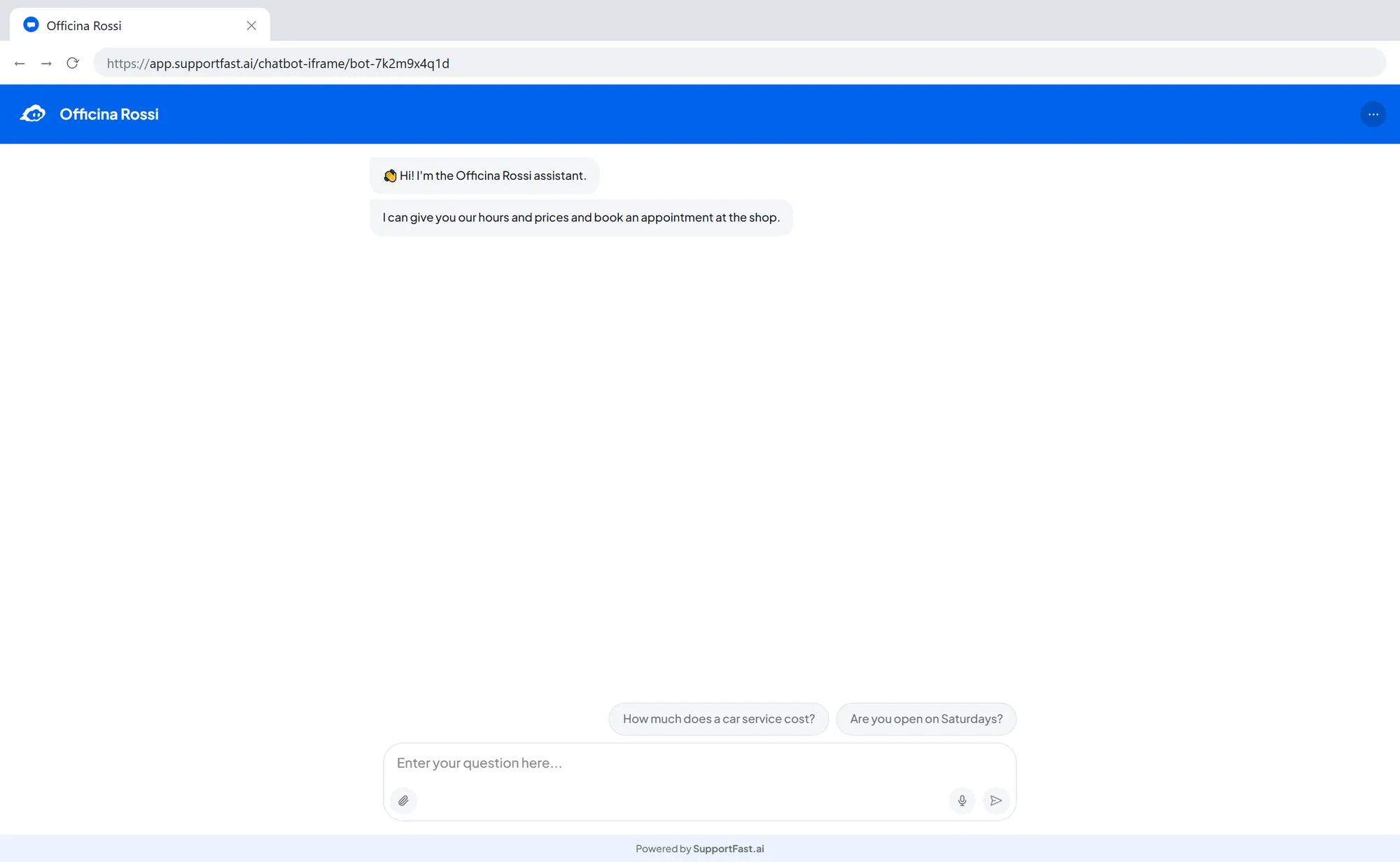
The link opens the chat on a page of its own. You find it in Chat agentAgent profileShare, in the Link and Direct Sharing panel: press Copy.
Link · what the link looks like (sample agent code)
https://app.supportfast.ai/chatbot-iframe/bot-a1b2c3d4e5Use it where the widget can't go:
- in your email signature and in replies to customers;
- in social media profiles and messages;
- in a QR code, made with the tool you prefer, to print on flyers or display in your shop;
- in a “Contact us” button on your website that opens the chat in a new tab.
#The iframe
The iframe puts the chat inside a page of your website, for example the Contact or Support page.
-
Copy the code
In Chat agentAgent profileShare, iFrame panel, press Copy.
-
Paste it into the page
Paste it at the point of the page where you want the chat. In website builders such as WordPress, use the Custom HTML block. If the widget is installed on the whole website, hide it on this page, as explained in Widget, link and iframe: the differences.
-
Publish and test
Publish the page, type a message in the chat and check that the conversation reaches Chat agentConversations.
HTML · the iframe code (sample agent code)
<iframe src="https://app.supportfast.ai/chatbot-iframe/bot-a1b2c3d4e5" title="Chat" width="100%" height="600px" style="border: 0" allow="microphone"></iframe>#The height of the box
Paste the code as it is. The only thing you can change is the height, which is height="600px" in the code. Type another number of pixels, without a unit: for example height="700", as long as the box fits on a phone screen. The chat always fills the whole box.
Result
The chat appears on the page, as tall as the box, and answers like the widget.
#Frequently asked questions
Does the link change if I edit the agent?
No. The link contains the agent's code, which stays the same. Colors, texts and answers update on their own.