

Unlike Cal.com and Calendly, event types don't come from the calendar: you create them in SupportFast, with hours and rules. When the customer chooses a time, the agent creates the appointment on your Google calendar and Google sends the invitation to the customer.
Before you start
- A Google account with the calendar the agent should write to, and the “Calendar booking” feature in your plan.
#Connect Google Calendar
-
Open Integrations
Go to WorkspaceIntegrations. In the “Calendars” panel, on the “Google Calendar” row, press Connect. A Google window opens.
-
Authorize access
Sign in with the Google account that owns the calendar and allow all the requested items: managing events and reading calendars.
-
Wait for the confirmation
The window closes on its own and “Google Calendar connected” appears.
-
Create an event type
On the “Google Calendar” row, press Configure. In the “Event Types” panel, press New event type: the fields are explained in Event types.
-
Give the event types to the voice agent
Choose which event types the agent can book: see In-call actions: appointments.
Result
The “Google Calendar” row is “Active”. The voice agent offers the free times of your event types and books them during calls.
#How to check
- On the Google Calendar page in SupportFast, press Test Connection: “Connection successful” should appear.
- Make a test call to the voice agent and ask for an appointment.
- Check on Google Calendar that the appointment is there, with the event type's name and the customer's name in the title. The email address you spelled out during the call receives Google's invitation.
#Event types
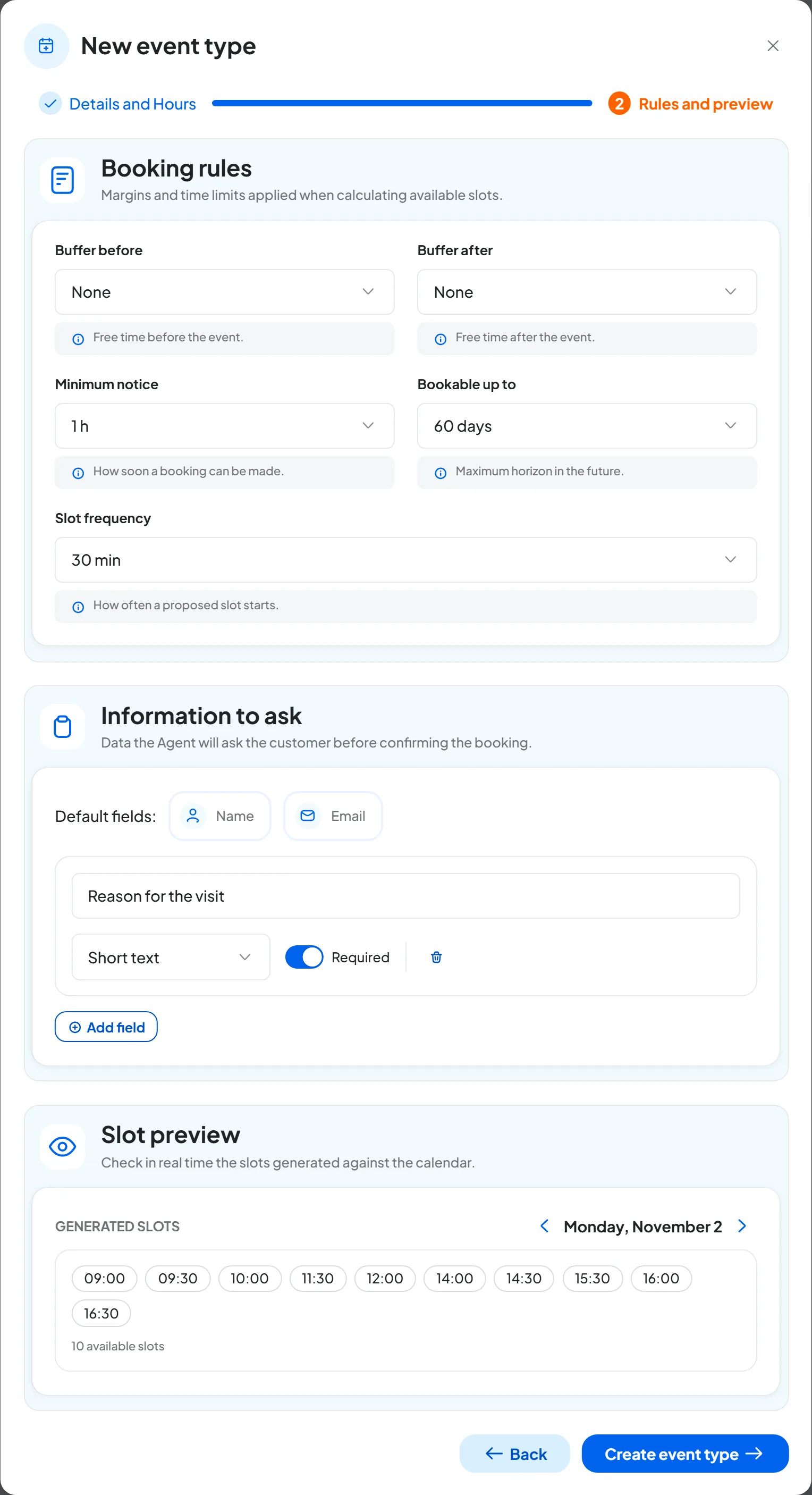
An event type tells the agent what it can book and when, for example “First visit, 30 minutes”. New event type opens a window with two steps; at the end, press Create event type.
| Step | What you set |
|---|---|
| “Details and Hours” | “Name” and “Duration”, from 15 to 120 minutes. “Destination calendar”: the calendar where the agent creates appointments; the list shows the calendars the account can write to. “Google Meet integration”, to add a Meet link to every appointment. “Opening hours”: the time slots when the event type can be booked, day by day, in the workspace's time zone. |
| “Rules and preview” | “Buffer before” and “Buffer after”, the free time around the appointment. “Minimum notice” and “Bookable up to”. “Slot frequency”: how often a proposed time starts. “Information to ask”: name and email are always there, and you can add up to 10 fields, for example “Reason for the visit”. “Slot preview”: the free times of a given day, calculated against your actual commitments. |
To change an event type, choose Edit Event from its ⋮ menu and press Save changes. Delete Event deletes it: the agents that use it are unlinked.
#How the agent finds free times
- It counts as busy the events marked “Busy” in your Google account's calendars, including the ones shared with you, up to 50 calendars. An event marked “Free” doesn't block any times. All-day events are usually marked “Free”: to block a whole day, set the event to “Busy”.
- Google's holiday calendars don't count. Neither does a calendar that Google can't read, for example because it's no longer shared with you.
- Before booking, the agent checks the time again: if it has been taken in the meantime, the appointment isn't created.
- In the appointment's description you find who booked, the number they called from and the answers to the fields you added.
The limits common to all calendars, for example that the agent doesn't reschedule or cancel appointments, are in Limits to know.
#The Google Calendar page
At the top you find the status, the Test Connection button and the ⋮ “Calendar actions” menu, with Refresh calendars, Reconnect and Delete integration. Further down is the “Event Types” panel.
- Refresh calendars reloads the list of the account's calendars: use it after you create or share a new calendar on Google.
- If “Access expired” appears, with the status “Reconnect”, choose Reconnect and authorize again. Your event types are kept.
#Disconnecting Google Calendar
From the ⋮ menu, choose Delete integration and confirm. SupportFast loses access to your Google account, and the event types created in SupportFast are deleted: if you reconnect Google, you create them again. What happens to agents and to appointments already booked is in Disconnecting a calendar.
#Frequently asked questions
Can I connect two Google accounts?
No: a workspace connects only one Google account. For each event type, however, you can choose a different destination calendar.
An authorization error appears while connecting.
For example “Calendar permissions are missing: authorize all requested items”. Press Connect again and, in Google's window, allow all the items.