

#What it's for
A webhook is a web address that another piece of software sends data to when something happens. Every automation with the Webhook trigger has its own address: when a request arrives there, the automation starts.
- Your website's “Request a quote” form sends the name, email and phone: the automation saves the contact and calls them back.
- Your e-commerce store sends an order: the automation writes to the customer on WhatsApp.
- Zapier and Make connect hundreds of apps: any of their events can start an automation.
{{webhook.*}} variables.Before you start
- The “API and webhooks” feature in your plan.
- An external service that can send an HTTP POST request with a JSON body.
#Getting the address
- Choose the Webhook source
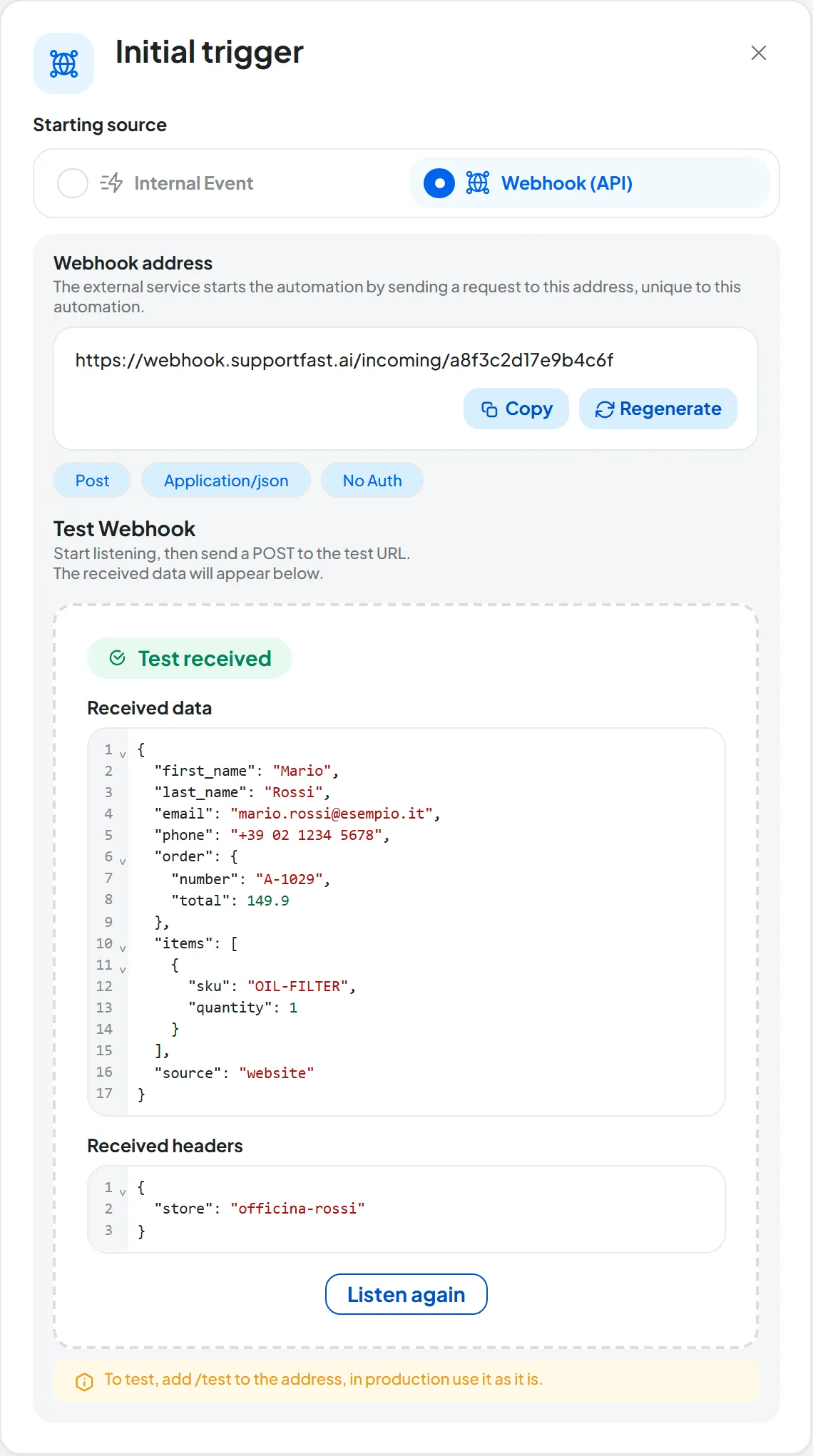
In the automation's Playground, press the trigger card, the starting node. In Starting source, choose Webhook (API). You can also do it while creating the automation, in the “New Automation” window, at the Trigger step.
- Generate the address
Press Generate address. The full address appears, unique to this automation, ending with
/incoming/and a code. Below it you read its three characteristics: Post, Application/json, No Auth. - Copy it into the external service
Press Copy and paste the address where the external service asks for the webhook URL.
#Running the test
The test is required: without it, webhook events don't start the automation and the automation can't be published. It also lets the console learn the fields that will arrive.
- Start listening
In Test Webhook, press Start listening. The status changes to “Listening...”.
- Send the test request
From the external service, send a POST to the address with
/testadded right after the code. If you also send parameters,/testgoes before the “?”: for exampleWEBHOOK-ADDRESS/test?source=website. - Check what arrived
“Test received” appears, with Received data and Received headers. From now on the fields are in the variables panel, Input tab, “Data received by the webhook” section.
- Build, save and publish
Use the variables in the nodes, then press Save changes and Publish.
Listening stops when the test arrives, when you press Stop listening, when you leave the Playground or, if you run the test while creating the automation, when you close the “New Automation” window. To run the test again, press Listen again.
After the test, remove /test. In production the address is used as it is. If the address with /test stays in Zapier, in Make or in your software, real requests get 404 and the automation doesn't start.
#Authentication and headers
The address accepts POST requests with a JSON body. Always send the Content-Type: application/json header: without it, or with another type, the body isn't read. The request is accepted anyway, with 202, but the automation starts without the body data; only the address parameters and the headers arrive. A test sent this way records an empty structure.
The code in the address works as a key: keep it like a password, give it only to the services that need it, don't put it in a web page's code and, if needed, regenerate it.
Custom headers you send become variables with a lowercase name: a Store header is read with {{webhook.headers.store}}. Standard headers, such as host, content-type and user-agent, are removed.
#The data format
The body is a JSON object, 1 MB at most: beyond that, the request is rejected with 413 and the automation doesn't start. Every field in the body, every address parameter (the ones after the “?”) and every custom header becomes a {{webhook.*}} variable: nested fields are read with a dot, list items by their position starting from 0. The table in Examples shows each case.
Use simple field names, with letters, digits and “_”. In the test, send the same structure you'll really use: the variables panel offers the fields from the test, and a field that then doesn't arrive stays empty. If the structure changes, run the test again with Listen again.
#Examples
In place of WEBHOOK-ADDRESS, paste the address copied from the console.
curl · a request with a parameter and a header
curl -X POST "WEBHOOK-ADDRESS?source=website" \
  -H "Content-Type: application/json" \
  -H "Store: officina-rossi" \
-d '{"first_name":"Mario","last_name":"Rossi","email":"mario.rossi@esempio.it","phone":"+39 02 1234 5678","order":{"number":"A-1029","total":149.9},"items":[{"sku":"OIL-FILTER","quantity":1}]}'| Data sent | Variable | Value |
|---|---|---|
first_name | {{webhook.first_name}} | Mario |
order.total | {{webhook.order.total}} | 149.9 |
items, first item, sku | {{webhook.items[0].sku}} | OIL-FILTER |
parameter source | {{webhook.source}} | website |
header Store | {{webhook.headers.store}} | officina-rossi |
With Zapier or Make. In the scenario, add the step that sends an HTTP request: in Zapier the POST action of the Webhooks by Zapier app, in Make the HTTP module. Set the POST method, the copied address and the data in JSON format.
#The response
If the request is accepted and the flow doesn't have the Webhook Response node, the address responds with 202 right away and the execution starts:
JSON · the default response
{"success": true, "message": "Webhook received"}To decide yourself what the caller receives, add the Webhook Response node to the flow. It appears in the menu only with the Webhook trigger and has three fields:
- Response status Menu
The HTTP code to return: 200, 201, 202, 204, 400, 401, 403, 404 or 500.
- Headers Key and value, with variables
The headers to add to the response, with Add header.
- Response body (JSON) JSON with variables
The body to return, for example
{"ok": true, "lead": "{{CRM.id}}"}. A value written as a variable alone, such as"{{CRM.id}}", keeps its type.
With this node in the flow, the response is no longer immediate: the caller waits for it for up to 30 seconds. If the automation doesn't reach the node in time, the caller gets the default response, 202, and the automation continues anyway. That's why the node should go early in the flow, before Wait, Make Call and slow API calls. If the flow has more than one Webhook Response node, the first one counts.
| Request | Response |
|---|---|
| POST to the address, with valid JSON | 202 right away with the default response; with the Webhook Response node, its response within 30 seconds. |
POST without Content-Type: application/json | 202, but the body isn't read: see Authentication and headers. |
POST to the address with /test, while the test is listening | 200 with {"test": true, "data": …}, and listening stops. |
POST to the address with /test, without listening | 404. Press Start listening and send the request again. |
| GET to the address | 200 with {"success": true} if the automation is ready to receive, otherwise 404. |
| Body that isn't valid JSON | 400, even if the address isn't ready: the body is checked first. Review quotes, commas and brackets. |
| Body over 1 MB | 413. Send less data, for example only the fields the automation uses. |
| More than 60 requests in one minute to the same address | 429 with {"error": "Too many requests", "retryAfter": 60} and the Retry-After: 60 header. Try again after the number of seconds shown. |
| Address not ready or not valid | 404 with {"error": "Webhook not found"}. The automation isn't active or has been deleted, the address has been regenerated, the trigger is no longer Webhook, the test was never run, or the plan doesn't include “API and webhooks”. Check that the automation is active and use the current address. |
#Limits
- At most 60 requests per minute to the same address, tests included. The count starts from the first request and resets after 60 seconds. Beyond that, the response is
429with theRetry-Afterheader, and the request doesn't start the automation: send it again after the number of seconds shown. Every response also carries theX-RateLimit-LimitandX-RateLimit-Remainingheaders, with the limit and the requests left. - The body can be 1 MB at most: beyond that, the response is
413.
Spread your requests over time.
#How to check
- Send a real request
If the response isn't the one you expect, look it up in the table above.
- Open the execution
In AutomationsDashboard, in the Run log, open the new row. In the “Starting event” tab, the Event data shows the body received.
#Regenerating the address
Press Regenerate next to the address, then Confirm and Regenerate. The old address stops working immediately: update the new one in every external service that uses it. The test data stays: you don't need to run the test again.
A duplicated automation has an address of its own, to generate and test.