

Use it to look up a customer in your management software, create a lead in the CRM, open a ticket or check the status of an order.
Before you start
- The “API and webhooks” feature in your plan.
- The service's API documentation and, if it requires one, its key or token.
#Setting up the call
Add the node with + and choose API. The panel has three sections: API, Response Test and Schema, Data Access (Output).
- Node name Text · 50 characters max
For example “CRM”.
- Method GET, POST, PUT, DELETE
GET to read, POST to create, PUT to update, DELETE to delete: follow the service's documentation.
- URL Text with variables
The API's address, or a variable. It must start with
https://orhttp://: with any other start, the node reports “The URL is not a valid address.”. Usehttps://when the service offers it: see Security: best practices.- Parameters Key and value
The parameters to add to the address, after the “?”. Add them with Add parameter. A parameter that is still empty after the variables are replaced isn't sent.
- Headers Key and value
The request headers, for example
Authorizationwith the valueBearer YOUR-KEY. Add them with Add header.- Request body (JSON) Only with POST and PUT
The JSON body, in the Body tab, with Add variable. Invalid JSON is flagged below the field.
The service has 60 seconds to respond: what happens if it fails is in When the call fails.
#Using variables in the call
The address, parameters, headers and body accept variables. When the automation runs, the real values take their place.
- In the address:
https://api.esempio.it/customers/{{webhook.customerId}}. - In a parameter: key
email, value{{user.email}}. - In the body, a value made of a variable alone keeps its type:
"total": "{{webhook.order.total}}"is sent as a number. Inside a longer text it becomes text.
#Testing the call
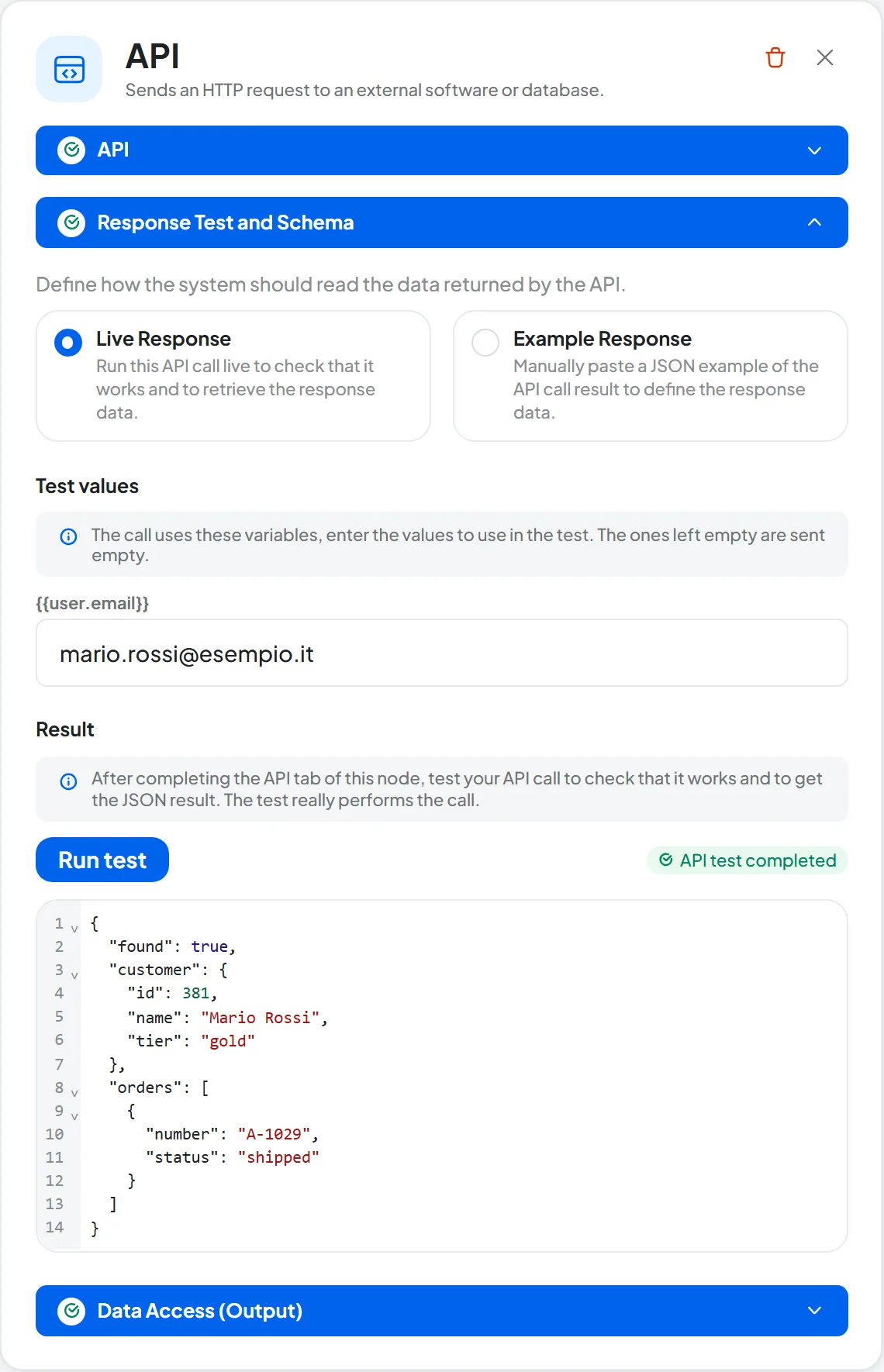
In the Response Test and Schema section, under “How to get the response”, choose one of the two options. You need a response to know which data will reach the following nodes.
- Live Response Default
In Test values there's a field for each variable used in the call: type the values to use in the test; empty ones are sent empty. Press Run test, which becomes available when the API section is complete.
- Example Response
Paste a realistic response, taken from the service's documentation, into Example response (JSON). No call is made.
If the test succeeds, “API test completed” appears with the response JSON. If the service responds with an error, a red box shows the status, for example 404, and the error body.
The test makes the real call. With POST, PUT and DELETE you create, change or delete real data. Use a test environment of the service, recognizable test values, or the Example Response.
With the Live Response, the node can't be published until the test has succeeded. After changing the call, run the test again to check the response.
#Choosing the response data
In the Data Access (Output) section, you decide what passes to the following nodes.
- Full data access, the default: the whole response is available.
- Restricted data access: only the data you tick in the checkbox tree, with Select all if you need it. A chosen item arrives whole, with everything it contains; if the response is a list, the choice applies to every item.
If the response has no keys, restricted access can't be used.
#Using the response
If the node is called “CRM”, the response is in {{CRM}}. Individual fields are read with a dot and, in lists, by position starting from 0. The variables panel, Nodes tab, offers the fields read from the test or example response. As for the other nodes, see Node results.
JSON · the service's response
{
  "found": true,
  "customer": { "id": 381, "name": "Mario Rossi", "tier": "gold" },
  "orders": [ { "number": "A-1029", "status": "shipped" } ]
}| Variable | Value |
|---|---|
{{CRM.found}} | true |
{{CRM.customer.tier}} | gold |
{{CRM.orders[0].status}} | shipped |
You can use these values in a Condition, for example {{CRM.found}} with Is true. They also work in an email, in a WhatsApp template or in the body of a Webhook Response.
#Two complete examples
Looking up a customer in your management software. Node “CRM”: method GET; URL https://api.esempio.it/customers; parameter email = {{user.email}}; header Authorization = Bearer YOUR-KEY. After the test, a Condition on {{CRM.customer.tier}} “Equals” gold sends your best customers to a dedicated branch.
Opening a ticket. Node “Ticket”: method POST; URL https://api.esempio.it/ticket; same header; in the Body:
JSON · the Body of the Ticket node
{
  "subject": "Customer not reached by phone",
  "phone": "{{user.phone}}",
  "note": "Call back {{user.fullName}}",
  "priority": 2
}
For the test, choose Example Response, so you don't open a real ticket, and paste the response from the documentation, for example {"id": 77, "status": "open"}.
#When the call fails
| What happens | Message | Retries |
|---|---|---|
| The service responds with a status from 400 to 499. | “API request failed.” | No, the execution ends right away. The exceptions are 408, 425 and 429, which are retried. |
| The service responds with a status of 500 or higher, there's a network problem, or 60 seconds pass. | “API request failed.” | Yes, up to 3 attempts in all: see Retries. |
| The address is private or internal, for example on your company network. | “Address not allowed: the call was not performed.” | No: the call isn't made. |
| The plan no longer includes “API and webhooks”. | “Feature not included in the plan.” | No: the execution is Stopped. |
If the call fails for good, the automation stops at the node and the following nodes don't run. In the execution details, the node's card shows the request sent, the HTTP status and the Response.
#Security: best practices
- Put keys and tokens only in the API node's headers. In the execution details, the authorization is shown masked.
- Never write a key in a Prompt's instructions or in the text of a message. Instructions reach the AI model and appear in the execution details.
- Create a key dedicated to SupportFast, with only the permissions it needs, for example read-only access to customers. If needed, you revoke it without touching anything else.
- Use
https://addresses. Anhttp://address is accepted and the call is made, but data and keys travel unencrypted. - Send only the personal data the external service needs: see Privacy and security.
- Whoever manages automations sees the node's configuration, keys included: give the Manage permission only to those who need it.
#Frequently asked questions
Can I pass the response to the AI?
Yes: write {{CRM}} or one of its fields in the instructions of a Prompt node that comes after the API node.
Does the chat agent have an API node too?
Yes, in a tool's chain: it has the same panel, plus the Success and Error outputs. See Playground: instructions and flows.