

Open the page from WorkspaceIntegrations: on the “WhatsApp” row, press Configure. The same settings are also on the Instagram and Messenger pages, except “Agent Return” and templates, which exist only for WhatsApp. Templates are at the bottom of the page, and we explain them in WhatsApp templates.
There is no Save button. Switches, choices and sliders take effect immediately; only changing the agent asks for confirmation.
Before you start
- The WhatsApp channel connected: see WhatsApp: connecting your number.
#Assigned Agent
This panel shows which agent handles incoming conversations. If there is none, “Unattended” appears next to the title.
- Answering Agent Drop-down · one agent per channel
The chat agent that answers the messages. In the “Who answers the messages?” menu you find the workspace's chat agents; voice agents don't appear. If an agent is already assigned, Unlink Agent is at the bottom of the menu.
What happens to a channel with no agent is in No agent, or the agent is paused.
#Files and Audio
This panel decides whether the files and voice notes that customers send in the chat get into SupportFast. Both switches start off. Videos and locations never arrive.
With the switch off, the attachment is lost. Photos, documents and voice notes reach neither the agent nor you in the conversation. The same happens if your plan doesn't include “Files and audio in chat”. On WhatsApp, the text sent with the file is lost too.
- Receive Files Yes / No
Receives documents and images in the formats listed under the switch: images up to 5 MB, documents up to 25 MB. The agent sees that a file has arrived and what it's called; you open the file yourself from the conversation.
- Receive and Transcribe Audio Yes / No
Receives voice notes, up to 16 MB. For the agent to transcribe them and reply, it needs an OpenAI key: the answering agent's own, or the workspace's or account's. See OpenAI key. Without a key, the voice note still arrives, but the agent doesn't reply: you listen to it yourself from the conversation.
Available on the plans with the “Files and audio in chat” feature: see Plans, quotas and usage.
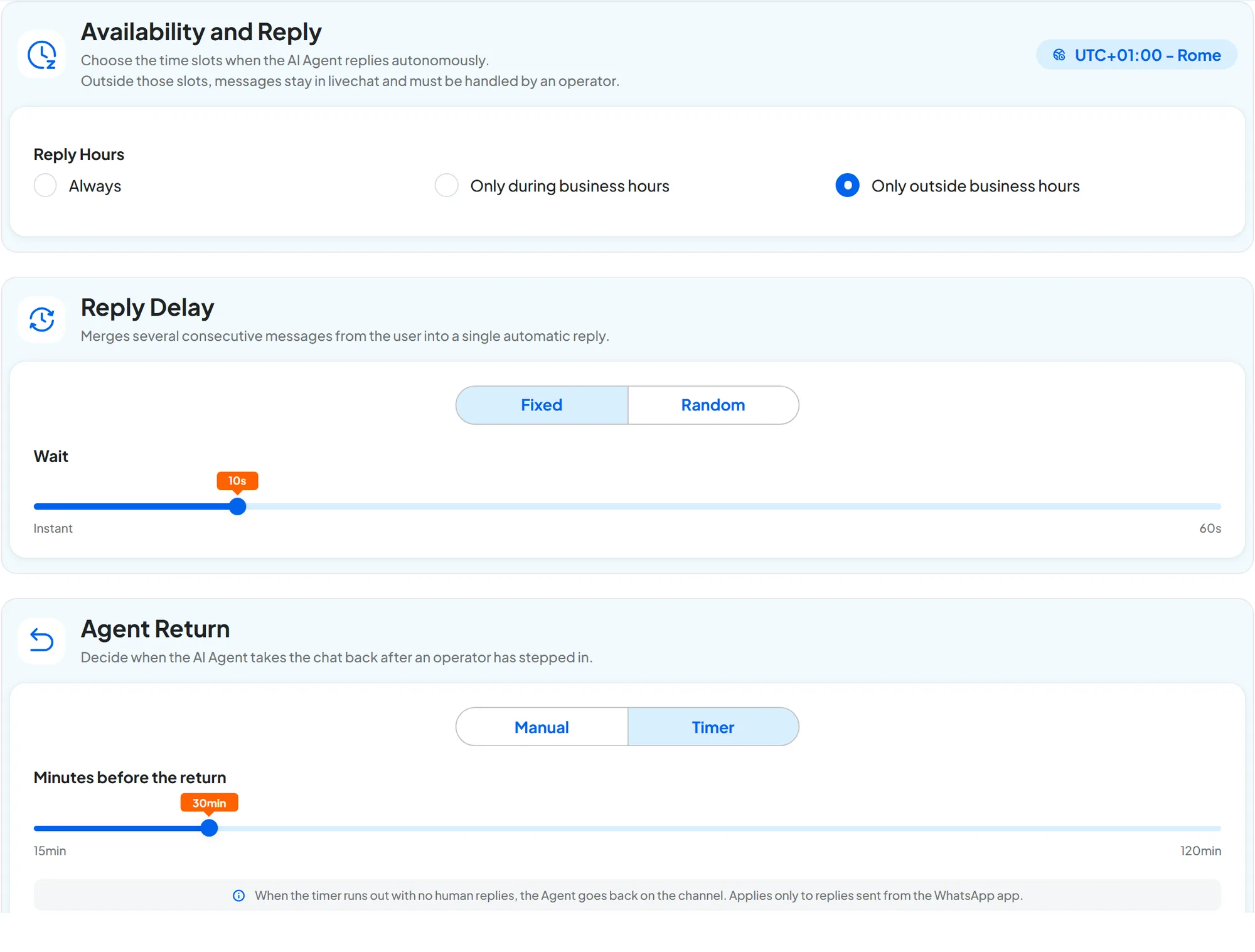
#Availability and Reply
This panel sets the time slots when the agent answers on its own, in the workspace's time zone.
- Reply Hours Single choice
Always: the agent answers at any time. Only during business hours: it answers during the workspace's opening hours. Only outside business hours: it answers in the evening, at night and on closing days, which count as outside hours for the whole day.
Outside the chosen slots, the agent doesn't answer. The customer's message opens a live chat: the conversation passes to the team and waits for an operator to answer from the console, as explained in Stepping in as an operator. What live chat is, and how you use it on your website, is in Agent profile: Operator Chat.
If nobody answers, the customer gets no reply until the slot ends. At the end of the slot, the live chat closes on its own and the agent goes back to answering new messages.
Remove a slot only if someone will answer. The agent stays silent even if live chat is turned off in Operator Chat. During those hours you need a teammate who follows Conversations, with a plan that includes live chat: otherwise the customer gets no reply until the next slot.
You set opening hours in Workspace settings. If the workspace has none, the choice stays on “Always”; the Set the hours link takes you there to set them.
#Reply Delay
Many customers split a question into several messages. With the delay, the agent waits and gives one reply to all the pieces. The countdown restarts with each new message from the customer.
- Mode Fixed / Random
Fixed always waits the same time. Random changes the wait for every reply, so it feels more natural.
- Wait Slider · from Instant to 60 seconds
With “Fixed”, how long the agent waits after the last message. With “Instant”, it answers each message immediately.
- Minimum and Maximum Sliders · from 0 to 60 seconds
With “Random”, the shortest and the longest wait.
Wait set to “Instant”. The customer writes “Good morning”, then “I'd like to know”, then “your Saturday hours”: the agent answers three times, and the first reply arrives before it knows the question.
A 10-second wait: one reply, about the Saturday hours.
#Agent Return
It appears only if the number is in coexistence, that is, also active on the WhatsApp Business app. When you reply to a customer from the app, your message appears in the conversation and the chat passes to you. The agent stops answering and the conversation shows “Handled from the WhatsApp app”.
- Mode Manual / Timer
Manual: the chat stays with you until you press Hand back to AI in the conversation. Timer: the agent comes back on its own after a set time with no replies from the app.
- Minutes before the return Slider · from 15 to 120 minutes
With “Timer”, after how many minutes with no human replies the agent becomes active again. Each new message you send from the app restarts the countdown. The conversation shows the time when the agent comes back.
“Agent Return” applies only to replies written from the app. If you take over the chat from the console with Take control, the agent comes back only when you press Hand back to AI. We explain how to work as an operator in Stepping in as an operator. The other coexistence rules are in WhatsApp: connecting your number.
#Frequently asked questions
Can I have different hours for WhatsApp and for the website?
Yes. WhatsApp, Instagram and Messenger each have their own “Reply Hours”. For the website, the choice is in “Agent Reply Hours”, in the agent's Interface tab. Opening hours, on the other hand, are the same for the whole workspace.