

The settings apply to the whole workspace: all of its agents, automations and campaigns use them. Open them from WorkspaceSettings in the sidebar. The page is titled “Workspace Settings” and has two tabs, General and Contacts.
The General tab is saved all at once with the bar at the bottom (see Saving changes): save before you switch tab or page.
#Workspace Profile
The “Workspace Profile” panel holds the details that identify the workspace in the console.
- Workspace name Text · 2 to 50 characters · required
The name shown in Home, in the sidebar, in the list of workspaces and in the creation windows. Every teammate with access to the workspace sees it.
- Description Text · up to 250 characters
A note for your team about what the workspace contains, for example “Verona location: repairs and spare parts”. Your customers don't see it.
- Identifying colour Color
Tints the workspace avatar across the whole console. Choose one of the 8 colors in Presets or any color from the picker.
#Languages and Localization
The “Languages and Localization” panel sets the agents' languages and the reference time zone.
- Supported languages One or more languages · at least one
The languages you write the workspace agents' texts in: the welcome message, suggested questions, forms and messages have a version for each language. They don't limit the replies: the chat agent answers in the language the customer writes in, even if it isn't on the list. The voice agent speaks its Main Language, which you choose from these.
The first language on the list is the workspace's first language: conversation notification emails are sent in this language, and it sets the default country code for contacts' phone numbers (+39 with Italian). With English there is no default country code: write numbers with their international prefix.
To add some, press Add language, select one or more languages and confirm. To remove one, press the X on its label: you can't remove the last language left.
You can choose from the 11 languages listed in Supported languages.
- Time zone List · required
The workspace's reference time. Opening hours, statistics and automations follow this time zone. Open the list and type the name of the city to find it.
Campaigns have their own time zone and warn you if it differs from the workspace's: see Campaign options.
These languages concern the agents and their texts. The language you read the console in is chosen in your Profile instead.
#Opening hours and closing days
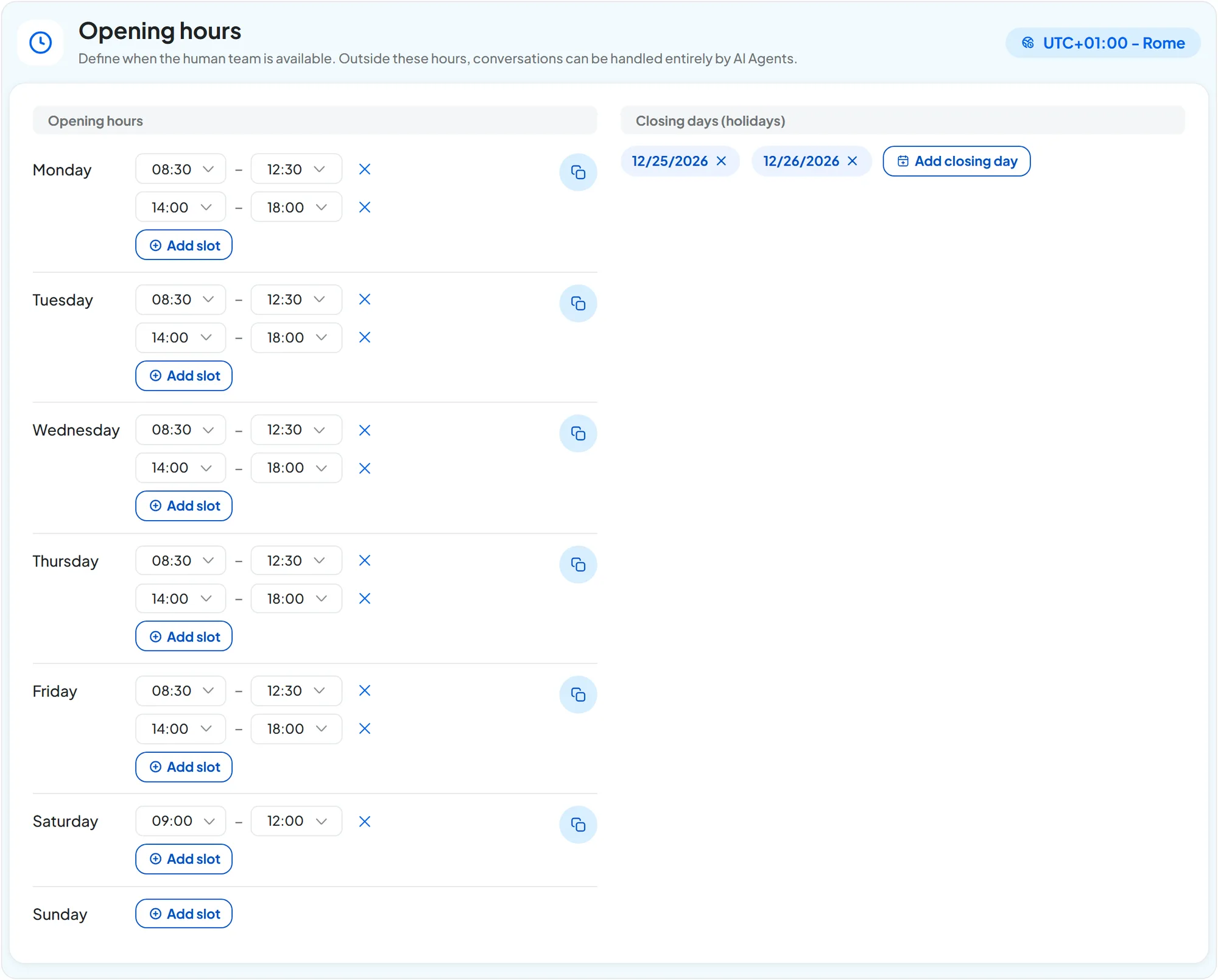
The “Opening hours” panel tells the console when your team is at work. In the top right you see the time zone the hours refer to. The panel has two columns: the time slots for each day and the closing days.
-
Add the first slot
On the Monday row, press Add slot. The console suggests 08:00–12:00: change the times with the From and To drop-downs, in 30-minute steps.
-
Add the afternoon slot
Press Add slot again: the second suggestion is 14:00–18:00. A day can have more than one slot. To remove one, press its X.
-
Copy to the other days
Press the Copy these slots to other days icon. Choose Weekdays (Monday to Friday), Weekend (Saturday and Sunday) or Every day. The copied slots replace the ones those days had.
-
Add the closing days
In Closing days (holidays), press Add closing day, pick the date in the calendar and press Add day. Repeat for each holiday or vacation day.
-
Save
Press Save changes in the bar at the bottom.
#What the hours are for
Opening hours are the reference for every setting that asks for “during hours” or “outside hours”:
- chat agent: when customers can ask for an operator, in “Operator Availability Hours” (Operator Chat), and when the agent answers on its own, in “Agent Reply Hours” (Interface);
- WhatsApp, Instagram and Messenger: the “Reply Hours” on each channel's page (WhatsApp: channel settings, the same for Instagram and Messenger);
- voice agent: the “Availability” of each transfer destination and the “During business hours” condition of the welcome messages (General: identity, voice and greeting);
- automations: the “Only during opening hours” option of waits (Nodes: logic and data);
- statistics: the “Inside / outside hours” panel of the chat agent Dashboard.
Always set the hours, even if the agent answers around the clock. Every setting that depends on the hours warns you if the workspace has none. Without time slots, the workspace always counts as closed for the voice agent. All the hours in SupportFast, side by side, are in Hours in SupportFast.
#OpenAI key
The OpenAI key is the code that connects SupportFast to an OpenAI account of yours. You don't need one: without it, agents use the AI included in your plan. With a key, you pay OpenAI for the AI messages yourself and they aren't deducted from your plan quota.
Only people with the “Billing” permission see the “OpenAI key” panel, because the key is a cost. By default the workspace uses the account key, if there is one; if you turn off Use the main Account API key you can enter a key for this workspace only. The key closest to the agent wins: first the agent's, then the workspace's, then the account's. See OpenAI key.
#Delete Workspace
At the bottom of the tab, the red “Delete Workspace” panel reminds you that deletion can't be undone. The Delete Workspace button opens the confirmation window: what you lose and how to confirm are explained in Deleting a workspace.
#The Contacts tab
The Contacts tab holds the settings for the workspace's contacts. It isn't the chat's contact form, which you set for each agent in Agent profile › Contacts. It contains:
- “Automatic Profiling”, with which the AI agent fills in the contact's record at the end of the conversation and adds it to lists. It is saved with the bar at the bottom;
- “Variables”, that is, the contact variables: the data that agents collect and save on the record, up to 30 custom ones. Each variable is saved from its own window.
We explain them in Variables and automatic profiling.