

You open the console at app.supportfast.ai. Its Home is the “Your workspaces” page, with the list of your workspaces: open it with Home at the top of the sidebar. What you can do there is in Home: “Your workspaces”.
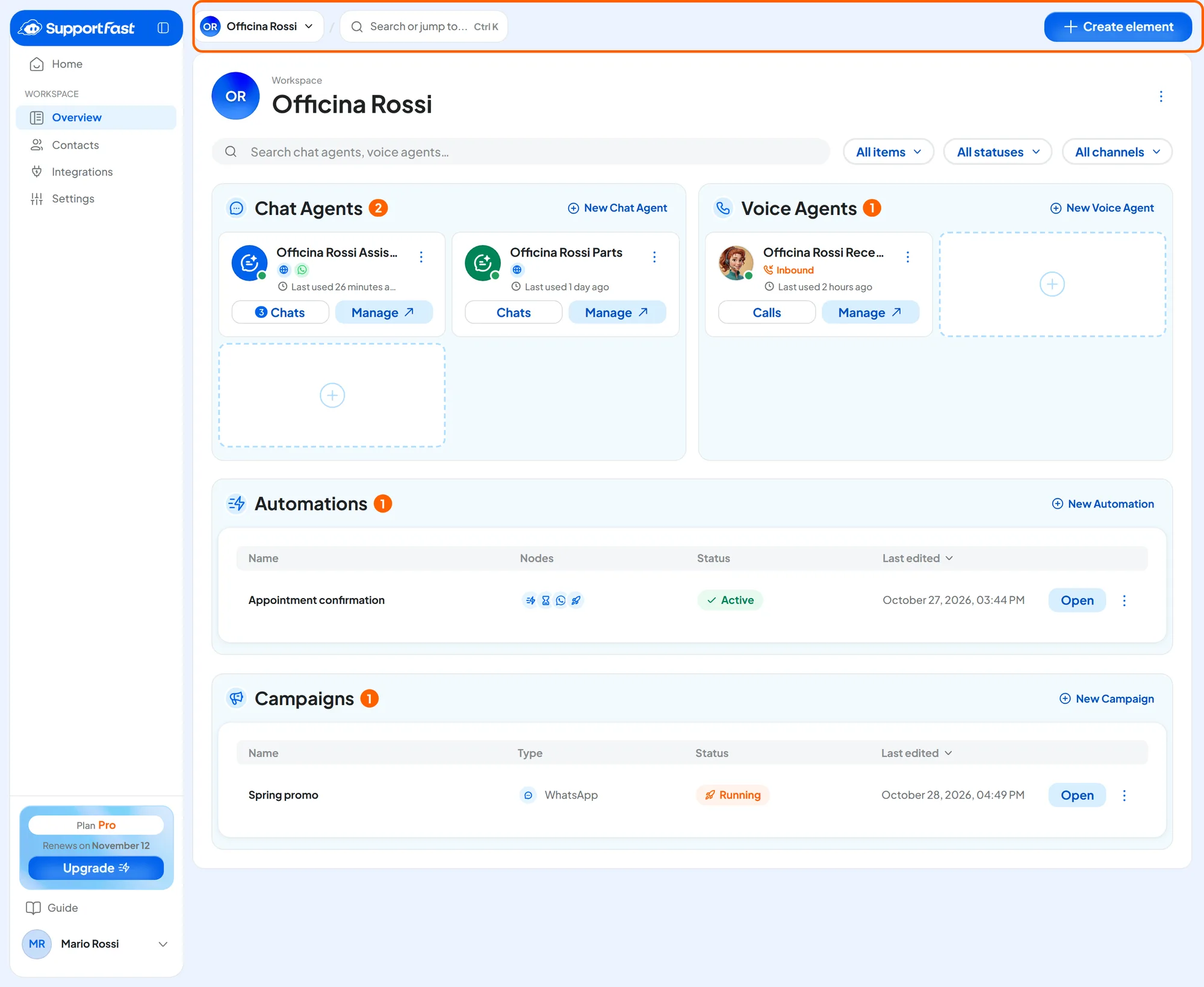
#The sidebar
The menu is on the left. It changes depending on where you are: inside a workspace it shows the workspace's items, and inside an agent or a campaign it adds the element's items.
| Group | Items | When you see it |
|---|---|---|
| Workspace | Overview · Contacts · Integrations · Settings | Inside a workspace. |
| Chat agent | Dashboard · Conversations · Training · Playground · Agent profile | Inside a chat agent. |
| Voice agent | Dashboard · Calls · Agent profile | Inside a voice agent. |
| Automations | Dashboard · Playground | Inside an automation. |
| Campaigns | Overview · Dashboard · Campaign options | Inside a campaign. |
| Account | Subscription · Plans · Profile · Team · Telephony · White label | On the account pages, which you open from the menu with your name. |
At the bottom of the sidebar you find:
- the plan panel, with the plan name and its status (for example “Renews on November 3”). Only users with the “Billing” permission see it;
- the Guide item, which opens the SupportFast guide in a new tab (it does not appear in White Label portals);
- the menu with your name, with Account and Logout.
Can't see an item? Items you don't have permission for don't appear: ask the account owner or someone with the “Team and permissions” permission. In the console's messages they are called “Administrator”. See Team, roles and permissions.
#The top bar
Inside a workspace, the top bar shows, from left to right:
- The workspace name. Click it to switch to another workspace: the list shows how many elements each one has, with See all to go back to Home and New workspace to create one.
- Quick search: see below.
- On the right, on the workspace pages, the Create element button. Inside an agent, an automation or a campaign, that element's controls take its place: in a chat agent, for example, Train, Test Chat for the test chat, and the Active or Paused status.
#Finding an element with Ctrl + K
Inside a workspace, press Ctrl + K (on a Mac ⌘ + K) or click Search or jump to... in the top bar (if you have an element open, its name appears there instead). Type part of the name and choose the row. With the All elements filter you limit the search to chat agents, voice agents, automations or campaigns. Each row shows the element's status and, for chat agents, the channels it answers on. In this guide, the same shortcut searches the guide pages instead.
#Creating an element
Elements are the four things you create inside a workspace. Create element opens the “What do you want to create?” window.
| Element | Where to read more |
|---|---|
| Textual Agent | Creating and managing the agent |
| Voice Agent | Creating the voice agent |
| Automation | Creating an automation |
| Campaign | Creating a campaign |
- If a type of element doesn't appear, you don't have permission to create it.
- If it has a padlock, you have reached your plan's limit: click it to see the limit and how many elements you already have.
#Saving changes
On settings pages, changes are not saved automatically. As soon as you change something, a bar appears at the bottom with “Pending change” and two buttons: Save changes saves them, Cancel goes back to the saved values.
#Statuses and signals to recognize
| Signal | What it means |
|---|---|
| Active / Paused | An active agent answers on the connected channels. A paused agent does not answer customers. |
| Draft / Active / Paused | The statuses of an automation. A draft has never run: to make it work, you have to publish it. |
| Draft / Running / Paused / Completed | The statuses of a campaign. |
| Red triangle “Forced pause” | Your current plan does not cover the resource: see Forced pause. |
If a notice appears instead of a page, such as “Access not authorised” or “Screen resolution not supported”, what to do is in Sign-in, account and payments.