

The first place to look is the agent's Calls page: each call shows its status, outcome and end reason. Problems with the number, call forwarding and the SIP line are in Numbers, forwarding and SIP.
#The agent doesn't answer when I call
Why it happens. For the agent to answer, several conditions must all be met: if one is missing, the call doesn't get through. Check them in this order.
| What to check | What you see in Calls if this is the cause |
|---|---|
| The agent's status, at the top right, is “Active” and not “Paused” or “Forced pause”. | “Agent paused at call time” |
| The agent's bar shows the number, not the Assign number button. | Nothing: the call leaves no trace. |
| In AccountTelephony the number is “Active”. | Nothing, or “Number not in service” if the plan stopped it. |
| You have minutes left this month. | “Voice minutes exhausted” |
| Not all the simultaneous calls your plan allows are already in progress. | “All lines busy” |
| The number you're calling from isn't a blocked contact. | “Blocked contact” |
| You're not calling from a number in your account: see Testing the agent. | An “Unsuccessful” call. |
What to do. Fix the item that's wrong: reactivate the agent, link the number, add minutes with a “Minute pack” (see A monthly quota has run out), call from your mobile. To have more simultaneous calls, see Callers hear a busy tone. For a blocked contact, see Blocking contacts.
How to check. Call again: the agent greets you and the call shows in Calls as “Completed”. Statuses and reasons are explained in Calls: list and details.
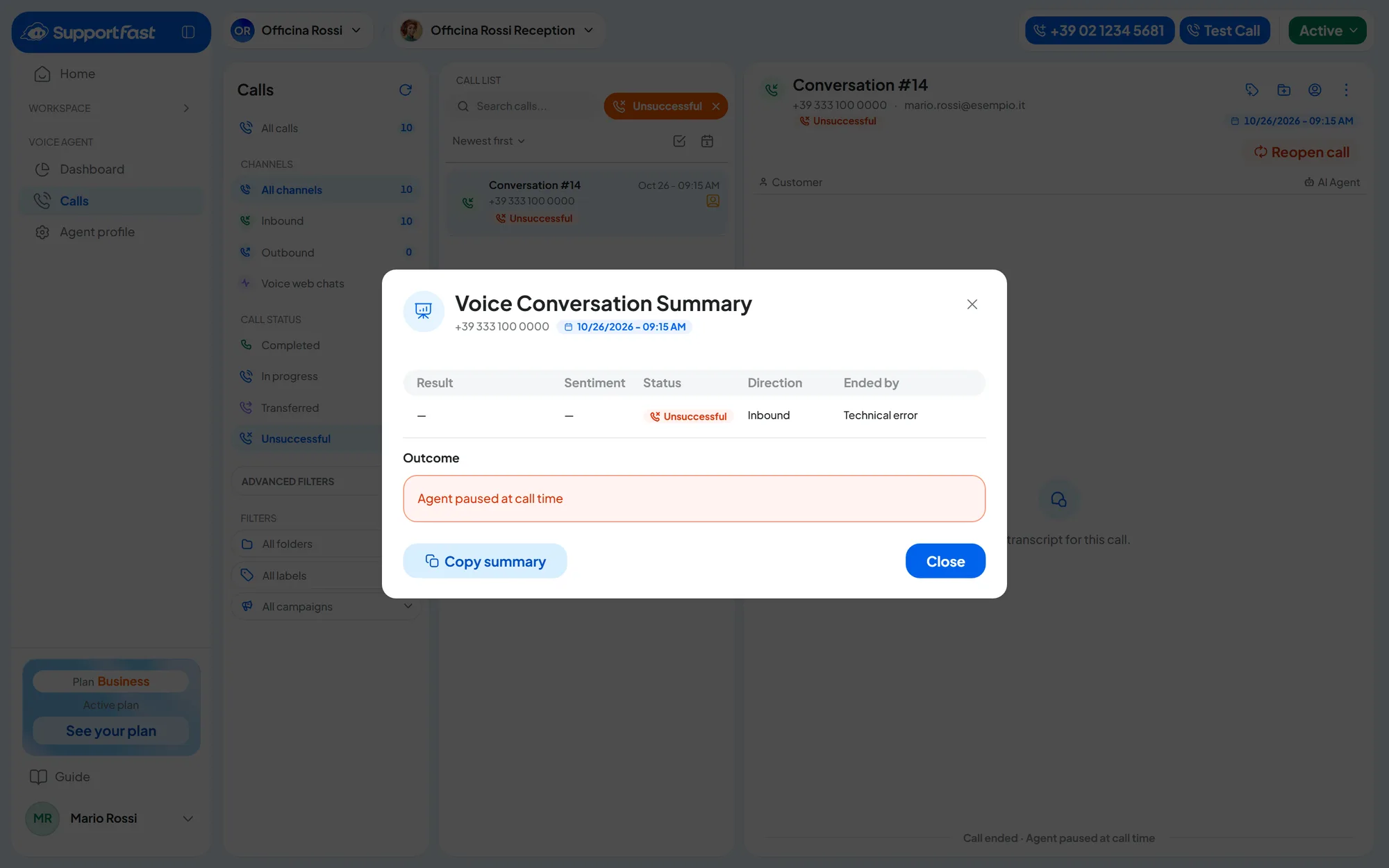
#The call shows as “Unsuccessful”
Why it happens. The reason is in the call's end reason. Each end reason is explained in Calls: list and details.
What to do.
- “No answer” on an outbound call (campaigns, automations, test with Get a call): the person called didn't answer. Increase the Ring time, from 5 to 75 seconds, in Behaviour and Call Parameters, or call back at another time. The field exists only in outbound agents.
- “Invalid number”: fix the number in the contact card, with the international prefix.
- “Blocked by the carrier” or “Line error” that keep coming back with correct numbers: write to us and copy the “Technical detail” line of the summary into your report.
- “Busy”, “Rejected”, “Voicemail”: call back at another time.
How to check. Have the agent call you: see Testing by phone.
#I hear silence and then the call drops
Why it happens. There are two cases.
- The call was rejected before the greeting, for one of the reasons in the previous symptom. The caller hears a short silence, then the call ends.
- Customer is selected in Who speaks first?: the agent waits in silence. If nobody speaks, the call ends after the Max user silence, 10 seconds by default.
What to do. In the first case, follow the checks above. In the second, choose AI Agent in General: identity, voice and greeting, or say something as soon as it answers.
#The agent takes too long to answer
Why it happens. Usually the delay happens before the call reaches the agent:
- with “If I don't answer” call forwarding, your phone rings for the number of seconds you chose;
- the PBX may ring the extensions or play a message before passing the call on;
- with Customer in Who speaks first?, the agent waits for the caller to speak.
What to do. Reduce the forwarding seconds, check the PBX rules, let the agent speak first.
How to check. Test with Web Call: if the agent answers right away from the browser, the delay is in the phone path.
#The agent doesn't say the opening message
Why it happens.
- Customer is set in Who speaks first?: the agent doesn't say any greeting.
- A different greeting plays: the one whose conditions match the call. For example, if you call outside opening hours, the agent says the “after hours” greeting.
- The text uses variables that don't exist, or empty contact fields: they become empty text.
- You edited the greeting but didn't press Save changes.
What to do. In Initial Greeting Message, choose AI Agent, check the order and conditions of the messages and remove the flagged variables. Set the opening hours.
How to check. Call in both situations, for example during and outside opening hours, and listen to which greeting plays.
#The agent interrupts me, or stops as soon as I speak
Why it happens. With User interruptions on, as it is by default, the agent stops when the customer speaks: in a noisy place it can also stop because of noise. If you turn it off, the agent talks over the customer. The opening greeting, on the other hand, can't be interrupted by default.
What to do. Leave User interruptions on for a natural conversation. If the agent stops because of noise, set Interruption sensitivity to Low; turn off User interruptions only as a last resort. Keep the greeting short. These settings are in plans that include “Voice tuning” (see Plans, quotas and usage): see General: behavior and advanced.
How to check. Do two tests, one from a quiet place and one from a noisy place.
#The agent mishears names, products or emails
Why it happens. Speech recognition doesn't know the names of your business, your products or your streets. Emails and codes spelled out letter by letter are easy to get wrong.
What to do. In the General step, open the Advanced panel:
- in Technical Terms and Proper Names, add short names and terms, up to 100: the counters next to the field show how much space is left;
- in Precise Information Handling, list the information to confirm letter by letter, such as an email or a license plate, up to 10.
Also check the Main Language and, if people call you in other languages, Multilingual conversation.
How to check. Read the transcript in Calls. If the customer's words are written wrong, it's the recognition; if they're right but the answer isn't, fix the prompt.
#The agent doesn't transfer the call
Why it happens. Check the following, in In-call actions: transfer:
- the plan includes “Call transfer” (see Plans, quotas and usage);
- Enable transfer is on, with at least one active destination;
- the Availability fits that time of day, and the workspace has opening hours;
- the Activation Condition really describes what customers say;
- you're not testing from the browser, where transfer isn't available;
- the destination isn't one of your agents' numbers (platform number or SIP line), your forwarded number or the phone you're calling from.
Don't use the number you forwarded as the transfer destination. If that number forwards calls to the agent, the transferred call goes back to the agent instead of reaching your teammate. Use your teammate's mobile or extension.
If your teammate doesn't answer within the Answer wait time, 20 seconds by default, the agent takes the call back.
What to do. Fix the item that's wrong. If your teammate answers on a mobile, choose a shorter wait time.
How to check. Make a real phone call: in Calls the status is “Transferred”, and the transfer details say whether your teammate answered.
Your teammate sees the number of the agent's line, not the customer's. To get the customer's number to them, see Sending the customer's number to your teammate.
#The agent doesn't book the appointment
Why it happens.
- The plan doesn't include “Calendar booking” (see Plans, quotas and usage).
- The workspace has no connected calendar, or the event shows “No longer available” or “Reconnect”.
- Enable booking is off, or no event is active.
- The customer didn't spell out a valid email: the agent confirms only after the booking has gone through.
- You changed the event's fields on the calendar, and the console doesn't know yet.
- The event requires a mandatory field that the agent doesn't fill in: the event card flags it with “The provider requires fields that Agents do not fill in: …”.
What to do. Connect or reconnect the calendar from Integrations, choose another event if that one no longer exists, and after a change on Cal.com or Calendly press Sync now on the calendar card. Make a flagged field optional on Cal.com or Calendly. With Google Calendar, event types are edited in SupportFast: see Google Calendar. Add the email in Precise Information Handling. See In-call actions: appointments.
How to check. Book with a test call: in Calls, “Appointment booking” appears, the outcome is “Appointment booked” and the event is in the calendar.
#I don't get the summary email
Why it happens. The email goes out only for successful calls: see Calls: list and details. It also needs recipients, a subject and content. A recipient written as a variable, for example {{user.email}}, stays empty if the contact has no email or the number is hidden.
What to do. In the Post-call step, fill in Email Notifications and press Send test email: the subject starts with [TEST]. Also check your spam folder.
How to check. The test email arrives; after a real call, the email arrives with the summary and outcome of the call.
#The call recording is missing
Why it happens. The “Call audio” panel gives the reason:
- “Recording unavailable: the caller declined consent”: with Recording with consent, the customer refused consent during the call, and SupportFast doesn't keep the call audio, not even the part recorded before the refusal. The transcript and summary remain. This is the expected behavior.
- “Recording not available”: the audio isn't ready yet.
- “Recording failed due to a technical error”: write to us with the day and time of the call.
If the “Call audio” panel isn't there, recording is off or the call is still in progress. Recording starts when someone answers: a call that nobody answered has no audio.
What to do. Check Call recording in Recording and consent. If the audio isn't ready yet, open the call again in a few minutes.
How to check. In the call, press Play the recording.
#Still not working?
Write to us following How to report a problem, with the agent, the number called, and the day and time of the call.