

Open Agent profileEdit Profile: you are in the General step. This page explains the “Behaviour and Call Parameters” and “Advanced” panels. You save your changes with Save changes in the bar at the bottom.
#Behaviour and Call Parameters
- Max call duration Slider · 2 to 30 minutes
“Call ended after the time limit”. When the time runs out, the call ends with the reason “Maximum duration reached”.
- Max user silence Slider · 3 to 60 seconds
“Maximum inactivity during the call”. If the customer doesn't speak for this long, the call ends with the reason “Long silence”. Raise it if your customers need time, for example to look for a document.
- Ring time Slider · 5 to 75 seconds · outbound only
“Hangs up if the user doesn't answer within the limit.” If nobody answers, the call ends with the reason “No answer” and is marked “Unsuccessful”.
- User interruptions Yes / No
“The user can interrupt the Agent.” On, when the customer speaks, the agent stops and listens. It applies from the second message onward: for the greeting there is the “Prevent interruption of the opening greeting” switch.
- Interruption sensitivity Slider · Low / Medium / High
“With high sensitivity the agent reacts more easily to interruptions, but also to noise.” If the agent stops because of background noise, lower it before you turn off interruptions. You can adjust it only with User interruptions on.
- Automatic call closing Yes / No
“Lets the agent end the call when it deems appropriate.” The agent hangs up, for example after saying goodbye to the customer. The end reason is “Ended by the agent”. Off, the call ends when the customer hangs up or when a time limit is reached.
- Voicemail detection Yes / No · outbound only
It recognizes when voicemail answers: the call ends with the reason “Voicemail” and is marked “Unsuccessful”. The agent hangs up without leaving a separate message. The same happens if whoever answers says nothing from the moment they pick up until 5 seconds after the end of the greeting.
So even a real person who stays silent through the whole greeting, and for 5 seconds after it, is taken for voicemail and the call ends. Any single word, even “hello”, is enough for the call to continue.
- Send DTMF tones (Keypad) Yes / No
The agent can press the phone keys, from 0 to 9, star and pound, also in sequence. This is useful when an outbound agent reaches an automated menu such as “press 1 for accounts”: write in the prompt which key to press. The call shows the “Keys pressed” label.
What the plan features include. “Voice tuning” includes choosing the voice, Max user silence, User interruptions and Interruption sensitivity: without it, the default values apply. “Realistic voice” includes DTMF tones, the ambient sound and the option to make the greeting interruptible. See Plans, quotas and usage.
Change one value at a time. After each change, make a test and listen to the call: that way you know which setting made the difference.
#Advanced
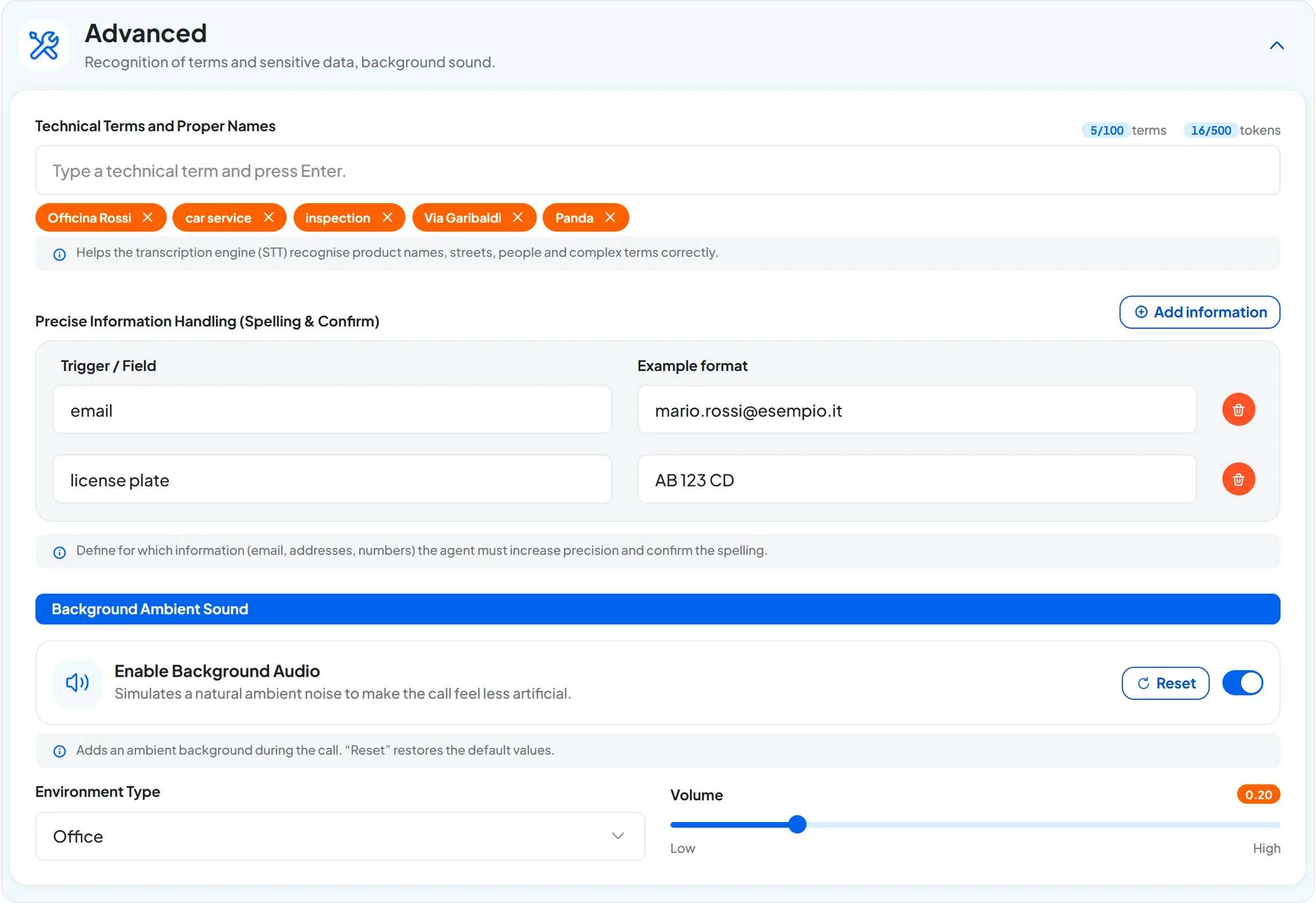
The panel is closed: open it with the Open advanced settings arrow.
#Technical Terms and Proper Names
Helps the agent understand names of products, streets, people and difficult terms. Type a term in the field and press Enter: it becomes a tag, which you remove with its X. You can add up to 100 terms, within a total of 500 tokens: a token is about 4 characters. The counters above the field, on the right, show how many terms and how many tokens you have used.
Whole sentences, such as “the customer might ask about servicing their Panda”.
Short words or names the agent gets wrong: your business name, your products, street names, your teammates' last names. For example “Officina Rossi”, “Panda”, “Via Garibaldi”.
#Precise Information Handling
Here you list the information, such as email addresses, street addresses or numbers, that the agent must handle with extra care, asking the customer to confirm the spelling letter by letter. Each row has two fields: in Trigger / Field, the name of the information, for example license_plate; in Example format, what it looks like. Add a row with Add information, up to 10.
| Trigger / Field | Example format |
|---|---|
email | mario.rossi@esempio.it |
license_plate | AB 123 CD |
last_name | R-O-S-S-I |
phone | +39 02 1234 5678 |
It works better if the prompt also tells the agent to repeat the details and ask for confirmation: see Prompt & Instructions.
#Background Ambient Sound
The Enable Background Audio switch adds ambient noise to the call, to make it sound less artificial. When it is on, two settings appear:
- Environment Type: Office, Outdoor, Nature or Crowded place;
- Volume: from Low to High.
Reset restores the starting values. Keep the volume low: the background must not cover the voice. Listen to it in a test before you leave it on.
#Frequently asked questions
The agent ends the call while the customer is thinking.
If the end reason is “Long silence”, raise Max user silence. If instead it is “Ended by the agent”, reread what the prompt says about when to say goodbye and end the call.
The agent stops at every noise, or talks over the customer.
Check User interruptions: on, the agent stops when it hears someone speak; off, it always finishes its sentence. If it stops because of background noise, first set Interruption sensitivity to Low; turn off interruptions only as a last resort. Listen to a few recordings to understand whether the problem is the noise.