

Open it from Chat agentDashboard, or with Manage on the agent's card in the workspace Overview.
#The getting-started guide
Until you complete it, the top of the page shows “Let's put "Officina Rossi" to work”, with a progress bar. The three steps are “Train the knowledge”, with Train; “Customize the interface”, with Customize, which opens the Interface tab; “Test it”, with Open the Playground. They are the same as in the window that opens when you create the agent. The full order, including instructions and channels, is in The recommended path.
Each step becomes “Done” with a green check mark when you complete it, or “Skipped” if you press Skip. At the bottom, Don't show this guide again removes it from the Dashboard. How to run the test: Testing with the Test Chat.
#Choosing the period
In the top right, the period button shows the name and the dates; it appears once the agent has its first data. Choose a quick period (default: last 30 days) or a Custom range..., with the From and To dates.
#The five cards
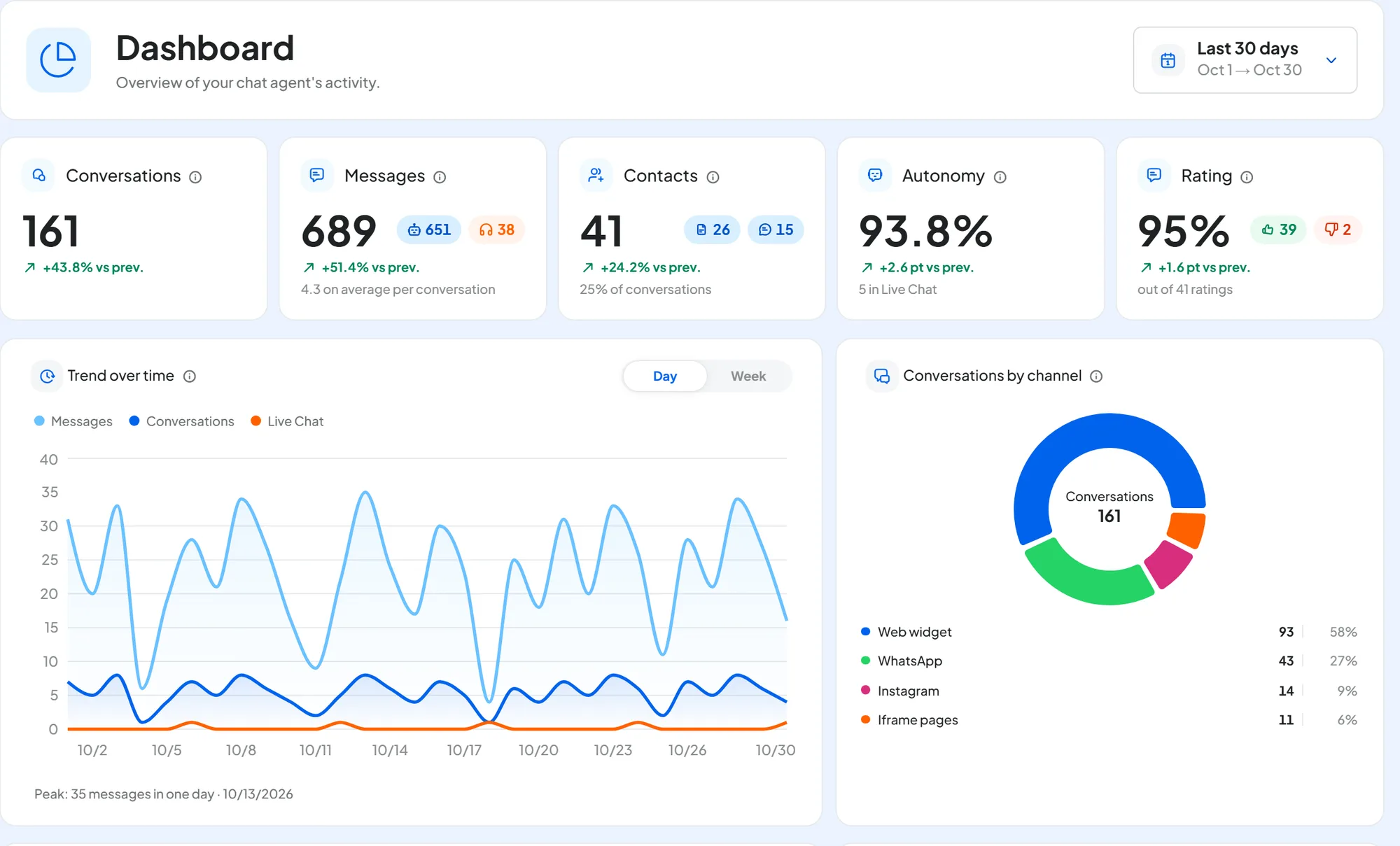
Each card shows the number for the period and the comparison with the previous period of the same length (“vs prev.”). The card's “i” explains how it is calculated.
- Conversations
“Conversations with at least one message in the period, across all channels.”
How to read it. If it is low, check that the agent is active and that the widget is on every page of your website. A welcome message and a few suggested questions, in Interface, invite people to write.
- Messages
“Replies sent in the period by the AI Agent and by operators.” Customer messages don't count. Below the number you find the replies split between “AI” and “Operator”, and the average per conversation.
How to read it. A high average can mean that customers ask several times before getting the right answer. Read a few long conversations in Conversations and fill in the knowledge.
- Contacts
“Contacts collected in the period's conversations, from the form or directly in chat.” “Form” counts the conversations in which the customer filled in the contact form. “Chat” counts those in which the AI got the details from the conversation: see automatic profiling. Below, the percentage of conversations.
How to read it. If you need contact details and the percentage is low, turn on the contact form (Agent profileContacts) or have the agent ask for the details in its instructions.
- Autonomy
“Share of replies given by the AI Agent without an operator stepping in.” Below, how many conversations went to live chat (the Operator Chat tab), meaning a teammate took them over.
How to read it. If it drops, look at what operators reply when they step in and add those answers to Training, for example as FAQs. Always read it together with Rating: high autonomy with many negative votes is not a good sign.
- Rating
“Website conversations without a dislike on the AI Agent's replies.” It applies to the widget, the link and the iframe, where the customer can rate each reply with Helpful answer and Not helpful. The “dislike” is the Not helpful vote.
The percentage is calculated on all website conversations, including those without votes, which count as positive. For example: 100 website conversations, 3 with at least one Not helpful, give 97%, even if nobody rated the other 97. Below the number you find the actual votes: “Positive”, “Negative” and “out of N ratings”.
How to read it. First look at how many ratings there are: with few votes the percentage says little. Open the conversations with negative votes and fix the answers with Correct answer.
#The panels below the cards
- Trend over time
“Messages, active conversations and operator takeovers over time.” Three lines:
- “Messages”: the replies from the AI and from operators, like the Messages card. Customer messages don't count: you find them in the Heatmap and in “Inside / outside hours”;
- “Conversations”: the conversations with at least one message in that hour, day, week or month;
- “Live Chat”: takeovers by an operator.
With Granularity you choose between Hour, Day, Week and Month, depending on the length of the period. The “Peak” line shows the moment with the most replies.
- Conversations by channel
The period's conversations split by the channel they came from: “Web widget” (the widget on your website), “Iframe pages” (the link and the iframe), “WhatsApp”, “Facebook” (meaning Messenger) and “Instagram”.
- Heatmap day × hour
A heatmap: a grid with customer messages by day of the week and hour of the day, in the workspace time zone. The darker the cell, the more messages arrived. It helps you plan operator shifts and live chat hours.
- Inside / outside hours
Customer messages that arrived inside or outside the workspace opening hours, channel by channel, with the “Total outside hours”.
- Live Chat
“Taken over” are the conversations taken over by an operator. “Operator requests” tells you how many requests came in, how many were “handled” and how many are “waiting”. Then “Refused requests” and “Average takeover time”, the average time from the request to the operator's reply.
How to read it. Many waiting requests or long times: review the availability hours in Agent profile: Operator Chat and turn on email notifications.
#When the Dashboard is empty
Until the agent has conversations, the Dashboard shows no numbers. If the getting-started guide is open, you see only that. Once you have completed or removed it, “Waiting for the first conversations” appears in place of the numbers. Below it reads: “Statistics will appear here as soon as the agent receives its first conversation from a connected channel.”
Your tests from the chat link count; those from the Test Chat don't.
#Frequently asked questions
All messages show as outside hours.
The workspace has no opening hours: without them, every message counts as outside hours. Set them in the workspace settings: they apply to messages that arrive from then on.
Why doesn't “Messages” match my plan usage?
“Messages” also counts operator replies, covers a single agent and doesn't include Test Chat tests. Plan usage counts the AI replies of the whole account, including those from tests. The rules are in Plans, quotas and usage.