

With a SIP line, your VoIP phone carrier, or your PBX, sends the agent the calls that come in on your number. You don't register an extension on the PBX: you connect your phone carrier's line to SupportFast.
For outbound calls the path is reversed: SupportFast hands the call to your phone carrier, which delivers it with the line's number.
| Inbound | Outbound (optional) | |
|---|---|---|
| Who sends the call to whom | Your phone carrier to SupportFast | SupportFast to your phone carrier |
| Address | Origination URI: the console gives it to you, you copy it | Termination URL: your carrier gives it to you, you type it in |
| Protection | Allowed IP addresses, or Username and Password | Always Username and Password |
Username and password are a single pair per line: if you use them for inbound calls, they also apply to outbound calls.
Before you start
- A plan with the “SIP trunk” feature, which is the console's name for SIP lines, plus “Outbound calls” for the agent to make calls.
- A VoIP phone carrier or a PBX that can forward calls to an external SIP address, and someone to set it up.
#What to ask your provider or technician
- The number to connect, in international format: for example
+39 02 1234 5678. - How the line is protected: the IP addresses your phone carrier sends calls from, or a username and password.
- Only if the agent has to make calls: the phone carrier's address for outbound calls, that is, the Termination URL, with its username and password.
- Who will forward that number's calls to the address the console gives you.
#Creating the line
-
Open the window
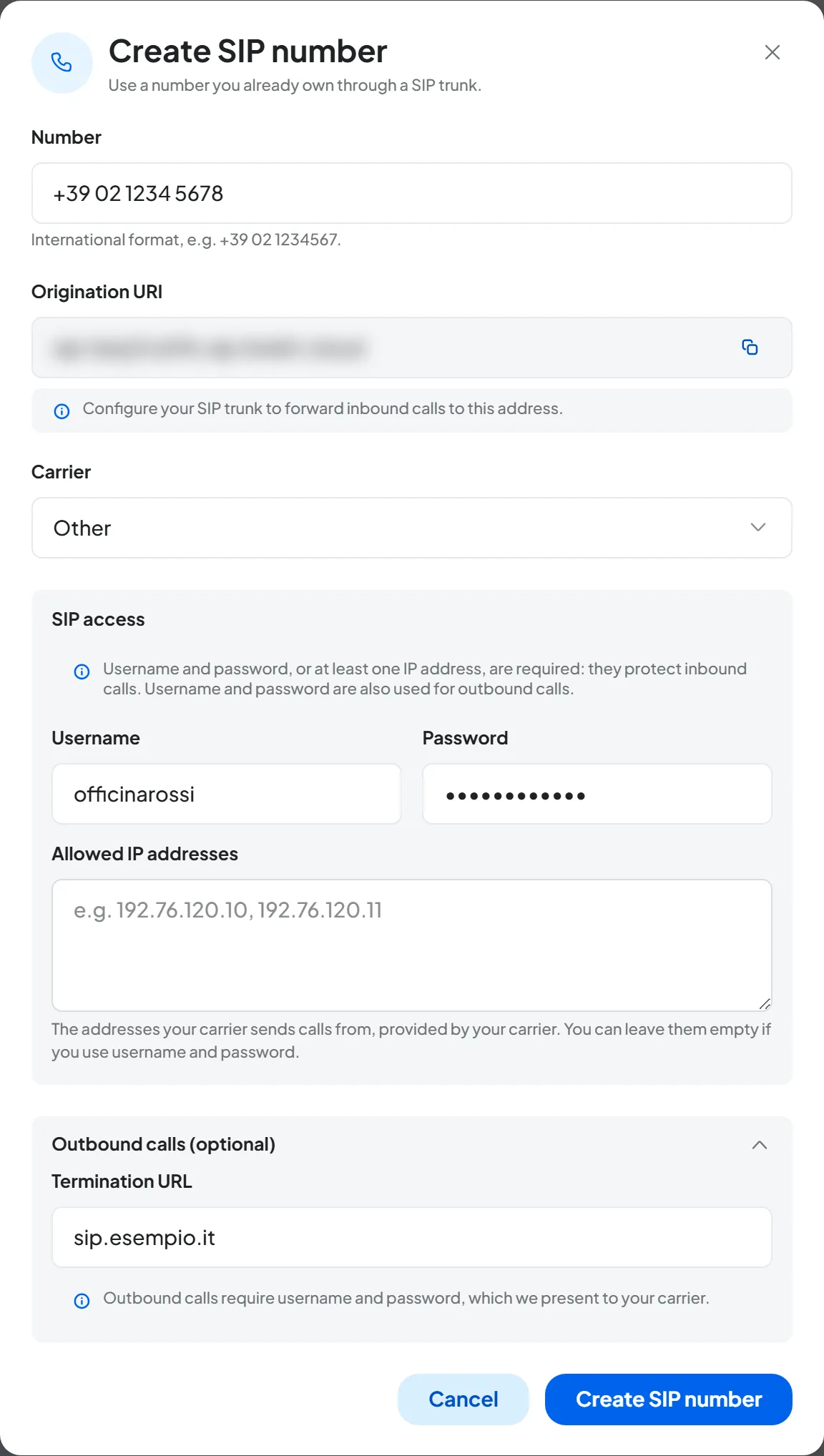
In AccountTelephony press Add number, choose Create SIP number and press Continue.
-
Enter the number
In Number type the number with the country code. It must be the number your phone carrier receives the calls on: the line only accepts calls to that number. You can't have it twice in the account: “You already have a number with this value.”
-
Copy the address
Press Copy the address next to Origination URI, the SupportFast address your phone carrier sends calls to, and pass it to your technician.
-
Protect the line
In SIP access enter the Allowed IP addresses, or a Username and Password. You need at least one of the two, otherwise you see “Enter username and password or at least one allowed IP address.” With IP addresses, username and password are only needed for outbound calls.
-
If needed, enable outbound calls
In Outbound calls (optional) enter your phone carrier's Termination URL. In this case username and password are required. People who receive the agent's calls see the line's number. Without a Termination URL the line only receives calls.
-
Create the line
Press Create SIP number. You see “SIP line created: configuration starts now” and within seconds the row goes from “Configuring” to “Active”.
-
Set up the phone carrier
From your phone carrier's or your PBX's control panel, have the calls coming in on that number forwarded to the Origination URI. If you chose username and password, the line must authenticate with them; if you chose IP addresses, the calls must come from those addresses.
#Linking the line to the agent
You link the line to the agent like any other number: see Assigning and managing numbers. A line without a Termination URL only appears for inbound agents; with a Termination URL, it also appears for outbound agents.
#How to test it
-
Check the SupportFast side
In the row's menu choose Check configuration. The rows Receiving calls, Routing to the assistant and Outbound calls should say “OK”, or “Not expected” for outbound calls without a Termination URL. Routing to the assistant checks that incoming calls are passed to the voice agent: on the Telephony page the console calls agents “assistants”. If everything is ready, at the top you read “All good: the line is configured correctly.” If a row says “Missing” or “Error”, press Realign.
-
Call your number
Call the number from your mobile, as explained in Testing the agent.
-
Check the call
On the agent's Calls page you find the call, with its transcript and audio.
-
Test outbound calls
On an outbound agent press Test Call, then Phone Call: choose the country code, type your number and press Get a call. Your phone should show the line's number.
The check only looks at SupportFast. If the check is fine but calls don't arrive, what you need to check is the configuration at the phone carrier or on the PBX.
#Deleting the line
In the row's menu choose Delete number and confirm. The line is deleted right away: agents are disconnected and the call history stays. Remember to remove the forwarding at the phone carrier too.
#Common problems
If the line doesn't receive calls or you can't hear anything, read Numbers, forwarding and SIP.
If the agent can't make calls, check the Termination URL, username and password, that the agent is an outbound agent and that your plan includes “Outbound calls”. If the end reason is “Line error”, or if the phone carrier blocks the call, have the carrier check the line.
#Frequently asked questions
I changed phone carriers: do I have to create the line again?
No. Press Edit SIP line, update the access details and the Termination URL, and press Save changes: “SIP line updated” appears. Then have the new phone carrier forward calls to the Origination URI.
I need to change the line's number.
Change it with Edit SIP line, then update the configuration with your phone carrier or on the PBX too.