

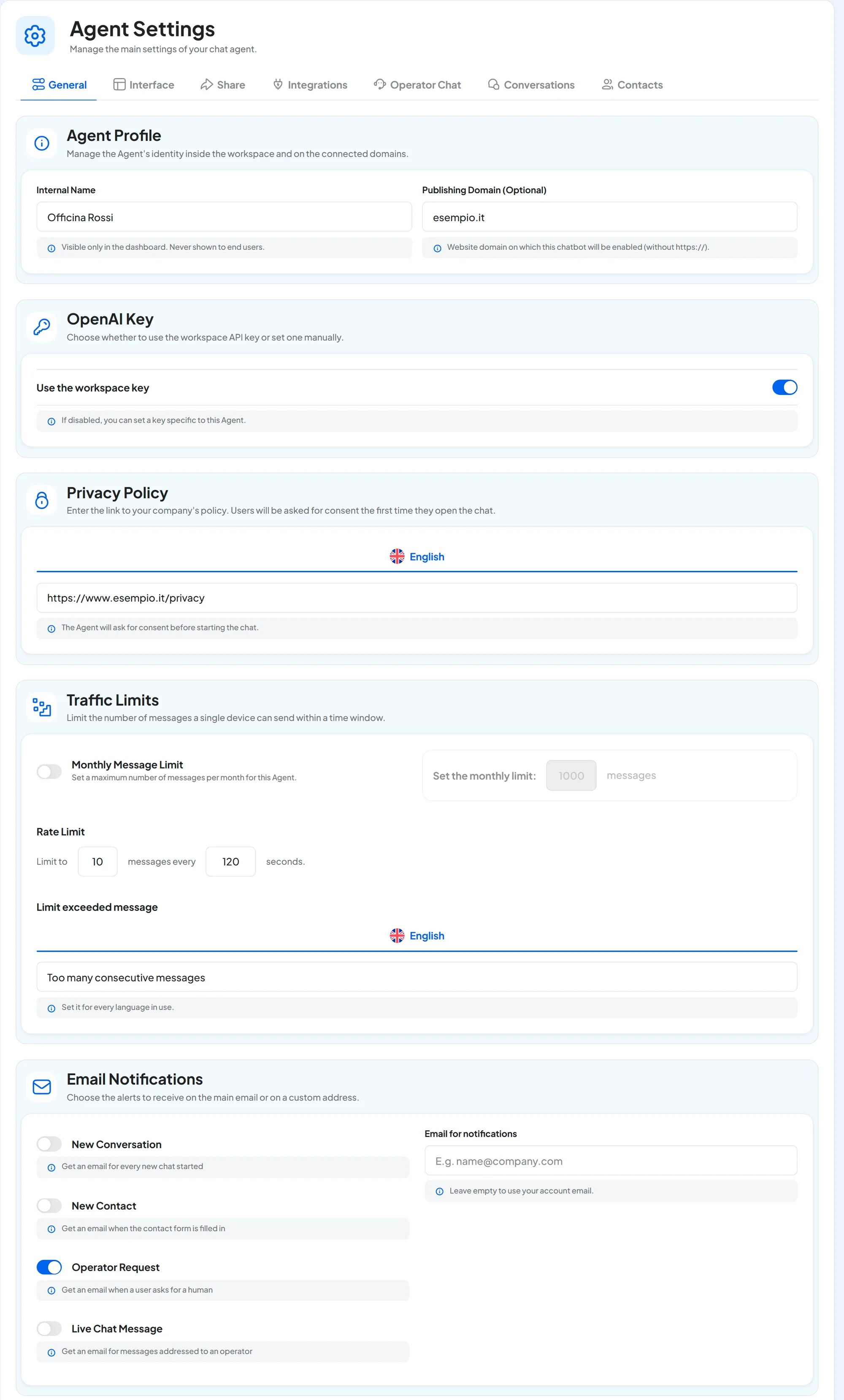
Open Chat agentAgent profile: the General tab opens, the first of seven.
| Tab | What you set |
|---|---|
| General | Internal name, domain, OpenAI key, privacy, limits, notifications, deletion. |
| Interface | Texts, colors, icon, attachments and chat hours. |
| Share | Link, iframe and widget code. |
| Integrations | Which workspace channels the agent answers on. |
| Operator Chat | The live chat: when and how a team member steps in. |
| Conversations | Quick replies, folders, labels, export. |
| Contacts | The contact form, which collects customers' details in the chat. |
#Texts in several languages
Some fields have a version for each workspace language, such as the Privacy Policy. Above the field you find one tab per language, with its flag. A red dot means “Some fields in this language need fixing.”
You choose the languages in the Workspace settings, Languages and Localization panel. If you remove a language, its texts stay saved.
#Agent Profile
The first panel sets what the agent is called in the console and where the widget can appear.
- Internal Name Text · required
The name you use to find the agent in the console: in the top bar, in the Overview and in search. Customers don't see it: the name they read in the chat is the Chat name, in the Interface tab.
- Publishing Domain (Optional) Text · one domain only
Your website's domain, all lowercase, for example
esempio.it. If you fill it in, the widget appears only on that website; if the agent must appear on several websites, leave it empty. If you are trying the widget on a test site, leave the field empty until you go live. Rules and examples: The publishing domain.
#OpenAI Key
The OpenAI key is optional: without one, the agent uses the AI included in SupportFast. Only users with the “Billing” permission see this panel, because the key is a cost. You need your own key for, among other things:
- voice messages in the widget: the Enable voice messages switch, in Interface, doesn't turn on without a key;
- an AI model other than the default one, in the Playground;
- having the agent re-read more than 5 messages of the conversation.
Use the workspace key is on from the start: the agent uses the workspace key or, if there is none, the account key. Turn it off to enter a key for this agent only in Enter API key. How costs change and how to create the key: OpenAI key.
#Privacy Policy
If you enter the link to your company's privacy policy, the chat asks the customer for consent before starting.
- Privacy Policy Link · one per language · optional
The address of your privacy policy, for example
https://www.esempio.it/privacy. It must start withhttp://orhttps://.
With the link filled in, the website chat opens with the “Privacy Policy” screen: a short text, your link and the I agree button. Until the customer presses it, they can't write.
The customer gives consent once: for a month, on the same browser, the chat doesn't ask again. On WhatsApp, Instagram and Messenger this screen doesn't exist.
#Traffic Limits
Two limits that protect the agent from excessive use.
- Monthly Message Limit Yes / No · whole number
A cap on the replies the agent can give in a calendar month. When you turn it on, Set the monthly limit appears, with 1000 messages suggested. The count restarts on the first day of the month. Only users with the “Billing” permission can see and change it.
Once the cap is reached, the agent stops replying on all channels. In the website chat the customer reads “You've reached the monthly message limit.” On WhatsApp, Instagram and Messenger they get no notice. Their messages still arrive in Conversations, where a teammate can reply with the live chat (the Operator Chat tab).
- Rate Limit Two whole numbers · minimum 1
A brake on anyone who sends too many messages in a row, including automated senders. In the sentence Limit to … messages every … seconds, choose how many messages the same person can send in that interval. It applies on all channels. Beyond the limit the agent doesn't reply and, in the website chat, the customer reads the limit exceeded message.
- Limit exceeded message Text · one per language · required
The text shown to anyone who exceeds the rate limit. It appears only in the website chat.
The agent's limit is not the plan quota. You set the Monthly Message Limit yourself, for a single agent. The plan's message quota applies to the whole account: when it runs out, the website chat shows the same notice and on the other channels the agent stops replying in the same way. Quotas are explained in Plans, quotas and usage.
#Email Notifications
Four switches, all off at the start. Each one sends you an email when something happens in the chat.
| Switch | When the email arrives |
|---|---|
| New Conversation | For every new chat. |
| New Contact | When a customer fills in the contact form. The email includes the details. |
| Operator Request | When a customer asks to talk to a person. |
| Live Chat Message | When a message addressed to an operator arrives. |
- Email for notifications Email · one address · optional
The address that receives the emails. If you leave it empty, the emails go to the account owner's address.
The emails are sent in the workspace's first language, that is, the first one in the Supported languages list in the Workspace settings, and they link to the conversation.
Several people to notify? The field accepts only one address: use a shared mailbox, for example support@esempio.it.
#Delete Chat Agent
The red zone at the bottom of the tab. Only users with the “Create and delete agents” permission see it.
-
Open the window
Press Delete Agent. “Delete Chat Agent” opens, with the agent's name.
-
Read the consequences
The window lists what happens: the agent stops replying on all channels; its trainings, conversations and templates (the quick replies) disappear from the console; the integrations and automations that used it are left without an agent.
-
Confirm
Type
Delete Permanentlyin the field and press Confirm and Delete.
Result
“Agent deleted” appears and you go back to the Overview. The agent's slot in the plan becomes free again.
Deletion can't be undone. Contacts stay in the contact book, because they belong to the workspace. If you need the conversations, export them first. How long data is kept and how to request its erasure: Keeping and deleting data. If you only want to stop the agent, set it to Paused: see Active and Paused.
#How to save
Press Save changes in the bar at the bottom: “Settings saved” appears. Each tab of the Agent profile is saved on its own: save before you switch tabs.
#Frequently asked questions
I don't receive the notification emails.
Check that the switch is on and that the address is correct: with the Email for notifications field empty, the emails go to the account owner. Then look in your spam folder. Test Chat conversations don't send emails: to test notifications, use the chat link. On a reseller's portal, emails are sent only if the reseller has verified the portal's sender: see Custom email.