

#What it's for
It's the sender of every email the portal sends on its own: to your clients, to your team and to you as well. Each email carries the brand name, your logo and a link to your portal. Emails about your plan, payments and phone numbers, on the other hand, keep coming to you from SupportFast.
#Emails sent under your brand
- The password recovery code, for all users on your account, including you.
- The chat agents' Email Notifications: new conversation, new contact, operator request, message in the live chat (the Operator Chat tab).
- The voice agents' end-of-call Email Notifications, with the summary, for successful calls.
- Emails from the automations' Send Email action.
- Connection requests your clients send you from the portal: they come to you.
Before you start
- An active White Label plan.
- An address whose inbox you read: the confirmation link and your clients' replies arrive there.
#Set up and verify the address
-
Open the panel
On the SupportFast console, go to AccountWhite label, Custom email panel.
-
Enter the address and save
In Sender email address, enter the address, for example
support@esempio.it, and press Save email. You see “Address saved. We sent you a confirmation email”. -
Click the confirmation link
In that address's inbox, open the confirmation email and click the link. Check spam too. The link is valid for 24 hours.
-
Verify
Go back to AccountWhite label and press Verify email. You see “Address verified”. If you don't press it, we check every few minutes, and when you reload the page you see the updated status.
Result
The status becomes “Active” and you read “Email connected: the address is ready to send.” From now on, the portal's emails are sent from this address.
If the link has expired, press Send again: you get a new email.
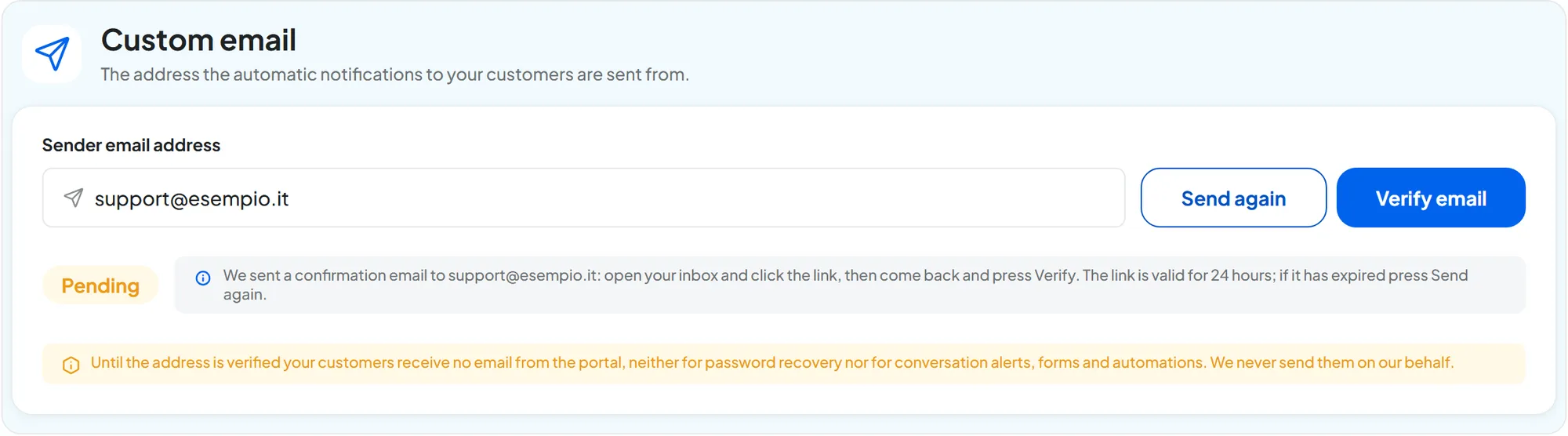
#Until the address is verified
Until the status is “Active”, the portal sends none of the emails listed above, not even under SupportFast's name. Anyone who uses Forgot your password? doesn't get the code, including you. Agent notifications and connection requests don't arrive, and the automations' Send Email action shows “Email send failed.”
This applies from the moment the White Label plan is active. Even on trial, and even if you got there with an upgrade from a Standard plan: the notifications you used to receive stop immediately, until you verify the address. That's why it's best to set it up first.
If you've lost your password and the sender isn't verified yet, write to info@supportfast.ai from your account's address.
#How the emails are sent
The emails go out from our sending servers, with your address as the sender. The confirmation link proves the inbox is yours: without it, our servers can't use that address. There's no separate reply-to address: anyone who replies writes to your address.
Your domain doesn't sign these emails. For SPF, DKIM and DMARC anti-spam checks, they appear to be sent from servers that don't belong to your domain. If your address's domain has a strict DMARC policy, that is p=quarantine or p=reject, some mailboxes may put the emails in spam or reject them.
Test before you hand over the portal. Request the Forgot your password? code to inboxes at different providers, for example Gmail and Outlook. If the emails end up in spam or don't arrive, ask whoever manages your domain to check the DMARC policy, or use an address on a domain without a strict policy. If the problem persists, let us know.
#Changing the address
Enter the new address and press Save email. If the current address was verified, the “Change sender email” window opens.
Before you confirm, make sure you can read the new address's inbox. Then press Confirm and change email and confirm the new address with the link.
#How to check
- On the portal, in a private window, request the code with Forgot your password? for a test user. The code arrives from your address, with your logo.
- In a test agent, turn on a notification in Email Notifications and open a chat from the website: the notification arrives from your address.
#Common problems
| Message or symptom | Why it happens | What to do |
|---|---|---|
| “Email address not available because it is already in use.” | The address is already the sender of another portal: each address can be the sender for only one portal. | Use another address. |
| “The address is not confirmed yet: open your inbox and click the link, then try again” | The link wasn't clicked, or you clicked the one in an earlier email. | Click the link in the most recent email, or press Send again. |
| The confirmation email doesn't arrive | It ended up in spam or in a mailbox filter. | Check spam and filters, then press Send again. |
| The portal's emails end up in clients' spam, or don't arrive | It depends on the recipients' mail filters and on the DMARC policy of your address's domain. | Ask clients to add your address to their contacts and check How the emails are sent. If it continues, let us know. |
#Frequently asked questions
What language are the emails sent in?
The password code is sent in the user's language. Conversation notifications and connection requests are sent in the workspace's language.