

To add one of these nodes, in the automation's Playground press the + between two blocks of the flow and choose the type. Then press its card: the panel with the fields described below opens on the right. Each node has a name, with precise rules; naming, deleting and the maximum number of nodes are explained in Adding a node.
These nodes send nothing to blocked contacts: see Blocking contacts.
| Node | What it does | What you need |
|---|---|---|
| WhatsApp Template | Sends an approved WhatsApp template to a number. | The workspace WhatsApp integration and an approved template. |
| Send Email | Sends an email to one or more addresses. | — |
| Make Call | Calls a number with a voice agent and waits for the call to end. | An active outbound voice agent with a number; the “Outbound calls” feature. |
| Contact Management | Updates or creates a contact, adds it to a list or deletes it. | — |
| Conversation Management | Labels, moves, closes or deletes the event's conversation. | A Conversations or Telephony trigger. |
#WhatsApp Template
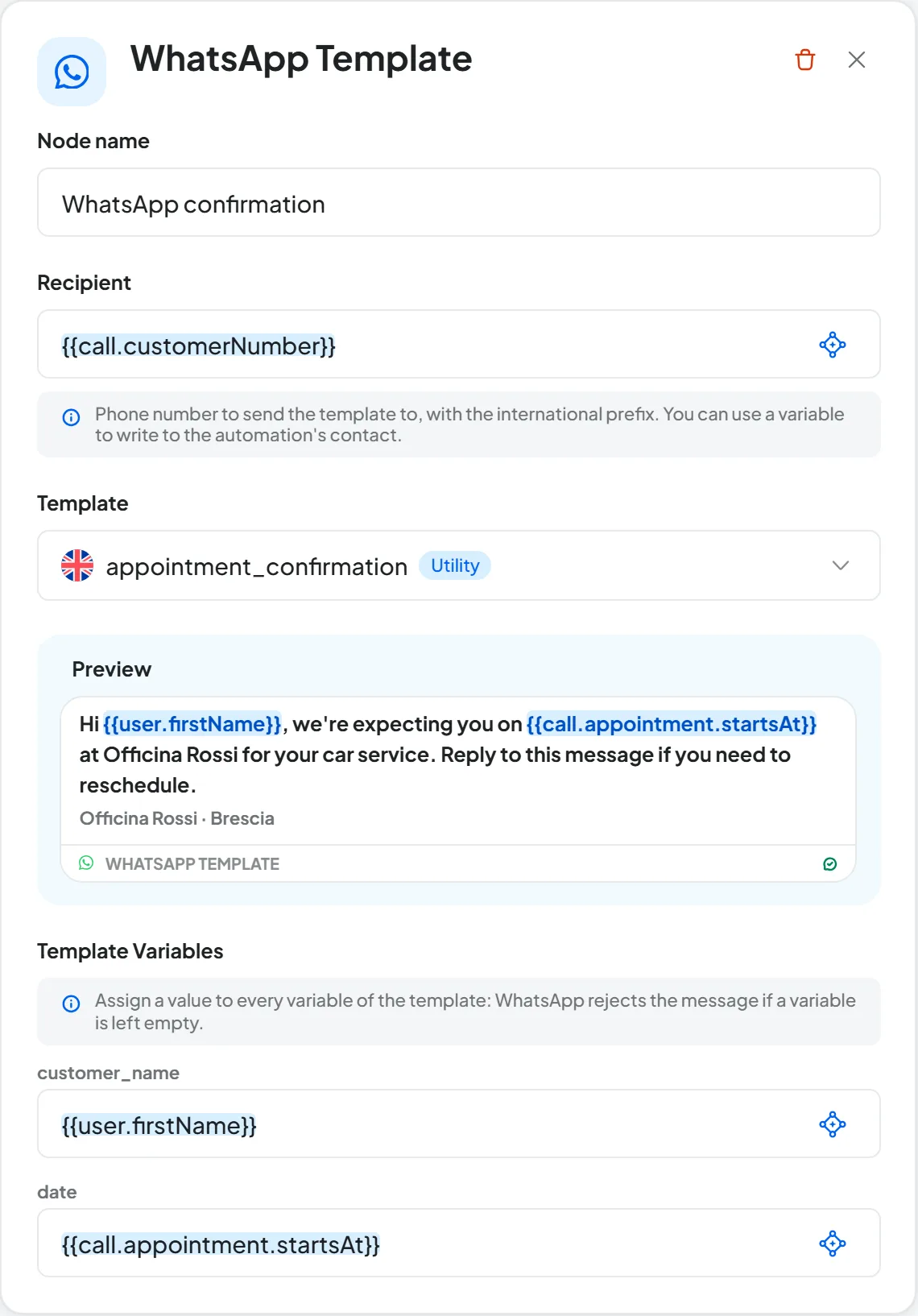
Sends a WhatsApp template to a number. Templates are messages approved by Meta: you can send them even when the customer hasn't written to you for more than 24 hours. The rules are in Meta rules: 24 hours, costs, limits.
If the workspace doesn't have an active WhatsApp integration or an approved template, a notice with a link to Integrations appears instead of the fields.
- Recipient Text with variables
The number to send the template to, with the country code, or a variable such as
{{user.phone}}.- Template Menu
Only approved templates, each with its language flag, name and category. If the template disappears or loses its approval, the console flags it on the node.
- Preview
The bubble with the template as the recipient will see it.
- Template Variables One field per variable
A value for each variable in the template, for example customer_name =
{{user.firstName}}. Fill them all in: an empty variable blocks the send, as explained in WhatsApp templates.- Button parameters Only if the template asks for them
The value that completes a button: the final part of the address for a dynamic link, or the code to copy.
When it sends. If the number variable arrives empty, the run stops with an error.
#Send Email
Sends an email: to the customer, to a teammate, to a team mailbox.
- Recipients (To:) List · up to 20
Type an address and press Enter. Each entry is a valid address or a whole variable, such as
{{user.email}}.- In copy (CC) List · up to 20
Works like the recipients.
- Email subject Text with variables
For example “Call from {{call.customerNumber}}”.
- Message body Formatted text
A text editor with headings, bold, italic and links. The Variable button inserts a variable where the cursor is.
When it sends.
- Variables are replaced. Addresses that aren't valid after the replacement are discarded. In the run detail you see the email as the recipient received it and, under Discarded recipients, the addresses that were removed.
- If no valid recipient is left in To:, the email isn't sent.
- Emails are sent in SupportFast's name.
#Make Call
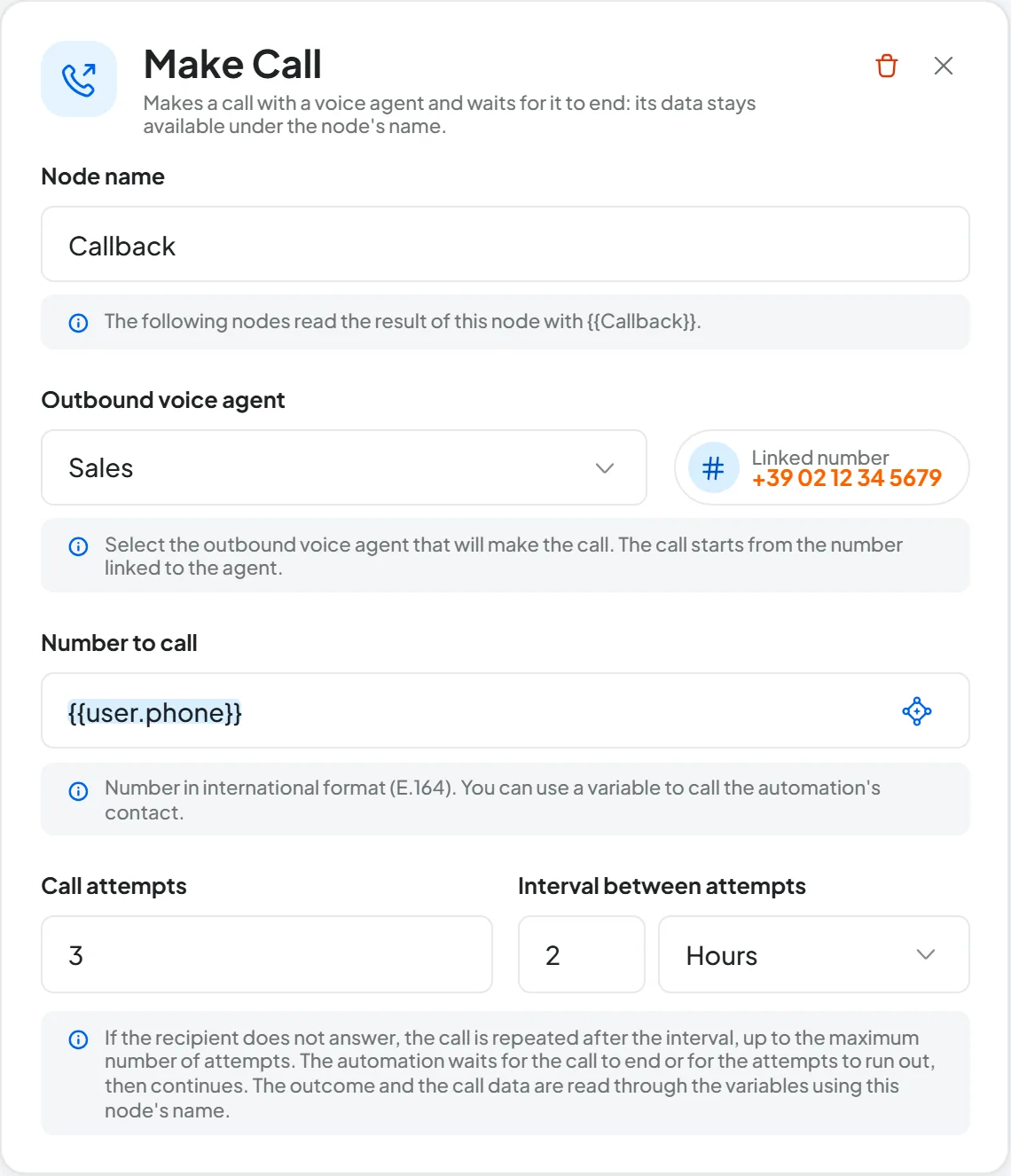
Starts a call with an outbound voice agent and waits for it to end. The call data stays available to the following nodes. How to prepare the agent and its number is explained in Outbound calls and Assigning and managing numbers.
- Node name Text · up to 50 characters
For example “Callback”.
- Outbound voice agent Menu
Only active outbound voice agents. Next to it, the Linked number pill appears: the call starts from the agent's number, which you can't change here. If the workspace has no suitable agent, or the agent has no number, the panel says so.
- Number to call Text with variables
A number with the country code or a variable, such as
{{user.phone}}.- Call attempts Number · from 1 to 10
How many times to call if the call doesn't get through.
- Interval between attempts Amount and unit · minimum 1
It appears with more than one attempt. Choose how long to wait between one call and the next, in Minutes, Hours or Days.
How it went. What makes a call successful is explained on the calls page. The node behaves like this:
- The call gets through. The automation waits until the call ends and has been analyzed, at most 60 minutes from the start of the call. Then it resumes with the call data. While it waits, the run shows as Retrying in the Run log, and the time shown is the 60-minute limit.
- The agent transfers the call to a teammate. The automation still waits the full 60 minutes, then carries on. The transferred call counts as successful:
{{Callback.reached}}is true and the node doesn't call again. Outcome and summary are there if the call analysis has already finished. - After 60 minutes the call is still in progress. The automation carries on with the data it has at that moment:
{{Callback.reached}}stays empty, so a Condition with Is true goes to “Otherwise”. - The call doesn't get through. The node calls again after the interval, up to the attempts you set. Once the attempts run out, the automation carries on: it's not an error.
- Invalid number or call blocked by the phone carrier. The node doesn't call again, because the result wouldn't change. The automation carries on right away, with the call marked as not successful.
- Lines busy or minutes used up. If all the concurrent calls in your plan are in use, the node tries again every minute, up to 10 times. If the month's minutes are used up, it tries 3 times, every 5 minutes. If the problem persists, the run closes as Stopped, with the reason, for example “All lines busy: the call was not placed.”.
Each attempt is a call by the agent: you'll find it in the Calls list and it uses your plan's minutes. These are outbound calls, so the duration counts one and a half times, then is rounded up to the next minute: a call of exactly 2 minutes uses 3 minutes, one of 61 seconds uses 2. The rules are in How usage is counted.
To call during office hours, put a Wait node first with the “Only during opening hours” box checked: the following attempts only follow the interval set here.
What it produces. The call data is read with the node name in front, such as {{Callback.summary}}: see Node results. To know whether the call got through, put a Condition after the node on {{Callback.reached}} with the Is true operator.
#Contact Management
It works on the workspace contact book. In the Action field choose one of the three operations.
- Update contact
The list of contact fields appears: email, phone, first name, last name, full name, company, language and the workspace's custom variables. Fill in only the fields to write: empty ones are left untouched.
- Add contact to list
Choose the Destination list. The contact joins this list and stays in the others it's already in.
- Delete contact
The contact is deleted from the contact book and this can't be undone: put it behind a Condition that checks the case carefully. Its conversations stay, but without a contact.
Which contact. The node works on the contact the automation already holds: the one from the starting event, the conversation or the call, or from a Contact Management node further up.
- Add to list and Delete. With contact events, or after another Contact Management node, the panel says the contact is already set. With Conversations, Telephony and Webhook events, the email and phone fields appear instead, and at least one is required: fill it in with a variable, for example
{{call.customerNumber}},{{user.email}}or{{webhook.phone}}. These fields are a fallback. If the conversation or call already has a contact, the node uses it and ignores them; only if it doesn't, it looks for the contact with that data. If it doesn't find one, the run stops with an error. - Update contact. The fields are the data to write. If the automation already has a contact, it writes them to that contact: a new email or phone becomes their main contact details. If it doesn't, it looks for the contact with the email or phone you wrote and, if it doesn't find one, creates it. Without an email or a phone it can't create it, and the run stops with an error.
After the node.
- The
{{user.*}}variables contain the updated data. - In the contact's history, the change shows as “Automation: automation name”.
- The change can start other automations: see One automation can start another.
#Conversation Management
It works on the conversation that started the automation. That's why it appears in the menu only with Conversations and Telephony events, which carry a conversation, or as long as no trigger is chosen.
- Action Menu
Add label, Move to folder, Close conversation or Delete conversation.
- Mode Only for label and folder
Manual: you choose the label or the folder. Automatic: the AI chooses it among the agent's ones, following your instructions.
- Label or Folder Menu · with Manual
The labels and folders of the trigger's agent. For the chat agent you create them in Chat agentAgent profileConversations. The label is added to the ones the conversation already has; with the folder, the conversation is moved there.
- Label prompt or Folder prompt Text with variables · with Automatic
Explain to the AI how to choose, for example “Add the Urgent label if the customer reports a breakdown”. The AI can add several labels, but chooses only one folder.
- AI model and Number of messages With Automatic
They work as in the Prompt node: see Prompt.
- Close conversation moves it to the closed conversations, which you find with the filter on the Conversations page.
- Delete conversation removes it from the inbox: the team won't see it again and you can't get it back.
When it's skipped. In three cases the node does nothing, without an error, and the flow carries on:
- the agent has no labels or folders;
- the chosen value no longer exists;
- there is no conversation.
In the run detail, the Reason explains why. After a deletion, the following nodes no longer have a conversation: the panel flags this on the nodes that come after.
#Frequently asked questions
The WhatsApp template isn't sent.
The reason is in the run detail. Then check the fields again in WhatsApp Template.
The email didn't arrive.
Look at Discarded recipients in the run detail, as explained in When it sends. If everything is fine there, check the recipient's spam folder.