

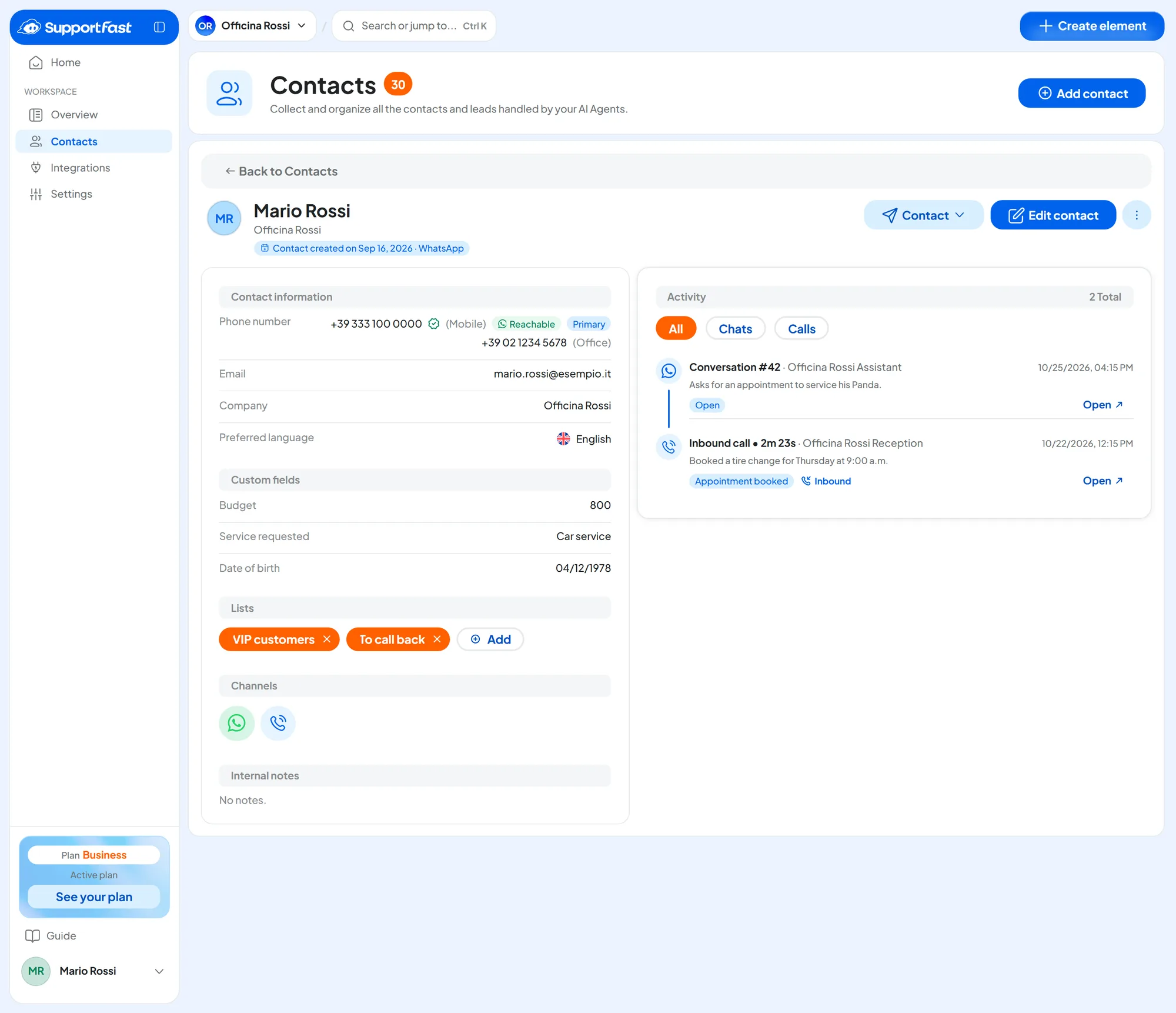
Open a card from WorkspaceContacts: click the row, the Open contact arrow, or View contact in the row menu. Inside a conversation, the Contact card icon opens the same details in a side panel, without the activity. The Back to Contacts bar takes you back to the list as you left it.
#The header
At the top you see the initials, the name (or “No name”) and the company. The line “Contact created on … · source” tells you when and where the contact came from: the sources are explained in The contact book.
- Contact opens the main contact details outside the platform: Whatsapp opens WhatsApp, Email your email program, Call the phone. It doesn't create a conversation in SupportFast: to write on WhatsApp from the console, use New conversation.
- Edit contact opens the edit form.
- More actions (the three dots) contains History, Block contact and Delete contact.
If the contact is blocked, “Blocked” appears next to the name. Below the header, a red bar shows who blocked the contact, when and why. Blocking is explained in Blocking contacts.
#Contact information
- Phone number Up to 10
All the numbers, each with its own label (for example “Work”). The first one is the primary number, and it's the one the Contact menu uses. When there is more than one number, the first is marked “Primary”.
The check mark means the number is confirmed: “Verified by a phone call on …” or “Verified by WhatsApp on …”.
Next to the primary number is the contact's WhatsApp status:
- “Never contacted”, until WhatsApp has confirmed the number;
- “Reachable”, when the contact has written to you on WhatsApp or one of your messages was delivered to them;
- “Not reachable”, when the number turns out to have no WhatsApp: WhatsApp campaigns exclude it, with the reason “not on WhatsApp”.
A number that isn't on WhatsApp can stay “Never contacted”: you notice when a template sent to that number shows as not delivered. You see the same status in the contact list, as a green or red mark on the row (“Reachable on WhatsApp · checked on …”), and in the WhatsApp status filter. Don't confuse it with the “reachable” contacts in a campaign audience, which means contacts the campaign is allowed to contact: see Campaign options.
- Email Up to 10
All the addresses; the first is the primary one.
- Preferred language
One of the workspace languages.
#Custom fields
These are the contact variables the workspace has chosen to collect, for example “Budget” or “Service requested”. The card shows all of them, even empty ones (with a dash). You create them in the workspace settings, in the Variables panel: see Variables and automatic profiling.
#Lists
Each of the contact's lists appears with its name: the X next to the name removes the contact from that list right away (“Removed from …”). Add opens your lists, where ticking one adds the contact right away (“Added to …”). See Lists.
#Channels and activity
Channels shows the icons of the channels where the contact has at least one conversation or call: WhatsApp, Instagram, Messenger, website and phone.
Activity, in the right column, lists conversations and calls, most recent first, with the All, Chats and Calls filters:
- a chat shows “Conversation #N”, the agent, the date, the summary if there is one, and the “Open” or “Completed” status. A “Completed” conversation is one that sits among the “Closed” ones in the inbox;
- a call shows “Inbound call” or “Outbound call”, the duration, the agent, the summary and the outcome.
Open opens the conversation or call in a new browser tab; Load more shows more of them. You only see the conversations of the agents assigned to you.
#The contact note
Each contact has a note where the team keeps its own notes, for example “Prefers to be called in the morning”. You write it in the edit form, in the Internal notes section, and it applies to the person. Only the team sees it, and AI agents don't read it.
Three things with similar names. The contact note is in the Internal notes section of the contact form. Conversation notes are written inside a conversation with the Internal notes button, and they stay in that conversation. Finally, the Internal channel in the inbox collects tests made with Test Chat and has nothing to do with notes.
#Change history
Open it from the Change history clock in the list row, or from the card with More actionsHistory: the menu item is called “History”, but it opens the same panel, “Change History”. It shows every change, grouped by day: the field, the value before and after (“old → new”) and the source.
- With Filter by source you pick one source: Manual edit, AI or Automation. The others are under Other sources.
- Below each change, the author is shown when relevant: “Edited by …”, “Imported by …”, “Extracted by the AI from a conversation”, “Filled in by the visitor in the contact form”.
- A struck-through value marked “Discarded” was not written: see Variables and automatic profiling.
Load more goes further back in time.
#Editing a contact
Press Edit contact on the card, in the row menu or in the conversation panel.
- Details
First name, Last name, Full name, Company and Preferred language. The full name is built from the first and last name until you write it yourself; if you clear it, it goes back to automatic.
- Contact points
One row per number or email. For numbers, choose the country in the Code menu. Each row has a free-text Label, with suggestions such as “Mobile” or “Work”. Each row also has the Make primary arrow and the Remove contact detail bin.
With Add another number and Add another email you can have up to 10 of each. If you change a verified number, it loses its verification: the console reminds you.
- Social channels
Instagram (for example @username) and Facebook (a link to the profile or page). Free text.
- Custom fields
One control per field, with its description underneath. The Manage fields link takes you to the workspace settings, if you have the “Workspace management” permission.
Press Save changes. You can also edit a blocked contact.
If some values aren't accepted, everything else is saved anyway. You stay in the form with a notice like “Saved, except 1 field: the reason is under the field.”. The most common reasons:
| Reason under the field | What to do |
|---|---|
| “Invalid email address”, “Invalid phone number” | Fix the contact detail; for numbers, check the country code. |
| “This contact detail already belongs to another contact” | The same number or email is on another card. Remove it from that card, then try again. |
| “Value outside the declared options”, “A number is required”, “Invalid date” | The value doesn't match the variable's type. |
| “Someone else changed the contact: reopen the card and try again” | A teammate or the AI has just changed the contact. Reopen the card and make your change again. |
| “You have reached the maximum number of contact details” | You already have 10 numbers or 10 emails. |
The AI doesn't change a first name, last name, full name or company written by a person: see Variables and automatic profiling.
#Creating a contact by hand
-
Open the form
In WorkspaceContacts, press Add contact. The “New contact” page opens.
-
Enter at least one contact detail
You need at least one valid email or phone number: a contact with only a name isn't created. For a number without a country code, choose the country in Code. It starts from the country of the workspace's first language, for example Italy; if the first language is English, it starts empty and you choose the country. See The same person on different channels.
-
Complete and create
Add the first name, last name, company, contact variables and note, then press Create contact.
Result
You read “Contact created” and the card opens. Add lists from the card, with Add: the creation form doesn't have them.
If the contact detail already exists, you change the existing contact. If the email or number you enter already belongs to a contact, no new contact is created: that contact is changed instead, and its card opens. The console still says “Contact created”.
- The form fields replace the contact's own: first name, last name, company, language, social accounts, note and variables. The ones you leave empty are cleared.
- A new contact detail is added to the ones the contact already has.
- If the email belongs to one contact and the number to another, nothing is saved and you read “This contact detail already belongs to another contact”.
To know which contact you're about to change, search for the number or email in Search by name, phone, email... before creating. If it's already there, open that card and press Edit contact.
You can also create a contact inside a conversation: Contact card, then Add information. The same rules apply, and the contact stays linked to that conversation.
#Deleting a contact
Use More actionsDelete contact on the card, or Delete in the row menu. In the confirmation window, press Delete contact.
To delete many contacts, tick the rows and press Delete in the bar. If you selected all the contacts in a filter, confirm by typing how many contacts you're deleting, in digits: the window asks for it with “To confirm, type …”, followed by the number.
What happens:
- the contact disappears from the contact book and from its lists;
- its conversations and calls stay in the console, with no linked contact;
- pending automation runs and campaign sends for that contact are cancelled.
You can't undo the deletion.
If a customer asks you to delete their data, deleting the contact isn't enough. First delete their conversations and calls: you find them in the card's activity as long as the contact exists, but only for the agents assigned to you. Then delete the contact. Everything you delete disappears from the console. How to handle these requests is explained in Privacy and security.
#Frequently asked questions
I have two cards for the same person. Can I merge them?
No, contacts can't be merged. Choose the card to keep, then:
- write down the details you need from the other card;
- delete the other card, or remove from it the contact details you want to move;
- add those details to the card you're keeping.
The order matters: a number or email that is still on the other card can't be added, and you read “This contact detail already belongs to another contact”. The conversations and calls of the deleted card don't move to the one you keep: they stay in the console with no linked contact.