

#Exporting conversations
An export covers one chat agent at a time and is done from the agent's settings.
Available on plans with the “Data export” feature. If your plan doesn't include it, the Export Conversations button shows a padlock and clicking it opens the plan window. See Plans, quotas and usage.
-
Open the conversation settings
Go to Chat agentAgent profileConversations.
-
Press “Export Conversations”
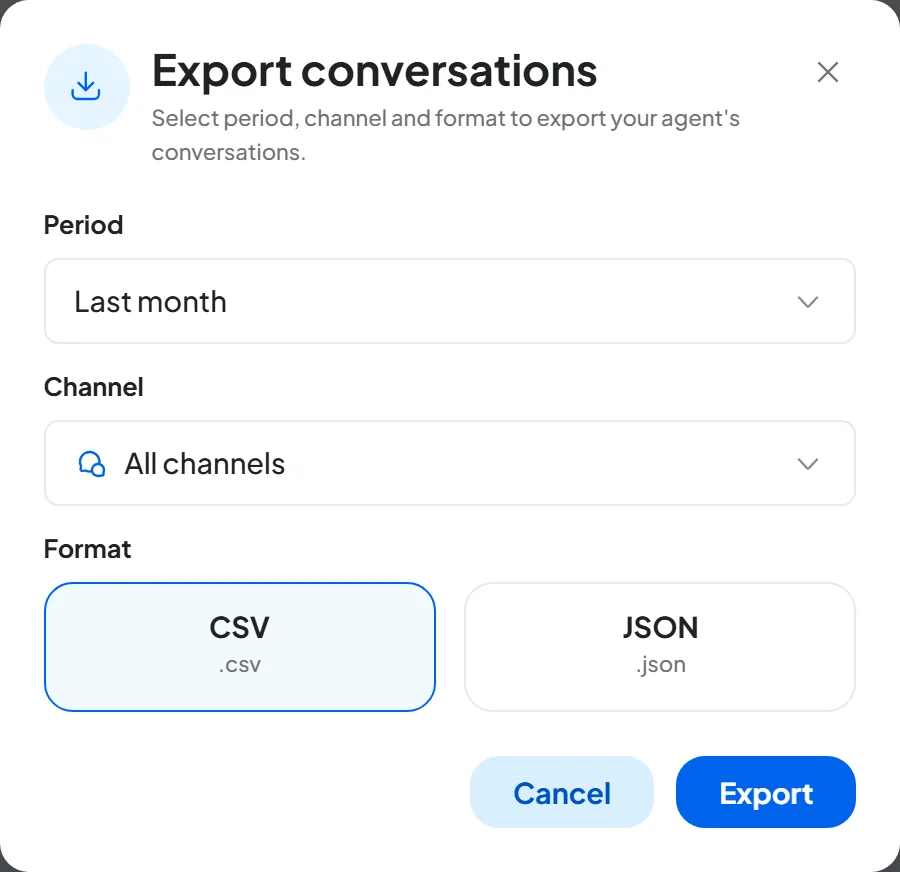
The button is in the Conversation options panel. The “Export conversations” window opens.
-
Choose the period
In Period: Today, Last week (selected by default), Last month, Last 6 months, Last year or Custom…, with the From and To dates (no later than today).
-
Choose the channel
In Channel: All channels (selected by default), Web, WhatsApp, Instagram or Facebook (Messenger messages).
-
Choose the format and export
In Format, choose CSV (selected by default) or JSON, then press Export.
Result
You see “Export completed” and the browser downloads the file conversations.csv or conversations.json.
#What's in the file
The file has one row per message, with the conversation number, the channel, the folder and labels, who wrote the message, the text, the date and the time. The period selects the conversations with messages on those days, and each of them comes out with all its messages.
The file also contains what the customer doesn't see. Conversation notes are included, with the name of whoever wrote them. Before sharing the file, remove the rows that must not leave the team.
To open the CSV in Excel, use DataFrom Text/CSV and choose comma as the delimiter.
The voice agent's calls can't be exported. For each call you can download the recording and copy the summary from its page: see Calls: list and details. Contacts have a separate export: see Exporting contacts.
#Deleting conversations
- One conversation: open it, choose Chat optionsDelete chat and confirm with Delete.
- Several conversations: use the inbox's multi-select, then Delete. Confirm in the “Delete these conversations?” window.
#What happens when you delete
- The conversation disappears from the console: from the inbox and from the contact card's activity, for the whole team. There's no trash, and the deletion can't be undone.
- The contact stays in the contact book: deleting a conversation doesn't delete the person.
- Automations started from that conversation that haven't finished yet stop.
Deleting the agent deletes its conversations. If you delete a chat agent, all its conversations disappear from the console with it. If you need them, export them first: the file is your copy.
If a customer asks you to delete their data, delete their conversations, in every agent that has them, and their calls, then the contact. Do it in this order: once the contact is deleted, the conversations are no longer linked to their card and finding them is harder. The steps are in Deleting a contact; for data retention and customer requests, read Privacy and security.