

Before you start
- A CSV or Excel (.xlsx) file with up to 10,000 contacts and up to 10 MB, with an email or a phone number in every row.
#Preparing the file
One row per contact, one column per piece of data, and the column names in the first row. Here's an example to start from.
CSV · semicolon-separated
First name;Last name;Email;Phone;Company;Language
Mario;Rossi;mario.rossi@esempio.it;+39 02 1234 5678;Officina Rossi;it
Lucia;Bianchi;lucia.bianchi@esempio.it;+39 02 8765 4321;Studio Bianchi;it- Excel: only the first sheet is read. The old .xls format isn't accepted: save the file as .xlsx.
- Separator: comma or semicolon, detected automatically. If a value contains the separator, for example the company “Rossi, Bianchi e C.” in a comma-separated CSV, put it in double quotes:
"Rossi, Bianchi e C.". Without quotes, the row splits into extra columns. An Excel .xlsx file doesn't have this problem. - Phone numbers: write them with the international prefix, for example +39 02 1234 5678. In Excel, set the column to Text before typing them, otherwise Excel drops the “+” or mangles long numbers.
- Several contact details in the same cell: separate them with a semicolon, a comma or a line break. They all come in, and the first one in the cell becomes the primary one.
- Language: write the code (it, en, de, fr, es…), not the full name.
- Contact variables: create them first, in Variables and automatic profiling, and name the column after their display name. Each value must match the variable's type.
- Dates in YYYY-MM-DD format; in Excel, date cells also work.
- Numbers without a thousands separator, with a comma or a dot for decimals: 1500,50 or 1500.50.
- Yes/No fields: yes or no (true/false and the Italian sì/no also work).
- Choices: the exact text of the option (capitalization doesn't matter). Separate multiple choices with a semicolon.
#Importing
-
Choose the file
In WorkspaceContacts, press Import (or Import contacts, if the contact book is empty). Drag the file into the box or press Select a file or drop it here, then Continue.
-
Check that the file was recognized
If the file was recognized, the window says how many contacts and columns it found: press Next. Otherwise, the reason is shown below (see the table of errors further down), with Go back.
-
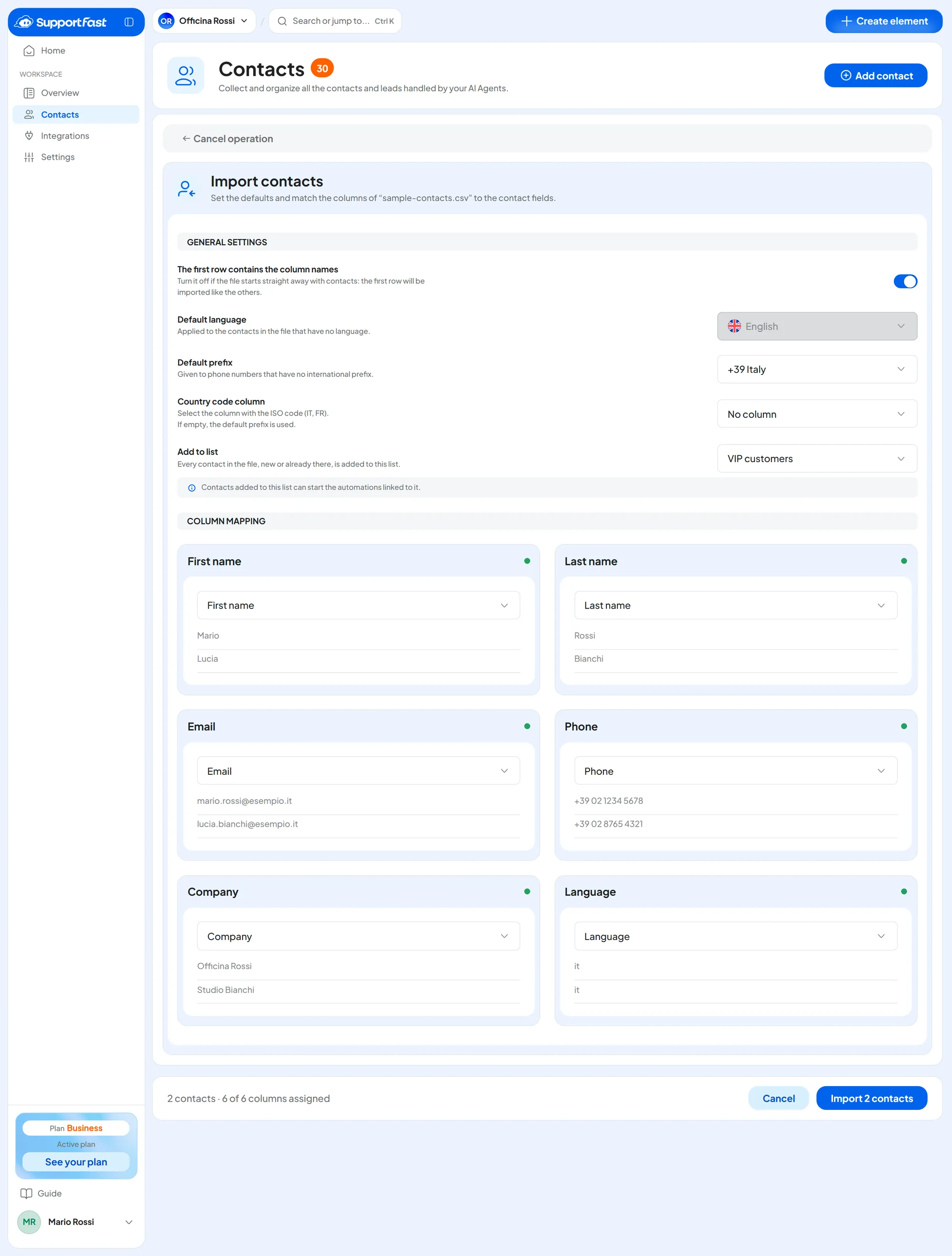
Set the “General settings”
Check these values before looking at the columns.
- The first row contains the column names: already set based on the file. Turn it off if the file starts straight away with contacts.
- Default language: applies to the contacts in the file that have no language. It's disabled if the workspace has only one language.
- Default prefix: given to numbers without an international prefix. It starts from the country of the workspace's first language, for example +39 Italy; if the first language is English, it starts from “No prefix”. See The same person on different channels. Check it carefully: if it's wrong, the numbers become numbers of another country.
- Country code column: if the file has a column with the country code (IT, FR…), choose it here.
- Add to list: all the contacts in the file, new and existing, join the chosen list. With Create a new list… you create one on the spot.
-
Check the “Column mapping”
There's a card for each column of the file, with its first three values and the field the console suggests, based on the column name and content. Column names can be in English or Italian, such as “Phone” or “Telefono”. If needed, choose the right field in the menu, or Do not import. Contact variables are at the bottom of the menu, in the Custom fields group.
-
Read the bar at the bottom and import
The bar sums up the contacts and the assigned columns, and warns you if some rows with no email or phone will be skipped. If something is missing, you read “Assign at least one column to Email or Phone.”. When everything is in order, press Import … contacts.
Result
“Import completed!” appears, for example with “We added 120 new contacts and updated 8 existing contacts.”, along with the number of contacts imported, updated and skipped. Back to contacts opens the contact list, filtered by the list you chose.
Every new contact in the file starts the automations with the “New Contact” event, and every contact who joins the list starts the automations tied to that list, as explained in Lists, automations and campaigns. Before importing many contacts, check which automations are active.
#Duplicates and updates
- If a row's email or phone already belongs to a contact, that contact is updated: no duplicate is created. The file's values replace the existing ones, like an edit made by hand.
- An empty cell doesn't clear a value the contact already has.
- If the same person appears twice in the file, the last row wins.
#Skipped rows and rejected values
A skipped row didn't become a contact: it had no valid email or phone. A rejected value was refused, but the contact came in with the rest of its data.
Below the outcome you see the rejected values grouped by reason, for example “2 invalid emails · 1 unrecognized phone”. Download the details downloads a file with the row, column, value and reason for each rejected value.
| Reason | What it means |
|---|---|
| Invalid email | The address is misspelled. The contact still comes in if it has another valid contact detail. |
| Unrecognized phone | The number couldn't be read. This happens when the international prefix is missing and the Default prefix is “No prefix”, or when the number has too many or too few digits for its country, or contains letters. The number stays saved as it is, but it can't be used to recognize the person: fix it on the card or in the file. |
| Unexpected option, Invalid date, Invalid number, Invalid yes/no | The value doesn't match the variable's type. |
The other, less frequent reasons are explained in the details file. To fix the rejected values, correct the file following the details and import it again: the contacts that already came in are updated.
#File errors
| Message | What to do |
|---|---|
| “This format is not supported: upload a CSV or XLSX file.” | Save the file as CSV or as Excel .xlsx. |
| “We could not read the file. Try uploading it again, or upload another one.” | The file is damaged or badly formatted: open it and save it again. |
If the file goes over the limits in “Before you start”, the message tells you: split it into several files and import them one after the other.
#Frequently asked questions
The imported numbers have the wrong country code.
Importing the file again with the right prefix isn't enough. Contacts are recognized by their number, and the saved number has the wrong prefix: rows without an email already in the contact book would create duplicates. For rows with such an email, the contact would also keep the wrong number.
If there are only a few contacts, fix the numbers by hand on their cards. If there are many and they all came from that import, delete them, for example by filtering on the list you put them in, then import the file again with the right Default prefix or Country code column. Numbers that already have the “+” in the file don't depend on the default prefix.