

Each source you upload is a training, and together they make up the agent's knowledge base. When a customer writes, the agent searches the sources for the parts closest to the question, by meaning and not by exact words, and answers using those.
You can combine several sources on the same agent. A training takes effect as soon as it is “Completed”: you don't need to publish anything. Tone and rules, on the other hand, go in the instructions.
#The four sources
Open Chat agentTraining, or press Train at the top. Press New training: in the “New Training” window, choose the source.
| Source | When to use it | Guide |
|---|---|---|
| Website | The pages of your website, found from the sitemap or the links. They can be kept up to date automatically. | Training from your website |
| FAQ | A frequently asked question with its exact answer. It also helps correct wrong answers. | Training with text and FAQs |
| Documents | Manuals, price lists, catalogs and procedures in PDF, Word or TXT. | Training with documents |
| Textual | Information that isn't anywhere else: you write it or paste it yourself. | Training with text and FAQs |
#The training list
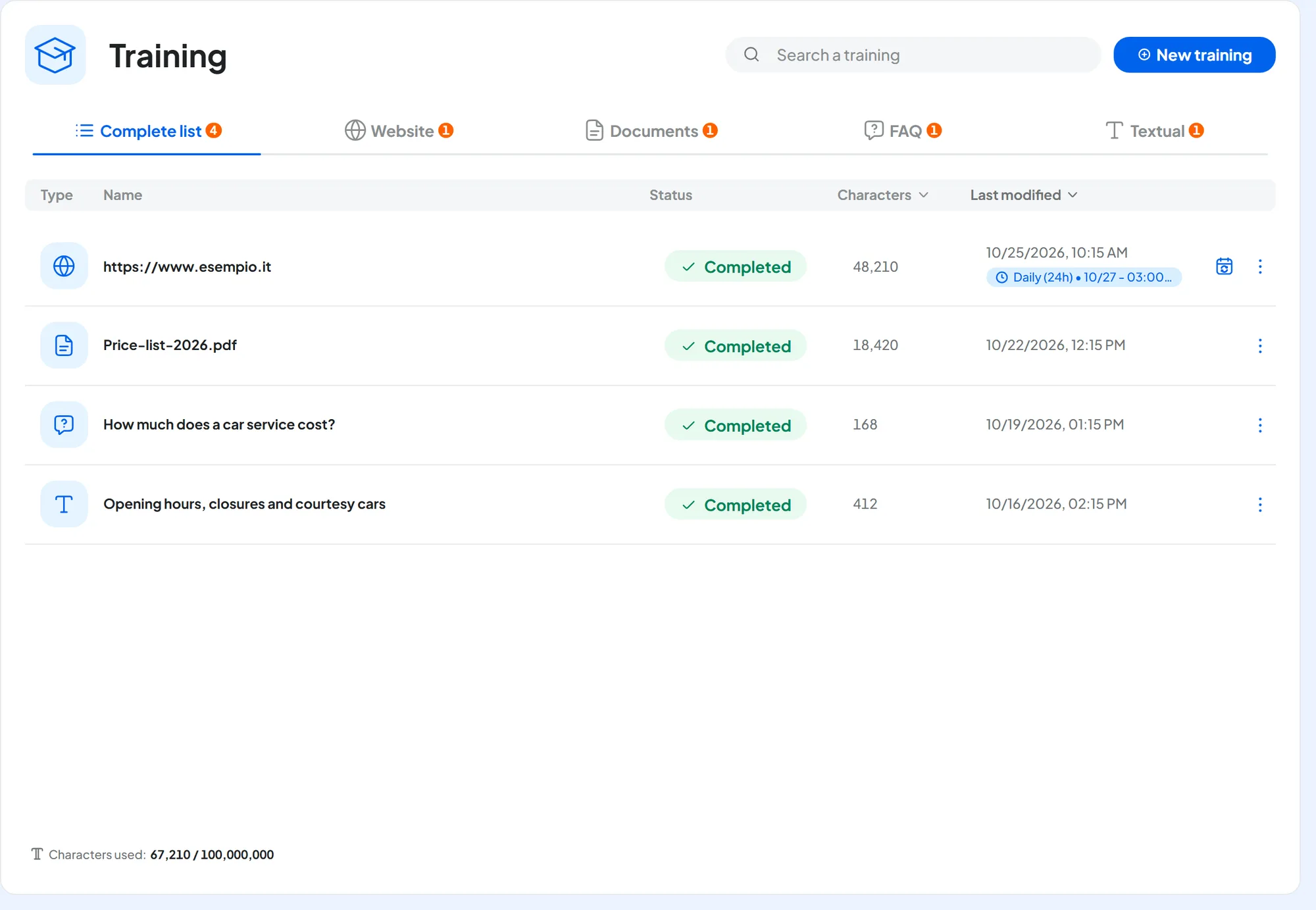
The Training page lists all of the agent's sources, with name, status, characters and date of the last change. At the top is the Search a training search, which searches the names. The Complete list, Website, Documents, FAQ and Textual tabs filter by type.
Website rows also have the calendar icon, Automatic sync. At the bottom of the list you read the agent's “Characters used”.
#Statuses
| Status | What it means | What to do |
|---|---|---|
| In progress | The system is reading the source. For a website, a bar with “N of M pages read” appears. | Nothing: the list updates on its own. |
| Completed | The agent is already using this information. | Check the text that was read with Edit training. |
| Interrupted | Reading stopped at your plan's cap (see Limits). The pages that fit are trained, the others stay waiting. | Remove pages or trainings you don't need, then use Re-run training. |
| Failed | An error stopped the training. | Use Re-run training. |
#How long it takes
Short texts and FAQs are trained right away: “Training created” appears. Documents, websites and long texts are queued: “The training will run in the background” appears, meaning the system works on its own. You can close the page and do something else: the status updates by itself.
#Editing a training
From the ⋮ menu, choose Edit training. You can edit only once the work is done: while it is “In progress”, “A training in progress cannot be edited” appears.
- Texts and FAQs: you change the fields directly.
- Websites and documents: on the left, the list of pages or files; on the right, the text that was read, which you can correct by hand. You can remove single pages or files, but not all of them.
Your edits don't touch the original file or the website page: they only change the text the agent uses. They take effect when you press Train Agent, which turns on only if you changed something. For websites with sync turned on, see Automatic sync.
You can't add new pages or files while editing: for those, create a new training.
#Re-running a training
Re-run training appears in the ⋮ menu when the training has failed, or when it finished with unread pages. It queues only the unread pages again. “The training has been queued again” appears.
#Deleting a training
From the ⋮ menu, choose Delete training and confirm: the agent forgets the information from that source.
#Limits
Document formats and sizes are in Training with documents.
Your plan sets a cap on characters and one on website pages per agent. Once you reach the cap, nothing else gets trained. Your account's quotas are in AccountSubscription; the rules in Plans, quotas and usage.
#Good-quality sources
The agent answers only as well as its sources allow. Before training it, put your material in order.
- One topic, one source. If the old price is in a PDF and the new one is on the website, the agent may use the wrong one. Remove outdated versions.
- Only useful pages. Shopping cart, members' area and old news don't help and can distract the agent from its purpose.
- Text, not images. Text inside images and charts isn't read.
- Your customers' words. Write FAQs the way people really ask you.
- Check what it read. After each training, open Edit training and read the text: it is what the agent knows.
The whole website, including the shopping cart, members' area and five years of news. The 2025 price list in PDF and the new price list on the website. No FAQs.
The pages about services, prices, hours and contacts, with sync turned on. Only the current price list. One FAQ for each question customers ask often.
#Frequently asked questions
I changed a page on my website but the agent answers with the old text.
The agent knows the website as it was when it read it. Turn on automatic sync or press Run now: see Training from your website.
Can I train the agent in one language and answer customers who write in other languages?
Yes: see Supported languages.