

First of all, two checks that solve many cases:
- The agent is Active: the status is at the top right of every agent page.
- The instructions are published: in the Playground the status says Published.
For tests, use Test Chat, at the top of every agent page: it opens the Playground with the test chat. See Testing and publishing.
#Test Chat doesn't open or doesn't reply
Why it happens. Usually for one of these reasons:
- the Test Chat button isn't there: you don't have the “Playground (Agents)” permission on that agent;
- the “Flow Error Management” panel opens instead of the chat: the draft has errors to fix before you can test it;
- “The Playground works on desktop only” appears: the browser window is too narrow;
- “The test chat is not available right now.” appears.
What to do. Ask the account owner, or someone with the “Team and permissions” permission, for the permission, or fix the errors with Go to node and save. Widen the window or switch to a computer. If the chat isn't available, reload the page.
The chat tests the saved draft: unsaved changes don't count. When the published version differs from the draft, the Live switch appears at the top of the Playground. When it's on, it shows the published version, the one that answers customers, and lets you test it without editing it. It has nothing to do with the operators' live chat.
How to check. The panel says “You are testing the saved draft of the agent.” If you have no changes to publish, or if Live is on, it says “You are testing the published version, the one that answers your customers.” instead. In both cases the agent replies, even if it's paused.
The test is a real chat. It uses AI messages like customer chats do, and it can trigger automations.
#The agent makes up an answer or gets it wrong
Why it happens. The agent answers with the pieces of knowledge closest in meaning to the question. If the information is missing, ambiguous or appears in two different versions, the answer can be wrong.
What to do.
- Correct the answer from the conversation with Correct answer, as explained in Why the agent answered that way.
- Remove or update old or contradictory training. In text training, separate topics with a
---line. - In the instructions, write what to do when the information is missing, for example “If the answer isn't in the knowledge, say so and offer an operator.” Then save and publish.
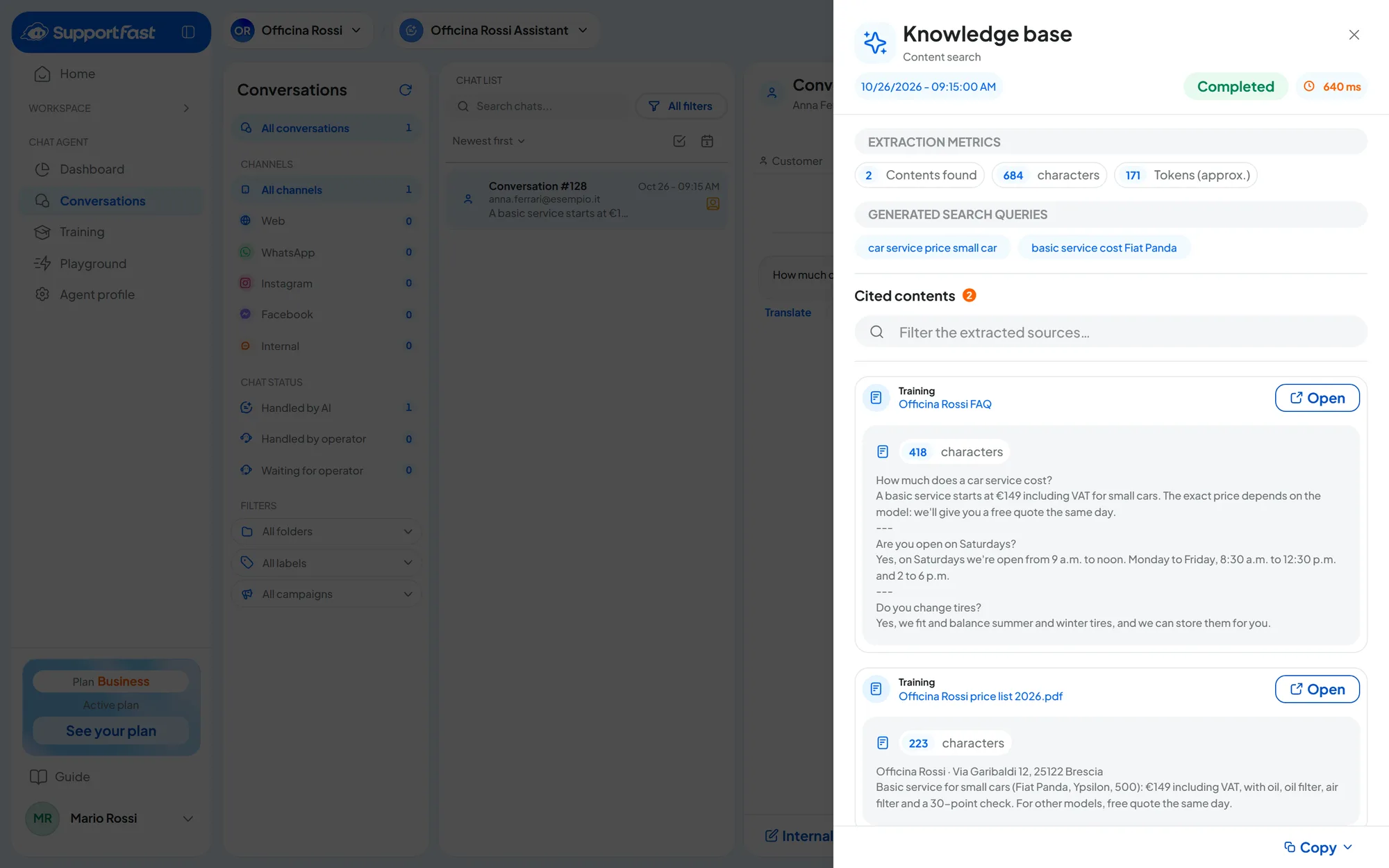
How to check. In Conversations, click the Knowledge Base label above the answer: the “Knowledge base” panel shows the “Cited contents”. Then ask the question again in Test Chat.
The Knowledge Base label and the Execution details button lead to two different views. The label, above the answer, opens only the knowledge search. Execution details, below the customer's message, opens the “Turn details”: the whole path of the answer, with the knowledge search and the Tools used.
#The agent doesn't use the information on your website
Why it happens. The training isn't Completed yet, the page isn't in the list, or the text that was read is wrong or out of date. With Whole Site and with Sitemap XML, links to PDFs are skipped, and so are privacy policy, cookie policy and terms and conditions pages.
What to do.
- Open ⋮ › Edit training, choose the page and read the text the agent learned. You can correct it by hand and press Train Agent.
- Missing pages: create a new Website training with Sitemap XML or Manual. You can't add pages when editing.
- Wrong text, for example menus and footers: a new training can read only the main part of the pages. See Training from your website and, if needed, get help from whoever manages the website.
- The website changed: from the calendar icon on the row, press Run now or turn on automatic sync, if your plan includes it (see Plans, quotas and usage).
How to check. In Edit training the page shows the right text, and the answer in the chat uses it.
#Training stays in progress or fails
- In progress: wait. A large website takes time, and the list updates on its own.
- Interrupted: you've reached your plan's character limit. Remove training you don't need or, if you need more space, change plan; then ⋮ › Re-run training.
- Failed: ⋮ › Re-run training. If it fails again, check the source and create a new training.
The statuses are explained in Training: how it works.
#Some website pages have problems
In the list, next to the website, a yellow triangle says how many there are, for example “3 pages with problems”. Open ⋮ › Edit training and press the counter of pages with problems: each page shows the reason. Reasons and fixes are in Training from your website.
With ⋮ › Re-run training you retry only the missing pages; with Remove pages with problems and Train Agent you remove them. You can copy a page that never gets read into a Textual training.
#The agent answers in another language
Why it happens. The agent follows the customer's language, not the language of the instructions: the rule is in Supported languages.
What to do. Usually nothing. If it's the chat texts that are in another language, see The chat is in a different language from the website.
#Answers are too long or too short
Why it happens. Length, tone and formatting are set by the Playground instructions, even when you start from a ready-made prompt.
What to do. Write what you want in the instructions, in concrete terms: “Answer in three sentences at most.” or “Use a bulleted list only for steps.” Then save and publish: see Testing and publishing.
How to check. Ask the question again in Test Chat.
#The agent doesn't hand the chat over to an operator
- The customer doesn't see “Request an operator”. In Operator Chat, turn on Enable Live Chat and Show the "Request Operator" Button in the Widget Header. You need a plan that includes live chat (the Operator Chat tab): see Plans, quotas and usage.
- The customer reads the unavailability message. At that moment the operator isn't available. In Operator Chat, check The operator is available: Always, Only during opening hours or Only outside opening hours. Then check the workspace's hours, time zone and closing days. All the hours settings are summarized in Hours in SupportFast.
- Nobody sees the request. In Conversations, look at Waiting for operator and turn on the Operator Request email in General.
The full path of the request is in Stepping in as an operator.
How to check. Ask for an operator from the website chat: the conversation appears under Waiting for operator.
#The customer sees “Too many consecutive messages”
Why it happens. It's the rate limit message: the same visitor sent too many messages in a short time. It often happens during tests.
What to do. The message has gone back into the text field: wait a few seconds and send it again. If the limit is too tight for your customers, raise it in General › Traffic Limits, where you can also change the text.
#The agent stopped replying
| What you see | Why | What to do |
|---|---|---|
| The Paused status | Someone paused the agent. | Press the status and choose Active. |
| The Forced pause badge | The plan no longer covers the agent. | See Forced pause. |
| In the website chat, “You've reached the monthly message limit.”; on WhatsApp, Instagram and Messenger, no reply | The agent has reached its Monthly Message Limit, or the plan's messages have run out. | Raise or turn off the limit in General, “Traffic Limits” panel. If the plan's messages have run out, add a “Message pack” or change plan: see A monthly quota has run out. |
| No reply on WhatsApp, Instagram or Messenger | The channel is Unattended. | In Agent profile › Integrations, press Connect. |
| In Conversations, “An operator is handling this conversation” | A teammate took over the chat. | Press Hand back to AI. |
| In Conversations, “Opened by business hours” | The reply hours exclude this time slot. | For the website, change Agent Reply Hours in Interface; for WhatsApp, Instagram and Messenger, change the Reply Hours on the channel page, in WorkspaceIntegrations. See Hours in SupportFast. |
| In Conversations, “Handled from the WhatsApp app” | Someone replied from the WhatsApp Business app. | The agent comes back according to the channel's Agent Return setting, or with Hand back to AI. |
| In the chat, “You can no longer write in this conversation.” | The contact is blocked. | If it's a mistake, unblock them from the contact card. |
#The chat doesn't show on the website
Causes, checks and fixes are in The widget doesn't show on the website.
#Still not working?
Write to us as explained in How to report a problem. Include the agent's name, the conversation number (for example “Conversation #128”), the time and a screenshot. If you can, open Execution details below the customer's message, press Copy › Copy all and paste the text into your report.