

Each time the customer writes, the agent prepares its answer: it follows what you set up in the agent's Playground, searches the knowledge base, that is, the content you gave it in the Training section, and uses the tools it needs, that is, the actions you prepared, such as handing the chat over to a person. The console records these steps and you can review them from the conversation.
This applies to the chat agent. For calls, see Tool details: the voice agent's tools are the same thing.
#Opening the details of an answer
-
Open the conversation
Go to Chat agentConversations and open the conversation with the answer that surprised you.
-
Press “Execution details”
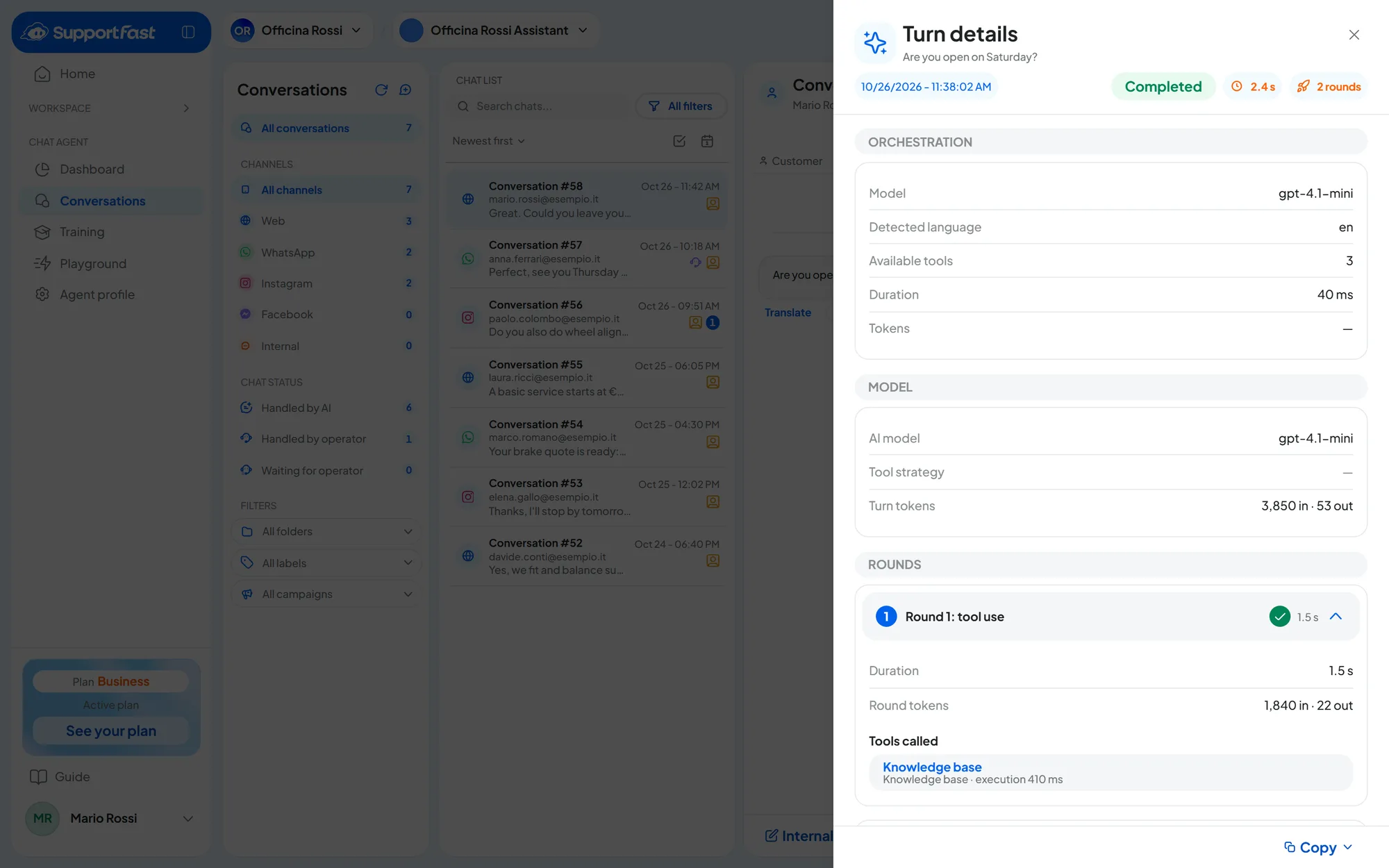
The button is under the customer's message, not under the answer. The Turn details panel opens. A “turn” is a customer message plus everything the agent did to answer it: the panel walks you through it step by step.
-
Open the search or a tool
Above an answer there may be a label: Knowledge Base opens the knowledge base search; the label with a tool's name opens that tool's details. You can also open them from the list inside Turn details, and go back with Back.
#What Turn details shows
At the top you see whether the answer succeeded and how long it took. Below, in Tools called, is what the agent used: the knowledge base search and the Playground tools. From each one, open its details.
#Knowledge base
The Knowledge base panel shows the search the agent ran:
- the phrases the agent searched with;
- Cited contents: the content it found, with its type (Website, Questions and answers, Text content, Document). The “Filter the extracted sources…” field helps you find one;
- Open and Open the training, to go straight to the content and fix it.
“No content cited in this search.” means the agent found nothing useful. “Content no longer available” means the content was deleted after the answer.
#Tool details
The details of a tool show, step by step, what it did: the data the agent extracted from the conversation and whether each step succeeded or failed. If the tool asks the customer for data, you see which data; if it calls an external service, you see whether the service responded.
#Copying the details
If you write to us about a problem, use CopyCopy all and paste the details into your report, as explained in How to report a problem.
#How to read it: typical cases
Information is fixed in the knowledge base; behavior is fixed in the instructions and tools.
| What happened | Where to look | Where to fix it |
|---|---|---|
| The agent gave wrong or outdated information. | Cited contents: which content it used. | Fix or delete that content in the knowledge base, or add an FAQ with the right answer. |
| It answered vaguely, as if it didn't know. | Cited contents empty or off-topic. | Add the missing information, with a text or an FAQ. |
| It didn't use a tool, for example it didn't hand the chat over to a person. | Tools called: the tool isn't there. | In the Playground, the tool's Invocation description for the AI: it must say clearly when to use it. |
| You don't like the tone, length or language. | The answer and the agent's instructions. | The agent's Instructions for the AI (prompt), in the Playground. |
| A connected external service didn't respond. | The tool's details: the step that contacts the service and its outcome. | The external service or the data you send it. In the Playground, test the connection with Run test. |
Made-up information, off-topic answers and forgotten conversations are fixed in the Playground: see When an answer is wrong.
#Correct answer
Under the agent's answers that come from a knowledge base search there's Correct answer. It teaches the agent the right answer to that question.
-
Press “Correct answer”
A new FAQ opens, already filled in: Questions holds the customer's message, Answer holds the agent's reply.
-
Write the right answer
Fix the answer text. If needed, make the question more general, so it also covers similar requests.
-
Save
Press Train Agent. With Back to Conversations you pick up where you left off.
Result
The new FAQ enters the agent's knowledge base and “Corrected” appears under the answer you corrected. To check, ask the agent the same question with Test Chat: see Testing and publishing.
The correction adds, it doesn't replace. “Correct answer” creates a new FAQ: if the original content is wrong, fix it or delete it, otherwise the agent may still find it.